Prerequisites:
Python supports subsystems for converting one file format to another. This article discusses this topic and depicts how a png file can be converted to its gif equivalent and vice versa. For conversion of one file format to the other PIL is employed.
The given example uses a GUI interface to the code, so we will require Tkinter. It is a Python binding to the Tk GUI toolkit. It is the standard Python interface to the Tk GUI toolkit which provide the interface to the GUI apps.
Approach
- Import modules
- Create a normal window
- Add buttons to take choice whether to convert to png to gif or vice versa
- Open file
- Check if the file supplied is of the correct format
- Convert to its respective equivalent
- Save image
- Execute code
Program:
from tkinter import *
from tkinter import filedialog as fd
import os
from PIL import Image
from tkinter import messagebox

root = Tk()

# naming the GUI interface to image_conversion_APP
root.title("Image_Conversion_App")

# creating the Function which converts the jpg_to_png


def gif_to_png():
    global im

    import_filename = fd.askopenfilename()
    if import_filename.endswith(".gif"):
        im = Image.open(import_filename)
        export_filename = fd.asksaveasfilename(defaultextension=".png")
        im.save(export_filename)
        messagebox.showinfo("Success", "File converted to .png")
    else:
        messagebox.showerror("Fail!!", "Error Interrupted!!!! Check Again")


def png_to_gif():
    import_filename = fd.askopenfilename()
    if import_filename.endswith(".png"):
        im = Image.open(import_filename)
        export_filename = fd.asksaveasfilename(defaultextension=".gif")
        im.save(export_filename)
        messagebox.showinfo("Success", "File converted to .gif")
    else:
        messagebox.showerror("Fail!!", "Error Interrupted!!!! Check Again")


button1 = Button(root, text="GIF_to_PNG", width=20, height=2, bg="green",
                 fg="white", font=("helvetica", 12, "bold"), command=gif_to_png)

button1.place(x=120, y=120)

button2 = Button(root, text="PNG_to_GIF", width=20, height=2, bg="green",
                 fg="white", font=("helvetica", 12, "bold"), command=png_to_gif)

button2.place(x=120, y=220)
root.geometry("500x500+400+200")
root.mainloop()
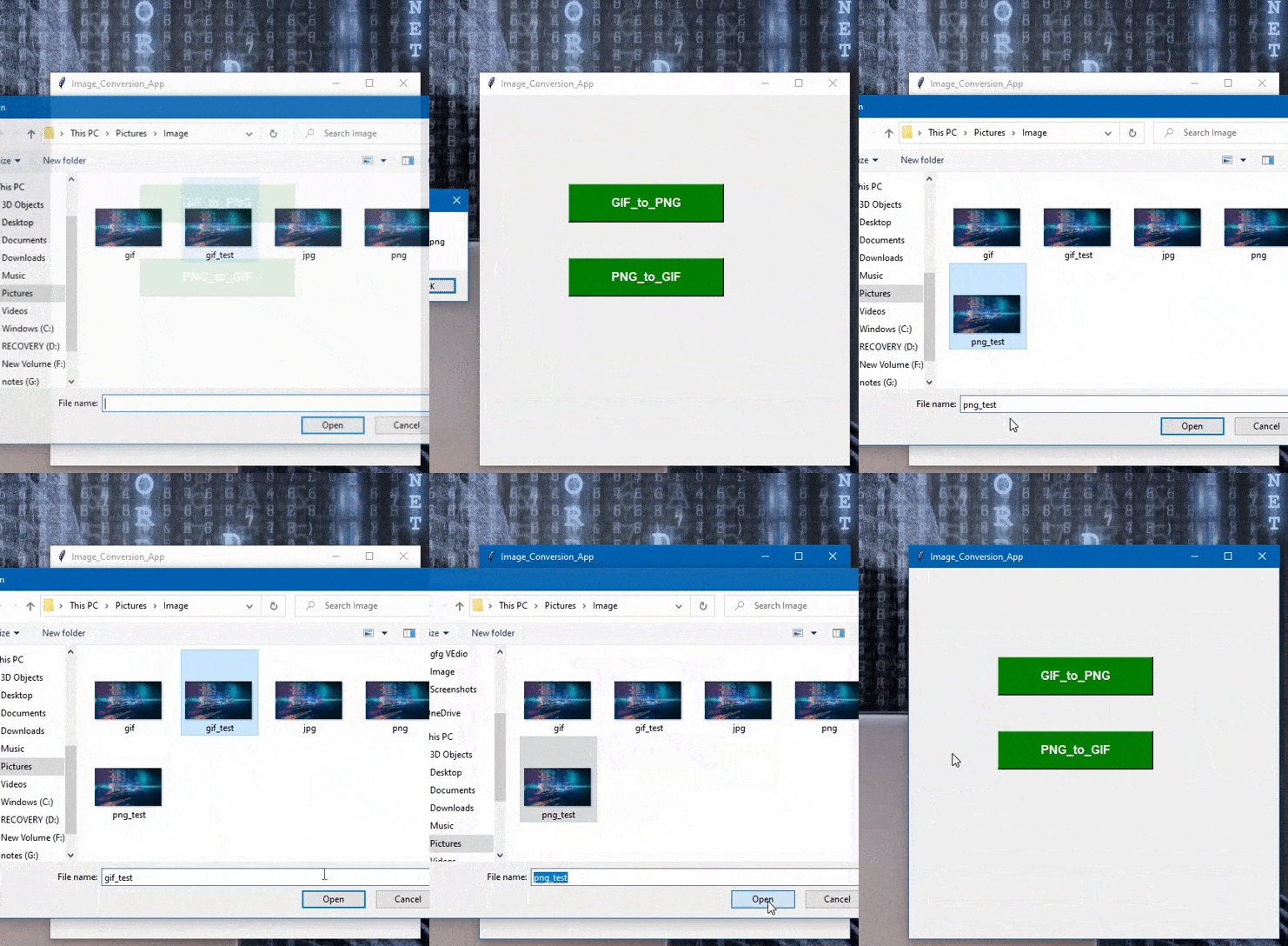
Output: