
Pylint is a popular static code analysis tool in Python that helps developers identify coding errors, enforce coding standards, and improve code quality. If we're using Kaggle for our data science projects, integrating Pylint can streamline our coding process by catching potential issues early on.
In this article, we’ll walk through the steps to install Pylint in a Kaggle notebook, ensuring our Python code is clean and efficient.
Prerequisite
Before we dive into the installation process, we must know how to use Kaggle notebooks. We’ll also need an active Kaggle account.
Installing Pylint in a Kaggle Notebook
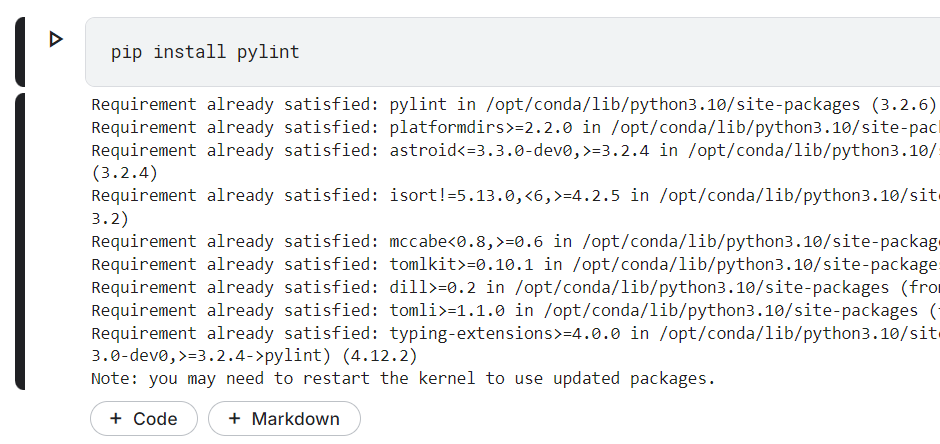
Kaggle maintains sessions for each notebook and isolates required dependencies for each notebook. By default, the pylint will be preinstalled for each notebook.
However, if it is not already installed, we can install it using pip:
pip install pylint
Verifying the Installation
To ensure Pylint is correctly installed, we can verify it by checking its version. In a new cell, type:
!pylint --version
Run the cell, and if everything is set up properly, we should see the Pylint version along with additional details about its configuration.
Complete Code Example
Here is an example of how to use Pylint in a Kaggle notebook.
# Install Pylint
!pip install pylint

# Create a Python file with some sample code
%%writefile example.py
def greet(name):
    """
    Greets the person with the provided name.
    """
    print("Hello, " + name + "!")

greet("World")

# Run Pylint to analyze the code
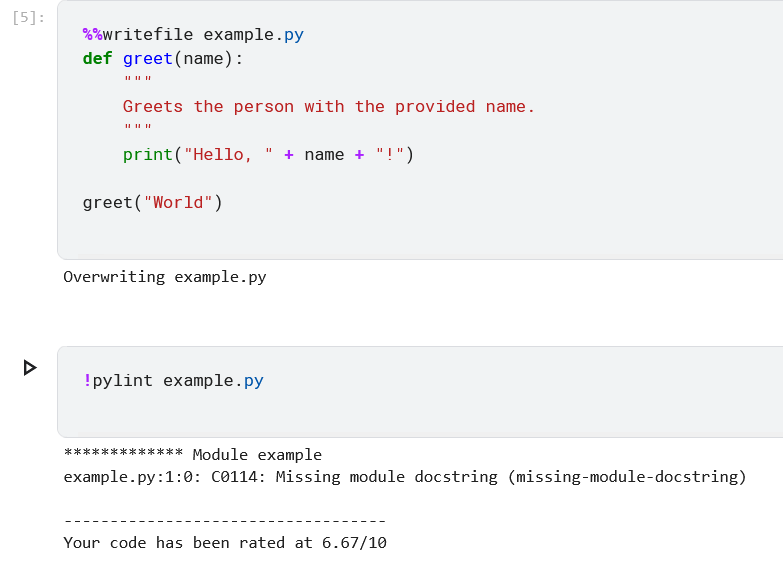
!pylint example.py
Output:
************* Module example
example.py:1:0: C0114: Missing module docstring (missing-module-docstring)
Explanation of the Above Code
This code will:
- Install Pylint in the Kaggle environment.
- Create a Python file named example.py with a simple function to greet a user.
- Use Pylint to analyze example.py and print out the style and error report directly in the notebook.
Output Screenshot:
Troubleshooting Common Issues
1. Permission Errors: If we encounter permission errors, we can try using the `--user` flag with the pip install command:
!pip install --user pylint2. Internet Issues: Sometimes, the Kaggle environment might have temporary internet restrictions. Make sure the notebook is connected to the internet, and try running the installation command again.
Conclusion
With just a few commands, we can integrate Pylint into our Kaggle environment, helping us write better Python code. If we encounter any issues, the troubleshooting tips provided should help us resolve them quickly.
