Flask uses a dedicated static directory to serve files that do not change dynamically, such as stylesheets, JavaScript code, images, videos, and other media assets. These files can be linked directly from templates and are automatically made available by the Flask application. This guide will show how to serve different types of static files in a Flask web application efficiently.
File Structure

HTML File
To serve HTML files in Flask, just create a templates folder in the project root and add your HTML files (e.g., templates/index.html). Using Jinja ({{ message }}), you can display text stored in a variable.
<html>
 <head>
   <title>Flask Static Demo</title>
 </head>
 <body>
   <h1>{{message}}</h1>
 </body>
</html>
main.py
In main.py, we use Flask's render_template() function to render the HTML file when the app runs. The final code looks like this:
from flask import Flask
from flask import render_template

app = Flask(__name__)


@app.route("/")
def hello():
    message = "Hello, World"
    return render_template('index.html',
                           message=message)

# run the application
if __name__ == "__main__":
    app.run(debug=True)
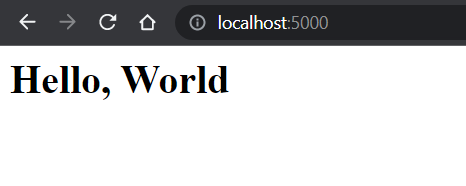
Output:
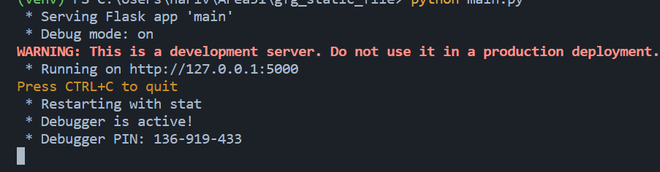
The Flask is up and running on localhost port http://127.0.0.1:5000/
Serve CSS file in Flask
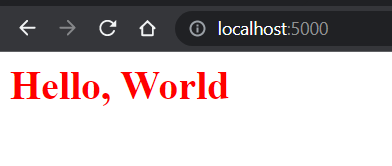
Now serving a CSS file is the same as an HTML file but instead of /templates folder, we create a static folder in the root directory and add all CSS files to it, For simplicity, we have used a very simple CSS file.
h1{
    color: red;
    font-size: 36px;
}
Now, let us link it with the HTML template file using the link tag referring to the CSS file in the static folder.
<html>
  <head>
    <title>Flask Static Demo</title>
    <link rel="stylesheet" href="/static/style.css" />
  </head>
  <body>
    <h1>{{message}}</h1>
  </body>
</html>
Output:
Serve JavaScript file in Flask
To serve Javascript it is the same as a CSS file create a javascript file in the static folder.
document.write("This is a Javascript static file")
Now link it with the HTML and run the Flask app.
<html>
  <head>
    <title>Flask Static Demo</title>
    <link rel="stylesheet" href="/static/style.css" />
  </head>
  <body>
    <h1>{{message}}</h1>

    <script src="/static/serve.js" charset="utf-8"></script>
  </body>
</html>
Output:

Serve Media files in Flask (Image, Video, Audio)
Flask can also serve media files like images, videos, audio, text files, and PDFs using the static folder. Just like CSS and JavaScript, media files are stored in static/ and linked to HTML files.
Steps to Serve Media Files:
- Place all media files inside the static/ folder.
- Link them in HTML using the /static/ path. Example: <img src="{{ url_for('static', filename='images/sample.jpg') }}" alt="Sample Image">
- The url_for('static', filename=...) function generates the correct URL for files stored inside the static directory and is the recommended way to reference static assets in Flask templates.
- In main.py, create routes for any static files you need to render.
- Run the Flask app, and media files will be served along with the web pages.
Images
Create an image.html file in the templates folder and add the following code to the main.py and image.html respectively.
# Images
@app.route("/image")
def serve_image():
    message = "Image Route"
    return render_template('image.html', message=message)
templates/images.html
<html>
  <head>
    <title>Flask Static Demo</title>
    <link rel="stylesheet" href="/static/style.css" />
  </head>
  <body>
    <h1>{{message}}</h1>

    <img src="/static/cat.jpg" alt="Cat image" width="20%" height="auto" />

    <script src="/static/serve.js" charset="utf-8"></script>
  </body>
</html>
Output:

Video Files
To serve a video file, create a video.html file in your templates folder and add the following code to your main.py and video.html files.
# video
@app.route("/video")
def serve_video():
    message = "Video Route"
    return render_template('video.html', message=message)
templates/video.html
As you see the mp4 video file is been served by Flask over localhost.
<html>
  <head>
    <title>Flask Static Demo</title>
    <link rel="stylesheet" href="/static/style.css" />
  </head>
  <body>
    <h1>{{message}}</h1>

    <video width="320" height="240" controls>
      <source src="/static/ocean_video.mp4" type="video/mp4" />
    </video>

    <script src="/static/serve.js" charset="utf-8"></script>
  </body>
</html>
Output:

Audio Files
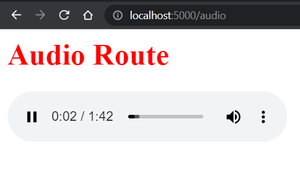
Respectively an audio file can be served by creating an audio.html template file and adding the following code to the main.py.
# audio
@app.route("/audio")
def serve_audio():
    message = "Audio Route"
    return render_template('audio.html', message=message)
templates/audio.html
<html>
  <head>
    <title>Flask Static Demo</title>
    <link rel="stylesheet" href="/static/style.css" />
  </head>
  <body>
    <h1>{{message}}</h1>

    <audio controls>
      <source src="/static/audio.mp3" />
    </audio>

    <script src="/static/serve.js" charset="utf-8"></script>
  </body>
</html>
Output:
Serving PDF and Text Files in Flask
In addition to media files, Flask can serve documents such as PDF and text files directly from the static directory. These files can be linked in HTML using the url_for() function, allowing users to view or download them.
1. Serving a PDF File
Place a PDF file inside the static folder and add the following link to an HTML template:
<a href="{{ url_for('static',
                    filename='guide.pdf') }}"
   target="_blank">
   View PDF
</a>
2. Serving a Text File
Similarly, a text file stored in the static directory can be accessed using:
<a href="{{ url_for('static',
                    filename='sample.txt') }}">
   Open Text File
</a>
Explanation:
- Store Files in the Static Folder: PDF and text files should be placed inside the static directory.
- Generate URLs Dynamically: The url_for('static', filename=...) function generates the correct path to the file.
- Support File Downloads: Users can view or download documents directly through their browser.
- Serve Static Documents Efficiently: Flask automatically makes files stored in the static folder accessible without creating additional routes.
Complete Flask Code
For simplicity, we have created a simple Flask application for a better understanding of how to serve static files in Flask.
from flask import Flask
from flask import render_template

# creates a Flask application
app = Flask(__name__)


@app.route("/")
def hello():
    message = "Hello, World"
    return render_template('index.html', message=message)


@app.route("/video")
def serve_video():
    message = "Video Route"
    return render_template('video.html', message=message)


@app.route("/audio")
def serve_audio():
    message = "Audio Route"
    return render_template('audio.html', message=message)


@app.route("/image")
def serve_image():
    message = "Image Route"
    return render_template('image.html', message=message)


# run the application
if __name__ == "__main__":
    app.run(debug=True)
Let's test the Flask app by running it, to run the app just run the python main.py which will serve output as shown above: