
Want to run Python programs directly from the Command Prompt? This guide will walk you through how to run Python in CMD, configure the environment, and troubleshoot common issues. By mastering these steps, you’ll streamline your development process and save time during testing.
Steps to Use CMD for Python in Windows 10
Find the detailed steps to use CMD for Python in Windows. Also, these steps will make you proficient in using CMD for your Python projects, enhancing your development efficiency and control.
Step 1: Check Python Installation
- For setting up Python on CMD, we must check whether Python is installed on your machine or not. To do this, go to the Windows search bar and search for Python. If you find Python in the result, then you are good to go.
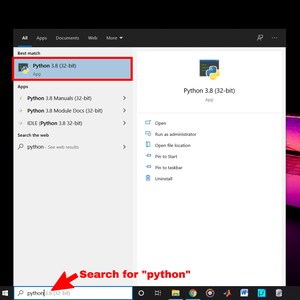
Note: If Python is not installed on your computer, then it can be installed with How to Install Python on Windows
Step 2: Check Python Setup
- Now check whether Python is already set up in Command Prompt or not. For doing this just open cmd and type python. If you see any Python version then it is already setup.
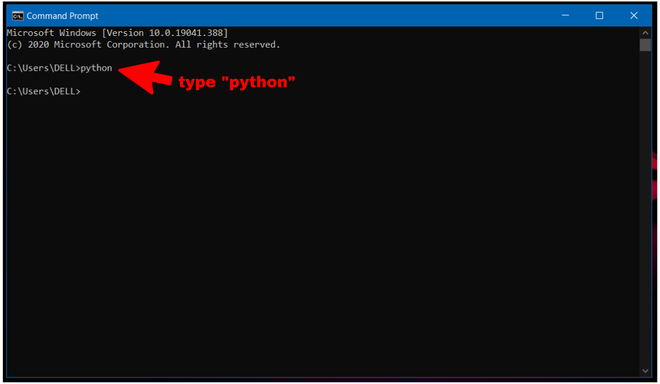
You can see after typing Python nothing happened. So, python is not set up on cmd yet.
Step 3: Open IDLE Python File Location
- Now open the Windows search bar and search for "idle". Without opening the app click on "Open file location". If you didn't get the option right click on the app and you will get it.
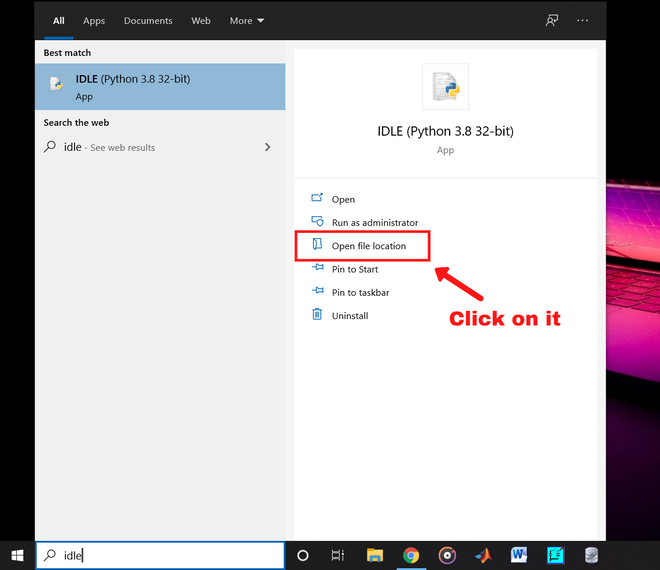
Now a file location will be opened on Windows Explorer.
Step 4: Open IDLE File Location
- Now right-click on "IDLE" and click on "open file location"
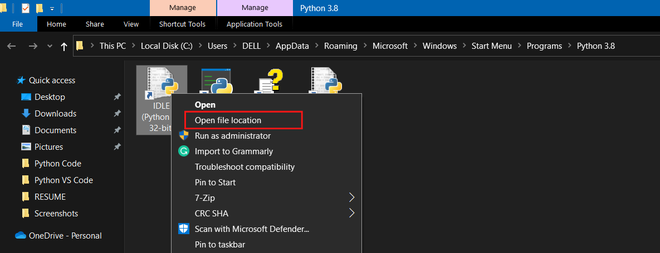
- After opening the file location copy the path.
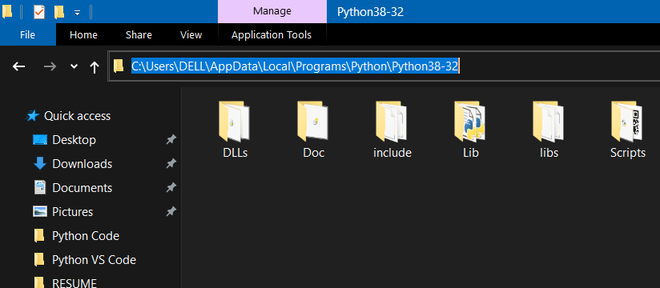
Step 5: Search Environment variables
- Now go to the Windows search bar and search for "Environment variables" and open it.
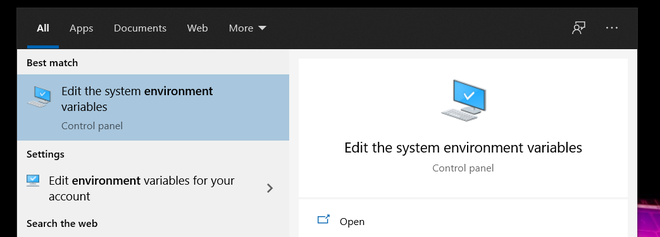
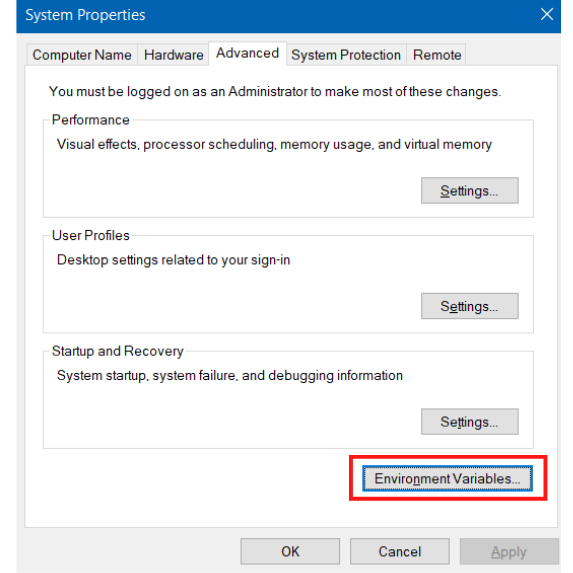
- After opening the menu click on "Environment Variables"
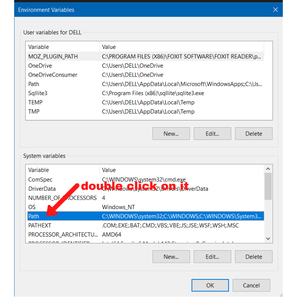
- Now double-click on the "path" in the "System Variables"
- In the "Edit System Variable" menu click on "new", then paste the file location you copied and click ok.
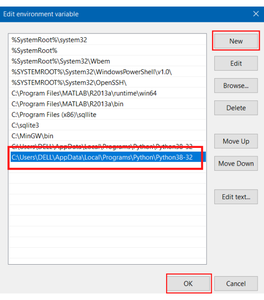
- Now close the Environment menus by clicking ok and congratulations, we have set up the Command Prompt for Python.
Step 6: Open CMD
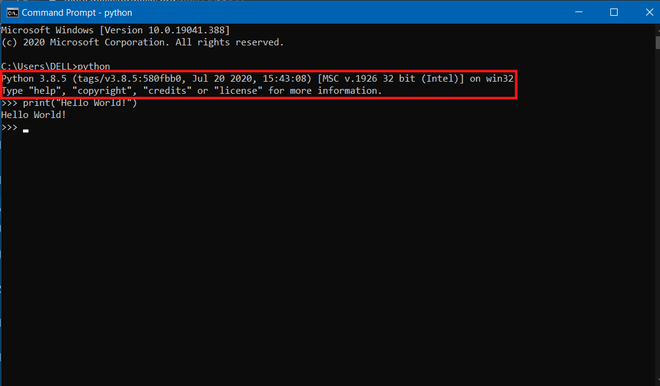
- Now check whether it works. Open Command Prompt and type "python" and hit enter. You will see a python version and now you can run your program there.
Conclusion
Learning how to use CMD for Python in Windows 10 is a valuable skill that allows you to run and test your Python code quickly and efficiently. By understanding how to set up and navigate the Python command line in Windows 10, you can streamline your workflow and focus more on writing code rather than dealing with setup issues. Whether you're a beginner or an experienced developer, these skills will make your Python development process smoother and more effective.
