
In this article we will see how we can apply image overlay in mahotas. Image overlay in mahotas create an image which is grayscale, but with possible boolean overlays.
In this tutorial we will use “lena” image, below is the command to load it.
mahotas.demos.load('lena')
Below is the lena image
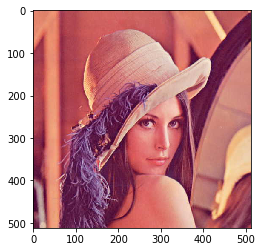
In order to do this we will use mahotas.overlay method
Syntax : mahotas.overlay(img)
Argument : It takes image object as argument
Return : It returns image object
Note : Input image should be filtered or should be loaded as grey
In order to filter the image we will take the image object which is numpy.ndarray and filter it with the help of indexing, below is the command to do this
image = image[:, :, 0]
Below is the implementation
# importing required libraries
import mahotas
import mahotas.demos
from pylab import gray, imshow, show
import numpy as np
import matplotlib.pyplot as plt

# loading image
img = mahotas.demos.load('lena')

# filtering image
img = img.max(2)

print("Image")

# showing image
imshow(img)
show()

# Overlay method
new_img = mahotas.overlay(img)


# showing image
print("Overlay Image")
imshow(new_img)
show()
Output :
Image
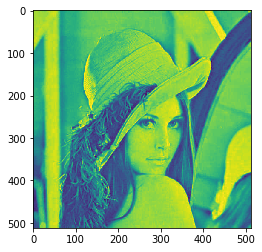
Overlay Image

Another example
# importing required libraries
import mahotas
import numpy as np
from pylab import gray, imshow, show
import os
import matplotlib.pyplot as plt

# loading image
img = mahotas.imread('dog_image.png')


# filtering image
img = img[:, :, 0]

print("Image")

# showing image
imshow(img)
show()

# Overlay method
new_img = mahotas.overlay(img)


# showing image
print("Overlay Image")
imshow(new_img)
show()
Output :
Image
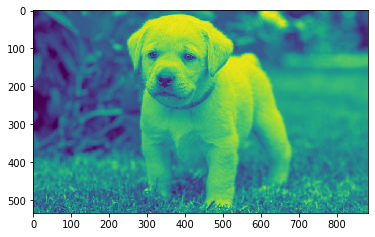
Overlay Image

