
Axios is used to send HTTP requests from your application to a server or API, making it easier to fetch data or submit data without reloading the page. It is commonly used in modern frontend development (especially with frameworks like React) to handle communication between the client and backend in a clean and structured way.
Key Features of Axios
- Promise-based API: Uses promises to handle asynchronous requests in a cleaner and more readable way
- NodeJS and Browser Support: Can be used both on the server side and directly in the browser
- Automatic JSON Transformation: Converts request data to JSON and parses response data automatically
- Interceptors Support: Allows modifying requests or responses before they are handled
- Timeout and Cancellation: Provides built-in support to cancel requests and manage timeouts easily
- Multiple HTTP Methods: Enables making requests like GET, POST, PUT, DELETE, and more
Before you install Axios your React project app should be ready to install this library.
To master React and integrate powerful libraries like Axios seamlessly, check out our comprehensive React course where we cover everything from basics to advanced concepts.
Setting Up Axios in a React Application
Before we start making HTTP requests with Axios, you need to install it. If you're starting a new React project, create one first using create-react-app (if you haven’t already).
Step 1: Install Axios
To install Axios, run the following command in your React project’s root directory:
npm install axiosStep 2: Import Axios into Your Component
In your React component, import Axios at the top
import axios from 'axios';Step 3: Add Axios as Dependency
Install Axios library using the command given below
npm i axiosProject Structure

The Updated dependencies in package.json file.
"dependencies": {
    "@testing-library/jest-dom": "^5.17.0",
    "@testing-library/react": "^13.4.0",
    "@testing-library/user-event": "^13.5.0",
    "axios": "^1.6.2",
    "react": "^18.2.0",
    "react-dom": "^18.2.0",
    "react-scripts": "5.0.1",
    "web-vitals": "^2.1.4"
},
Making HTTP Requests with Axios
1. GET Request:
A GET request is used to retrieve data from an API. Here’s how to use Axios to fetch data from an API endpoint.
const App = () => {
    const [data, setData] = useState([]);
    useEffect(() => {
        axios
            .get("https://jsonplaceholder.typicode.com/posts")
            .then((response) => setData(response.data))
            .catch((err) => console.error(err));
    }, []);
    return <pre>{JSON.stringify(data, null, 2)}</pre>;
};
export default App;
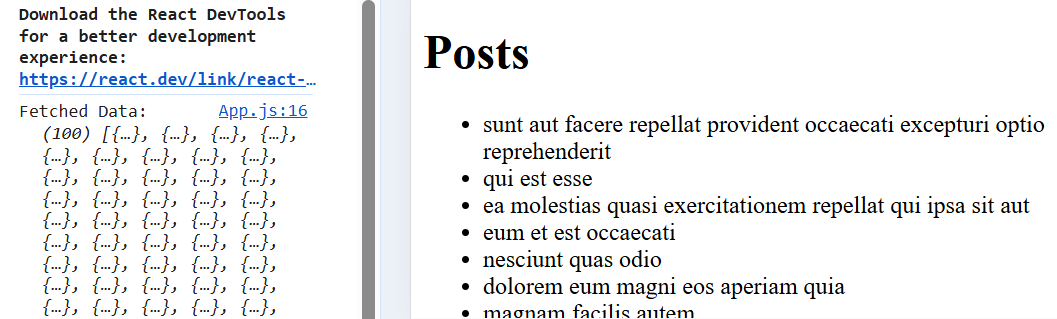
In this code:
- State Management: The component uses useState to manage three states: data (stores fetched data), loading (tracks if the data is still loading), and error (handles any error that occurs during the data fetch).
- Data Fetching with Axios: Inside the useEffect hook, an API request is made using axios.get to fetch posts from the URL https://jsonplaceholder.typicode.com//posts. The response is stored in data, and loading is set to false when the fetch completes.
- Conditional Rendering: If data is still loading, it displays "Loading...". If an error occurs, it displays the error message. Otherwise, it renders a list of post titles from the fetched data.
Output
2. POST Request:
POST requests are used to send data to the server. Let’s see how you can use Axios to send data via a POST request.
const CreatePost = () => {
    const [response, setResponse] = useState(null);
    const handlePost = () => {
        const newPost = { title: "Test Title", body: "Test Body" };

        axios
            .post("https://jsonplaceholder.typicode.com/posts", newPost)
            .then((res) => setResponse(res.data))
            .catch((err) => console.error(err));
    };

    return (
        <div>
            <button onClick={handlePost}>Send POST Request</button>
            {response && <pre>{JSON.stringify(response, null, 2)}</pre>}
        </div>
    );
};

export default CreatePost;
In this code:
- State Management: The component uses useState to manage the title, body, and responseMessage states, which store the user input and the response message from the API.
- Form Handling and POST Request: On form submission (handleSubmit), a new post object is created with the title and body, and a POST request is made using axios.post to send the data to the API.
- Response Handling: After the request, if successful, a success message is shown ("Post created successfully!"); if there’s an error, it displays an error message ("Error creating post").
Output
Response Objects in Axios
When you send a request to the server, you receive a response object from the server with the properties given below...
- data: You receive data from the server in payload form. This data is returned in JSON form and parse back into a JavaScript object to you.
- status: You get the HTTP code returned from the server.
- statusText: HTTP status message returned by the server.
- headers: All the headers are sent back by the server.
- config: Original request configuration.
- request: Actual XMLHttpRequest object.
- error: Present only when the request fails.
Handling Errors in Axios
Error handling is an important part of working with HTTP requests. In the above examples, we used .catch() to handle any errors that occur during the request. However, Axios provides several ways to manage errors more efficiently:
Error Object: Axios provides an error object containing useful information such as the response status, error message, and more. We can access it like this:
axios
    .get("https://jsonplaceholder.typicode.com//invalid-endpoint")
    .catch((error) => {
        if (error.response) {
            // Server responded with a status other than 2xx
            console.log("Response error:", error.response);
        } else if (error.request) {
            // No response was received
            console.log("Request error:", error.request);
        } else {
            // Something went wrong setting up the request
            console.log("Error:", error.message);
        }
    });
You can use status codes to handle specific error cases, such as redirecting the user if a 401 Unauthorized error occurs, or showing a different message for a 404 Not Found error.
Output

Best Practices for Using Axios in React
- Use Axios with async/await: For cleaner code, consider using async/await with Axios.
const fetchData = async () => {
    try {
        const response = await axios.get('https://jsonplaceholder.typicode.com//posts');
        setData(response.data);
    } catch (error) {
        setError(error.message);
    }
};
- Use Axios Instances: For scalability and easier configuration, you can create Axios instances that can be reused across components.
const axiosInstance = axios.create({
    baseURL: "https://jsonplaceholder.typicode.com/",
    timeout: 1000,
});

axiosInstance
    .get("/posts")
    .then((response) => {
        console.log(response.data);
    })
    .catch((error) => {
        console.error(error);
    });
- Handle Loading States: Always handle loading and error states in your UI so users have feedback while waiting for data.
