
Gatsby is a site framework that helps us to create static sites. Its static site generator (SSG) renders the site at build time and server it as static content to the client. It utilizes GraphQL for data handling, Node JS, and React for developing websites. Gatsby is known for its quickness, safety, and capability to develop extremely streamlined websites. we will build a Gatsby blog starting from the beginning.

Approach
- Using Gatsby Starters: Utilize pre-configured templates for a quick setup.
- Building from Scratch: Start from the ground up for a custom setup that offers more control and a comprehensive learning experience.
- Integrating with a Headless CMS: Incorporate various headless CMS options. Plugins are available for seamless integration with systems like Contentful and Strapi.
- Markdown-Based Blog: Use Markdown files for content, store them on a server, and render them as HTML on your pages.
Steps to create a Gatsby Blog from Scratch
Step 1: Start installing Gatsbythe
- Starting with Gatsby we have installed gatsby-cli in our system.
- Run this command in the Terminal
npm init gatsbyStep 2: Click yes to settings
This command will generate a new Gatsby site for you before that it will ask a few questions and we have the provide that information for our site. You can answer those questions as I did for following the blog
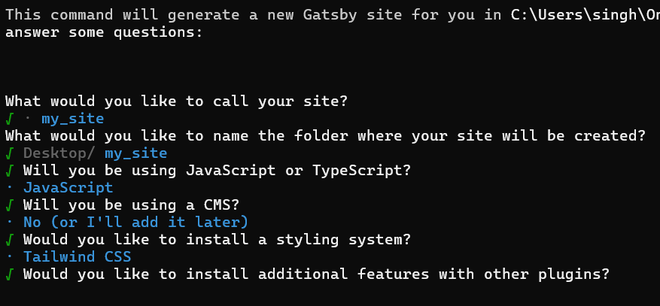
Step 3: Navigate to the Site folder
cd my_siteStep 4: Start the development server
npm run develop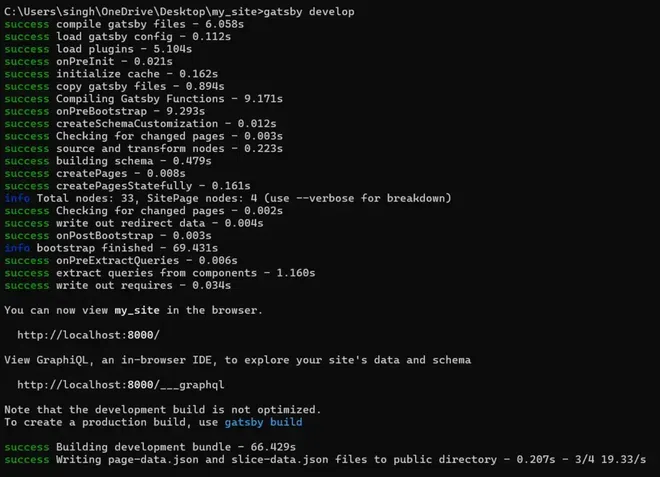
Note: To view your website, go to http://localhost:8000/
Step 5: Set up Linting and Formatting
Linting and formatting guarantees that your code is uniform and without errors. It automatically scans your code for problems and stylistic inconsistencies, and arrange it based on predefined rules.
Install Prettier
Prettier is a code formatter that follows specific guidelines to ensure uniform style, rewriting code based on these rules. It is compatible with various languages and can be incorporated into the majority of editors. Prettier eliminates any original styling and guarantees that all code produced adheres to a uniform style.
npm install --save-dev prettierConfigure Prettier:
Create a .prettierrc file in the root of your project and add your desired configuration. Here's an example:
{
  "semi": false,
  "singleQuote": true,
  "trailingComma": "all"
}
Create a .prettierignore file to specify files and directories to ignore:
node_modules
public
.cache
Install ESLint
ESLint is a linter tool used for detecting and resolving issues in JavaScript code.
npm install --save-dev eslint eslint-config-prettier eslint-plugin-prettierConfigure ESLint
Create a .eslintrc.js file in the root of your project and configure it:
module.exports = {
  parser: "babel-eslint",
  extends: [
    "eslint:recommended",
    "plugin:react/recommended",
    "prettier"
  ],
  plugins: ["prettier"],
  rules: {
    "prettier/prettier": "error",
    "react/prop-types": "off",
  },
  settings: {
    react: {
      version: "detect"
    }
  }
}
Create a .eslintignore file to specify files and directories to ignore:
node_modules
public
.cache
Step 6: Add Styling
Create a global.css file in the src/styles directory and add the Tailwind directives:
Update gatsby-browser.js
In a Gatsby project, the gatsby-browser.js file is used for modifying and expand upon the default settings and functions of Gatsby's browser APIs. It enables you to apply personalized logic while the Gatsby build process is running in the browser runtime phase.
Import the global CSS file in the gatsby-browser.js file:
// gatsby-browser.js
import "./src/styles/global.css"
Step 7: Add Fonts
First, open your global CSS file (e.g., src/styles/global.css) and add the @import rule at the top of the file to include the Google Fonts you need.
/* src/styles/global.css */
@import url('https://fonts.googleapis.com/css2?family=Roboto:wght@400;700&display=swap');

body {
  font-family: 'Roboto', sans-serif;
}
Step 8: Install Tailwind CSS Dependencies
Tailwind CSS is a CSS framework that prioritizes utility classes for styling HTML elements right in the markup. Tailwind CSS differs from traditional CSS frameworks by providing a utility-first approach that is highly customizable, allowing developers to create unique designs without the need for writing custom CSS.
npm install tailwindcss postcss autoprefixer
npx tailwindcss init
add the Tailwind directives in global.css
/* src/styles/global.css */
@tailwind base;
@tailwind components;
@tailwind utilities;
Configure Tailwind CSS
module.exports = {
  purge: ['./src/**/*.{js,jsx,ts,tsx}', './public/index.html'],
  darkMode: false, // or 'media' or 'class'
  theme: {
    extend: {},
  },
  variants: {
    extend: {},
  },
  plugins: [],
}
You may have noticed, if you’re following along, that the CLI indicates two URL locations to view the project:
You can now view my-gatsby-blog in the browser.
⠀
  http://localhost:8000/
⠀
View GraphiQL, an in-browser IDE, to explore your site's data and schema
⠀
  http://localhost:8000/___graphql
Upon opening the GraphiQL explorer, we encounter multiple Explorer panels. All data to be explored in the project is accessible and relies on the configuration in the gatsby-config.js file.
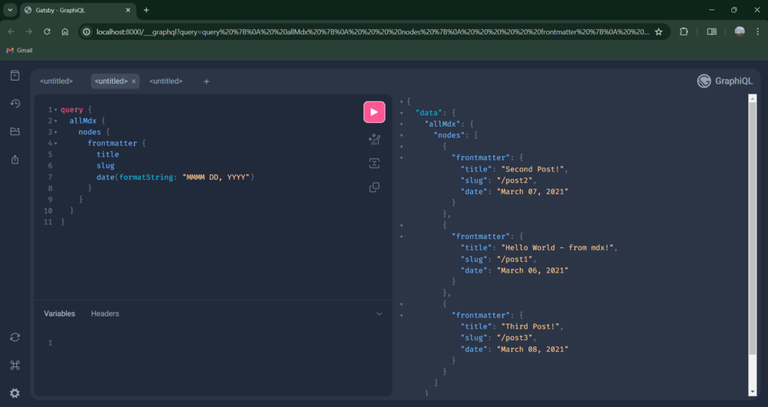
For editing your site now, you can open your site folder in your favorite code editor I am using VS code
Step 9: Add Gatsby Config
Gatsby config is utilized to specify and set up the numerous Gatsby plugins available for use. Additional information about the Gatsby plugin ecosystem will be provided shortly. Currently, I will once more create the file in the terminal. This results in the creation of gatsby-config.js at the project's root, enabling me to begin setting up Gatsby to parse the .mdx files I previously made.
Here we are changing path for our content and site meta data
// gatsby-config.js

/**
 * @type {import('gatsby').GatsbyConfig}
 */

module.exports = {
    siteMetadata: {
        title: `My Personal Blog`,
        siteUrl: `https://www.yourdomain.tld`,
        description: `This is my personal coding blog.`,
    },
    plugins: ["gatsby-plugin-postcss", "gatsby-plugin-mdx", {
        resolve: 'gatsby-source-filesystem',
        options: {
            path: `${__dirname}/src/content`,
            name: `content`,
        },
    }]
};
Project structure
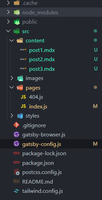
Front matter
Content in post inside these '--- ----' blocks is known as front matter. It's like meta data for our blog which will be used to store information about our blog
Example: time, date, author, title, slug etc.
Post 1
---
title: Hello World - from mdx!
date: 2021-03-06
slug: /post1
---

My first post!!

## h2 Heading

Some meaningful prose

### h3 Heading

Some other meaningful prose
Post 2
---
title: Second Post!
date: 2021-03-07
slug: /post2
---

This is my second post!
Post 3
---
title: Third Post!
date: 2021-03-08
slug: /post3
---

This is my third post!

> with a block quote!

And a code block:

```js
const wheeeeee = true;
```
Step 10: Create Index Page component
The index.js file is the main entry point or homepage of the site. index.js determines the layout and information found on the main page of your Gatsby website. This is typically the initial page people encounter when they visit the main URL of your website (e.g., http://localhost:8000/).
// IndexPage.js

import { graphql } from "gatsby";
import React from "react";
import Header from "../components/header";
import Card from "../components/card";

export default function IndexPage({ data }) {
    const { title, description } = data.site.siteMetadata;

    if (!data.allMdx) {
        return <p>No posts found</p>;
    }

    return (
        <div className="gap-4 flex flex-col">
            <Header title={title} description={description} />
            <div className="px-4 my-2">
                <h1 className="text-4xl font-bold">Blogs</h1>

            </div>
            <div className="flex flex-wrap gap-2 w-full px-4">
                {data.allMdx.nodes.map(({ id, excerpt, frontmatter }) => (
                    <Card
                        key={id}
                        date={frontmatter.date}
                        excerpt={excerpt}
                        slug={`${frontmatter.slug}`}
                        title={frontmatter.title}
                    />
                ))
                }
            </div>
        </div >
    );
}

export const query = graphql`
  query SITE_INDEX_QUERY {
    site {
      siteMetadata {
        title
        description
      }
    }
    allMdx(sort: { fields: [frontmatter___date], order: DESC }) {
      nodes {
        id
        excerpt(pruneLength: 250)
        frontmatter {
          title
          date(formatString: "YYYY MMMM Do")
          slug
        }
      }
    }
  }
`;
// header.js
// Path: src/components/header.js

import React from 'react'

export default function Header({ title, description }) {
    return (
        <div className='flex w-full px-4 py-4 justify-between items-center'>
            <h1>{title}</h1>
            <p>{description}</p>
        </div>
    )
}
// header.js
// Path: src/components/header.js

import React from 'react'

export default function Header({ title, description }) {
    return (
        <div className='flex w-full px-4 py-4 justify-between items-center'>
            <h1>{title}</h1>
            <p>{description}</p>
        </div>
    )
}

Step 11: Create GraphQL Query
GraphQL is a query language that enables users to request specific information from a server. Gatsby utilizes GraphQL for components to specify their required data. This information is then passed to the component as props. We will see this code which is querying data from API and pass down to component. We can test this query in GraphQL explorer
  query SITE_INDEX_QUERY {
    site {
      siteMetadata {
        title
        description
      }
    }
    allMdx {
      nodes {
        id
        excerpt(pruneLength: 250)
        frontmatter {
          title
          date(formatString: "YYYY MMMM Do")
          slug
        }
      }
    }
  }

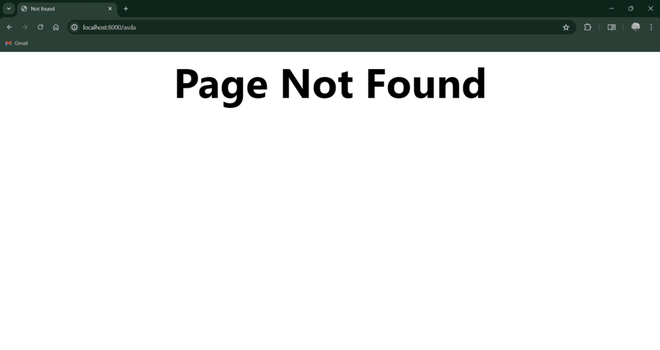
Step 12: Create 404 Page
404.js file is responsible for managing the 404-error page that is displayed when a user attempts to visit a non-existent page. The 404 page offers a way to elegantly deal with requests for pages that do not exist. Instead of showing a standard browser error, it presents a personalized message with possible navigation options to assist users in locating desired information.
// 404.js

import React from "react";

const NotFoundPage = () => {
    return (
        <main className="flex justify-center items-center p-5">
            <h1 className="text-8xl font-bold">Page Not Found</h1>
        </main>
    )
}
export default NotFoundPage
export const Head = () => <title>Not found</title>
Step 13: Create Templates Folder
Templates directory is used to store template parts for dynamically generated pages. The createPages API in gatsby-node.js uses these templates to generate pages from sources such as Markdown files, CMS content, and other data sources. Inside templates folder we have to create a file blog-post.js which will be used as templates for our blog post
// blog-post.js

import React from "react";
import { graphql } from "gatsby";
import Header from "../components/header";

const BlogPost = ({ data }) => {
    if (!data || !data.mdx) {
        return <div>No data found</div>;
    }

    const { frontmatter, body } = data.mdx;
    const { title, description } = data.site.siteMetadata;
    return (
        <div>
            <Header title={title} description={description} />
            <h1 className="text-4xl font-bold">{frontmatter.title}</h1>
            <p className="text-gray-200">{frontmatter.date}</p>
            <div dangerouslySetInnerHTML={{ __html: body }} />
        </div>
    );
};

export const query = graphql`
  query($slug: String!) {
    site {
      siteMetadata {
        title
        description
      }
    }
    mdx(frontmatter: { slug: { eq: $slug } }) {
      frontmatter {
        title
        date(formatString: "MMMM DD, YYYY")
      }
      body
    }
  }
`;

export default BlogPost
Step 14: Create gatsby-node
gatsby-node.js is a special file. Using the createPages API, we can generate pages dynamically by pulling information from various sources like Markdown files, APIs, and CMSs. This is beneficial for creating a high volume of pages using data from outside sources.
// gatsby-node.js

const path = require("path")

exports.createPages = async ({ graphql, actions, reporter }) => {
    const { createPage } = actions

    const result = await graphql(`
    query {
      allMdx {
        nodes {
          id
          frontmatter {
            slug
          }
          internal {
            contentFilePath
          }
        }
      }
    }
  `)

    if (result.errors) {
        reporter.panicOnBuild('Error loading MDX result', result.errors)
    }

    const posts = result.data.allMdx.nodes

    posts.forEach(node => {
        createPage({
            path: node.frontmatter.slug,
            component: path.resolve('./src/templates/blog-post.js'),
            context: { slug: node.frontmatter.slug }
        })
    })

}
After creating gatsby-node.js if you click read more in blog page it will open you blog page.

Step 15: Restart the development server
gatsby developConclusion
In this blog post, we developed a simple Gatsby website. Nevertheless, we didn't address all aspects, like optimal methods and image utilization. These key elements are crucial for us to grasp and integrate in order to successfully build a professional-quality website.
