
Error handling in React is important for maintaining a stable application and ensuring a good user experience. React provides various methods for managing errors, whether working with functional or class components.
Different Methods for Error Handling
These are some methods for handling errors in React applications
1. Using Error Boundaries
Error boundaries in React catch JavaScript errors in the component tree, log them, and display a fallback UI. They require defining getDerivedStateFromError and componentDidCatch methods.
//App.js

import React from "react";
import ErrorBoundary from "./Components/ErrorBoundary";
import BuggyComponent from "./Components/BuggyComponent";

const App = () => {
    return (
        <div style={{ textAlign: "center", marginTop: "30px" }}>
            <h1>React Error Boundaries Example</h1>
            <ErrorBoundary>
                <BuggyComponent />
            </ErrorBoundary>
        </div>
    );
};

export default App;
// ErrorBoundary.js

import React, { Component } from "react";

class ErrorBoundary extends Component {
    constructor(props) {
        super(props);
        this.state = { hasError: false };
    }

    static getDerivedStateFromError(error) {
        return { hasError: true };
    }

    componentDidCatch(error, errorInfo) {
        console.error("Error caught by Error Boundary:", error, errorInfo);
    }

    render() {
        if (this.state.hasError) {
            return <h2 style={{ color: "red", textAlign: "center" }}>
                Oops! Something went wrong. 😢</h2>;
        }
        return this.props.children;
    }
}

export default ErrorBoundary;
// BuggyComponent.js

import React, { useState } from "react";

const BuggyComponent = () => {
    const [count, setCount] = useState(0);

    const handleClick = () => {
        if (count >= 2) {
            throw new Error("You clicked too many times! 🚨");
        }
        setCount(count + 1);
    };

    return (
        <div style={{ marginLeft: "20px", marginTop: "20px" }}>
            <div style={{ display: "flex", flexDirection: "column",
                alignItems: "flex-start", gap: "20px" }}>
                <h2>Click the button, but not too much! 😁</h2>
                <button onClick={handleClick} style={{ padding: "10px",
                    fontSize: "16px" }}>
                    Click Me ({count})
                </button>
            </div>
        </div>
    );
};

export default BuggyComponent;
Output:
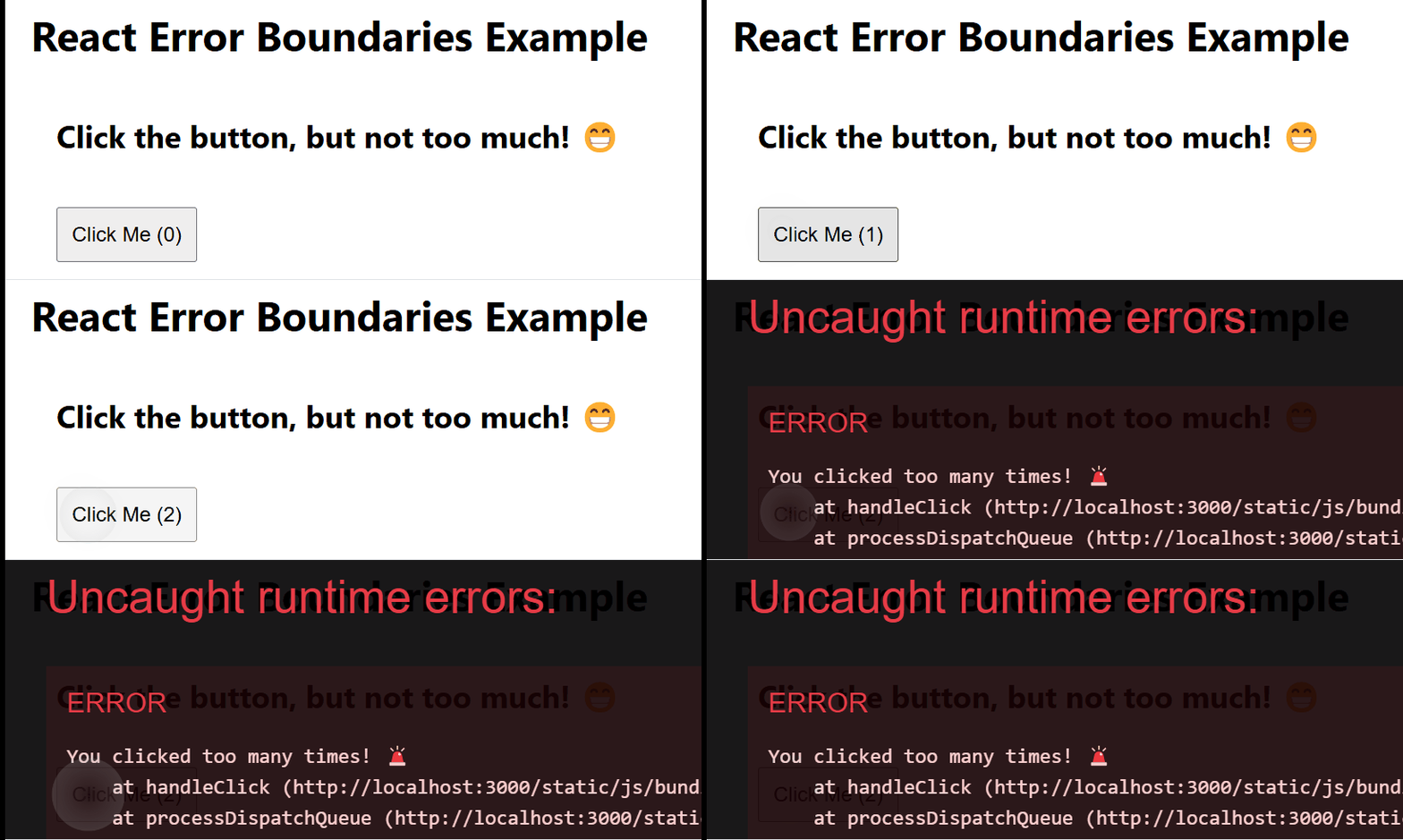
- ErrorBoundary.js: Catches errors in child components and shows a fallback UI.
- BuggyComponent.js: Throws an error if clicked more than 3 times.
- App.js: Wraps BuggyComponent in ErrorBoundary to prevent app crashes.
2. Using try-catch in Event Handlers
When dealing with asynchronous operations, such as fetching data or handling events, you can use the standard JavaScript try-catch block to catch errors and handle them gracefully.
//App.js
import React from "react";
import ErrorHandlingComponent from "./Components/ErrorHandlingComponent";

const App = () => {
    return (
        <div style={{ textAlign: "center", marginTop: "30px" }}>
            <h1>React Error Handling Example</h1>
            <ErrorHandlingComponent />
        </div>
    );
};

export default App;
// ErrorHandlingComponent
import React, { useState } from "react";

const ErrorHandlingComponent = () => {
    const [message, setMessage] = useState("");

    const handleClick = () => {
        try {
            const randomNum = Math.random();
            if (randomNum > 0.5) {
                throw new Error("You can't click twice!");
            }
            setMessage("Operation successful ✅");
        } catch (error) {
            setMessage(`Error: ${error.message} ❌`);
        }
    };

    return (
        <div style={{ textAlign: "center", marginTop: "20px" }}>
            <h2>Try-Catch in React Event Handler</h2>
            <button onClick={handleClick}
                style={{ padding: "10px", fontSize: "16px" }}>
                Click Me
            </button>
            <p>{message}</p>
        </div>
    );
};

export default ErrorHandlingComponent;
Output:
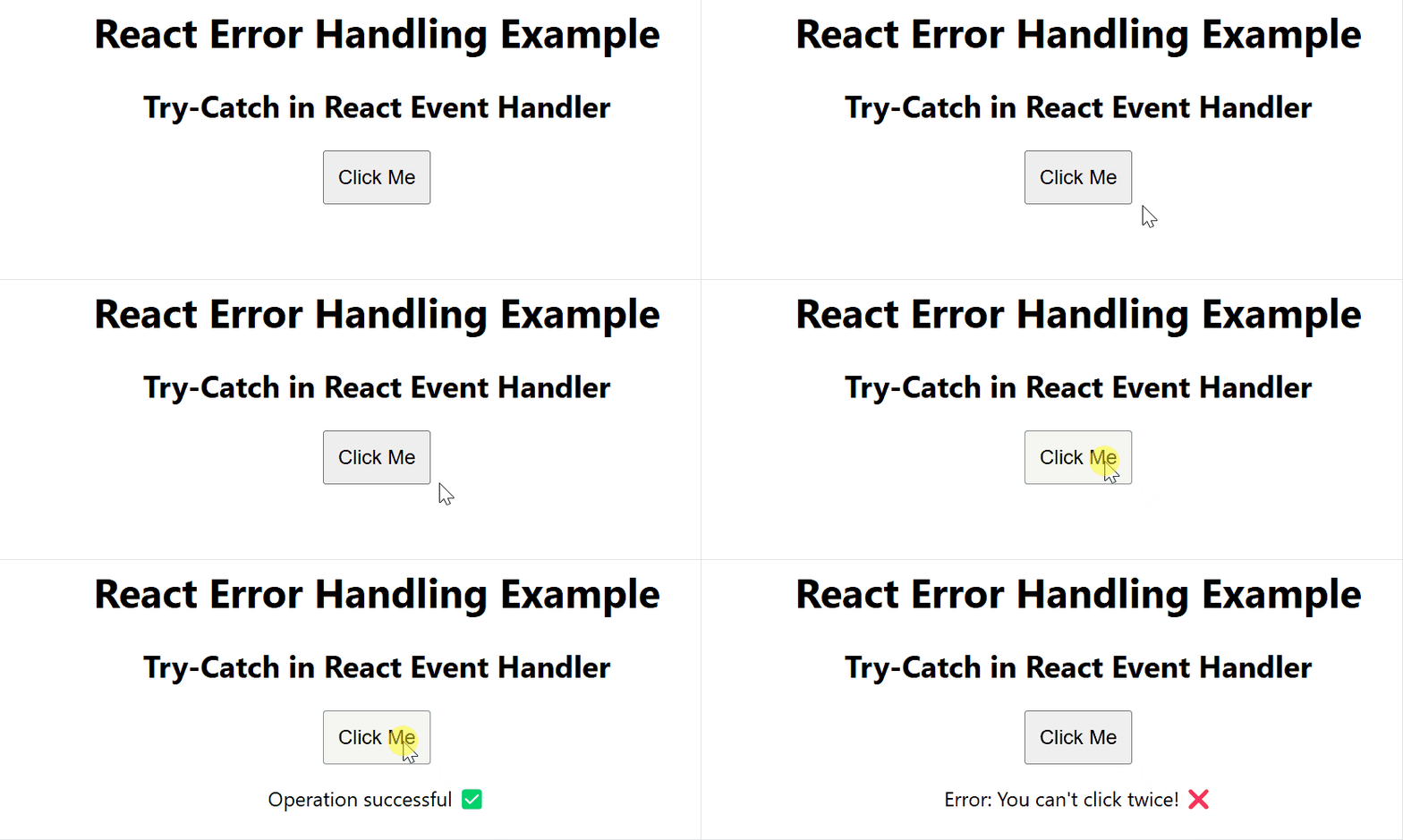
- ErrorHandlingComponent: Handles button clicks and errors.
- handleClick(): Throws "You can't click twice!" if a random number > 0.5.
- Uses try-catch: Catches errors and updates the message.
- Renders UI: Displays success or error message based on clicks.
3. Handling Errors in API Calls
API calls are a common source of errors in React apps. You can manage these errors gracefully by showing a loading state and an error message.
//App.js
import React from "react";
import ApiComponent from "./components/ApiComponent";

const App = () => {
    return (
        <div>
            <h1 style={{ textAlign: "center" }}>React API Error Handling Example</h1>
            <ApiComponent />
        </div>
    );
};

export default App;
//ApiService.js
export const fetchData = async () => {
    try {

        const response = await fetch("https://jsonplaceholder.typicode.com/invalid-url");

        if (!response.ok) {
            throw new Error(`API Error: ${response.status} ${response.statusText}`);
        }

        const data = await response.json();
        return data;
    } catch (error) {
        throw new Error(`Failed to fetch data: ${error.message}`);
    }
};
//ApiComponent.js
import React, { useState } from "react";
import { fetchData } from "../services/ApiService";

const ApiComponent = () => {
    const [data, setData] = useState(null);
    const [error, setError] = useState("");

    const handleFetch = async () => {
        try {
            setError("");
            setData(null);
            const result = await fetchData();
            setData(result);
        } catch (error) {
            setError(error.message);
        }
    };

    return (
        <div style={{ textAlign: "center", marginTop: "20px" }}>
            <h2>API Error Handling in React</h2>
            <button onClick={handleFetch} style={{ padding: "10px", fontSize: "16px" }}>
                Fetch Data
            </button>
            {error && <p style={{ color: "red", fontWeight: "bold" }}>❌ {error}</p>}
            {data && (
                <div>
                    <h3>✅ Data Fetched Successfully:</h3>
                    <p><strong>Title:</strong> {data.title}</p>
                </div>
            )}
        </div>
    );
};

export default ApiComponent;
Output:
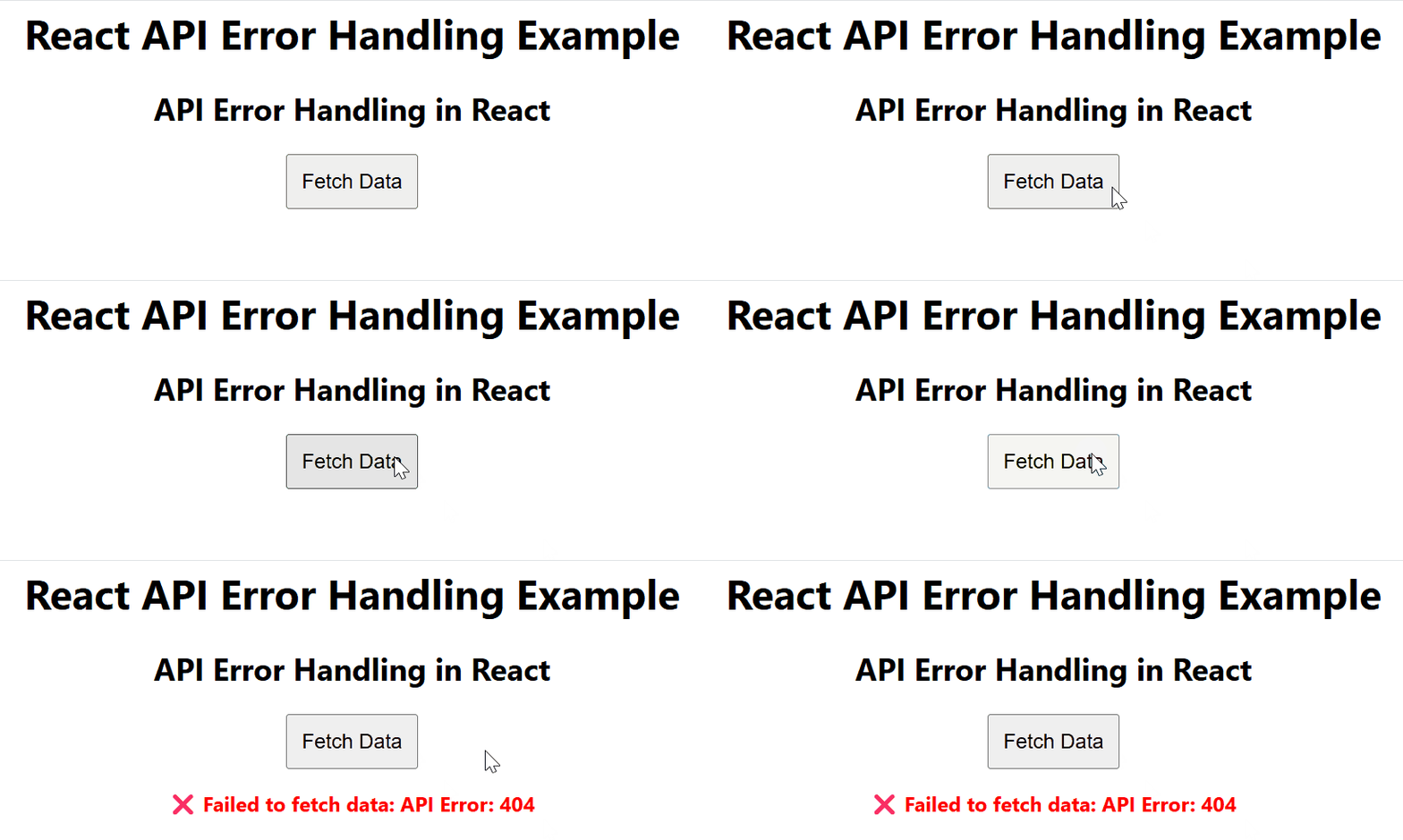
- ApiService.js: Fetches data, throws an error if API fails.
- ApiComponent.js: Calls API, shows data on success, error in red on failure.
- App.js: Loads ApiComponent, ensures smooth error handling.
