Importing images in Next.js allows developers to optimize images automatically using the built-in next/image component. It improves performance through features like automatic resizing, lazy loading, and modern formats.
- Improved Performance: It serves different image sizes for each device, which reduces image size for smaller devices and thus improves performance.
- Faster Page Loads: Images are not loaded until they enter the viewport, hence enabling the web page to load faster.
- Asset Flexibility: It supports various configurations such as resizing the Image component via props.
- Visual Stability: It automatically prevents Cumulative Layout Shift, which is a layout error that occurs when elements get shifted after being rendered by DOM. It determines the overall stability of our website's layout
Properties of Image Component
The image components support the following props:
1. src (required): This property accepts a path string, an external URL, or a locally imported image.
2. width (required): It represents the image's rendered or original width in pixels. For locally imported images, this property is optional.
3. height (required): It represents the rendered height or the image's original height in pixels. For locally imported images, this property is optional.
4. layout: It determines the behavior of the image size when the viewport width changes. It supports the following values:
- intrinsic: It is the default behavior, which scales the image down to the width of the container, up to the image size.
- fixed: It keeps the image fixed to the given width and height.
- responsive: It scales the image to fit the container's dimensions.
- fill: It causes the image to fill the container. It also makes the width and height properties optional because the container will determine them.
- raw: It allows the image to be rendered without any automatic behavior.
Working with Image component
Run the following command to create a new Next.js project.
npx create-next-app@latest gfgProject Structure
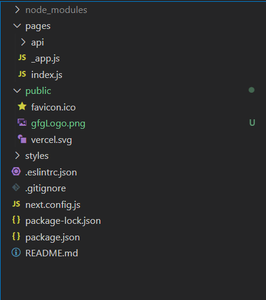
- Here, we will focus only on the public and pages directories in a Next.js project.
- The public directory stores static files that are served when the Next.js app is built and deployed.
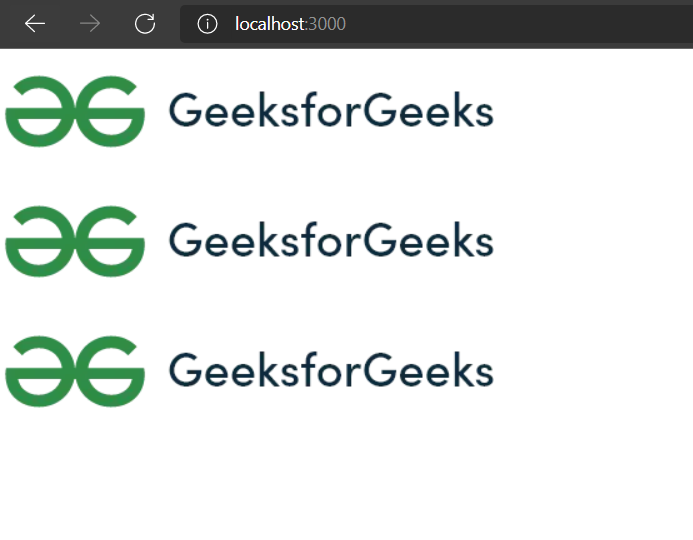
- Here, three images with different sources will be added.
- The first image will be imported directly from the public directory.
- The second image will be served using a static path from the public directory.
- The third image will be loaded from an external URL.
- An example image gfgLogo.png is added to the public directory.
- For external images, the domain must be added in next.config.js to allow access and prevent malicious usage.
We'll first clean up some boilerplate code in the pages/index.js (Home Page) and import the Image component.
import Image from "next/image";

const HomePage = () => {
    return (
        <>
            {/* This is a local import, so the
            height and width props are optional */}
            <div>
                <Image src={gfgLogo}
                    alt="GFG logo imported from public directory" />
            </div>

            {/* This image is also served from public
            directory but using the static path */}
            <div>
                <Image
                    src="
https://media.geeksforgeeks.org/wp-content/cdn-uploads/20210420155809/gfg-new-logo.png"
                    alt="GFG logo served with static path of public directory"
                    height="100"
                    width="400"
                />
            </div>

            {/* This image is being served from an
            external URL, for this URL to work we
            will need to add the hostname
            'media.geeksforgeeks.org' to our
            next.config.js file */}
            <div>
                <Image
                    src="
https://media.geeksforgeeks.org/wp-content/cdn-uploads/20210420155809/gfg-new-logo.png"
                    height="100"
                    width="400"
                    alt="GFG logo served from external URL"
                />
            </div>
        </>
    );
};

export default HomePage;
/** @type {import('next').NextConfig} */
const nextConfig = {
  reactStrictMode: true,
  images : {
    domains : ['media.geeksforgeeks.org']
  }
}

module.exports = nextConfig
Step to run the application
Run your Next app using the following command:
npm run devOutput