
In this article, we will learn to create a play/pause button for an audio file using ReactJS.
Prerequisites:
Approach:
- Take the reference of the audio file in ReactJS Using Audio Class
- Set the default state of the song as not playing.
- Make a function to handle the Play/Pause of the song.
- Use the play() and pause() functions of the audio class to do these operations.
let song = new Audio(my_song);
song.play();
song.pause();
Steps to Create the React Application And Installing Module:
Step 1: Create React App command
npx create-react-app foldernameStep 2: After creating your project folder, i.e., folder name, move to it using the following command:
cd foldernameProject Structure:
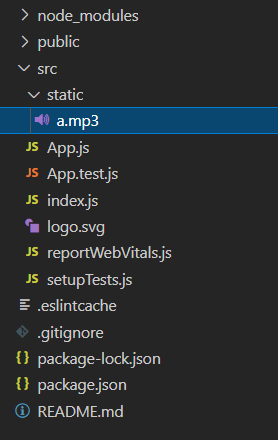
The updated dependencies in package.json file will look like:
"dependencies": {
    "react": "^18.2.0",
    "react-dom": "^18.2.0",
    "react-scripts": "5.0.1",
    "web-vitals": "^2.1.4",
}
Example: Now write down the following code in the App.js file.
import React, { Component } from "react";

// Import your audio file
import song from "./static/a.mp3";

class App extends Component {
    // Create state
    state = {

        // Get audio file in a variable
        audio: new Audio(song),

        // Set initial state of song
        isPlaying: false,
    };

    // Main function to handle both play and pause operations
    playPause = () => {

        // Get state of song
        let isPlaying = this.state.isPlaying;

        if (isPlaying) {
            // Pause the song if it is playing
            this.state.audio.pause();
        } else {

            // Play the song if it is paused
            this.state.audio.play();
        }

        // Change the state of song
        this.setState({ isPlaying: !isPlaying });
    };

    render() {
        return (
            <div>
                {/* Show state of song on website */}
                <p>
                    {this.state.isPlaying ?
                        "Song is Playing" :
                        "Song is Paused"}
                </p>

                {/* Button to call our main function */}
                <button onClick={this.playPause}>
                    Play | Pause
                </button>
            </div>
        );
    }
}

export default App;
Step to Run Application: Run the application using the following command from the root directory of the project:
npm startOutput: Now open your browser and go to http://localhost:3000

