
Slide Component adds a Slide animation to a child element or component. Material UI for React has this component available for us, and it is very easy to integrate. We can use the Slide Component in ReactJS using the following approach.
Prerequisites:
Steps to Create the React Application And Installing Module:
Step 1: Create a React application using the following command.
npx create-react-app foldernameStep 2: After creating your project folder i.e. foldername, move to it using the following command.
cd foldernameStep 3: After creating the ReactJS application, Install the material-ui modules using the following command.
npm install @material-ui/coreProject Structure:
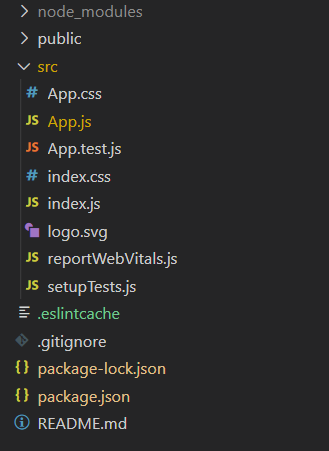
package.json:
  "dependencies": {
    "@material-ui/core": "^4.12.4",
    "react": "^18.2.0",
    "react-dom": "^18.2.0",
    "react-scripts": "5.0.1",
    "web-vitals": "^2.1.4",
  }
Example 1: This React component employs Material-UI's Switch to control a Slide effect on a Paper-wrapped polygon, demonstrating an interactive UI with GeeksforGeeks header.
import { FormControlLabel, Paper, Slide, Switch } from "@mui/material";
import React from "react";
export default function App() {
    const [isChecked, setIsChecked] = React.useState(false);
    return (
        <div style={{ display: "block", padding: 30 }}>
            <h1 style={{ color: 'green' }}>GeeksforGeeks</h1>
            <h4>How to use Slide Component in ReactJS?</h4>
            <FormControlLabel
                control={
                    <Switch
                        checked={isChecked}
                        onChange={() => {
                            setIsChecked((prev) => !prev);
                        }}
                    />
                }
                label="Toggle me to see Slide Effect"
            />
            <div style={{ display: "flex" }}>
                <Slide in={isChecked}>
                    <Paper elevation={5} style={{ margin: 5 }}>
                        <svg style={{ width: 100, height: 100 }}>
                            <polygon
                                points="0,80 45,00, 80,70"
                                style={{
                                    fill: "orange",
                                    stroke: "dimgrey",
                                    strokeWidth: 1,
                                }}
                            />
                        </svg>
                    </Paper>
                </Slide>
            </div>
        </div>
    );
}
Step to Run Application: Run the application using the following command from the root directory of the project.
npm startOutput: Now open your browser and go to http://localhost:3000
Example 2: This React component integrates Material-UI's Switch to control a Slide effect on a polygon-shaped element within a Paper component, demonstrating a dynamic UI interaction.
import { FormControlLabel, Paper, Slide, Switch }
    from "@mui/material";
import React from "react";

export default function App() {
    const [isChecked, setIsChecked] = React.useState(false);
    const containerRef = React.useRef(null);

    return (
        <div style={{
            display: "block",
            padding: 30,
            border: '1px solid'
        }} ref={containerRef}>
            <h1 style={{ color: 'green' }}>
                GeeksforGeeks
            </h1>

            <h4>How to use Slide Component in ReactJS?</h4>

            <FormControlLabel
                control={
                    <Switch
                        checked={isChecked}
                        onChange={() => {
                            setIsChecked((prev) => !prev);
                        }}
                    />
                }
                label="Toggle me to see Slide Effect"
            />
            <div style={{ display: "flex" }}>
                <Slide in={isChecked}
                    container={containerRef.current} direction='up'>
                    <Paper elevation={5} style={{ margin: 5 }}>
                        <svg style={{ width: 100, height: 100 }}>
                            <polygon
                                points="0,80 45,00, 80,70"
                                style={{
                                    fill: "orange",
                                    stroke: "dimgrey",
                                    strokeWidth: 1,
                                }}
                            />
                        </svg>
                    </Paper>
                </Slide>
            </div>
        </div>
    );
}
Step to run the application:
npm startOutput:
