
In this article, we will learn about the Omnibar component offered by the blueprint.js library.
BlueprintJS is a React-based UI toolkit for the web. It is written in Typescript. This library is very optimized and popular for building interfaces that are complex and data-dense for desktop applications that run in a modern web browser.
Omnibar component renders a UI that allows us to choose and search among multiple items from a list. It is a macOS Spotlight-style typeahead component made up of the Overlay component and QueryList component, both offered by BlueprintJS.
Omnibar props:
- activeItem: It denotes the currently focused/active item which would be used for keyboard interactions.
- className: It denotes a list of class names to pass along to a child element.
- createNewItemFromQuery: It allows the creation of new items from the current query string provided.
- createNewItemPosition: It denotes the createNewItem position within the list, either first or last.
- createNewItemRenderer: With this, one can create a selectable Create Item option from the current query string.
- initialContent: It denotes the default React component that renders when the query string is empty.
- inputProps: It denotes the list of the props passed to the InputGroup component
- isOpen: It determines whether the Omnibar is visible or not.
- itemDisabled: It determines whether the given item is disabled.
- itemListPredicate: It is used to customize the querying of entire items array, passed as props.
- itemListRenderer: It is used to custom render the contents of the dropdown.
- itemPredicate: It is used to customize the querying of individual items of the items array.
- itemRenderer: It is used to custom render an item in the dropdown list
- items: It denotes the array of items in the list.
- itemsEqual: It is used in determining whether the two items are equal.
- noResults: It is used to render a React component when the filtering returns zero results.
- onActiveItemChange: It is a callback function that gets Invoked when user interaction changes the active item
- onClose: It is a callback function that is invoked when the Omnibar gets closed.
- onItemSelect: It is a callback function that gets invoked when an item from the list gets selected, typically by clicking or pressing the enter key.
- onItemsPaste: It is a callback function that gets invoked when multiple items get selected at once.
- onQueryChange: It is a callback function that gets invoked when the query string is changed.
- overlayProps: It denotes the list of the props passed to the Overlay component
- query: It denotes the query string passed to itemListPredicate or itemPredicate to filter items.
- resetOnQuery: It determines whether the active item should reset to the first matching item every time the query changes.
- resetOnSelect: It determines whether the active item should be reset to the first matching item when an item is selected.
- scrollToActiveItem: It determines whether the active item should always be scrolled into view when the prop changes.
Creating React Application And Installing Module
Step 1: Create a React application using the following command:
npx create-react-app foldername
Step 2: After creating your project folder i.e. foldername, move to it using the following command:
cd foldername
Step 3: After creating the ReactJS application, Install the required module using the following command:
npm install @blueprintjs/core
npm install @blueprintjs/select
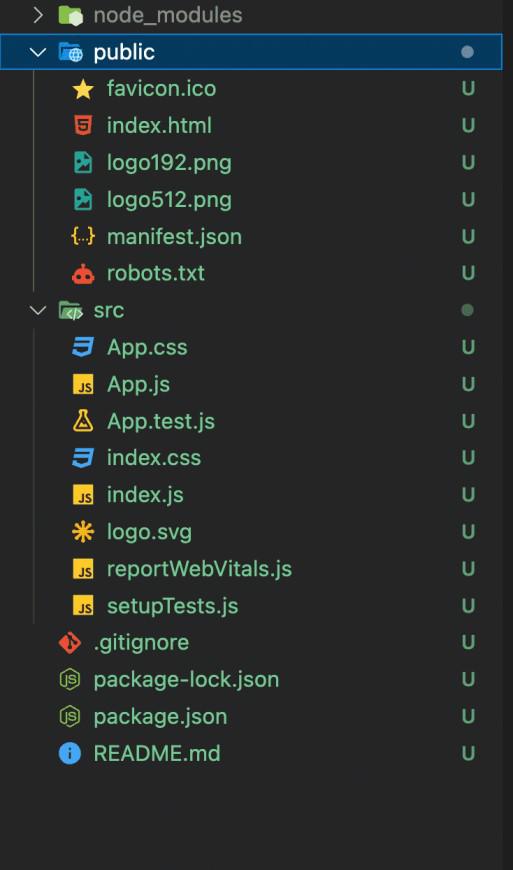
Project Structure: It will look like the following.
Example 1: In this example, we will try to create a simple Omnibar that displays a list of countries using the Omnibar component provided by BlueprintJS.
Now write down the following code in the App.js file. Here, App is our default component where we have written our code.
import './App.css';
import { Omnibar } from "@blueprintjs/select";
import { MenuItem } from "@blueprintjs/core";
import "normalize.css";
import "@blueprintjs/core/lib/css/blueprint.css";
import "@blueprintjs/select/lib/css/blueprint-select.css";
import { useState } from 'react';

function App() {
    const [item, setItem] = useState('');
    const [open, setOpen] = useState(false);

    return (
        <div className="container" style={{ width: '30%',
            margin: '0 auto' }}>
            <button onClick={() => s
                etOpen(open => !open)}>
                    Click to show Omnibar
            </button>
            <Omnibar
                isOpen={open}
                activeItem={item}
                items={["India", "USA", "Canada"]}
                itemRenderer={(val, itemProps) => {
                    return (
                        <MenuItem
                            key={val}
                            text={val}
                            onClick={(elm) => {
                                setItem(elm.target.textContent)
                                setOpen(open => !open)
                            }}
                            active={itemProps.modifiers.active}
                        />
                    );
                }}
                onItemSelect={() => { }}
            />
        </div>
    );
}

export default App;
Step to Run Application: Run the application using the following command from the root directory of the project:
npm start
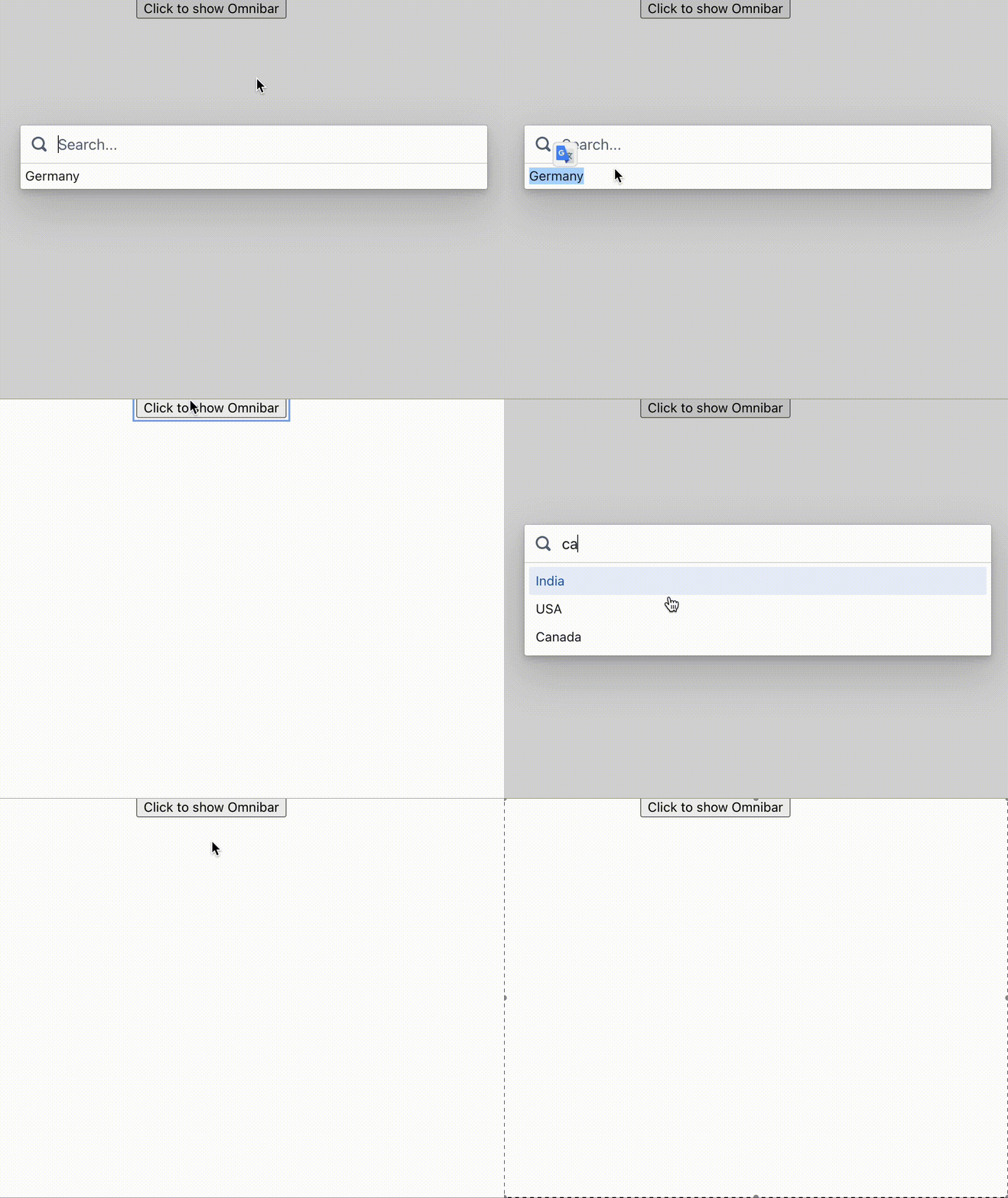
Output: Now open your browser and go to http://localhost:3000/, you will see the following output:

Example 2: In this example, let's put an initial country name in our Omnibar results. By doing so, our Omnibar always shows default content in its search results. Change your App.js like the one below.
import './App.css';
import { Omnibar } from "@blueprintjs/select";
import { MenuItem } from "@blueprintjs/core";
import "normalize.css";
import "@blueprintjs/core/lib/css/blueprint.css";
import "@blueprintjs/select/lib/css/blueprint-select.css";
import { useState } from 'react';

function App() {
    const [item, setItem] = useState('');
    const [open, setOpen] = useState(false);

    return (
        <div className="container" style=
            {{ width: '30%', margin: '0 auto' }}>
            <button onClick={() => setOpen(open => !open)}>
                Click to show Omnibar</button>
            <Omnibar
                initialContent={'Germany'}
                isOpen={open}
                activeItem={item}
                items={["India", "USA", "Canada"]}
                itemRenderer={(val, itemProps) => {
                    return (
                        <MenuItem
                            key={val}
                            text={val}
                            onClick={(elm) => {
                                setItem(
                                elm.target.textContent)
                                setOpen(open => !open)
                            }}
                            active={itemProps.modifiers.active}
                        />
                    );
                }}
                onItemSelect={() => { }}
            />
        </div>
    );
}

export default App;
Step to Run Application: Run the application using the following command from the root directory of the project:
npm start
Output:
Reference: https://blueprintjs.com/docs/#select/omnibar
