
In this article, we’ll learn about React suite DatePicker Show month. The DatePicker Component is used to choose a time or date from the picker. We can also select only a month from the DatePicker component.
Syntax:
<DatePicker
    format="yyyy-MM"
/>
Creating React Application And Installing Module:
Step 1: Create a React application using the given command:
npm create-react-app projectname
Step 2: After creating your project, move to it using the given command:
cd projectname
Step 3: Now Install the rsuite node package using the given command:
npm install rsuite
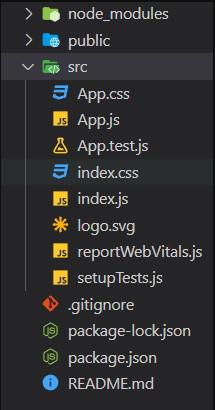
Project Structure: Now your project structure should look like the following:
Example 1: Below example demonstrates the use of React Suite DatePicker show month.
import { DatePicker } from "rsuite";
import "rsuite/dist/rsuite.min.css";

function App() {
    return (
        <div>
            <div
                style={{
                    textAlign: "center",
                }}
            >
                <h2>GeeksforGeeks</h2>
                <h4
                    style={{
                        color: "green",
                    }}
                >
                    React Suite DatePicker Show Month
                </h4>
            </div>
            <div
                style={{
                    padding: 20,
                    textAlign: "center",
                }}
            >
                <div>
                    <DatePicker format="yyyy-MM"
                        style={{ width: 200 }} />
                </div>
            </div>
        </div>
    );
}

export default App;
Output:

Example 2: Below example demonstrates the React Suite DatePicker show month with a subtle appearance.
import { DatePicker } from "rsuite";
import "rsuite/dist/rsuite.min.css";

function App() {
    return (
        <div>
            <div
                style={{
                    textAlign: "center",
                }}
            >
                <h2>GeeksforGeeks</h2>
                <h4
                    style={{
                        color: "green",
                    }}
                >
                    React Suite DatePicker Show Month
                </h4>
            </div>
            <div
                style={{
                    padding: 20,
                    textAlign: "center",
                }}
            >
                <div>
                    <DatePicker
                        format="yyyy-MM"
                        appearance="subtle"
                        style={{ width: 200 }}
                    />
                </div>
            </div>
        </div>
    );
}

export default App;
Output:

Reference: https://rsuitejs.com/components/date-picker/#show-month
