
React Suite is a popular front-end library with a set of React components that are designed for the middle platform and back-end products. Steps component guides users through the steps of a task. It is a kind of navigation bar. We can use the following approach in ReactJS to use the React Suite Steps Component.
Steps Props:
- classPrefix: It is used to denote the prefix of the component CSS class.
- current: It is used to denote the current execution steps.
- currentStatus: It is used to denote the current Execution Step Status.
- small: It is used for the small size Step Bar.
- vertical: It is used for the vertical display.
Steps.Item Props:
- classPrefix: It is used to denote the prefix of the component CSS class.
- description: It is used to denote the description of Steps item.
- icon: It is used to set the icon.
- status: It is used to denote the Step status.
- title: It is used to denote the title of Steps item.
Creating React Application And Installing Module:
Step 1: Create a React application using the following command:
npx create-react-app foldername
Step 2: After creating your project folder i.e. foldername, move to it using the following command:
cd foldername
Step 3: After creating the ReactJS application, Install the required module using the following command:
npm install rsuite
Project Structure: It will look like the following.
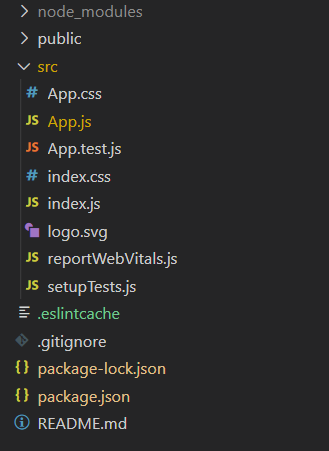
Example: Now write down the following code in the App.js file. Here, App is our default component where we have written our code.
Filename: App.jsimport React from 'react'
import 'rsuite/dist/styles/rsuite-default.css';
import { Steps } from 'rsuite';
export default function App() {
return (
<div style={{
display: 'block', width: 700, paddingLeft: 30
}}>
<h4>React Suite Steps Component</h4>
<Steps current={1}>
<Steps.Item />
<Steps.Item />
<Steps.Item />
<Steps.Item />
</Steps>
</div>
);
}
Step to Run Application: Run the application using the following command from the root directory of the project:
npm start
Output: Now open your browser and go to http://localhost:3000/, you will see the following output:

Example 2
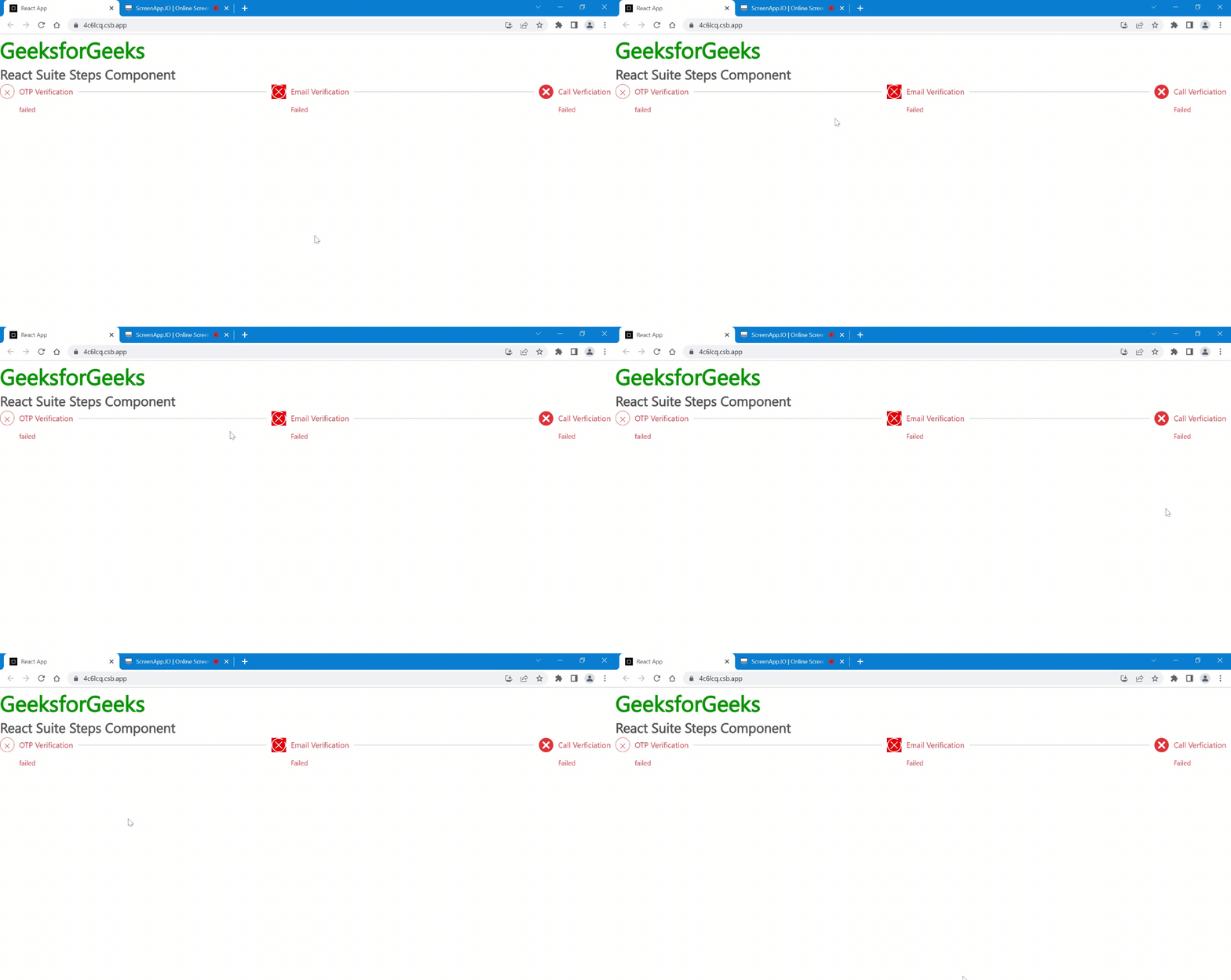
In this example, we will show how can we display error state of an step
import react from 'react'
import Steps from 'rsuite/Steps';
import 'rsuite/dist/rsuite.min.css';
import WarningRoundIcon from '@rsuite/icons/WarningRound';

import CloseOutlineIcon from '@rsuite/icons/CloseOutline';
export default function App() {
  return (
    <div className="App">
    <h1 style={{color:'green'}}>GeeksforGeeks</h1>
    <h3>React Suite Steps Component</h3>

     <Steps >
    <Steps.Item title="OTP Verification" status="error" description="failed" />
    <Steps.Item title="Email Verification" status="error" icon={
      <CloseOutlineIcon  style={{color:'white',background:'red',height:'150%',width:'100%'}}/>}
     description="Failed" />
    <Steps.Item title="Call Verficiation" status="error" icon={
    <WarningRoundIcon style={{height:'150%',width:'100%'}}/>} description="Failed" />
  </Steps>


    </div>
  );
}
OUTPUT
Reference: https://rsuitejs.com/components/steps/
