
Sometimes when we are browsing the Internet, we may need to store the URL of a webpage to quickly access it for use some other day. At those times, we do not need to write the URL down on paper or store the URL on a document on your device. Browsers have a feature called a 'bookmark' to save our essential webpages within the browser for quick access anytime. In this article, we will discuss how to bookmark the Safari browser. Also, we will discuss how to access the bookmarked webpage in the Safari browser.
Adding Bookmark in Safari Browser:
Step 1: Open the Safari app on your Mac desktop or laptop
Step 2: Visit the webpage to bookmark
Step 3: Click the share button at the top rightmost corner of the browser
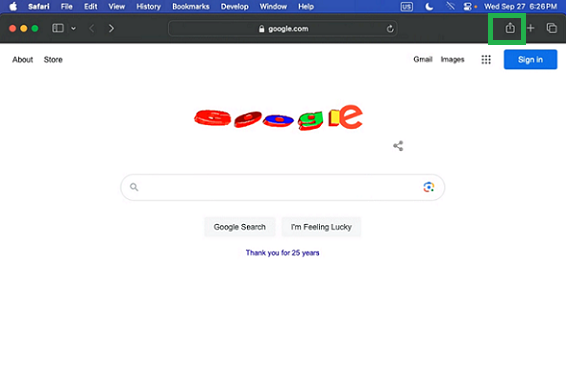
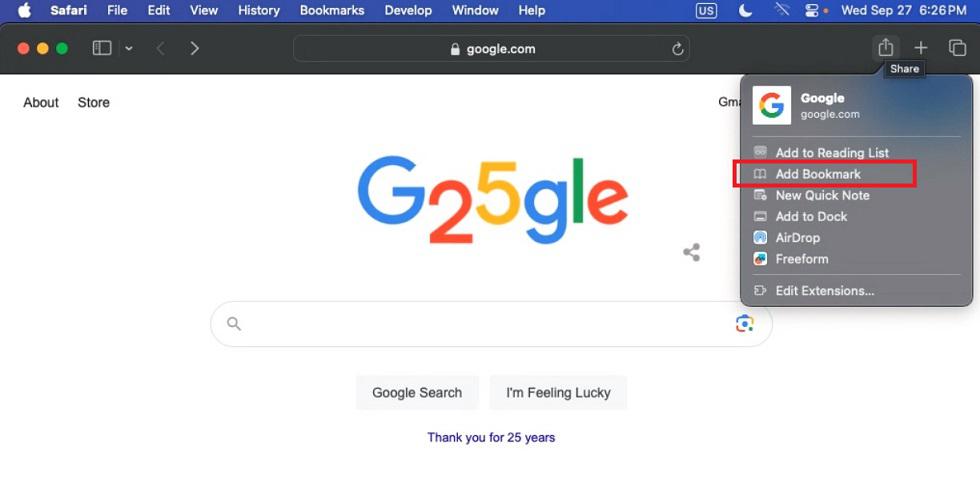
Step 4: Tap 'Add Bookmark' in the dropdown and a dropdown opens. Click 'Add Bookmark' in it.
Step 5: A dialog box appears showing the name of the bookmark, and the folder location of the bookmark. Click 'Add' in the dialog box to save this current webpage as a bookmark in Safari.
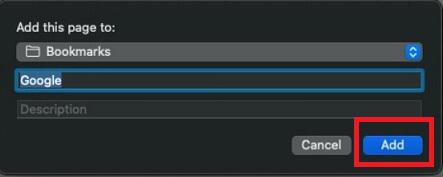
Step 6: Bookmark created successfully on Mac devices in Safari browser
How to Access a Bookmark in Safari on Mac device:
There are two ways to access a bookmark in Safari web browser on Mac device. They are,
Method 1: Accessing Bookmark in Safari on Mac device using Menu bar
Step 1: Open the Safari app on Mac device
Step 2: Click the 'Bookmarks' tab in the menu bar of the browser
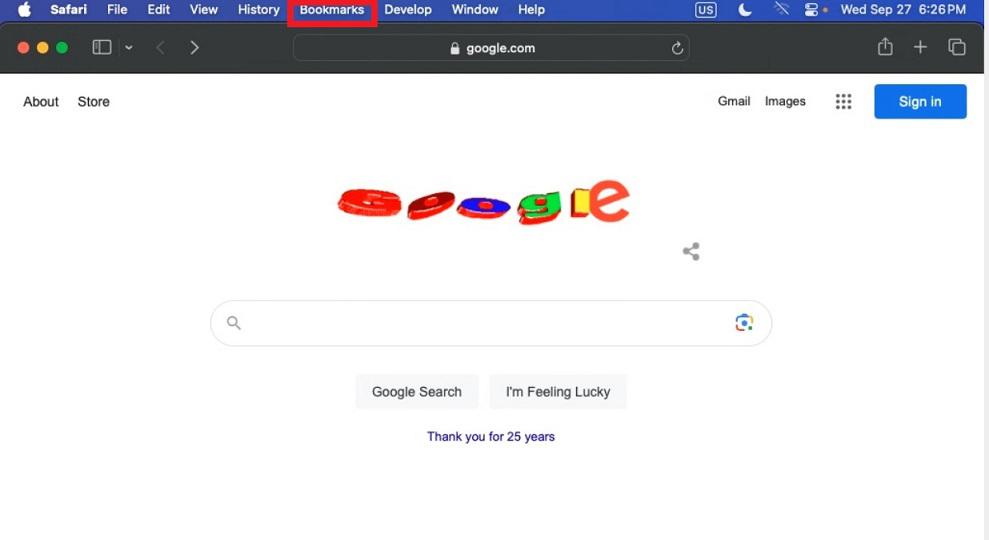
Step 3: A dropdown opens. Select 'Show Bookmarks' in it.
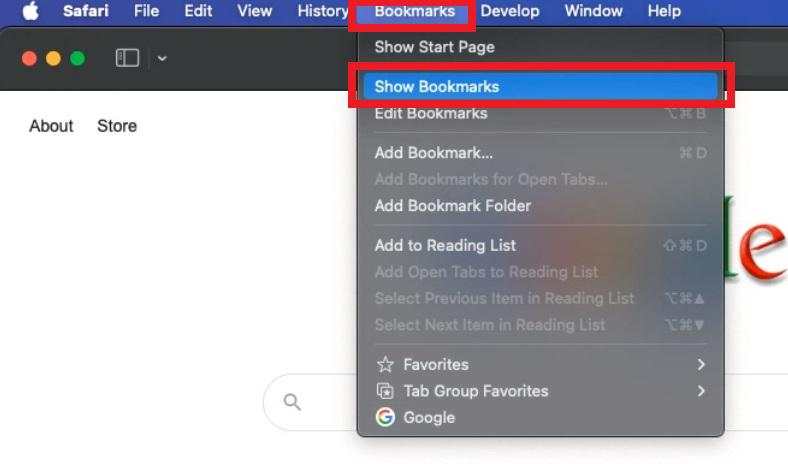
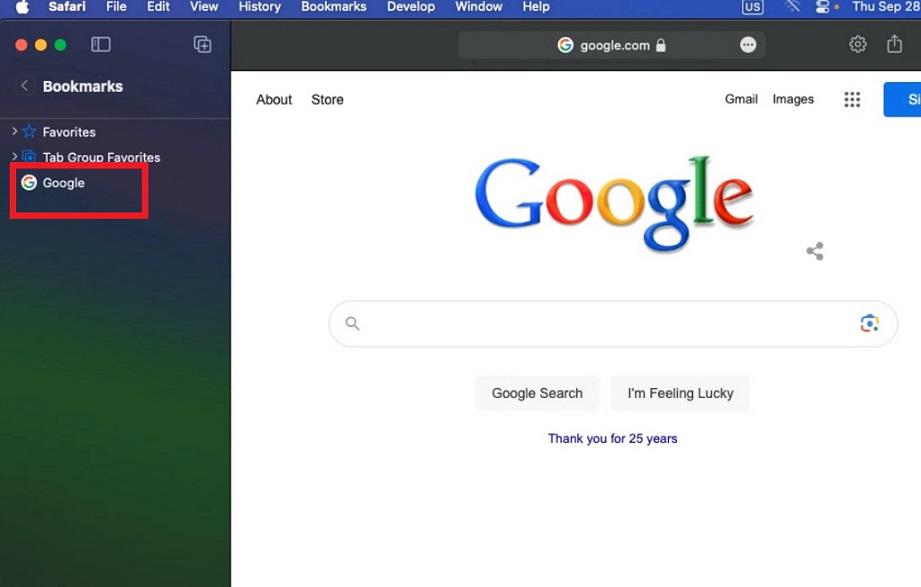
Step 4: All the bookmarks in Safari browser are displayed on the sidebar opened
Method 2: Accessing Bookmark in Safari on Mac device using Sidebar button
Step 1: Open the Safari app on Mac device
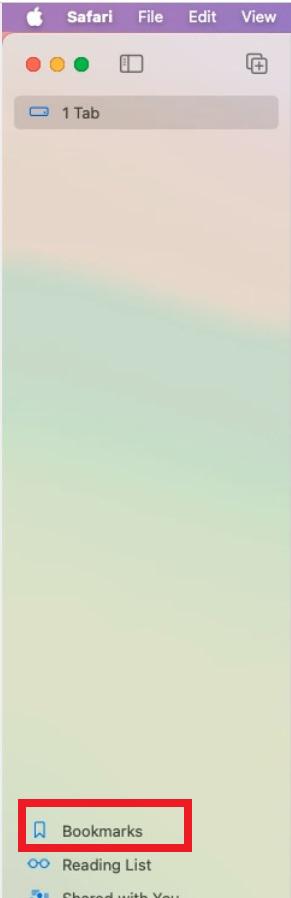
Step 2: Click the sidebar button in the Safari browser

Step 3: Click 'Bookmarks' button from the bottom part of the sidebar panel
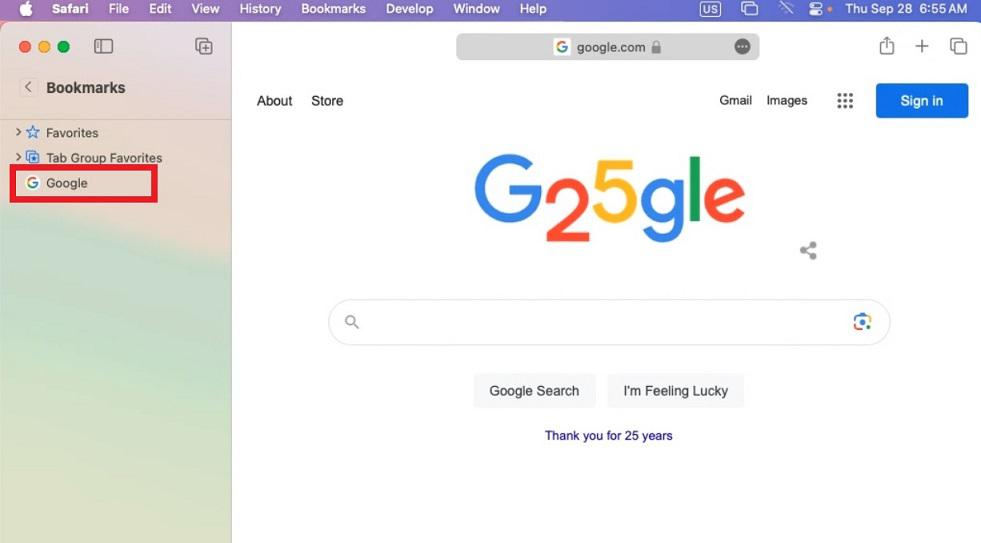
Step 4: All the bookmarks in Safari browser are displayed
How to Bookmark in Safari on iOS device:
Step 1: Open the Safari app on your iOS device
Step 2: Go to the webpage which need to be bookmarked.
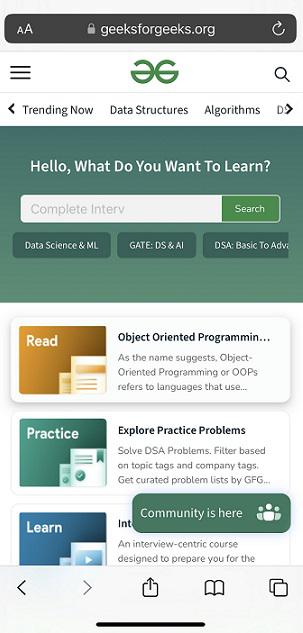
Step 3: Tap the share button at the bottom of the Safari app
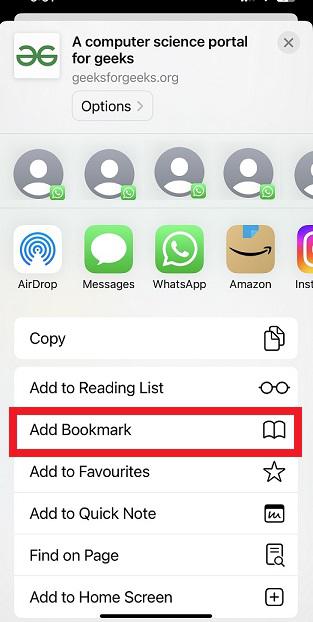
Step 4: Tap 'Add Bookmark' in the panel opened from the bottom of the app
Step 5: Tap 'Save' in the next panel opened in the Safari app
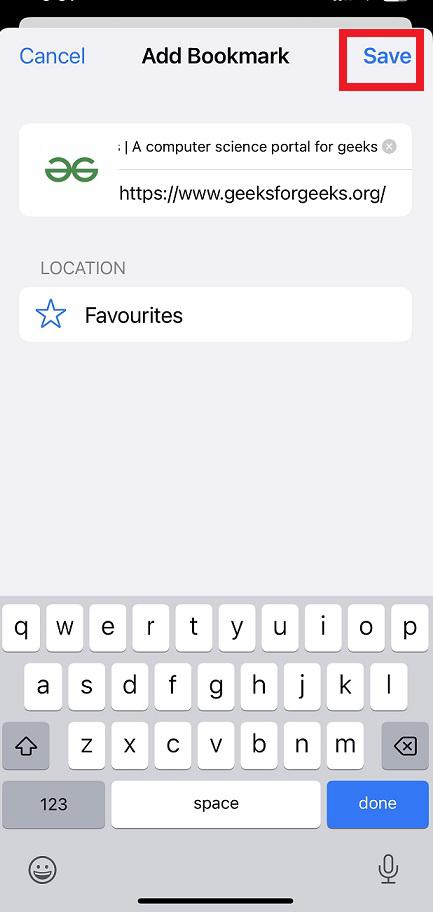
Step 6: Now the webpage has been bookmarked successfully in Safari browser on an iOS device.
How to Access a Bookmark in Safari on iOS device:
Step 1: Open Safari app on iOS device
Step 2: The bookmarked webpages can be seen from the home page of the browser. To view from the Bookmarks folder, tap the open book icon at the bottom of the app.
Step 3: Tap the tab with the open book icon at the top leftmost corner of the app
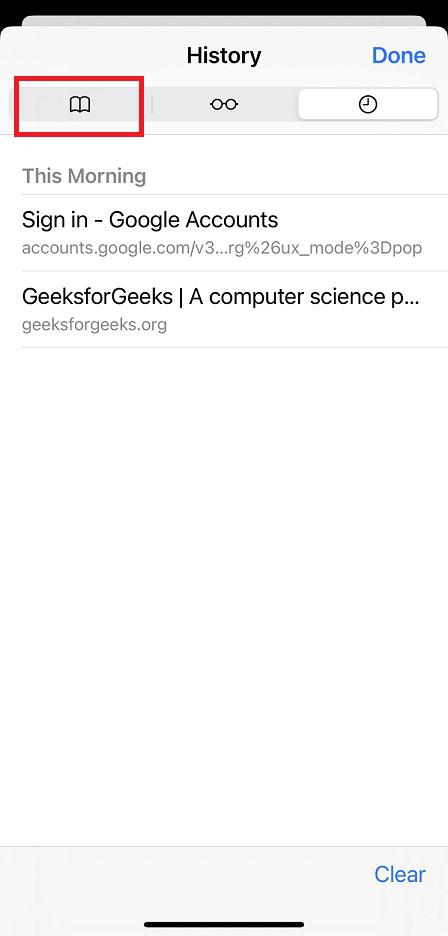
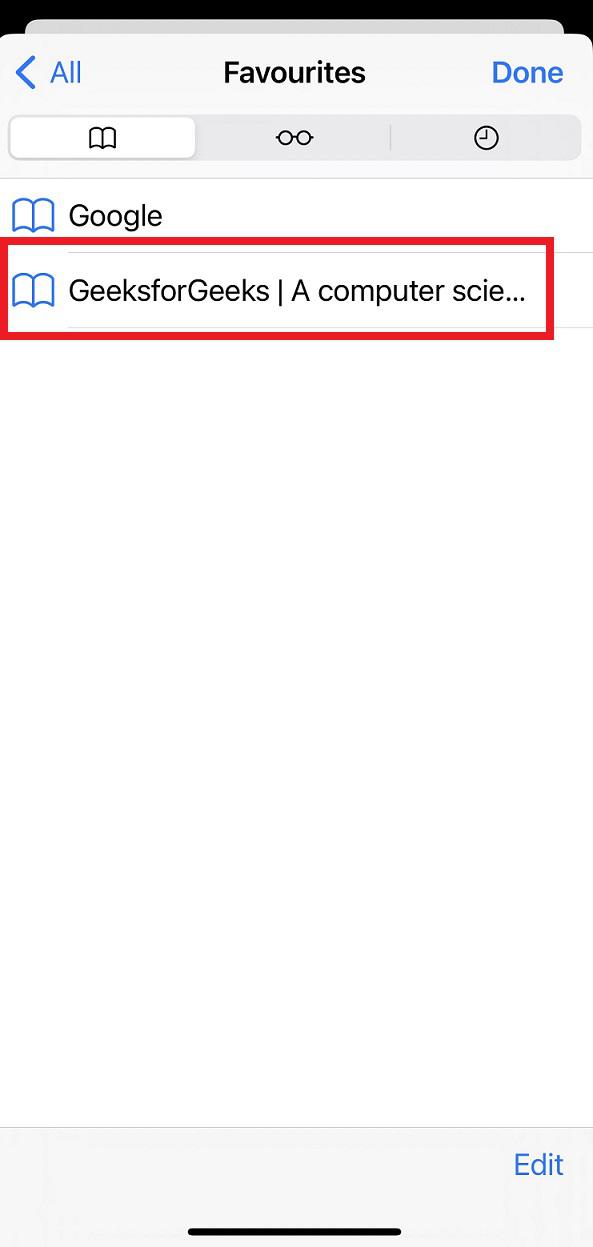
Step 4: Tap the 'Favourites' in the tab opened as we saved our bookmark in the 'Favourites' folder in Safari browser earlier.
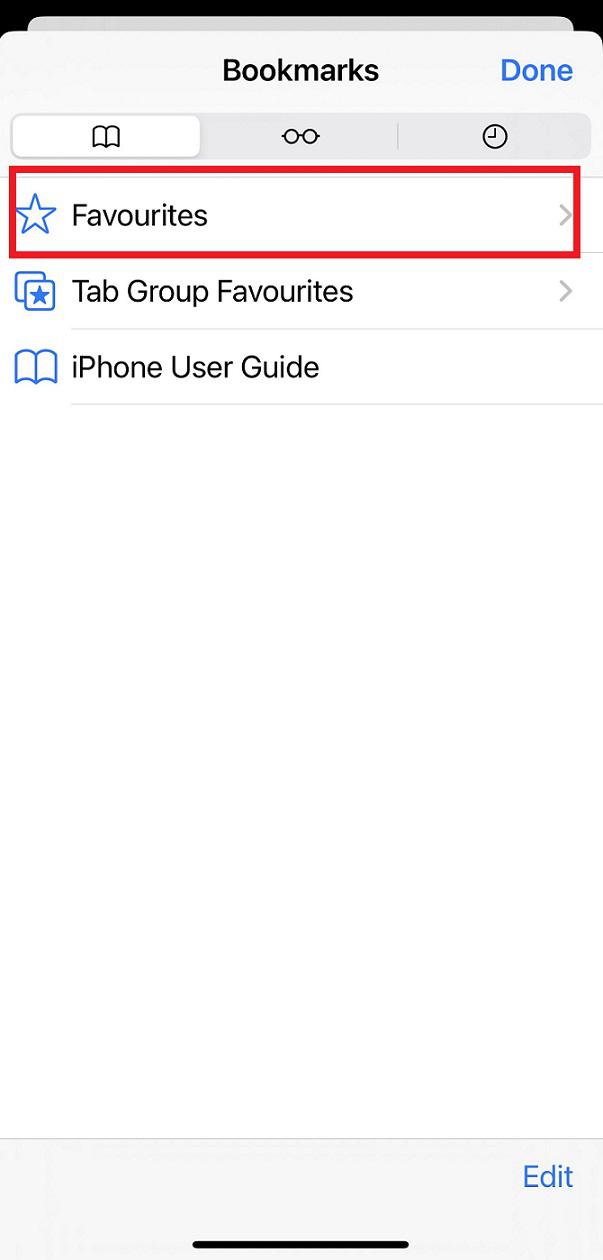
Step 5: There we can view all the bookmarked webpages stored in Safari web browser successfully. Click on the bookmark you wish to open now.
How to Add Favourites to Tab Group in Safari App:
To add favourites in 'Tab Group' in Safari browser in iOS app, it is important to already have some bookmarks or favourites added to the Safari browser.
Step 1: Open Safari app in your iOS device
Step 2: Click the tab switcher icon at bottom rightmost corner
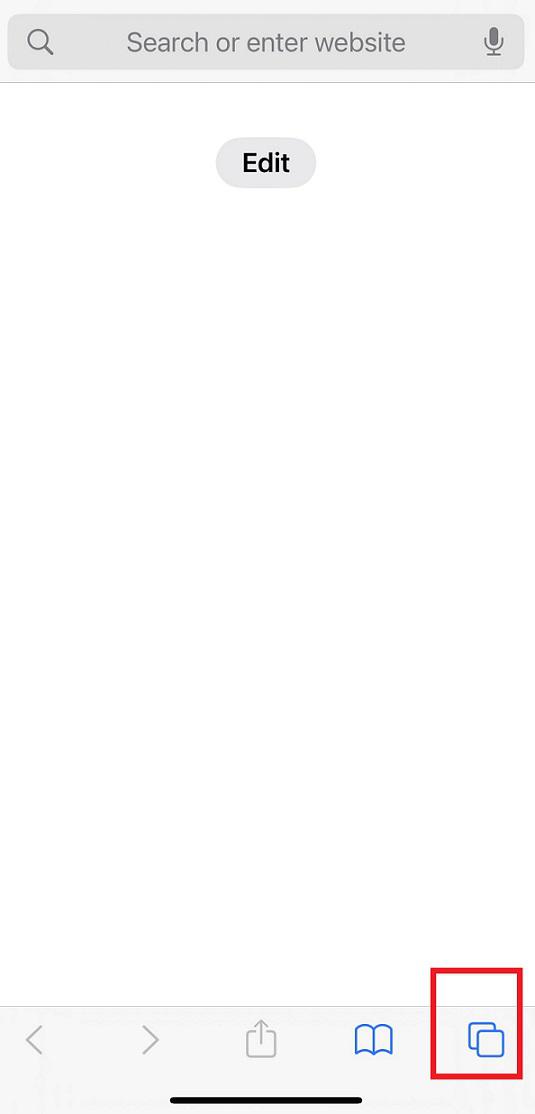
Step 3: Click the 'Start page' at the middle of the lower part
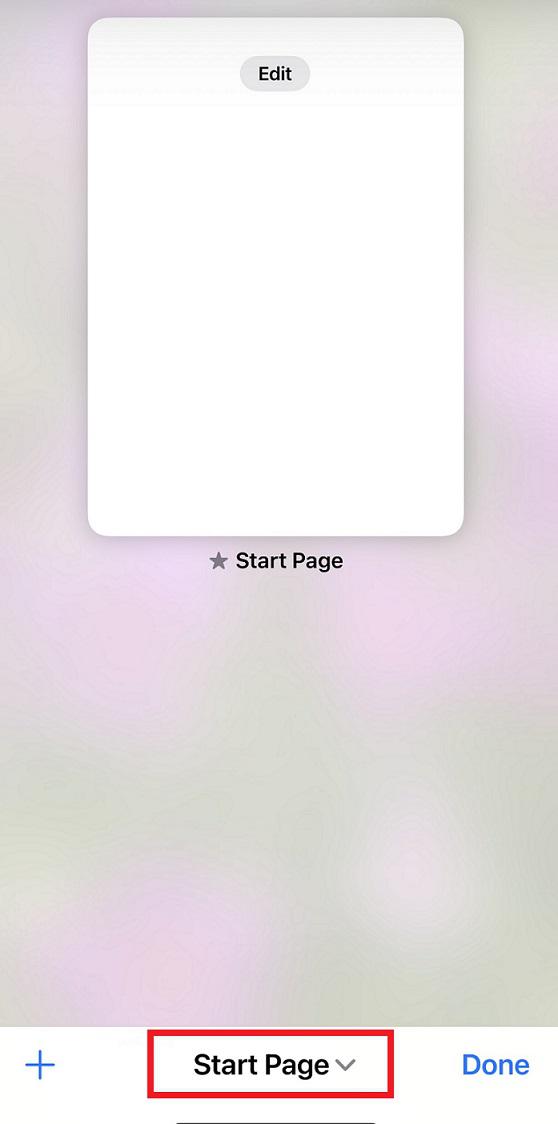
Step 4: A dropup opens. Click 'New Empty Tab Group' in it.
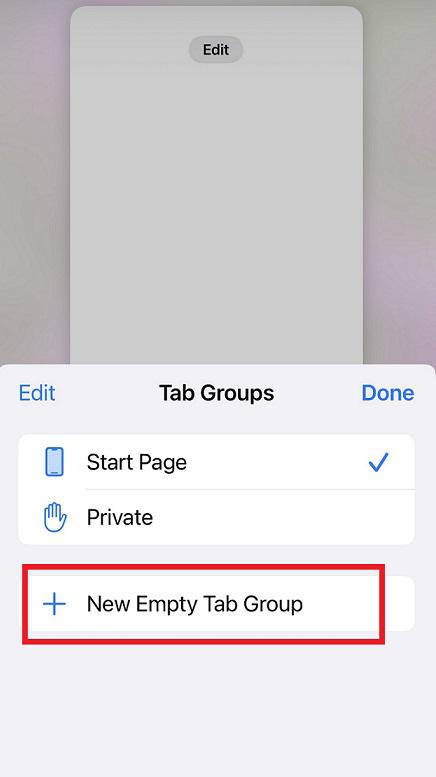
Step 5: A small dialog window opens to set a name for the new Tab Group to be created. Type name for the Tab Group in the dialog window.
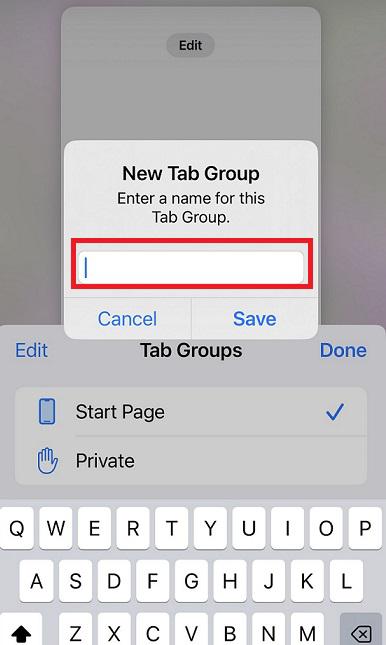
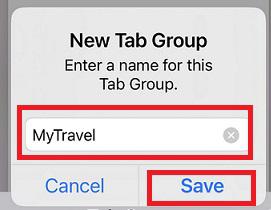
Step 6: Here we are naming our Tab Group as 'MyTravel'. You can name it as you wish. Now click 'Save' in the dialog window.
Step 7: Now a new 'Tab Group' is created successfully. Click 'Done' at the bottom rightmost corner of the app.
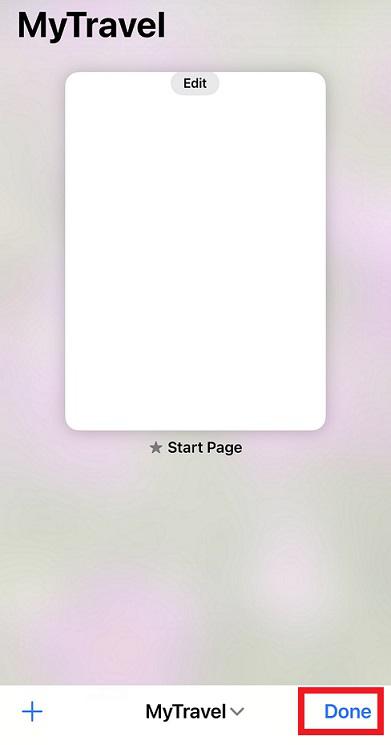
Step 8: Now we have switched automatically to the start page of the newly created Tab Group 'MyTravel'. Click the 'Edit' button in the start page to customize the start page settings.
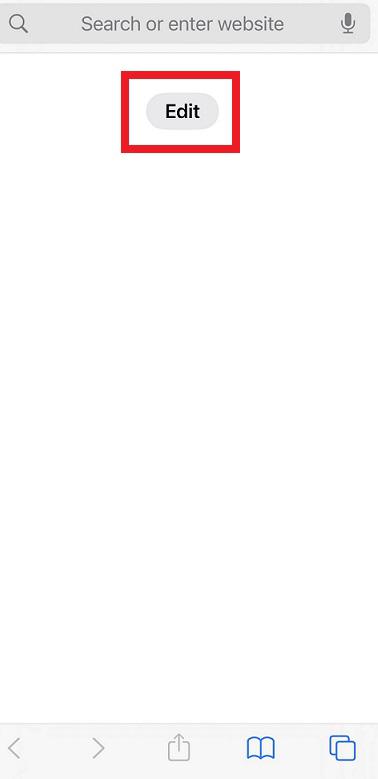
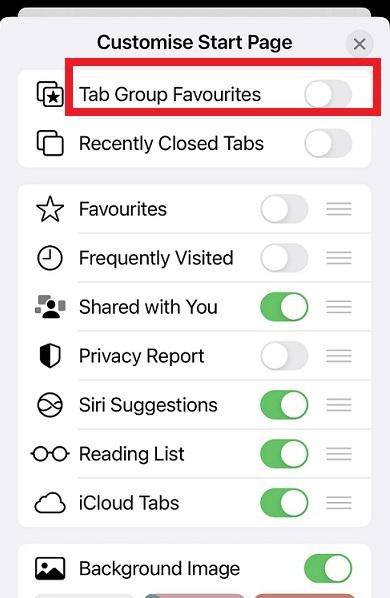
Step 9: Toggle the option next to 'Tab Group Favourites'
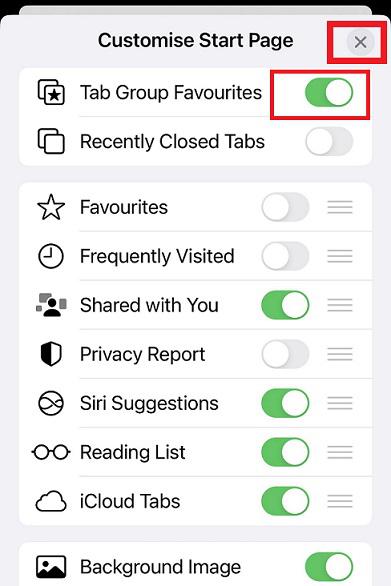
Step 10: Now the 'Tab Group Favourites' is turned ON as it is in green color. Close this window by tapping the X symbol at the top rightmost corner.
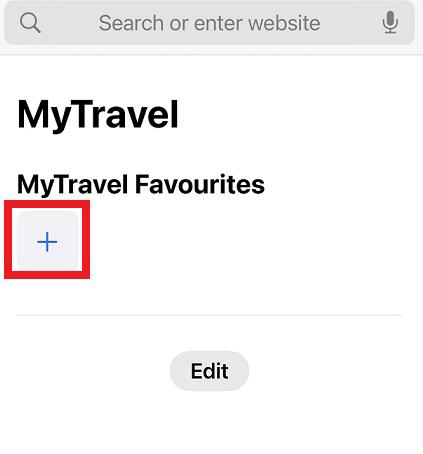
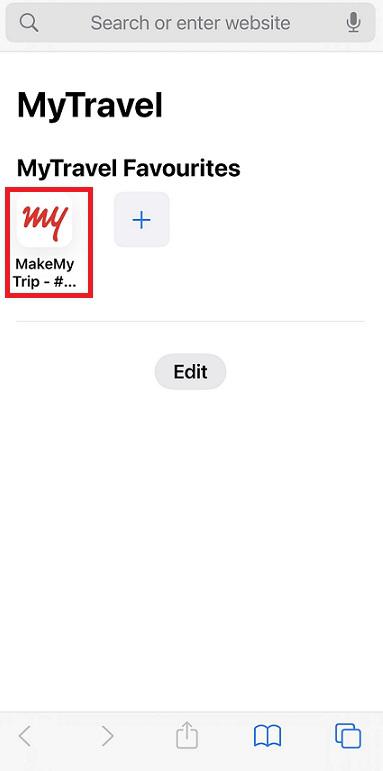
Step 11: Now the Favourites of Tab group will be displayed whenever any new tab is opened within this 'Tab Group'. Click the + icon which is below the 'MyTravel Favourites'.
Step 12: Tap 'Favourites' in it
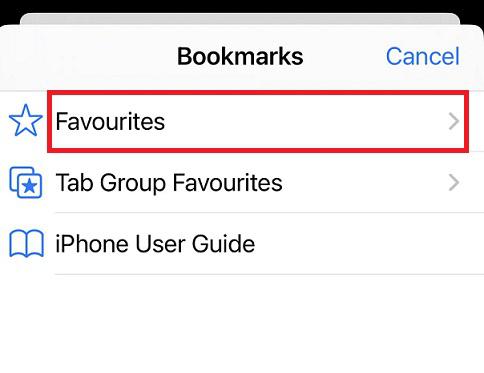
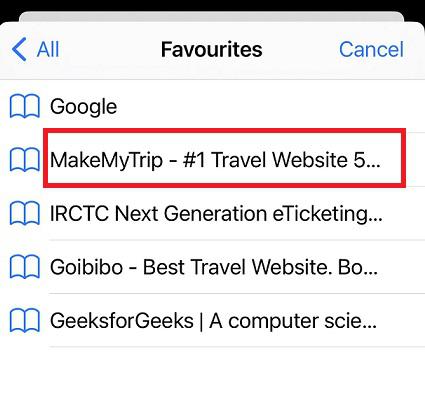
Step 13: Select any webpage from the list of bookmarks to add in Tab Group Favourites
Step 14: Favourites added to Tab Group successfully
Conclusion:
In this article, we have discussed how to bookmark in Safari web browser. Bookmarking websites helps users to save the URL of the webpage for later use. We have discussed the steps to bookmark in Safari on an iOS and Mac OS devices and also how to access the bookmarked webpages from the Safari browser on iOS device. Also we have discussed the two different methods to access the bookmarks from Mac devices, and to add favourites under the Tab Group feature.
