Ever received an important email that someone needs right away but they don’t check their inbox? Instead of copying, retyping, or taking screenshots, you can simply forward the email as a text message. Most major carriers support email-to-SMS gateways, allowing you to send an email that arrives as a regular text on the recipient’s phone.
How to Forward Email to a Cell Phone Via Text Message
In this section, learn how to forward emails from Gmail to text messages maximize or send an email from Outlook to SMS so it reaches a cell phone as a text message.
Step 1:
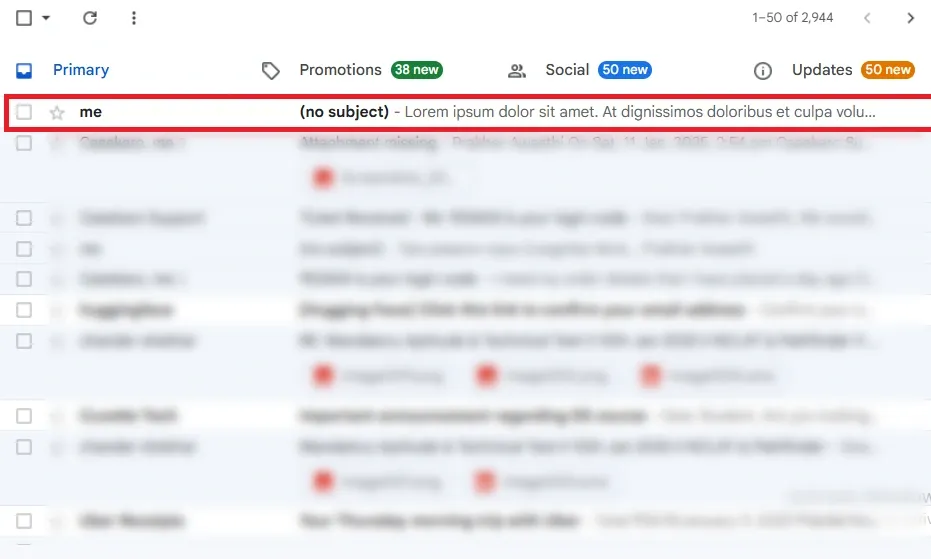
- Log in to Gmail or Outlook and open the email you want to send as a text.
Step 2: Click the Forward Option
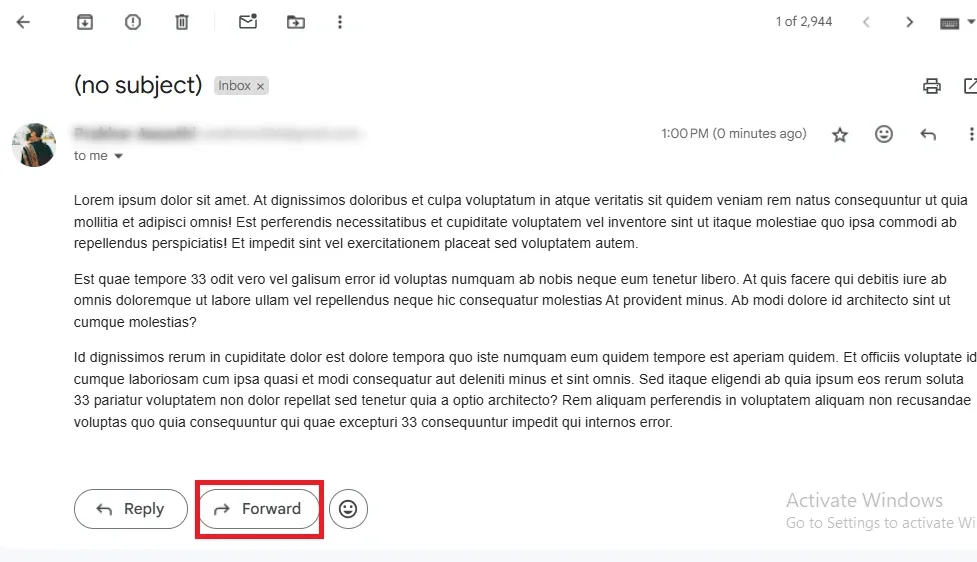
- Outlook: Click Forward from the toolbar or Message tab.
- Gmail: Click the Forward arrow inside the opened email.
Step 3: Shorten the Email Content
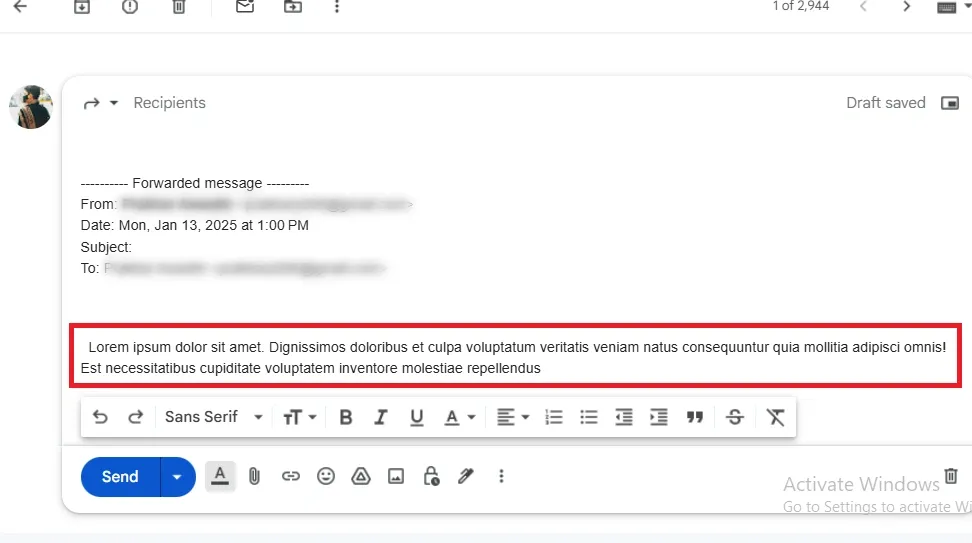
- SMS messages have character limits (typically 160–200 characters).
- Trim unnecessary content so the message doesn’t get split into multiple texts.
Step 4: Find the Recipient’s Carrier Domain
- Visit the recipient’s mobile carrier website and search for “SMS Gateway” or “Email to SMS.”
Common gateways:
- AT&T:
number@txt.att.net - Verizon:
number@vtext.com - T-Mobile:
number@tmomail.net - Sprint:
number@messaging.sprintpcs.com
Step 5: Address the Message
In the email’s "To" box, type their phone number + the carrier domain.
Example:
- AT&T:
<phonenumber>@txt.att.net - Verizon:
<phonenumber>@vtext.com - T-Mobile:
<phonenumber>@tmomail.net - Sprint:
<phonenumber>@messaging.sprintpcs.com
Step 6: Send the Email
Click Send, then ask the recipient to confirm they received the text.
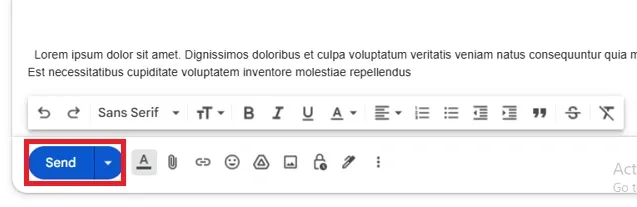
Note: The steps for forwarding an email as a text message are similar for both Outlook and Gmail, with slight variations in where the options like "Forward" are located. Follow the platform-specific instructions where indicated.
How to Auto Forward an Email as a Text Message on Cell Phone
To automatically forward email to text message on your mobile phone follow the steps given below:
Step 1: Go to Settings → See all settings
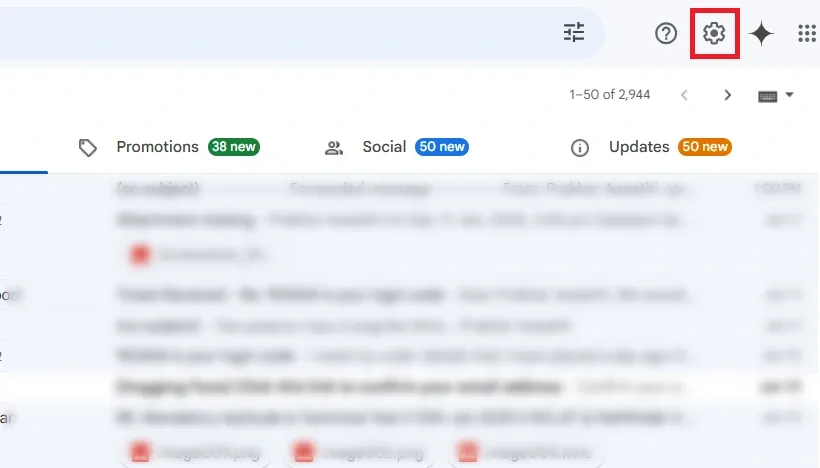
Step 2: Open Filters and Blocked Addresses
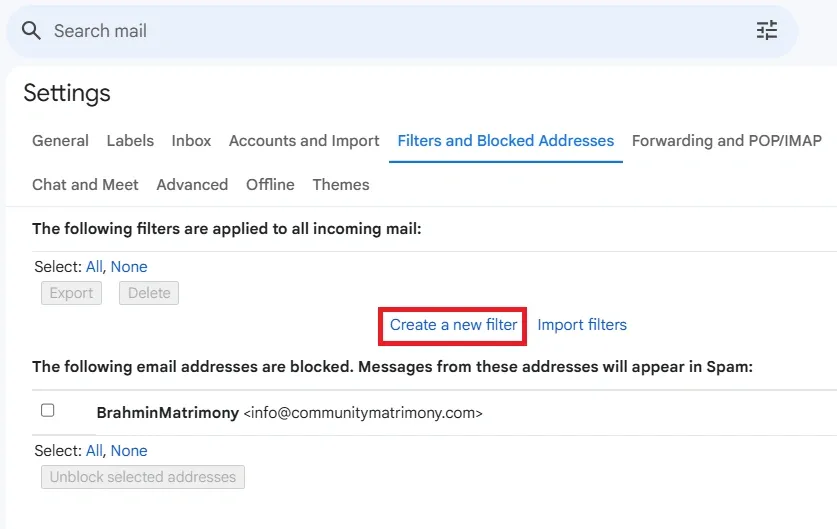
- Click Filters and Blocked Addresses
- Select Create a new filter
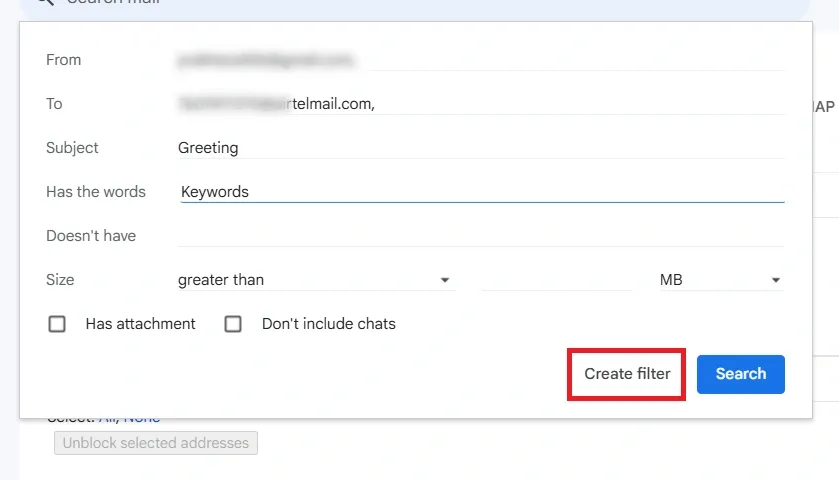
Step 3: Set Filter Conditions
You can filter by:
- Sender email address
- Subject keywords
- Specific words inside the message
Click Create filter.
Step 4: Choose the Forwarding Action
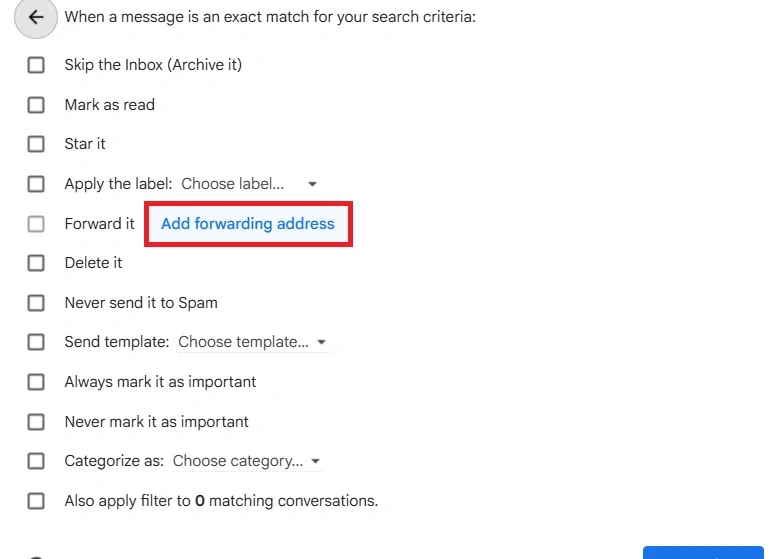
- Select Forward it to.
If forwarding isn’t set up, Gmail will ask you to add a forwarding address.
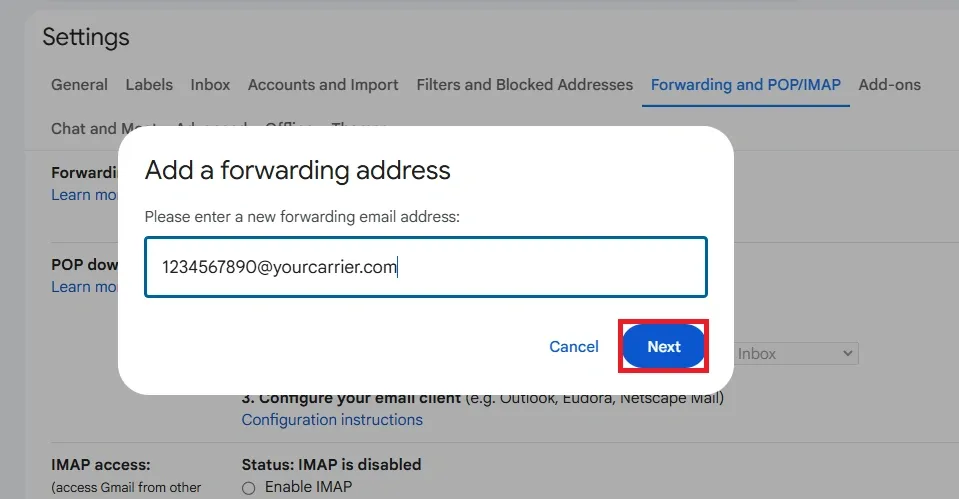
Step 5: Add Your Phone’s SMS Gateway
Enter your phone’s SMS gateway email address, such as: 1234567890@vtext.com
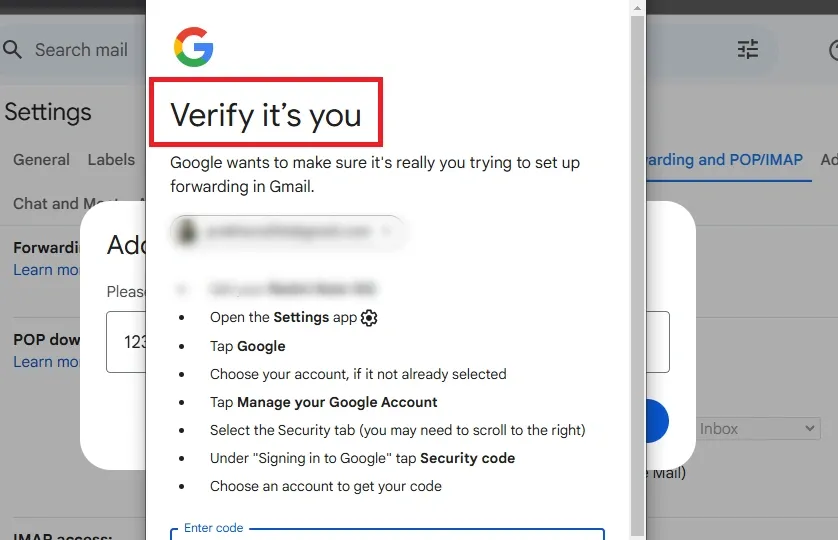
Step 6: Verify the Forwarding Address
- Google sends a verification code to the phone via SMS.
- Enter that code in Gmail to confirm.
Step 7: Save the Filter
- Select the SMS address in Forward it to → Create filter.
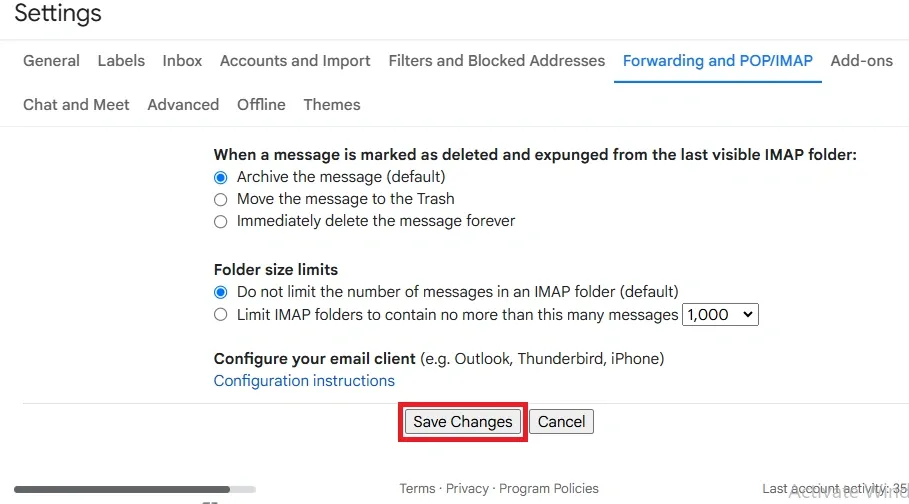
- Your chosen emails will now auto-forward as text messages.