
Think you know everything about Google Chrome? Think again! This powerful browser hides time-saving shortcuts, secret features, and game-changing tools most users never discover. From tab management hacks to hidden experimental settings, these tricks will boost your speed, improve productivity, and unlock Chrome’s full potential. Whether you're a casual browser or power user, these lesser-known gems will transform how you surf the web.
Hidden Tricks Benefits:
Understanding and utilizing these hidden tricks can provide several advantages:
- Increased Productivity: Uncovering shortcuts and tricks can help you do things faster, or just make it easier to get around.
- Enhanced Privacy and Security: By accessing the advanced settings you can set privacy and security options to protect your online actions.
- Customization Options: This is possible through adjusting various settings and mastering lesser-known features of Tailor Chrome.
- Improved Efficiency: Learning these little tricks can speed up browsing and save time as well, making the experience more relaxing.
List of Hidden Tricks of Google Chrome
Here are some hidden tricks in Google Chrome which you need to know for increasing your efficiency:
1. Manage Audio and Video Playback:
For example, controlling Windows for audio and video playback is now one of the newest features added in Google Chrome. Before, you had to open up the tab that was showing music or video and then use it for playback.
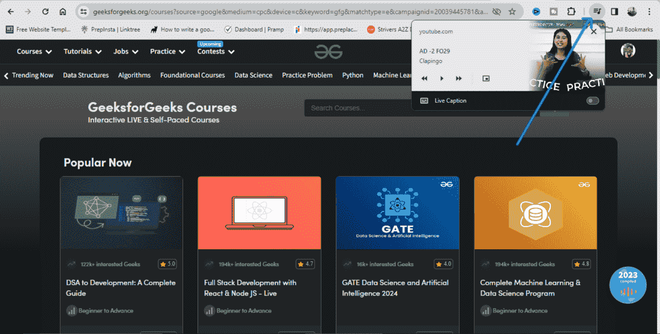
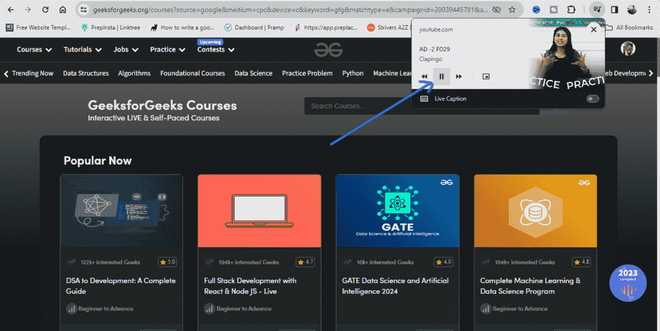
When you are currently playing a media file, the music playlist icon comes up next to your profile picture. It brings up a mini-player when clicked on. This player can be used to play, pause skip forward and back and even fast-forward or slower songs on streaming websites that support it.
2. Task Manager:
Chrome has its own Task Manager, allowing you to monitor and manage resource usage:
- Hit Shift + Esc, or open Chrome Menu > More Tools > Task Manager.
- Manage tabs, extensions and processes that consume system resources.
-660.png)
3. Block Chrome Notifications:
Chrome’s notifications feature is great. But it also can be obnoxious, particularly for those who let too many websites inform them. Moreover, you should be aware that these reminders come even if your Chrome is closed. Fortunately, there's an easy way to block Chrome notifications.
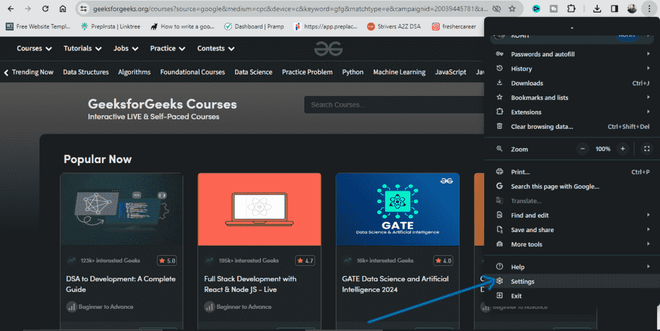
- On a PC or Mac, open the Chrome menu and select Settings -> Privacy & Security – > Site settings.
- Select Privacy and Security Tab from the left side of pane.
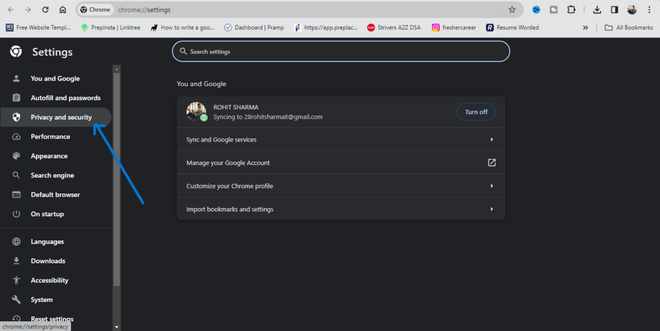
- Now from the Privacy and Security tab click on the Site Settings.
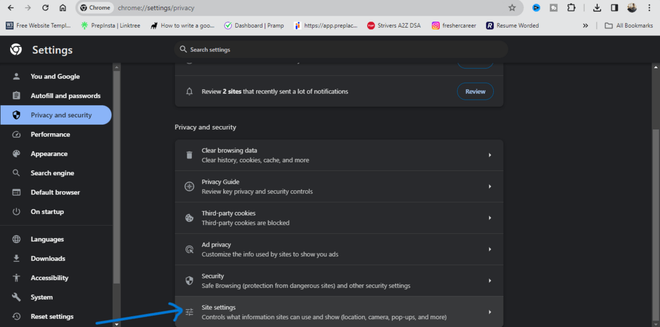
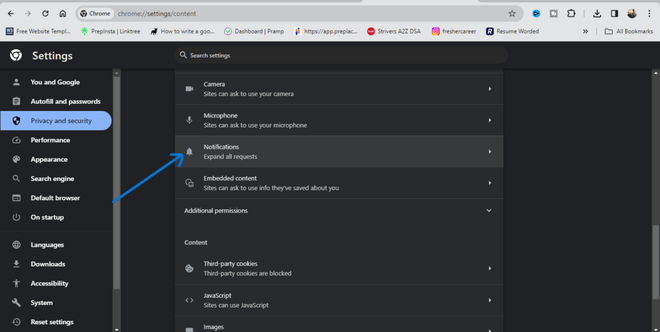
- Go to the “Notification” section here and "Block".
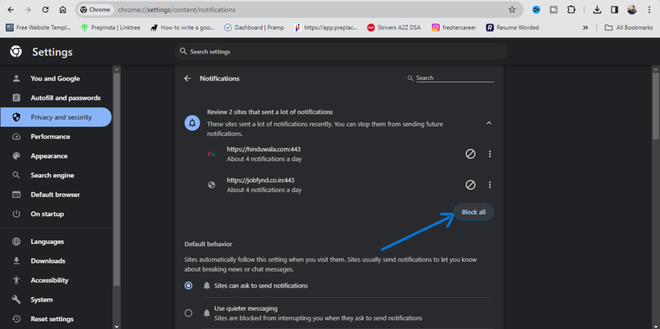
- Click on the Block All button located under the Notifications section.
Chrome Keyboard Shortcuts:
There are several excellent keyboard shortcuts in chrome that could save you time. Here are the most useful ones:
- Ctrl+1-9: These shortcuts let you switch between various tabs. The tabs were marked 1, for the first through to 9; here they are.
- Ctrl+Tab: With this keyboard shortcut command you can jump to the next tab over. With CtrlShiftTab you can tab to the left.
- Ctrl+Shift+N: This will open Incognito mode.
- Ctrl+Shift+T: Accidentally closed a tab? Just hit this keyboard shortcut to easily reopen it. Another option is to simultaneously press the key a number of times and restore multiple tabs.
- Ctrl+Shift+Delete: This keyboard shortcut brings up the “Clear browsing data ” page where you can erase all of your Chrome cookie, cache and history information.
- Ctrl+L: This shortcut takes your cursor to the Omnibox very fast.
- Shift+Esc: So how about monitoring the memory-eating tabs? Press this shortcut key to launch the task manager in Chrome.
- Ctrl+W: This keyboard shortcut can easily close a tab.
- Ctrl+N: Press this shortcut to open a new Chrome window.
- Ctrl+T: With this key combination, you can open a new tab.
Note: These are all used in the same way on a Mac, except that you replace Ctrl with Command and Alt with Option.
Conclusion:
With these hidden Chrome tricks, you’ve just upgraded from basic browsing to master-level efficiency. Start using tab groups, quick commands, and secret flags to work faster and smarter. Little changes like pinned tabs or memory saver mode make a big difference daily. Now that you’re in the know, which trick will you try first?
