
An Apple ID is a unique ID that is given to every Apple user concerning all MacOS devices like Macbook, iPad, or iPhone. It identifies and tracks the individual user that helps in providing independent services and facilities according to the device the user is logged in. It also helps you grant Apple Services like Apple Music, TV, Apple Pay, etc.
But if want to reset your Apple ID, you can do that as well. In this article, we will learn How to Change Apple ID on iPhone, iPad, and Mac.
Table of Content
What is Apple ID?
Apple ID is a unique identification that contains personal and exclusive information about the user, their private settings, and configurations. Apple ID is essential as it unlocks every inbuilt feature like email, purchases movies & apps, and logs details in any Apple device. If you ever Forget the Apple Password of your device, learn how to recover an Apple ID password!
Why Change Apple ID?
When we set up a new device like a MacBook, iPhone, or iPad, the users are required to make the Apple ID or initiate the first user registration, to start any device. But sometimes it is required to reset the Apple ID because the Apple ID is associated with a unique email address for all kinds of access, and if the email ID is no longer in use, then the Apple ID needs to be changed with immediate effect.
One can either switch or change the Apple ID but reconsider the fact that there is a slight difference between the two, such that one can switch to another Apple ID after signing out of the current Apple ID. One should also edit the Apple ID with the precaution of not losing your iCloud Storage, Apple Music, or purchased apps subscription.
How to Change Apple ID on iPhone/iPad?
This process involves changing the Apple ID without losing any contact, personal information, and data like images or videos. The process of changing Apple ID in iPhone and iPad remains similar.
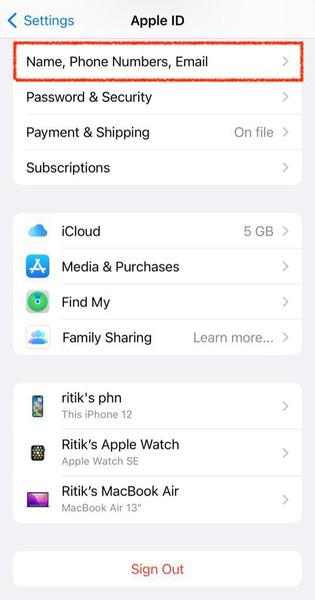
Step 1: Go to the Settings App on your iPhone and tap on Apple ID. Now, click on the Name, Phone Numbers, Email option as shown.
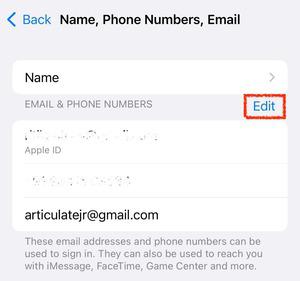
Step 2: Click on the Edit option to change your Apple ID as shown in the image below.
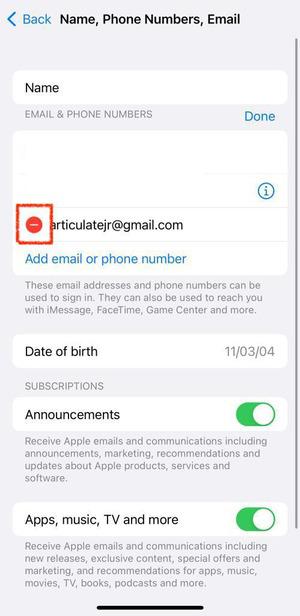
Step 3: Now, click on the red button. Click on the Delete button to delete the current Apple ID and change to another ID.
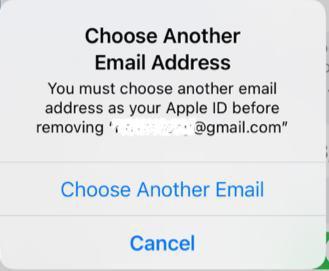
Step 4: A popup will appear on the screen asking to choose another address as your Apple ID. Tap on Choose Another Email button. To proceed further, type-in your device password (the password that was setup during the initial launch of the device).
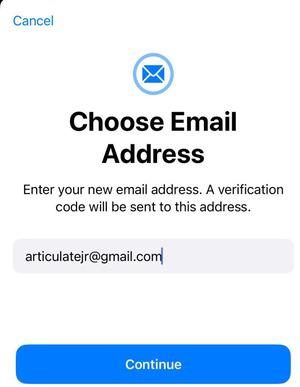
Step 5: Now, enter your new email ID and tap on Continue. After which you will receive a verification code and with this, your Apple ID has been changed in your iPhone.
How to Change Apple ID on MacBook?
There is a different way to change Apple ID on a MacBook workstation or personal computer with the steps mentioned below.
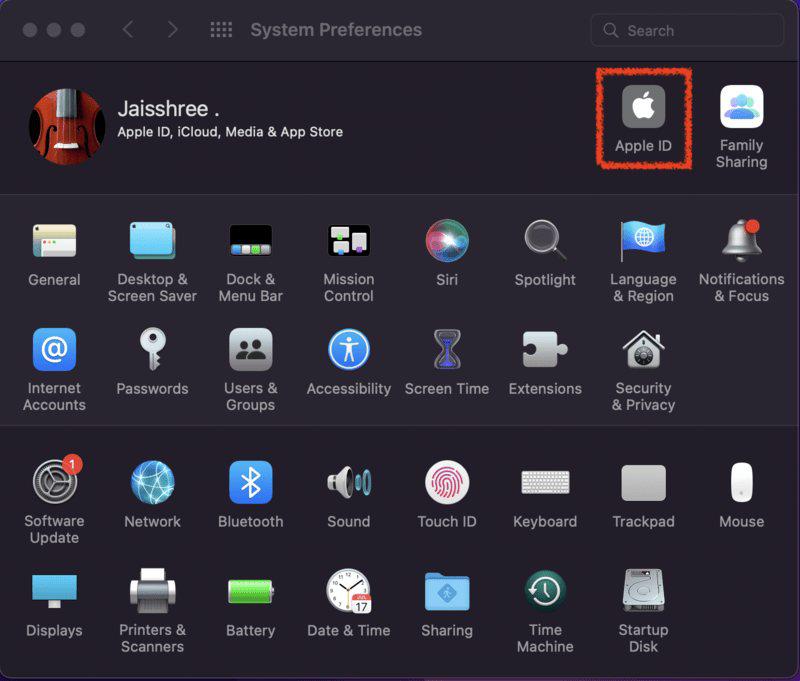
Step 1: Navigate to System Preferences in your MacBook. To do so, press command and space-bar together and type System Preferences. Press enter and this will open the System Preferences page. Or alternatively, click on the apple icon on your desktop at the top-left corner and click on System Preferences option.
Now, click on Apple ID option as shown in the image.
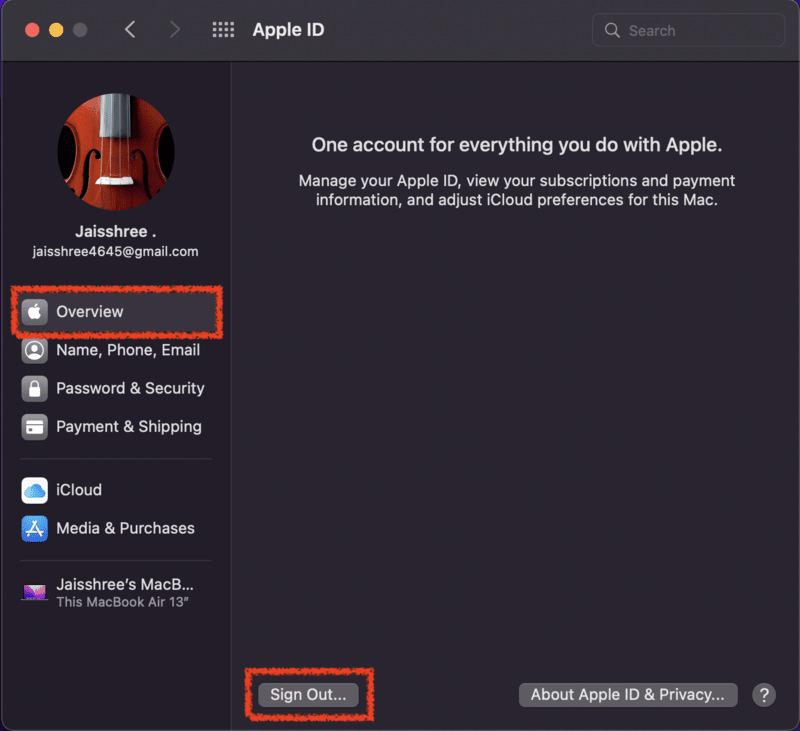
Step 2: There are several tabs available in the left-panel. Click on Overview tab and select the Sign-Out option at the bottom as shown in the image below.
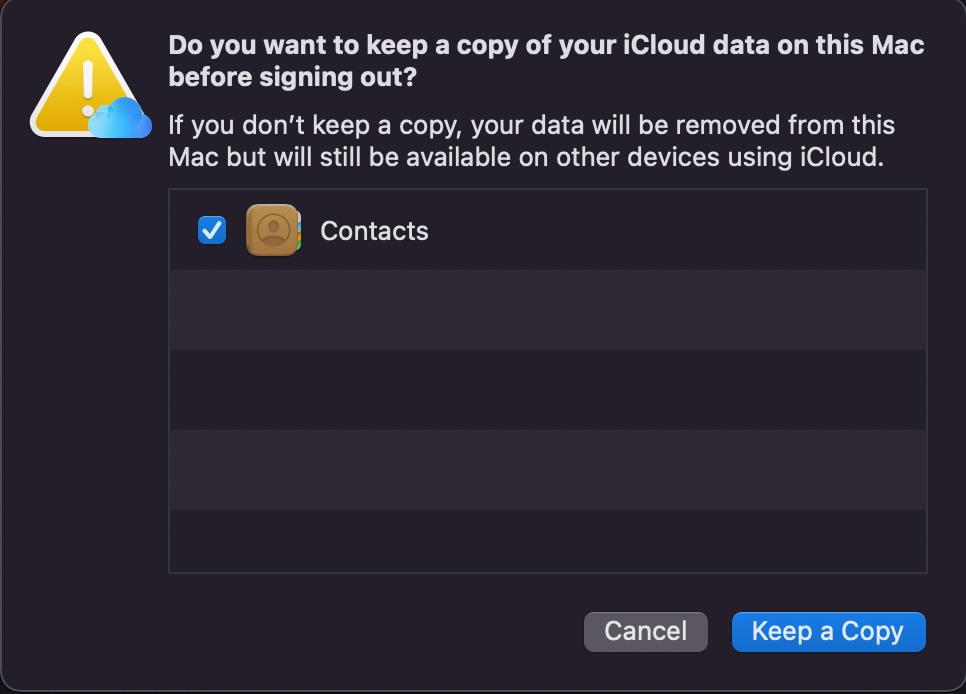
The Sign-Out option would pop-op an alert message asking to keep a copy of data. You can choose the option as per your needs.
Step 3: This would sign-out of your existing Apple ID and a dialogue box would pop-up to enter your Apple ID as shown int he image. Enter the Apple ID and click on Next.
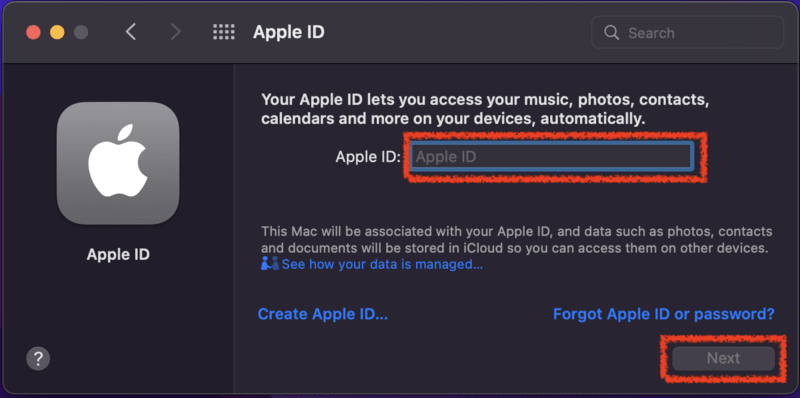
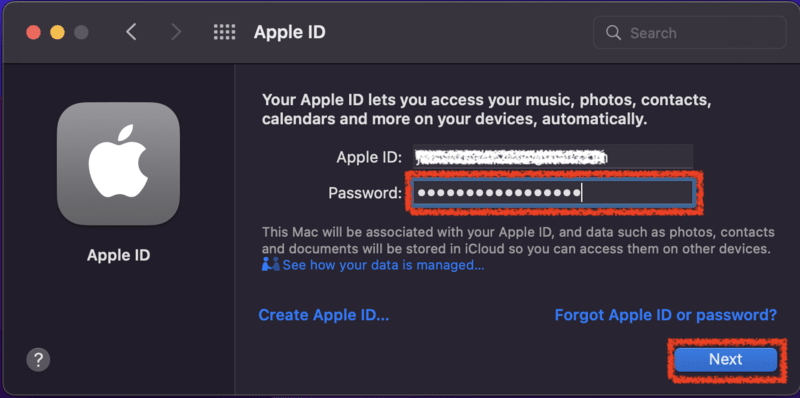
Step 4: This would ask you to enter password. Enter password and click on Next as shown in the image. This will take a few seconds to process.
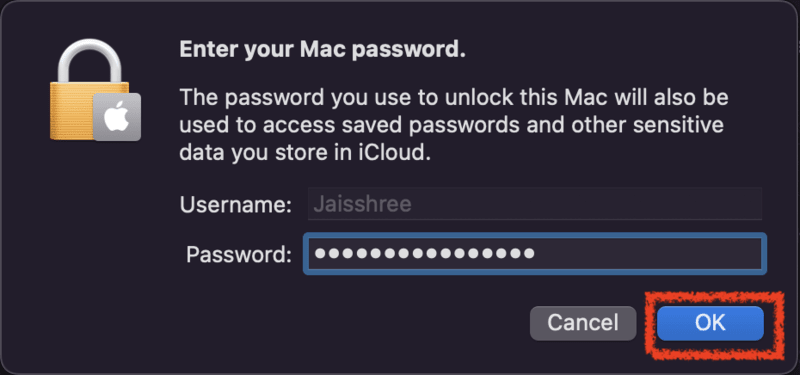
Step 5: A new pop-up would appear asking you to enter the device password. Enter your device password to continue changing the Apple ID and click on OK. This will take a few seconds to process things.
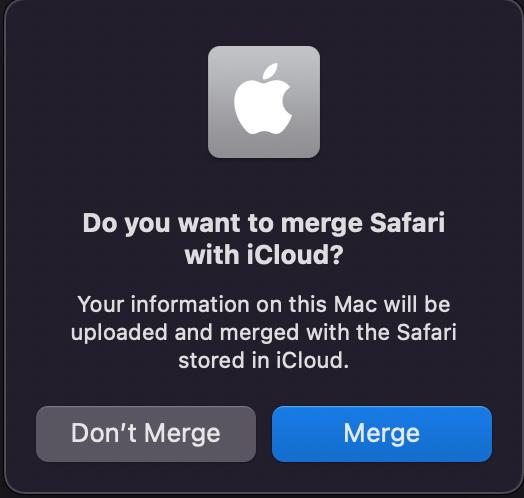
You would get a pop-up asking to merge Safari with iCloud. You may choose the option according to your needs.
This would change the Apple ID.
Conclusion
Apple ID is the most crucial identification to get access and use services of any Apple device like iPhone, Mac or iPad. One should initially set up the device with the correct email ID to be used in a prolonged run and future without any need to change or edit Apple ID later in the run, else there are steps mentioned above one can take to change the Apple ID without worrying about any loss of information or data.
