
BitLocker is a powerful Windows security feature that encrypts your drives to protect data from unauthorized access. However, you may need to disable it temporarily for system repairs, maintenance, or troubleshooting. Using Command Prompt is one of the fastest ways to turn off BitLocker without navigating multiple menus.
Here’s what makes BitLocker important:
- Encrypts the entire hard drive for maximum security
- Uses strong 128-bit or 256-bit encryption algorithms
- Works with TPM (Trusted Platform Module) for hardware-level protection
- Ensures the device hasn’t been tampered with offline
- Allows additional protection using a PIN
- Provides a 48-digit recovery key if you forget the PIN
Steps to Disable BitLocker on Windows using CMD
Step 1: Open Command Prompt as Administrator
- Press Win + S, type cmd
- Right-click Command Prompt → select Run as administrator
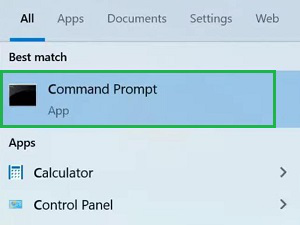
Step 2: Check BitLocker Status
- Run the command below to view which drives have BitLocker enabled:
Command: manage-bde -statusThis will show the encryption status for all drives.
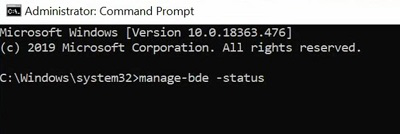
Step 3: Turn Off BitLocker Encryption
Use the following command to disable BitLocker on the desired drive:
Command: manage-bde -off <drive-letter>

Step 4: Verify BitLocker Is Disabled
After decryption completes, you can check through:
- Disk Management (Win + X → Disk Management)
- or run the status command again:
Command: manage-bde -status

