
Google Chrome Guest Mode lets you share your computer or use a public device without exposing personal data. It creates a temporary browsing session where history, bookmarks, extensions, and settings remain hidden. Once you exit Guest Mode, all activity is automatically erased.
- A privacy-focused browsing mode for temporary or shared use
- Hides bookmarks, history, saved data, extensions, and preferences
- Automatically deletes all session data on exit
- Ideal for lending your laptop or using public/shared systems
How to Enable Guest Mode in Chrome
Step 1: Open Google Chrome
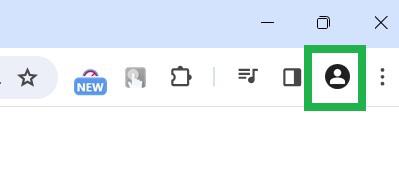
Step 2: Click the Profile icon (top-right corner)
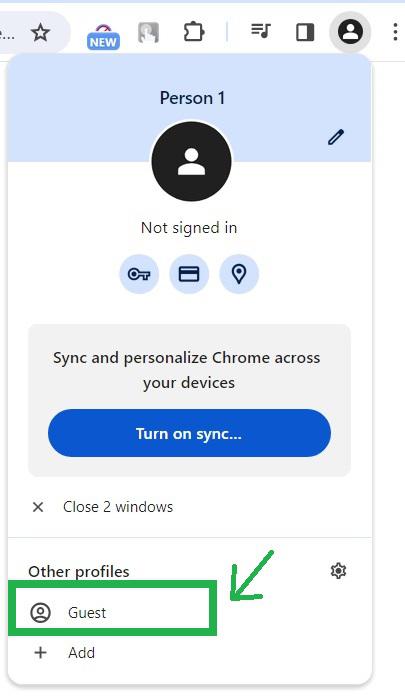
Step 3: A dropdown opens. Click 'Guest' in the dropdown.
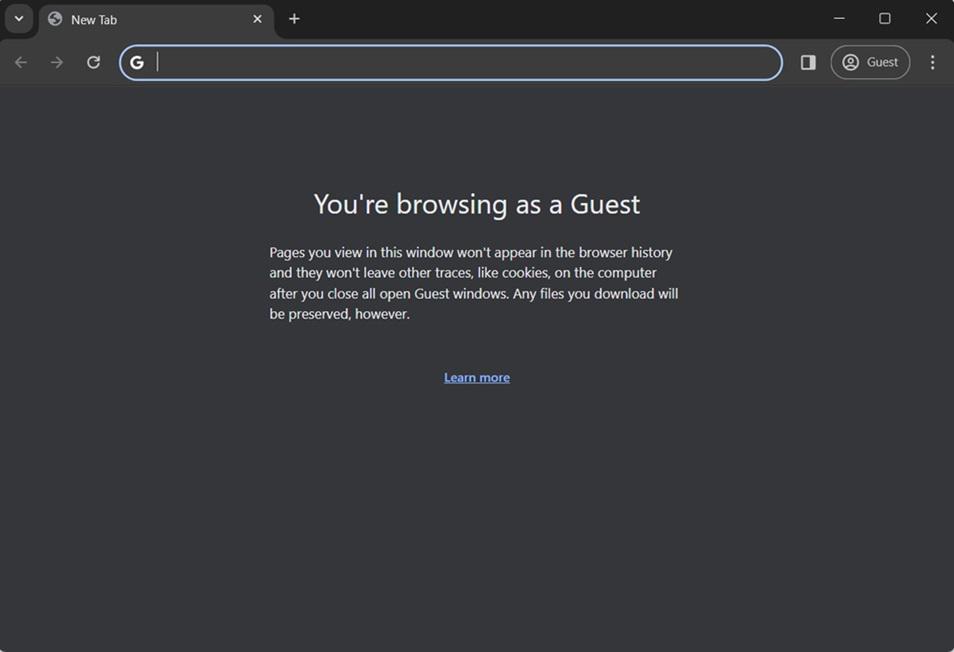
Step 4: A new Google Chrome window opens in Guest mode. Guest mode enabled in Google Chrome browser successfully.
How to Disable Guest Mode in Chrome
It is quick and easy to exit Guest mode in Chrome browser. Let us consider you are in the Guest mode now. There are two different ways to disable from Guest mode in Chrome.
Method 1: Close the Window
- Click the X button on the Guest window

The window gets closed now. Guest Mode disabled in Chrome browser.
Method 2: Use Guest Profile Menu
- Click the Guest icon
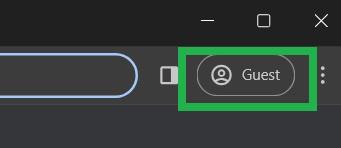
Step 2: A dropdown opens. Click 'Close Guest' in the dropdown.
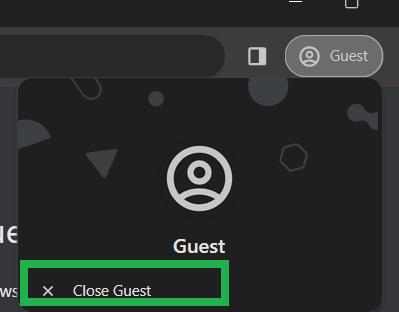
Step 3: Exited from Guest mode in Google chrome browser.
Benefits of Using Guest Mode
- Keeps personal Chrome profile private
- Prevents access to bookmarks and extensions
- Does not save browsing history or downloads
- Blocks changes to browser settings
- Disables adding new bookmarks
