
Tracking Prevention is a feature in Microsoft Edge designed to protect your privacy by blocking trackers used by websites to collect information about your browsing habits. This feature helps prevent third-party sites from following your online activities, making your browsing experience more private. However, there are times when you might want to disable it, especially if certain websites aren’t functioning as expected due to the blocking of tracking scripts.
In this guide, we’ll show you how to enable or disable tracking prevention in Microsoft Edge, allowing you to control the level of privacy protection based on your needs.
What Is Tracking Prevention
Tracking Prevention is a built-in feature in Microsoft Edge designed to block trackers—scripts, cookies, and other technologies—that collect data about your browsing behavior. These trackers can monitor your activities across multiple sites, often for targeted advertising purposes. By managing Tracking Prevention, you can reduce the amount of data collected about you, enhancing your privacy and security online.
How to Enable or Disable Tracking Prevention
Follow these steps to manage Tracking Prevention in Microsoft Edge:
Step 1: Open Microsoft Edge
Launch the Edge browser on your device.
Step 2: Access Settings
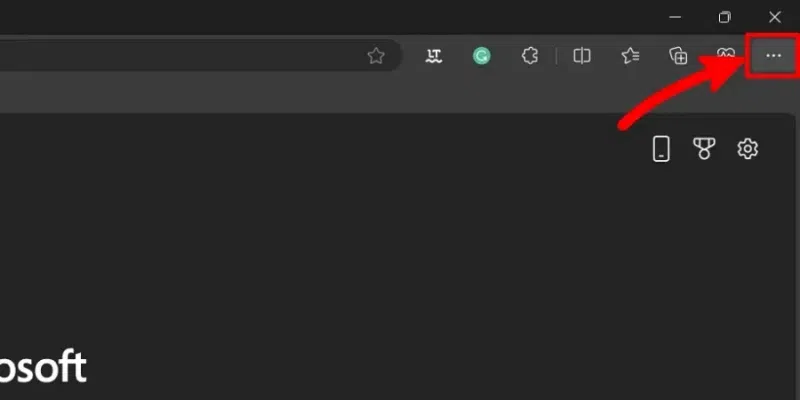
Click on the three-dot menu (...) located at the top-right corner of the browser window.
Step 3: Select settings
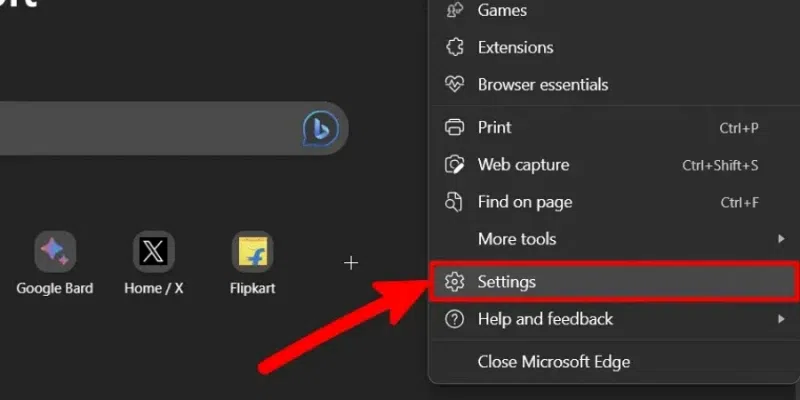
Now click on the "Settings" from the list of items in the menu to open settings.
Step 4: Navigate to Privacy Settings
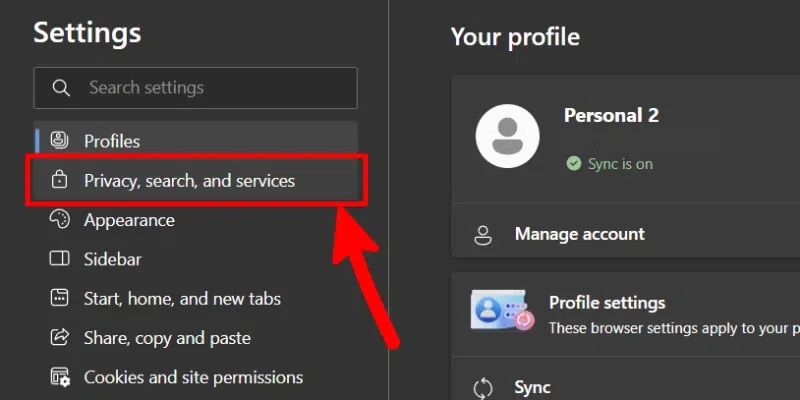
In the left-hand sidebar, click on Privacy, search, and services.
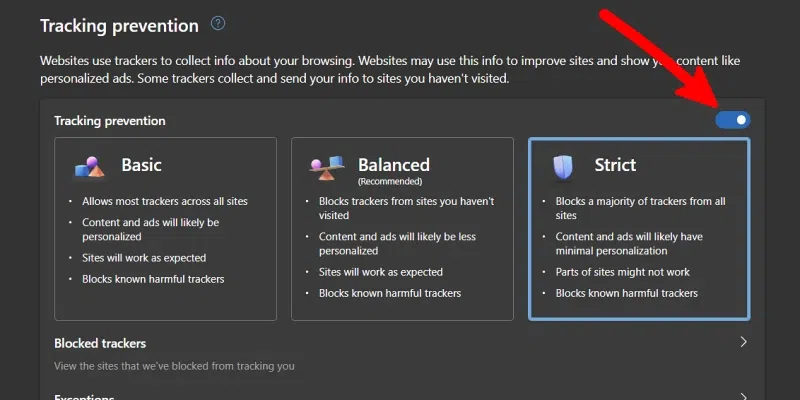
Step 5: Enable or Disable Tracking Prevention
- Under the Tracking prevention section, toggle the switch to On or Off.
- When enabled, choose your desired level: Basic, Balanced, or Strict.
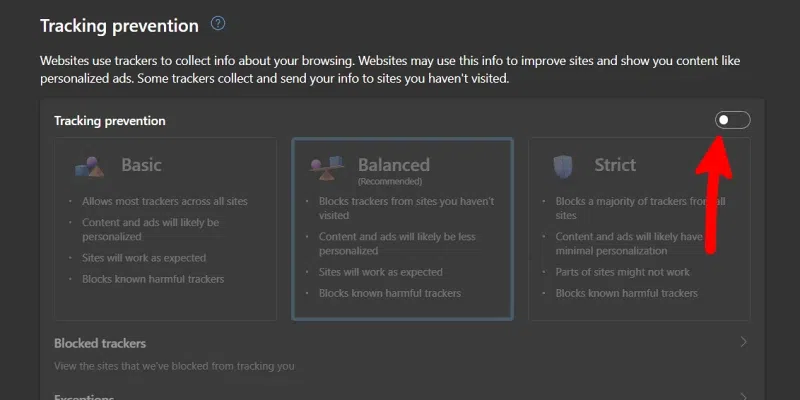
Note: It's recommended to keep Tracking Prevention enabled at the Balanced level to ensure a good balance between privacy and website functionality.
How to Disable Tracking Prevention in Microsoft Edge
Step 1: Open Microsoft Edge
Launch Microsoft Edge on your device.
Step 2: Open the "Settings and more" menu
From the Edge browser, click on the three dots in the top right corner to open the "Settings and more" menu. You can also press "Alt+F" to open it.
Step 3: Select settings
Now click on the "Settings" from the list of items in the menu to open settings.
Step 4: Select "Privacy, search, and services"
From the settings page of the Edge browser, click on "Privacy, search, and services" to open tracking prevention settings.
Step 5: Disable tracking prevention
In the Tracking Prevention section, toggle the switch to Off.
This will disable the feature, allowing websites to track your browsing activity freely, which may improve certain site functionality but also exposes you to tracking by third parties.
Understanding and Configuring Tracking Prevention Levels in Microsoft Edge
Microsoft Edge offers a feature known as Tracking Prevention to enhance your online privacy by limiting the ability of websites to track your browsing activities. You can choose from three distinct tracking prevention levels, each providing a different balance between privacy and website compatibility.
Levels of Tracking Prevention
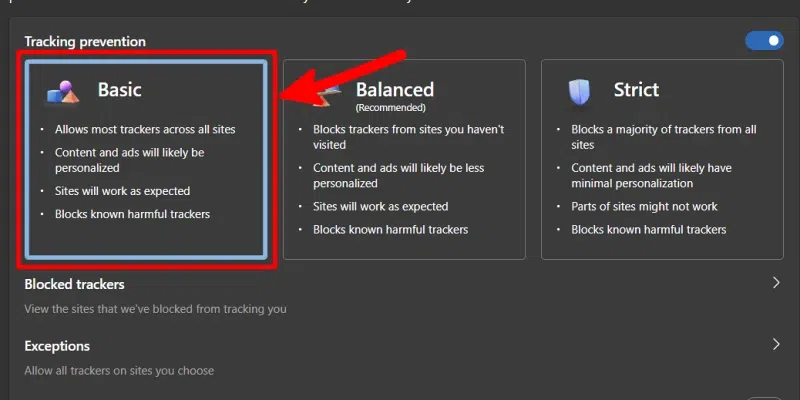
1. Basic:
- Description: This level blocks only known harmful trackers, such as those used for fingerprinting and cryptomining, while allowing most other trackers, including those used for personalized ads and content.
- When to Use: Choose Basic if you prefer personalized content and ads and are comfortable with standard protection against harmful trackers.
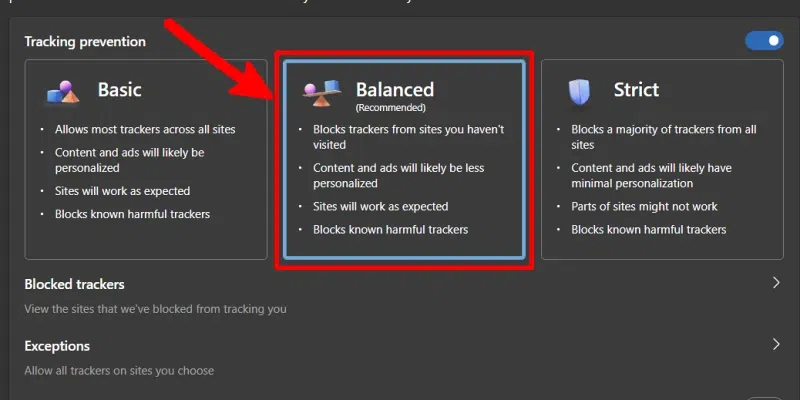
2. Balanced (Recommended):
- Description: Balanced blocks harmful trackers and trackers from websites you haven't visited, while allowing trackers from sites you've engaged with. This setting aims to reduce personalized content and ads without significantly affecting website functionality.
- When to Use: Select Balanced if you want a compromise between privacy and usability, minimizing unwanted tracking while maintaining a smooth browsing experience
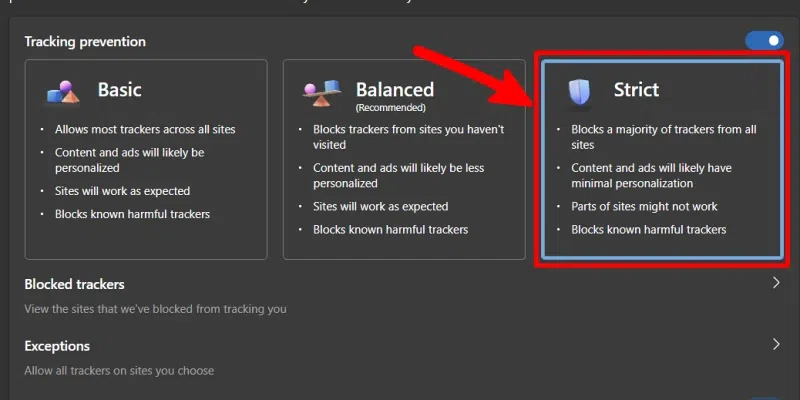
3. Strict:
- Description: Strict blocks most trackers, including those from sites you've visited, providing the highest level of privacy. However, this may lead to some websites not functioning as intended, as certain site features rely on trackers.
- When to Use: Opt for Strict if privacy is your top priority and you're willing to accept potential limitations in website compatibility.
How to Modify Tracking Prevention Levels
To adjust the tracking prevention level in Microsoft Edge:
Step 1: Open Microsoft Edge
Launch the Edge browser on your device.
Step 2: Access Settings
Click on the three-dot menu (...) located at the top-right corner of the browser window.
Select Settings from the dropdown menu.
Step 3: Navigate to Privacy Settings
In the left-hand sidebar, click on Privacy, search, and services.
Step 4: Modify Tracking Prevention Level
Under the Tracking prevention section, ensure the feature is turned On.
Choose your desired level:
- Basic
- Balanced (default)
- Strict
Note: The Balanced setting is the default and is suitable for most users, offering a good balance between privacy and website compatibility.
Conclusion
Tracking Prevention in Microsoft Edge is an essential privacy feature that helps block online trackers, keeping your browsing experience more secure and private. Whether you prefer the Basic, Balanced, or Strict setting, or even need to disable it for certain sites, Edge gives you complete control over your privacy. By following the simple steps above, you can easily adjust this setting to suit your needs, ensuring a safer and more tailored browsing experience in 2025.
