
Mac operating systems are renowned for their dependability and seamless processing technique, but problems can occasionally arise with them just like with any other system individually. Occasionally, an application may freeze or stop responding so many times, in which case you will need to force close the internal program. It's a unique technique to end the application's process, but use caution as it may cause unsaved internal data to be lost. Gaining overall system control of your Mac again without restarting it entirely may be possible if you know how to force quit by easily following some methods.
In this article, we'll explore all the essential methods or steps to Force Quit in Mac and the applications effectively.
Table of Content
How to Force Quit in Mac?
When a program stops working or freezes your Mac operating system, your best option is to force quit it and reprocess it automatically. Press Alt + Cmd + Esc to stop an active Mac application in the system terminal. To move an unresponsive application to close down by default, you can simply click the Apple menu from the screen bar and choose Force Quit. You can also Quit the unresponsive app by performing a Ctrl-click on the application system in the Dock.
Now, see the methods below and implement them properly to force quit on Mac.
Method 1: By using Mac Keyboard Shortcuts
- Press ⌘ + alt + ESC to open the "Force Quit" dialogue box > Click on it.

- Select the required application to quit > Click on the Force Quit button
Method 2: By using the Apple Menu on the screen
- Open and Click on the Apple menu > Select the Force Quit button

- Select the required Application to quit > Click on the Force Quit button on the screen
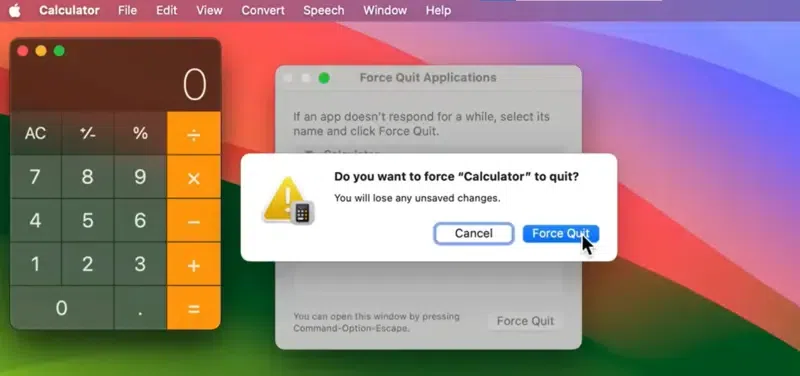
Method 3: By using the Dock function
- Try to implement Control-click the unresponsive application in the Dock

- Click on the Force Quit button > Select Allow > Press OK

Method 4: By using the Activity Monitor system
- Click on the Spotlight function on the screen > Open the Activity
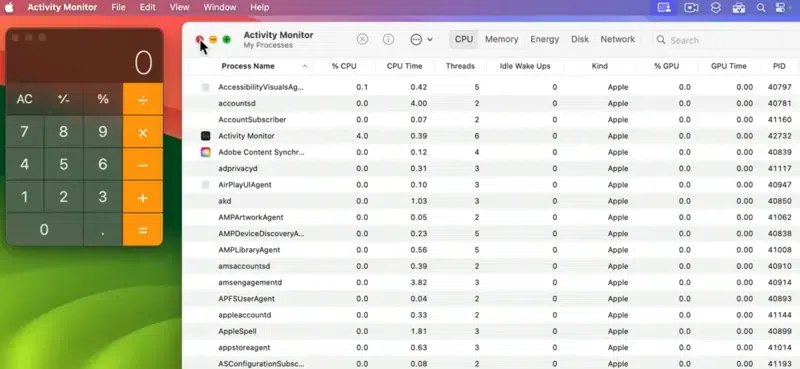
- Click on the result > Select the required applications to quit > Tap on Stop

Method 5: By using the System Terminal
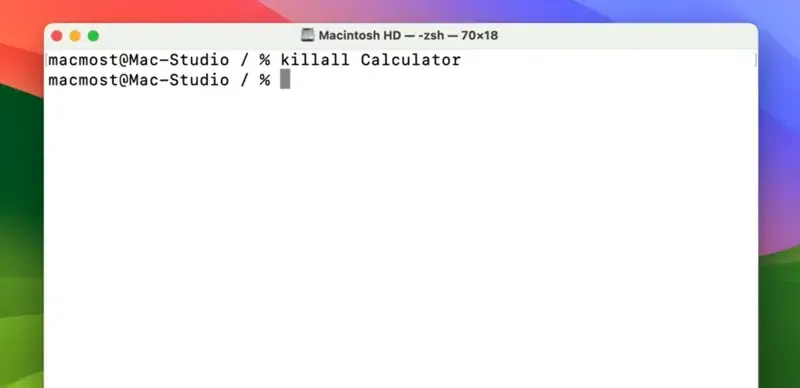
- Search and open Terminal utility > Type "Top" > Press Enter or Return
- Find the required program to close the applications > Search the Process ID or PID
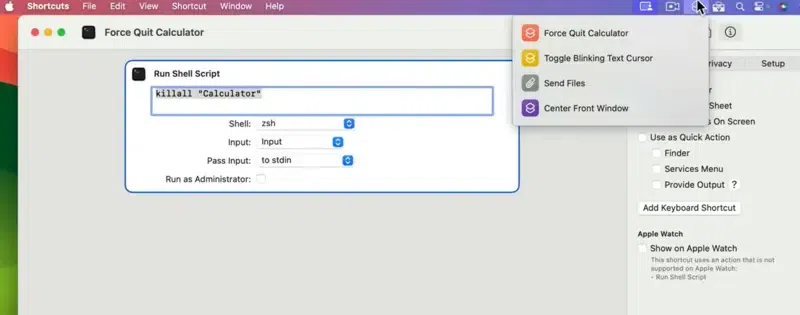
- Type q on the terminal > Type "kill ###" with the number from the PID Column > Exit the terminal dialog
Conclusion
It's crucial to know how to force quit a pre-processing program on a Mac OS to preserve system stability and productivity throughout the operation. When an application is forced to close while it is saving changes the results, and some internal data loss may occur. There are several ways to deal with all the processed unresponsive apps, whether you utilize the Force Quit window, Apple menu, Activity Monitor or display processing, System Terminal, or even need to force restart your Mac operating system.
Also Read
