
Command Prompt (CMD) offers a range of powerful tools for fixing Windows errors and boot problems. In this comprehensive guide, we'll explore essential CMD commands and techniques to troubleshoot and repair common Windows issues. Whether you're dealing with boot problems, Windows startup errors, or issues with the boot manager, CMD provides the necessary tools to diagnose and fix these issues. Follow along to learn how to use CMD effectively to repair Windows errors and keep your system running smoothly.
How to Access CMD in Windows Boot Problem?
When you face the Windows Boot Problem, the Windows OS will restrict you from going inside the system. So, if you can't move inside the system, Accessing Command Prompt will become trickier. So, there are two methods by which you can use Command Prompt without Entering into the System.
Method 1: Access CMD in Windows Boot Problem using Safe Mode
The first & very simple method is the Open Safe Mode on Windows. If you launch the Windows Safe Mode, all of the inbuilt services of Windows will be executed without any kind of problem.
In the Safe Mode, no third-party applications are present to execute. And any kind of Boot Issues on Windows, can't restrict the entering into the Safe Mode of the system.
Method 2: Access CMD in Windows Boot Problem using Recovery Environment
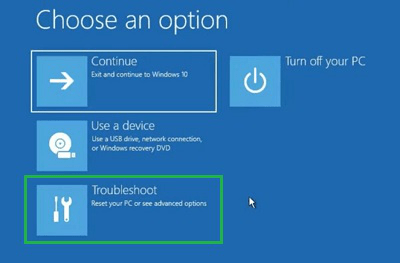
Step 1: On the Recovery Environment of Windows Boot Problem, click on the Troubleshoot Option.
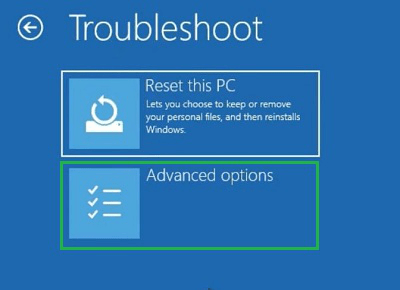
Step 2: Now, click on the Advanced Options.
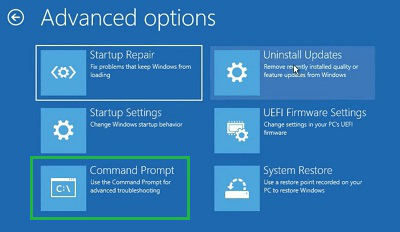
Step 3: Now, you will find the Command Prompt option. Click on that to Access CMD without launching OS.
How to Repair Boot Problems With CMD?
To Fix Boot Problems on Windows using Command Prompt, the following methods can be used. Let us start with the Windows Command made only to address Windows Boot Issues.
Method 1: Repair Windows Boot Problems with CMD using BOOTREC Command
The BOOTREC is the only command that is dedicated to all kinds of issues with Booting. If there is any Windows Boot Issue, you have to first execute the Windows BOOTREC Command. Open Command Prompt & use the command like the following.
Command 1: BOOTREC /FIXMBR
Command 2: BOOTREC /FIXBOOT

Method 2: Repair Windows Boot Problems with CMD using SFC Command
The System File Checker or SFC Command is not completely dedicated to Windows Booting Problems. It helps to address the Corrupt System File Concept. However, it can be used in the Command Prompt to fix Boot Problems caused by Corrupted System Files.
Command: sfc /scannow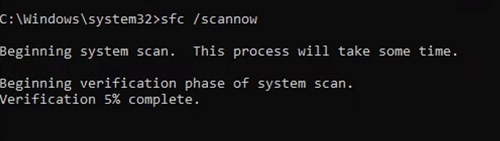
Method 3: Repair Windows Boot Problems with CMD using DISM Command
The Deployment Image Servicing and Management or DISM can be another good Windows Command executed to get rid of Boot Problems. Open the Windows Command Prompt & execute the following command. It will fix any Windows Image Problem quickly.
Command: DISM /Online /Cleanup-Image /RestoreHealth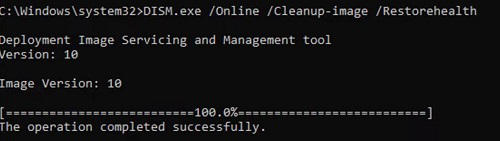
Method 4: Repair Windows Boot Problems with CMD using System Cleanup Command
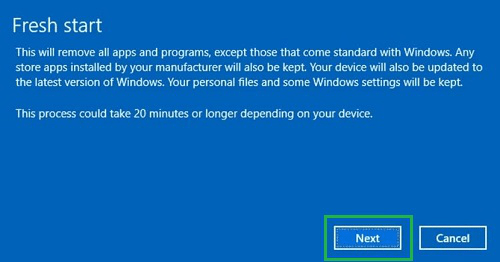
Step 1: Another important command that will Refresh Windows along with repairing the problem is the Cleanup Command. Use the Command on the CMD using the below manner.
Command: systemreset -cleanup
Step 2: Now, click on the Next Button to start the complete process.
Method 5: Repair Windows Boot Problems with CMD using System Reset Command
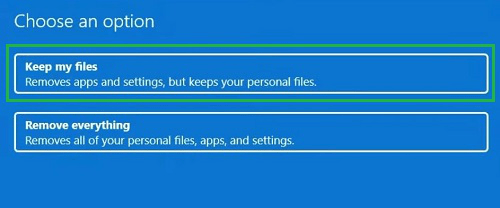
Step 1: If any of the above commands is not working, then you have to go for the Windows System Reset. And that could also be done from the Windows Command Prompt. To do so, use the following command.
Command: systemreset.exe
Step 2: Now, click on the Keep My Files option to start the process.
In conclusion, using Command Prompt (CMD) to repair Windows errors and boot problems can be a powerful and efficient solution. By mastering the relevant CMD commands and troubleshooting techniques, you can resolve common issues, repair the Windows boot manager, and fix boot sector problems. This guide has equipped you with the knowledge to diagnose and fix Windows errors using CMD, empowering you to keep your system running smoothly.
