
A proxy server is an intermediary system that routes your internet traffic through a separate server before it reaches the destination website. It helps mask your IP address, manage network traffic, and improve privacy and access control.
Why Use a Proxy Server:
- Enhanced Privacy: Hides your real IP address from websites
- Bypass Restrictions: Access geo-blocked or restricted content
- Traffic Control: Monitor and manage network usage
- Basic Security Layer: Adds an extra layer between users and the web
How to Create a Free Proxy Server
We are going to use the CCProxy tool to establish a free proxy server on our computer systems. CCProxy is a handy Proxy Server Software for Windows PCs. You can create your own Proxy server in just five minutes using this tool, allowing you to take advantage of the Proxy server.
Step 1:
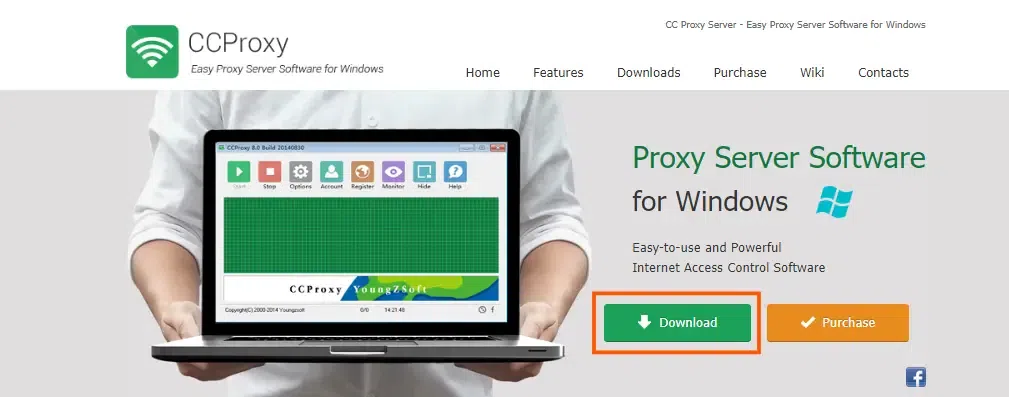
- Search “CCProxy server download” on Google. Open the official link that appears at the top and click the Download button.
Step 2:
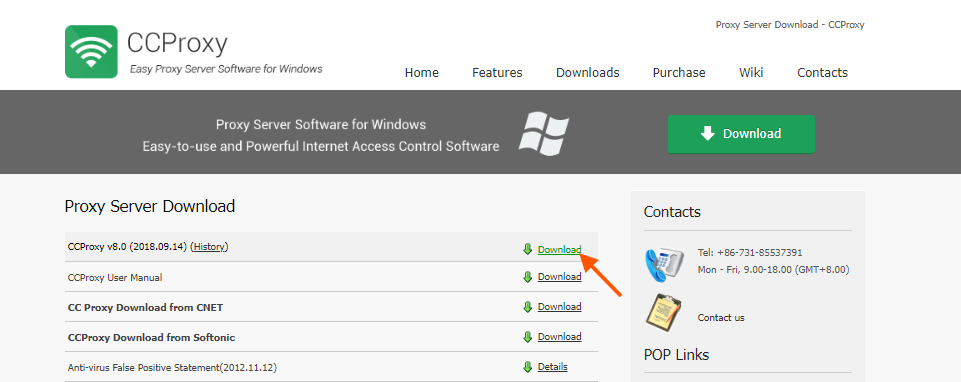
- You’ll see multiple download options. Choose the first download button.
Step 3:
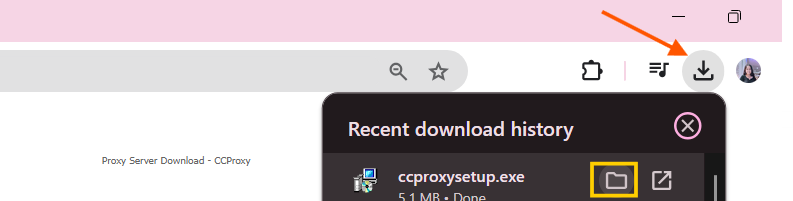
- After the downloading .exe file. Double-click to execute the installation.
Step 4:
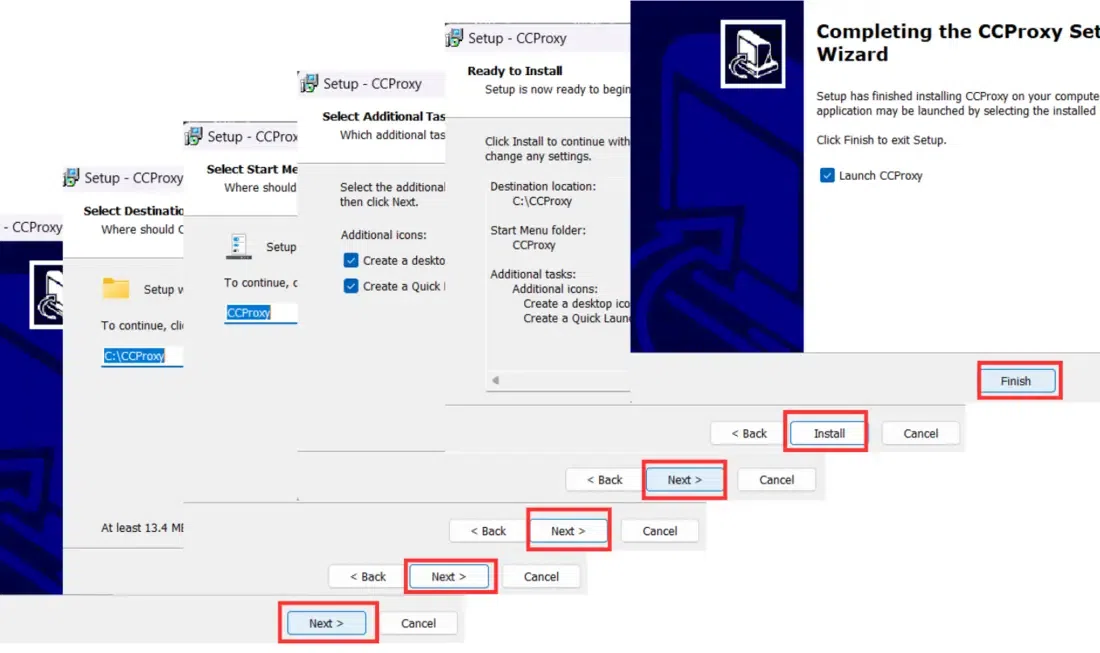
- Press Next until you reach the Install button. After installation completes, click Finish.
CCProxy is now installed. Next, we’ll configure it to create your proxy.
Configuring CCProxy
Step 5:
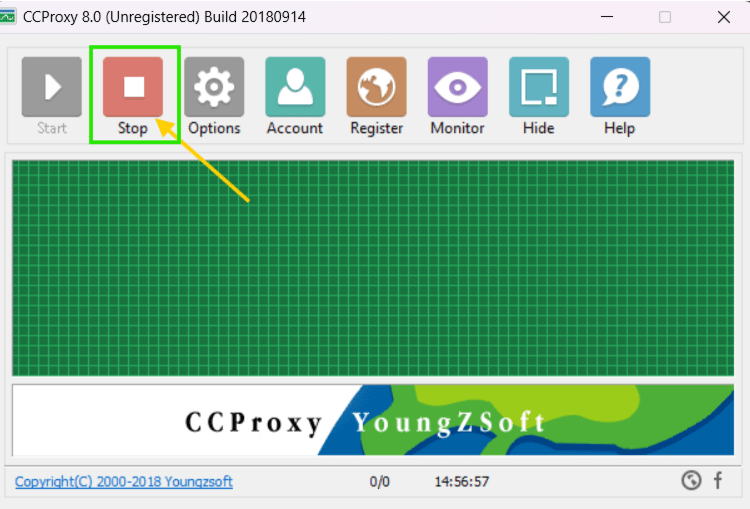
- Open CCProxy. It starts automatically in Start mode click Stop.
Step 6:
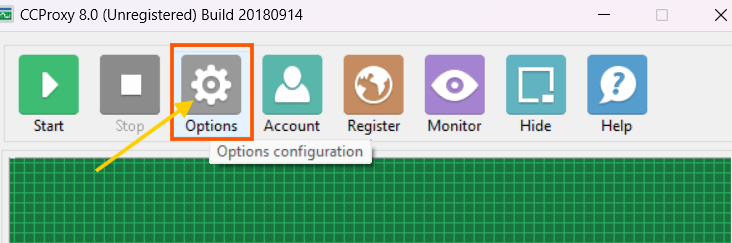
- Click the Options button. You’ll see default port numbers and protocol settings.
Step 7:
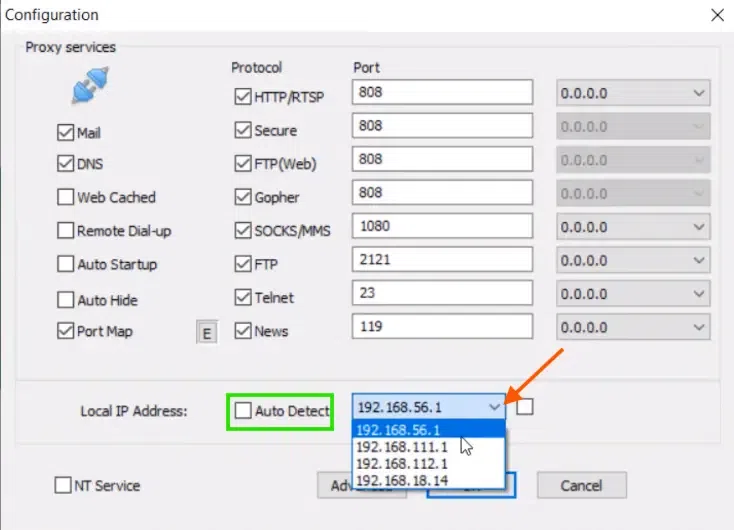
- You do not need to change anything here. Your system IP address appears automatically, or you can uncheck Auto Detect and select an IP manually. Click OK to save changes.
Step 8:
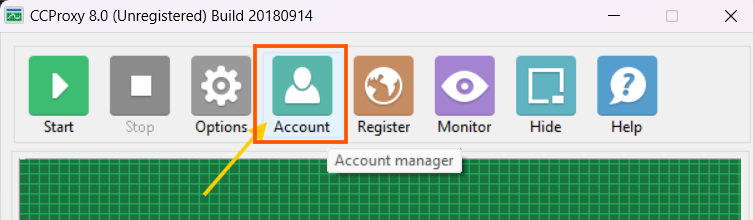
- Click the Account button to add a new proxy user.
Step 9:
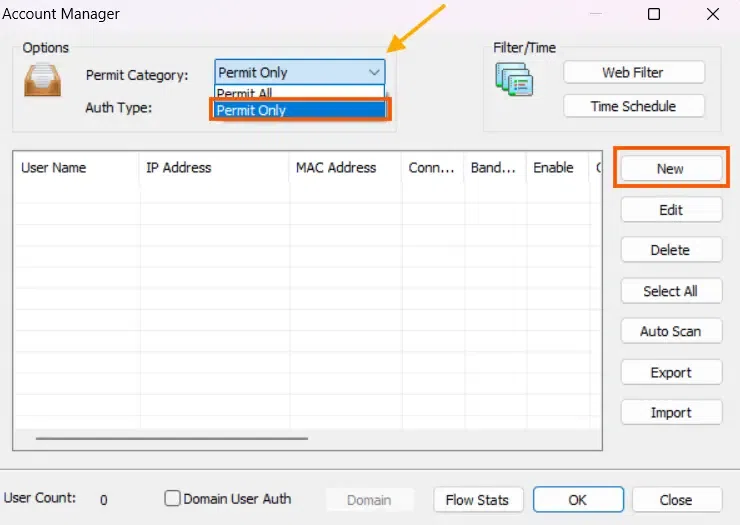
- Change the permission type to Permit Only, then click New.
Step 10:
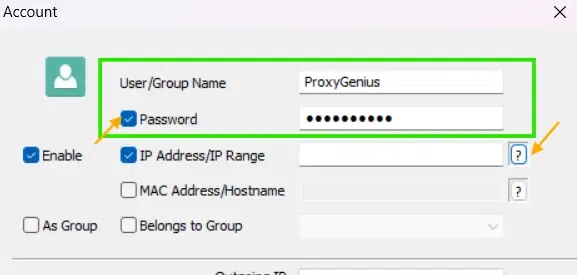
- Enter a User/Group Name, enable Password, and create a password.
Step 11:
- Click the ? icon beside the IP Address/IP Range field.
Step 12:
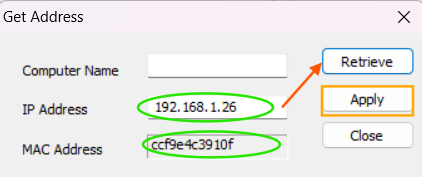
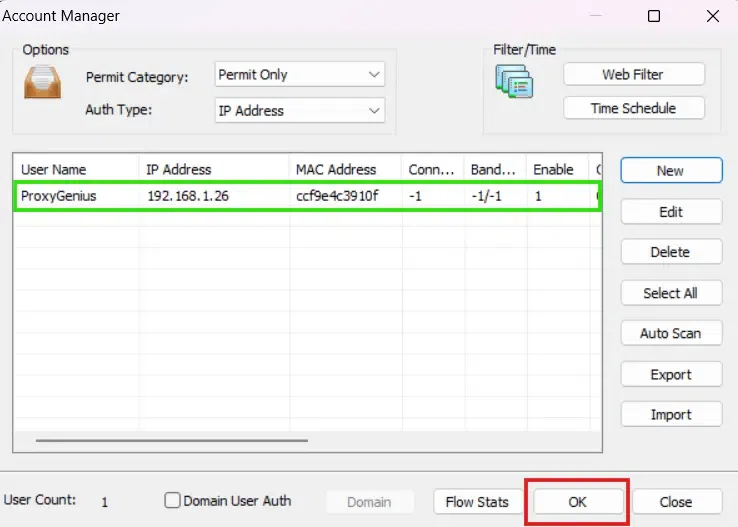
- Click Retrieve to auto-fill the IP address. Then click Apply then OK to save settings.
Step 13:
- Your proxy account is now successfully created!
How to Set Up Proxy Network on Windows 11
Step 1:
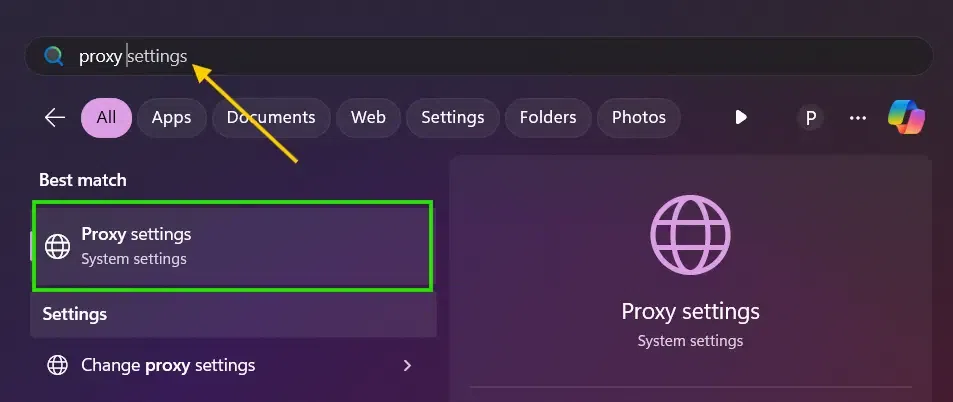
- Click the windows key from the keyboard and search proxy settings. Click to open it.
Step 2:
- Click on Set up button under Manual proxy setup.
.webp)
Step 3:
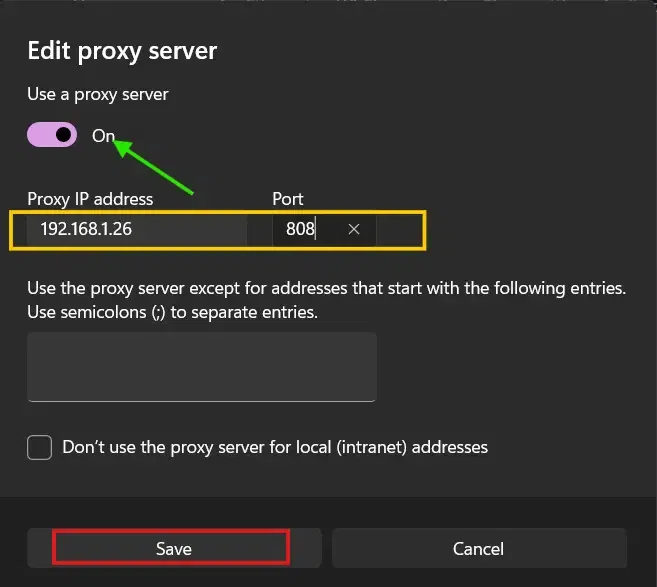
- Turn ON the Use a proxy server toggle. Enter the Proxy IP address and Port number generated in CCProxy. Click Save.
Step 4:
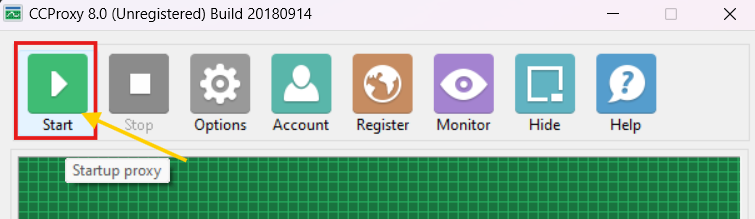
- Go back to CCProxy and click Start to restart the proxy server.
Now, you can browse the internet with your own proxy server for free as shown below.
