
Did you know that copyright, trademark, and registered symbols are essential for protecting intellectual property? Typing symbols like © (Copyright), ® (Registered), and ™ (Trademark) on a Mac is simpler than you might think, and it can save time when drafting legal documents, marketing materials, or any professional content. Instead of searching for these symbols online or copying them from another source, you can easily type them directly using Mac's built-in keyboard shortcuts.
How to Add the Copyright, Trademark, and Registered Symbol (Mac)
This guide will walk you through step-by-step instructions on how to type copyright, trademark, and even other special symbols like ® (Registered) on a Mac.
Using Mac Keyboard Shortcuts
Mac provides built-in keyboard shortcuts for typing these symbols:
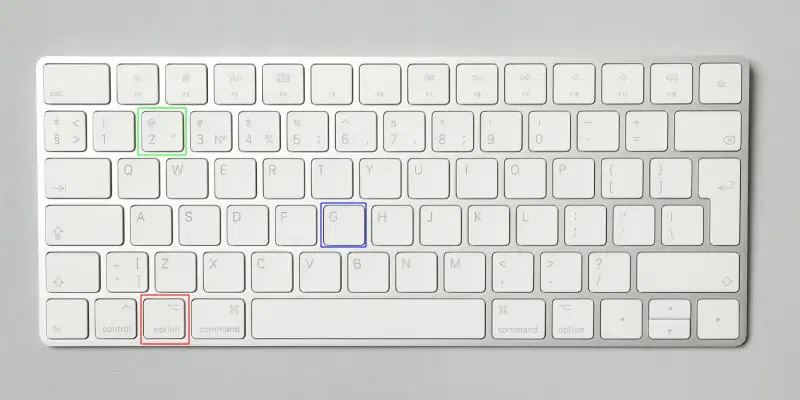
- Copyright Symbol (©) Shortcut: Press
Option + G - Registered Symbol (®) Shortcut: Press
Option + R - Trademark Symbol (™) Shortcut: Press
Option + 2
Using the Mac Character Viewer
Below are the steps to easily insert symbols using the Character Viewer tool on Mac, If you don’t remember shortcuts, use the macOS Character Viewer:
Step 1: Place the Cursor
Place the cursor where you want the symbol.

Step 2: Press the Keys
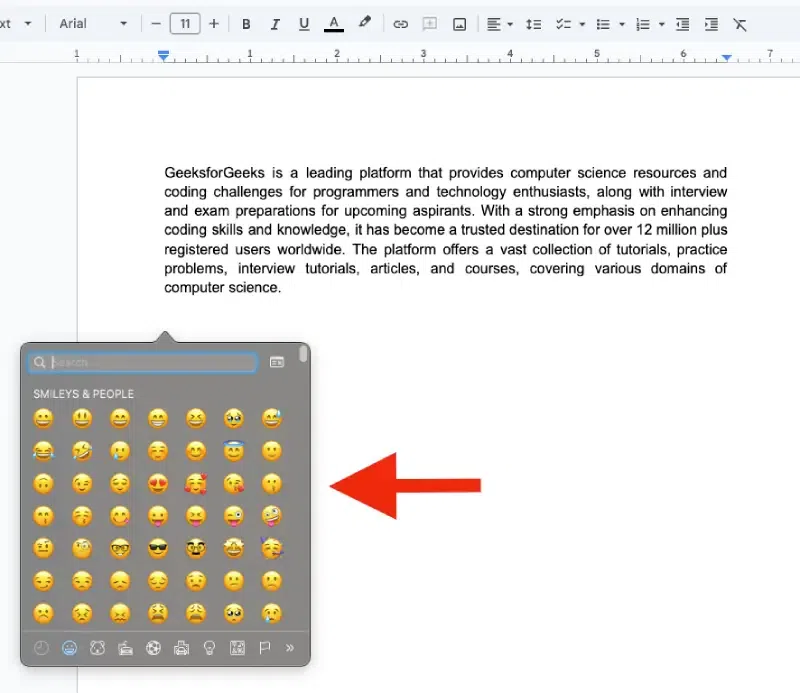
Press Control + Command + Space to open the emoji and special character menu.
Step 2: Search for the Symbol
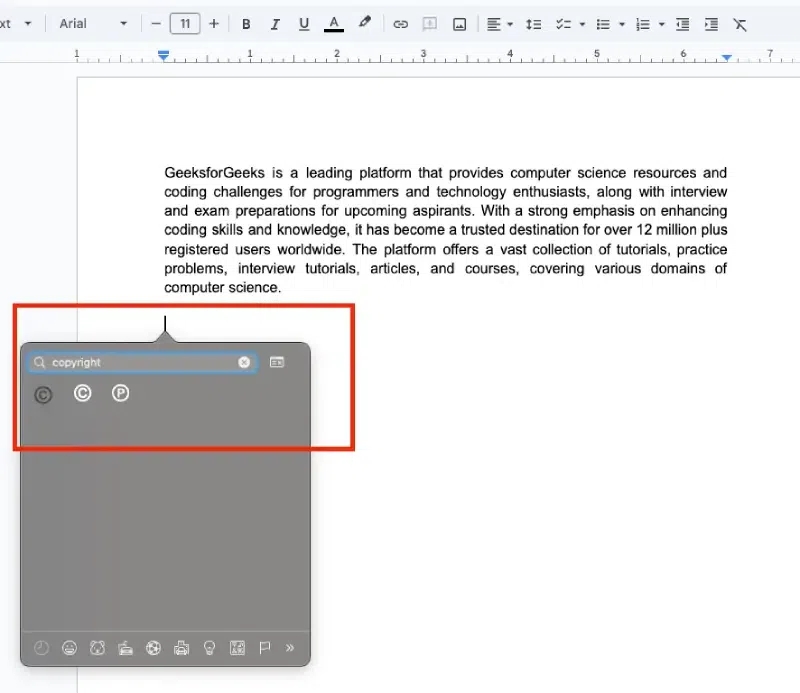
Use the search bar at the top and type "copyright", "registered" or "trademark."
Step 3: Insert the Symbol
Double-click the desired symbol to insert it where your cursor is placed.
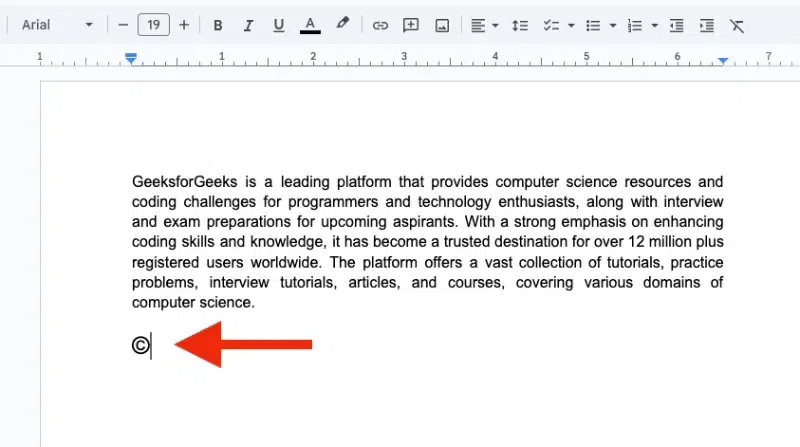
Using Unicode Hex Input
macOS supports typing symbols using Unicode values with the Unicode Hex Input keyboard. Here's how you can type the symbols using this method:
Step 1: Enable Unicode Hex Input
Open System Settings > Keyboard > Input Sources.
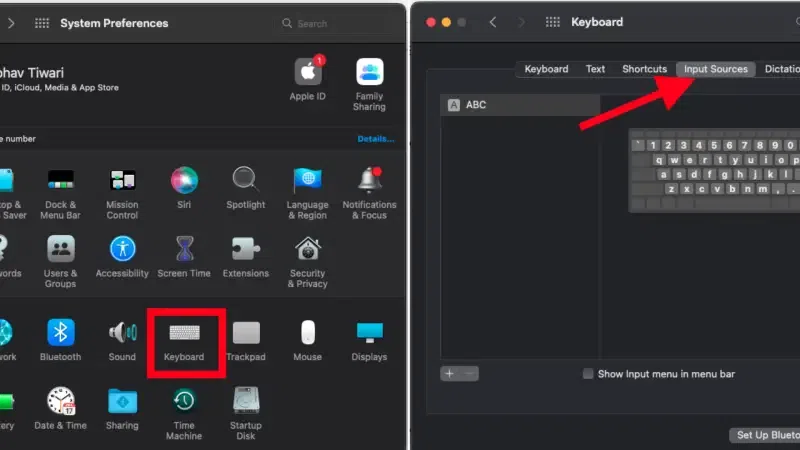
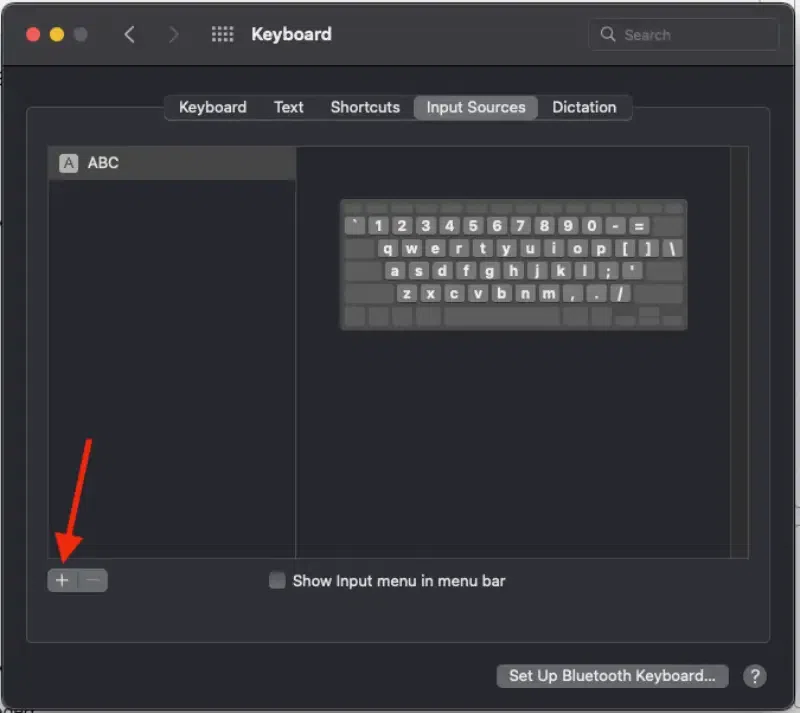
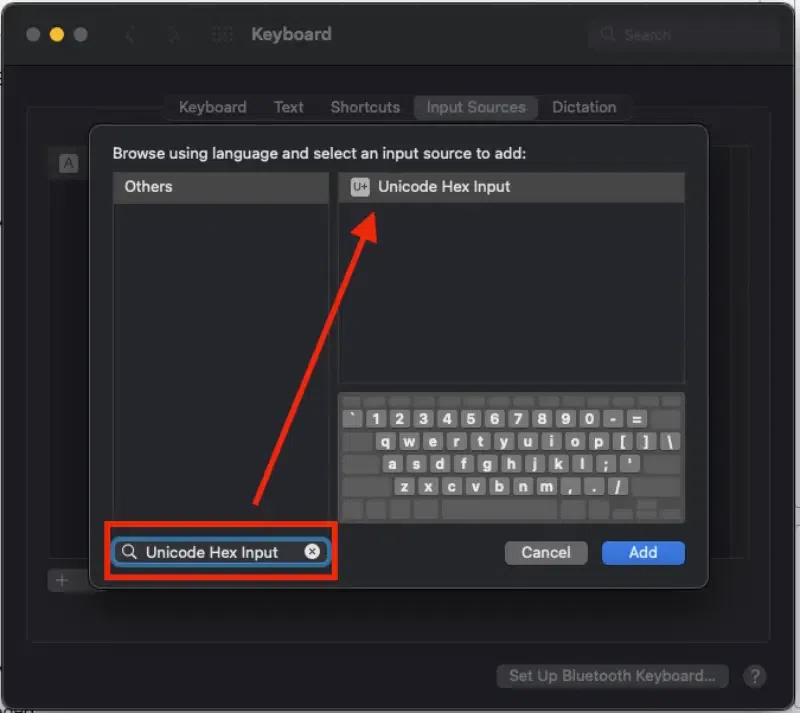
Click the + button and add Unicode Hex Input from the list.
Switch to the Unicode Hex Input keyboard from the top menu bar.
Step 2: Type the Symbol Using Its Unicode Value
- Hold down the
Optionkey and type the 4-digit Unicode value for the symbol:- Copyright (©):
Option + 00A9 - Registered (®):
Option + 00AE - Trademark (™):
Option + 2122
- Copyright (©):
- Release the
Optionkey, and the symbol will appear.
Get Copyright, Trademark, Registered Symbol on Mac (Direct Copy and Paste)
If you are still not able to add symbols from the above methods, you can directly copy and paste the symbols give below:
- Copy the below symbol (Command + C) and paste it (Command + V) where needed.
- Copyright:
© - Registered:
® - Trademark:
™
Using Auto-Replace in Text Settings
Step 1: Set Up AutoText
Open System Settings > Keyboard > Text.
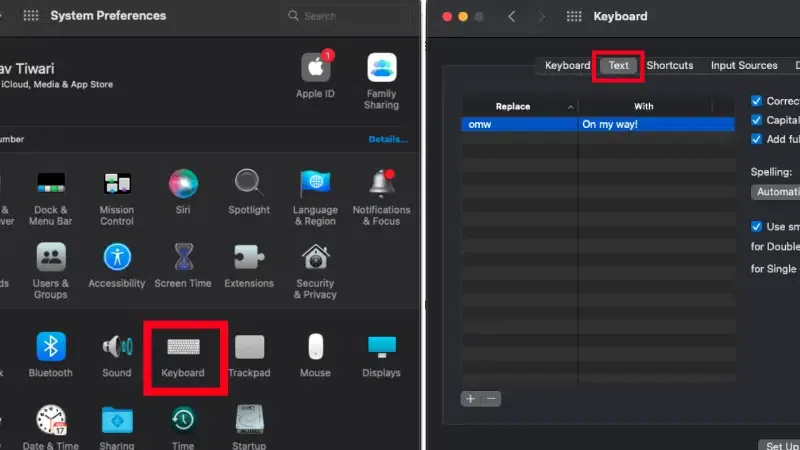
Click the + button to add a replacement rule.
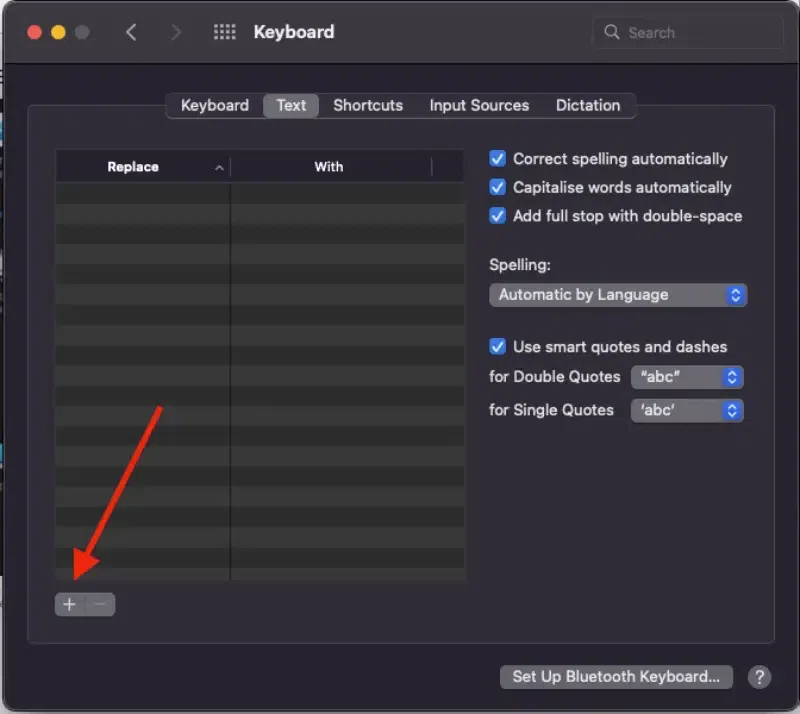
Add the shortcut (e.g., (c) for ©, (r) for ®, (tm) for ™).
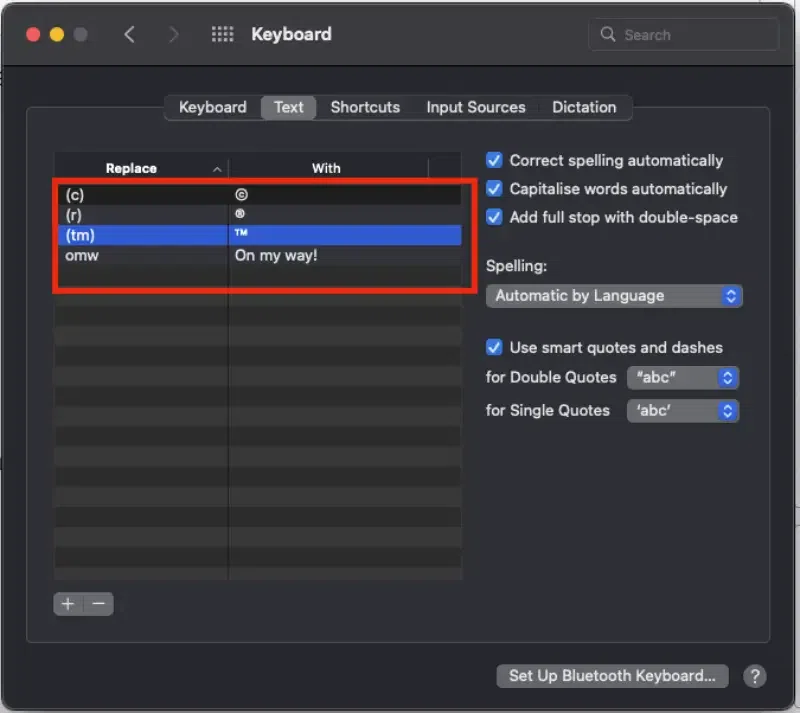
Add a new shortcut: e.g., type "(c)" to automatically replace it with "©."

Step 2: Use the Shortcut
Type your defined shortcut in any app, and macOS will replace it with the corresponding symbol.
HTML Codes for Web Developers using Mac
If you're coding and need these symbols in HTML, use:
- Copyright:
© - Registered:
® - Trademark:
™
These will render as ©, ®, and ™ in web browsers.
Conclusion
On a Mac, obtaining the copyright, registered trademark, and trademark symbols is generally simple. You can either use a keyboard shortcut for typing each symbol or add them to the Character Viewer for other uses. It's that simple: protecting and denoting your intellectual property when creating or using proprietary names becomes super simple.
