
In today's digital world, it is necessary to Manage Email Inboxes effectively. In such cases, the Automation of Email will be a most needed process to execute.
If you have the MacOS, then Email Automation with AppleScript can easily be done where you have to write some Scripts with the Mail Application. This article will discuss the steps to Use AppleScript with Mail Application for Email Automation.
Table of Content
- What is the AppleScript Application?
- Why Email Automation is Needed with AppleScript?
- How to Use AppleScript with Mail for Email Automation?
- Section 1: Open AppleScript Application
- Section 2: Add Mail Application with AppleScript
- Section 3: Write the Script for Automation
- How to Save and Execute AppleScript for Email Automation?
- How to Use AppleScript with Mail.app for Email Automation - FAQs
What is the AppleScript Application?
AppleScript is the Scripting Language developed by Apple Incorporation. If you want to Automate Tasks on Apple, then AppleScript should be used. The AppleScript is not similar to the Automator Application where the Graphical User Interface works. Here, individuals need to write the Script in AppleScript Editor on their own.
Features of AppleScript:
- AppleScript can be used for Automating Tasks which requires Manual Interactions.
- AppleScript can work with Different Applications and provide commands as well.
- Many applications have their Script Template given inside the AppleScript.
- You can even use AppleScript as the compiler to execute any code written in the Scripting Language.
Why Email Automation is Needed with AppleScript?
Before moving ahead with the Using of AppleScript for Email Automation, we have to understand why AppleScript is necessary for Mac Email Automation. However, there is the Automator Application is also present to do so. There are a few reasons behind the use of AppleScript for Email Automation.
- Increased Productivity: AppleScript is mainly used for Email Automation as it can provide increased productivity than any other Automation Application. With some simple clicks, the Scripts can be designed which can be used multiple times in the future.
- Custom Workflow: If you know the process to define the Scripts in AppleScript, then you can add multiple events in the Scripts. This will provide a chance to customize the requirement which can not be possible with any other application.
- High Efficiency: With AppleScript, you can easily automate any kind of Large Tasks in the Email Accounts. Like, if you want to mark Unread Emails as Read ones, AppleScript can do this within a few seconds.
How to Use AppleScript with Mail for Email Automation?
To Use AppleScript for Email Automation with Mail App, then the following sections should be executed properly. Let us start with the section where we will find out the AppleScript Application and Create New Script.
Section 1: Open AppleScript Application
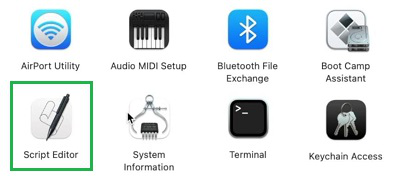
Step 1: Open the Finder Application and go to the Utilities. Under that, you will find the Script Editor. Open the application.
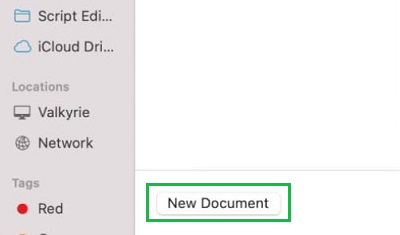
Step 2: Now, click on the New Document to start a New Script for Email.
Section 2: Add Mail Application with AppleScript
Step 1: Now, it is time to Add a Mail Application with AppleScript. On the Newly Opened Document, click on the Hammer Symbol.

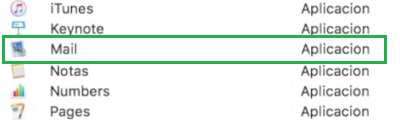
Step 2: A new window will open from where you have to find the Mail Application and select it. Hence, the Mail Application is not associated with AppleScript.
Section 3: Write the Script for Automation
Now, it is time to Write the Script. As soon as the Mail Application is attached with AppleScript, you will find a Script Template. The template starts with the "tell" and ends with the "end tell".
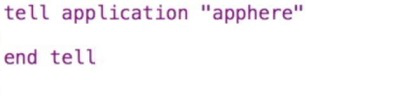
In between this, we have to write down the Script. You can design your Script as per your choice. However, for Sample Purposes, we have written the following Script to Mark Emails as Read.
Sample Apple Script to Mark Emails as Read:

tell application "apphere"
    set messagesList to (every message of inbox)
    repeat with currentMessage in messagesList
        set flagged status of currentMessage to true
    end repeat
end tell
How to Save and Execute AppleScript for Email Automation?
Now, we have written the AppleScript for Email Automation successfully. However, it is time to execute the written AppleScript. To do so, we will follow the below two sections. Let us promptly execute the Script to Automate Emails.
Section 1: Promptly Execute any Script
If you want to promptly Execute AppleScript to Automate Emails, you have to click on the Play Button. You are not going to Notice any Activity there. However, when you the Email Inbox, you will find all Emails are Read.

Section 2: Save Script for Future Use
Step 1: If you want to Save AppleScript for future purposes, click on the Record Symbol.

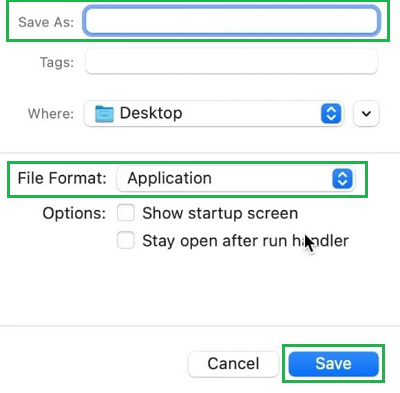
Step 2: Then, provide the Name and go for the Application File Format. Later, click on Save.
Conclusion
From the above discussion, we can say Automating Emails with AppleScript is not a challenging task. You have to just align the AppleScript Application with Mail on MacOS, the rest of the task will be completed easily. However, you should have a strong hold to Write AppleScript to complete the Email Automation Operation.
