
Want to browse the web without leaving a trace on your device? Private browsing modes in Safari, Edge, Firefox, and Opera allow you to surf the internet without saving history, cookies, or login details. Whether you're using Safari’s Private Browsing, Edge’s InPrivate mode, Firefox’s Private Window, or Opera’s Private Mode, these features offer an extra layer of privacy for everyday browsing.
In this guide, you’ll learn how to enable private browsing in each of these browsers, explore their best use cases, and understand their limitations to ensure smarter and more secure web usage.
Disclaimer: Incognito mode only hides activity on your device. Your online actions may still be visible to websites, employers, or internet providers.
Table of Content
- How to Open a Private Browser on a Mac
- How to Turn On Private Browsing on Safari (iPhone/iPad)
- How to Open a Private Browsing Window in Microsoft Edge
- How to Open a Private Browsing Window in Mozilla Firefox
- How To Open a Private Window On Opera Web Browser
- How to Open Private Browsing Window in Chrome
- How to Turn Off Private in Any Browser
How to Open a Private Browser on a Mac
Incognito mode in Safari prevents websites from storing cookies and browsing history and also prevents your passwords from being saved. Follow these steps to enable private browsing in Safari on macOS:
Step 1: Open Safari
Launch Safari from your dock or applications folder.
Step 2: Access the File Menu
Click "File" in the top menu bar of your screen.
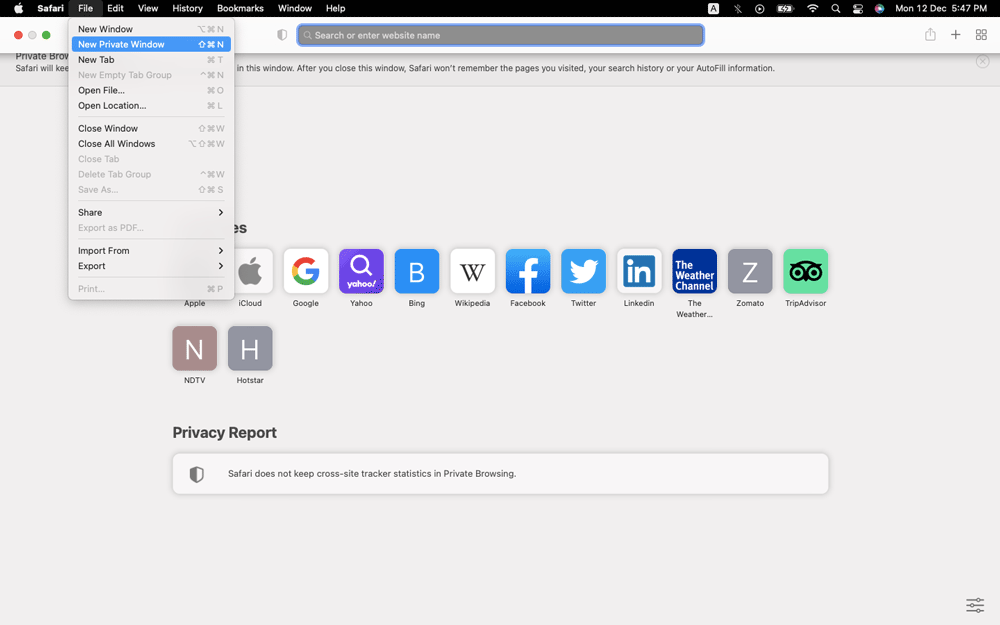
Step 3: Select "New Private Window"
From the dropdown menu, choose "New Private Window" to activate private browsing mode.
Private Browsing Shortcut in Safari
Press Command (⌘) + Shift + N to quickly open a private window.
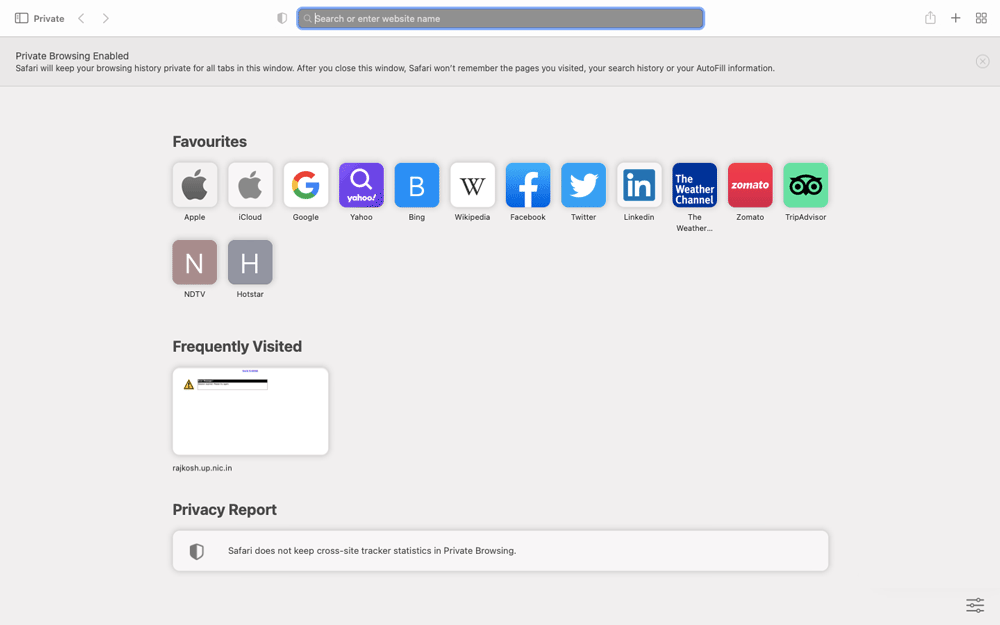
Step 4: Confirm You Are in Private Browsing Mode
A new window with a darker search bar will open, indicating private browsing is active.
How to Turn On Private Browsing on Safari (iPhone/iPad)
Follow these steps to enable private browsing in Safari on iOS 18 devices:
Step 1: Long Press the Safari App Icon
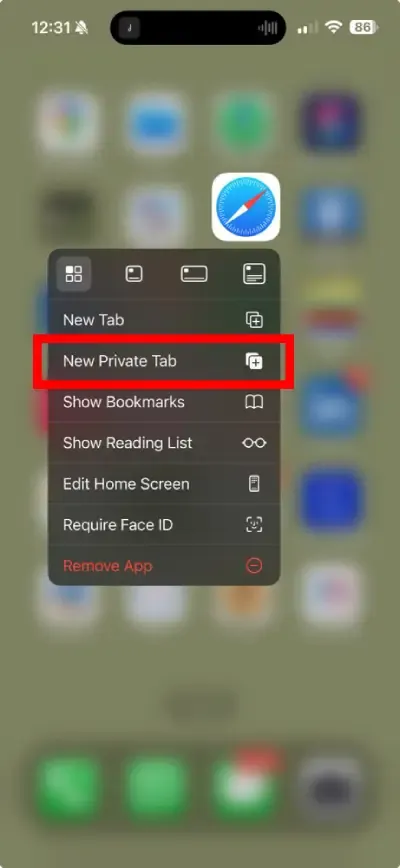
On your device's home screen, locate the Safari app and press and hold the app icon.

Step 2: Select "New Private Tab"
From the pop-up menu that appears, tap "New Private Tab" to directly open a private browsing session.
Step 3: Confirm You Are in Private Browsing Mode
A new tab with a dark theme will open, indicating that private browsing mode is active.
How to Open a Private Browsing Window in Microsoft Edge
Follow these steps to enable InPrivate mode in Microsoft Edge on your desktop:
Step 1: Open Microsoft Edge
Locate the Microsoft Edge icon on your desktop or applications list and click to launch the browser.
Step 2: Access the Edge Menu
In the top-right corner of the Edge window, click the three-dot menu icon to open a dropdown menu.
Step 3: Select "New InPrivate Window"
From the menu, click on "New InPrivate Window" to open a private browsing window.
InPrivate Browsing Shortcut for Microsoft Edge
- Windows/Linux: Press Ctrl + Shift + N.
- MacOS: Press Cmd + Shift + N.

Step 5: Confirm You Are in InPrivate Mode
A new window will open with a label indicating "InPrivate", and the window will have a dark theme.
How to Open a Private Browsing Window in Mozilla Firefox
Follow these steps to enable private browsing mode in Mozilla Firefox on your desktop:
Step 1: Open Mozilla Firefox
Locate and open the Firefox browser on your computer.
Step 2: Access the Firefox Menu
Click the three-line menu icon in the top-right corner of the browser.
Step 3: Select "New Private Window"
From the dropdown menu, click "New Private Window" to start browsing privately.
Private Browsing keyboard shortcut with Firefox
- Windows/Linux: Shift + CTRL + P
- MacOS: Shift + Command (⌘)+ P
.png)
Step 5: Confirm You Are in Private Browsing Mode
A new window with a purple mask icon will appear, indicating you’re in private browsing mode.

How To Open a Private Window On Opera Web Browser
Follow these steps to enable private browsing in Opera on your desktop:
Step 1: Open Opera
Launch the Opera browser from your desktop or applications list.
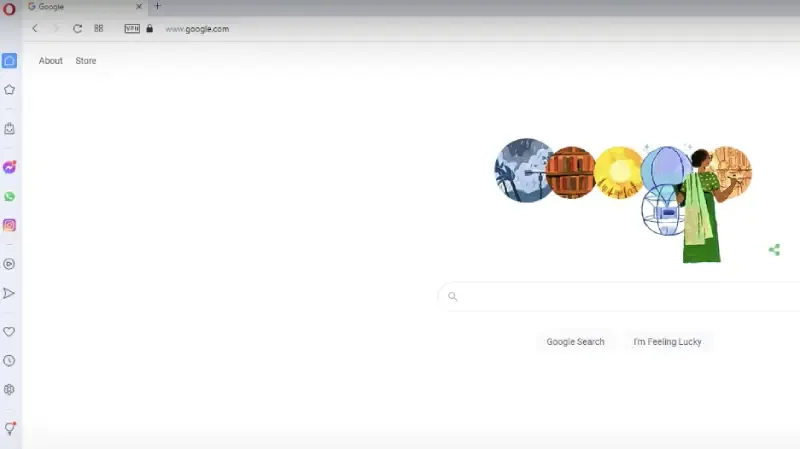
Step 2: Access the Opera Menu
Click the Opera logo in the top-left corner of the browser.
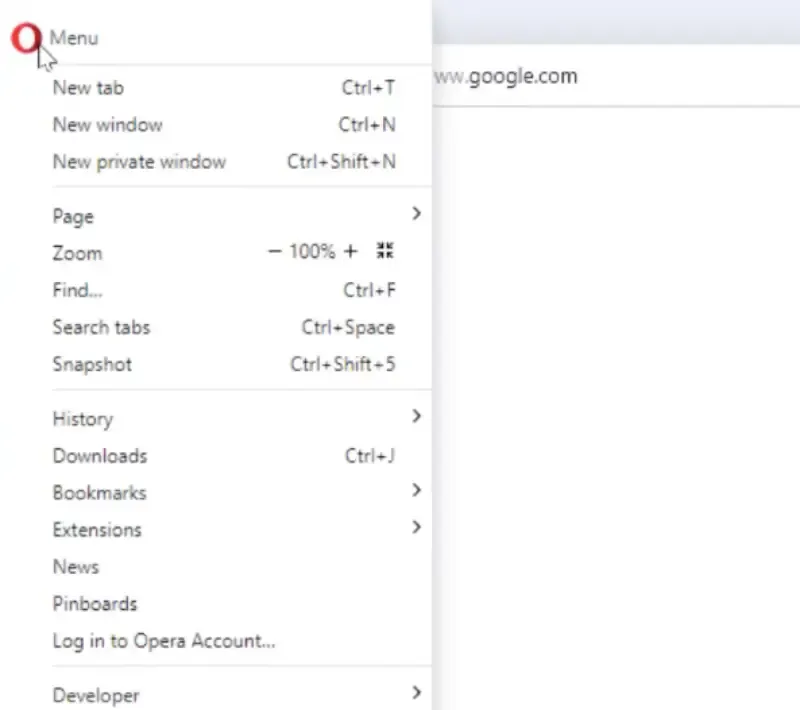
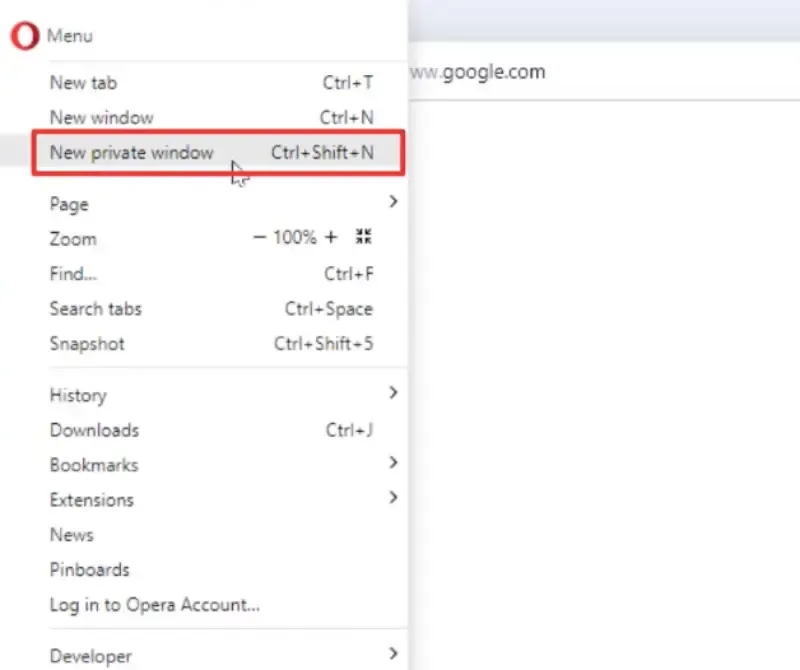
Step 3: Select "New Private Window"
Choose "New Private Window" from the dropdown menu to enable private browsing.
Opera Private Window Shortcut
- Windows/Linux: Press Ctrl + Shift + N.
- MacOS: Press Cmd + Shift + N.
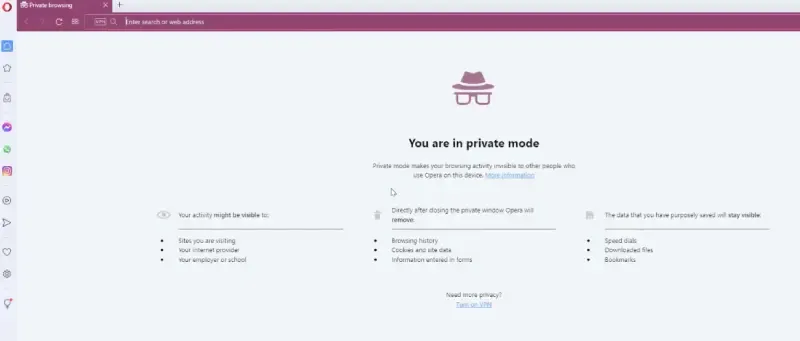
Step 4: Confirm You Are in Private Browsing Mode
A new window with a dark theme and private browsing label will open.
How to Turn Off Private in Any Browser
Exiting incognito mode is simple and quick. Follow these steps to return to regular browsing:
Step 1: Identify the Incognito Window
Check your browser window for the dark theme or the spy icon in sunglasses to confirm you are in incognito mode.
Step 2: Close the Incognito Window
- On desktop: Click the "X" at the top-right corner of the incognito window (top-left corner on macOS).
- On mobile: Tap the square tab icon, then swipe away or tap the "X" on the incognito tab.
Step 3: Open a New Normal Window
To continue browsing, open a new browser window or tab. This will now operate in regular mode, saving your browsing history and cookies.
Conclusion
Private browsing modes in Safari, Edge, Firefox, and Opera help protect your browsing history from being stored on your device, but they don’t make you completely anonymous online. While they’re great for keeping searches private and preventing tracking on shared devices, websites and internet providers can still monitor activity. Understanding these tools will help you make informed decisions about when and how to use private browsing effectively.
Also Read:
