
When you perform a tracert (short for "trace route") command to troubleshoot network issues, one of the common errors you might encounter is a Request Timed Out message. While this can be frustrating, it's important to understand what it means and how to fix it. This article will dive into the details of this error, why it occurs, and the steps you can take to resolve it.
Table of Content
What is Tracert?
Tracert (short for Trace Route) is a network diagnostic tool used to track the route that data packets take from one computer (or device) to another over the internet. It is commonly used to analyze the path data takes as it travels from the source to the destination and to identify any issues or delays in the network.
Tracert works by sending a sequence of Internet Control Message Protocol (ICMP) packets to the destination and measuring the time it takes for each "hop" (router or server) along the way to respond. The tool then displays each hop in the route, providing insight into how data travels across the network and helps identify where slowdowns or failures occur.
How Does Tracert Work?
When you execute a tracert command, it works in the following steps:
- Packet Transmission: Tracert sends out a small data packet (ICMP Echo Request) to the target IP address or domain.
- TTL (Time To Live): Each packet sent by tracert has a "TTL" value (initially set to 1). TTL is a counter that is decremented by 1 by each router the packet passes through. When the TTL value reaches 0, the router discards the packet and sends an ICMP Time Exceeded message back to the sender. This allows tracert to identify the first hop along the route.
- Incrementing TTL: After receiving the first response, tracert increments the TTL value to 2, and sends another packet. The packet now travels to the second hop. The process continues, incrementing the TTL value with each step, until the destination is reached or the maximum TTL is exceeded.
- Response Time: For each hop, tracert measures the round-trip time (RTT), i.e., how long it took for the packet to travel to the router and back. These times are displayed next to each hop along the route.
- Final Destination: Once the destination (e.g., a website or server) is reached, tracert displays the final hop and the total time it took for the packets to travel across the network.
Example of a Tracert Command
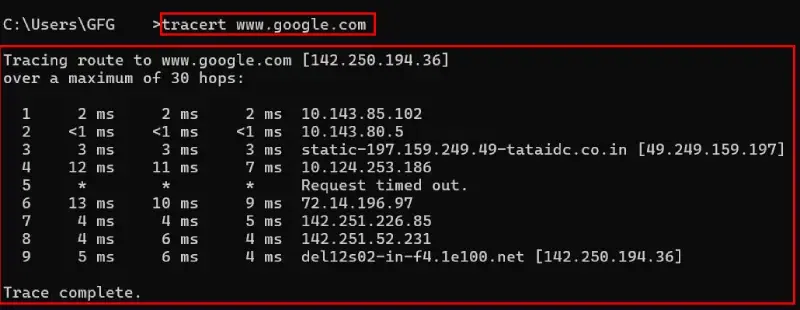
Running the tracert command for a website like www.google.com on a Windows computer will look something like this:
tracert www.google.com The output might look like:
What Does Request Timed Out Mean in Tracert?
A Request Timed Out message in a tracert (or traceroute) command indicates that the request sent by your computer did not receive a response within a specific amount of time. Tracert is a network diagnostic tool that helps trace the route packets take from your computer to a destination server, showing each hop along the way. If a hop (a router or server) doesn’t respond to the request within the allotted time, you’ll see a “Request Timed Out” message for that hop.
Why It Happens:
- Firewall or Security Settings: Some routers or firewalls may be configured to block or ignore tracert requests, leading to a timeout.
- Network Congestion: If there is heavy traffic on the network, it can delay responses from intermediate hops, resulting in timeouts.
- Server or Router Configuration: Some routers and servers are set up to prioritize traffic and may choose not to respond to diagnostic requests like tracert.
- Timeout Settings: Tracert has a default timeout value (usually 4 seconds) for each hop. If a hop takes longer than this time to respond, it will time out.
While request timeouts can indicate a problem, it’s important to note that not all of them are necessarily issues. Some routers are configured not to respond to diagnostic tools like tracert, which results in timeouts even if everything is working fine.
Common Causes of Request Timed Out in Tracert
There are several reasons why you might see a "Request Timed Out" message during a tracert command. Below are some of the common causes:
1. Firewall or Security Restrictions
Many network devices such as routers, firewalls, and even individual servers are configured to block ICMP (Internet Control Message Protocol) packets, which tracert relies on. These devices often reject or ignore tracert requests as a security measure to prevent attacks or unauthorized probing of the network.
Example: If you're tracing the route to a website and see a "Request Timed Out" message at a particular hop, it’s likely because the server or router at that hop is blocking the tracert requests.
2. Network Congestion or Latency
Network congestion or heavy traffic between your device and the destination server can cause delays. During times of high load, some hops might not be able to respond to the tracert request in time, leading to timeouts.
Example: If you notice timeouts occurring consistently during peak hours, it might be due to network congestion, especially in crowded areas or on shared networks.
3. Faulty Router or Server Configuration
Some routers or servers are specifically configured to ignore diagnostic requests like tracert or ping to optimize resources or enhance security. In this case, the tracert tool will report "Request Timed Out" even though the device is functioning properly.
Example: A router on a corporate network might ignore tracert requests to prevent revealing internal network configurations.
4. Timeout Settings
Each hop in a tracert has a set timeout threshold. If the response from that hop takes longer than the timeout limit, the request will time out. The default timeout value is often 4 seconds. While this might seem like enough time, it might not always be sufficient if the network is slow.
Example: If the first few hops in your tracert take longer than 4 seconds to respond, you might get multiple timeouts, even if everything is working fine.
How to Fix Request Timed Out in Tracert (4 Methods)
Depending on the cause of the Request Timed Out message, there are different methods you can use to fix it. Some of these solutions are simple, while others may require more advanced troubleshooting.
Method 1: Check Firewall or Router Settings
Step 1: Verify Firewall Configuration
Firewalls on your computer or router may block tracert requests to prevent unwanted probing. You can check and modify firewall settings to allow ICMP traffic (which tracert uses).
- Open your firewall settings (either through the Control Panel on Windows or System Preferences on macOS).
- Look for any rules or filters blocking ICMP or ping requests and disable them.
Tip: Ensure that you only disable or modify settings related to ICMP traffic to maintain network security. Avoid turning off the firewall entirely.
Step 2: Check Router Configuration
Some routers may block tracert requests. Access your router's admin page by entering its IP address into your browser (usually something like 192.168.1.1 or 192.168.0.1).
- Log in to your router’s settings using the admin credentials (usually found on the router’s label).
- Look for the security settings related to ICMP or ping requests and ensure they are enabled.
Tip: If you're unsure about changing router settings, consult the router's manual or contact your ISP for guidance.
Method 2: Reduce Network Congestion
Step 1: Check Your Network’s Bandwidth
Network congestion can cause timeouts due to the delay in packet processing. Check your network for issues like excessive traffic or too many devices connected at once.
- Disconnect any unnecessary devices from your network to reduce load.
- Check for any ongoing large downloads or uploads that might be hogging bandwidth.
Tip: If your network frequently experiences congestion, consider upgrading your internet plan or improving your network equipment.
Step 2: Perform Tracert During Off-Peak Hours
Network congestion is often worse during peak usage times (such as evenings). Try running the tracert command during off-peak hours to see if the issue persists.
Tip: If timeouts disappear during off-peak hours, network congestion is likely the issue. Speak to your ISP about solutions for high-traffic periods.
Method 3: Increase the Timeout Value
Step 1: Modify Timeout Settings
Informative Description:
Tracert allows you to adjust the timeout value to give each hop more time to respond. Increasing the timeout setting may help resolve timeouts caused by slow responses.
- Open Command Prompt (Windows) or Terminal (macOS).
- Run the following command:
tracert -w [timeout_value] [destination]Note: Replace
[timeout_value]with the desired timeout value (in milliseconds) and[destination]with the URL or IP address you're tracing.
Example:
tracert -w 5000 www.google.comThe Output might look like:
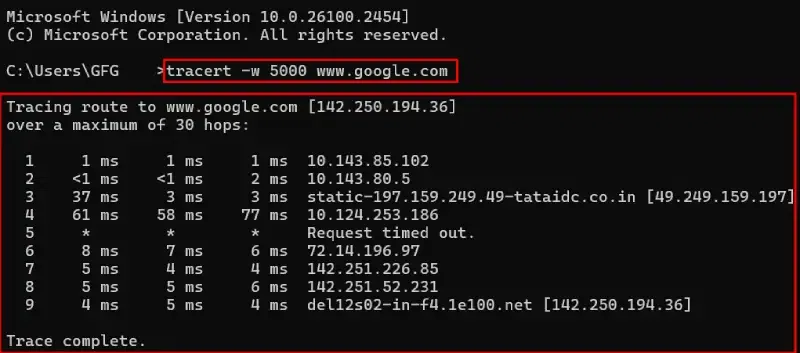
Tip: Increase the timeout by 1000ms increments to see if it resolves the timeouts.
Method 4: Use Alternative Tools for Network Diagnosis
Step 1: Use Ping to Check Connectivity
Informative Description:
If tracert doesn’t provide enough information, you can use the ping command to check basic connectivity to the destination server.
- Open Command Prompt or Terminal.
- Run the following command:
ping [destination]Replace [destination] with the website or IP address you’re testing.
The output might look like:-
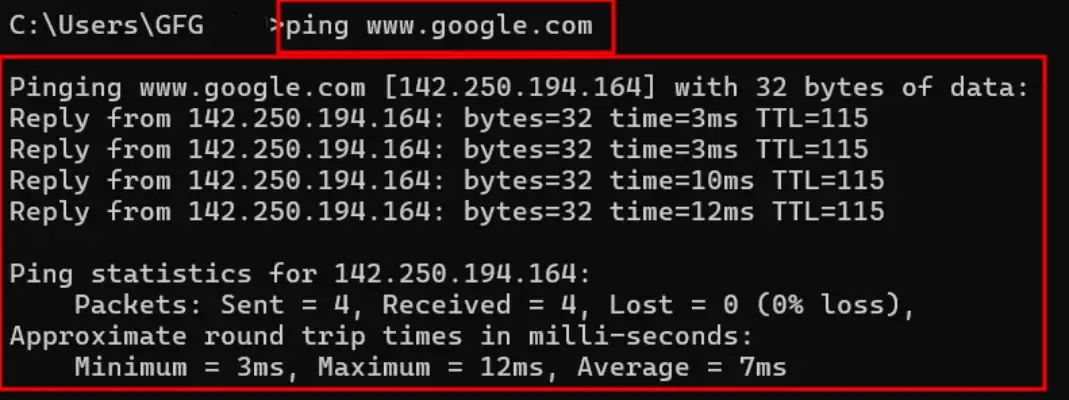
Tip: Ping gives you a simple response to indicate whether the server is reachable. If you get consistent timeouts, the issue might be with the destination server.
Additional Tips and Tricks
- Test from Multiple Devices:
If you continue to see timeouts, try running tracert from different devices. This can help determine whether the issue is local to your computer or affecting the entire network. - Contact Your ISP:
If the timeouts are occurring at the ISP level (like the first few hops), it may be necessary to contact your Internet Service Provider (ISP) for assistance or report a problem with their network. - Use Tracert with Specific Hops:
If you suspect a particular hop is causing issues, you can use tracert to specifically target that hop and troubleshoot it more closely.
Why is Tracert Important?
- Diagnosing Network Issues: Tracert helps identify where a connection fails or becomes slow. It’s often used by network administrators and technical support teams to troubleshoot slow or unstable network connections.
- Locating Network Bottlenecks: By revealing the hops along the path, tracert can pinpoint where delays are occurring, which can be useful when diagnosing problems like slow internet speeds or packet loss.
- Understanding Routing Problems: It shows the different network paths data takes to reach its destination, which can help troubleshoot issues like incorrect routing, routing loops, or faulty network devices.
Common Uses of Tracert:
- Checking Network Connectivity: Verify that packets are successfully reaching a destination.
- Identifying Slow Hops: Diagnose latency issues by identifying which router or server is slowing down the connection.
- Finding Routing Issues: Troubleshoot routing problems, especially when packets are not reaching their destination.
- ISP Troubleshooting: When an internet connection is not performing as expected, tracert helps pinpoint where the problem might lie—whether it’s with the ISP, intermediate routers, or the destination server.
Conclusion
Trace route has a message known as "Request Timed Out", which means a packet was not answered during its expected response time. While sporadic occasions of timeouts are standard, frequent timeouts could usually indicate an issue such as network firewall restrictions or routing problems. Usually, time out issues would normally require some troubleshooting on the network devices, checking for congestion, and configurations in order to improve connectivity and performance.
