
If you heard about the Caret Browsing but don't know what it is and how to use it, then in this article, we’ll explore caret browsing: what it is, how it functions, and why it’s a valuable tool for web browsing. Basically, Caret browsing enhances accessibility by allowing users to interact with web content using the keyboard, offering a more efficient way to browse without relying on a mouse.
What is Caret Browsing?
Caret Browsing is a feature available in many web browsers and text editors that allows you to navigate within text using the keyboard, similar to how you would in a word processor. When caret browsing is enabled, you can move a text cursor (or "caret") throughout a webpage or document using arrow keys. This allows for precise selection of text without using a mouse, which can be particularly useful for text editing or if you prefer keyboard navigation over mouse use.
Why Use Caret Browsing?
Caret Browsing can significantly enhance your browsing experience by allowing keyboard-based navigation and text selection, making it a useful tool for various reasons:
- Accessibility: It's especially beneficial for users with motor impairments who find using a mouse challenging. Caret Browsing enables them to navigate web pages and documents using only the keyboard.
- Precision: When editing text or filling out online forms, Caret Browsing allows for precise control over text selection and cursor movement, similar to working in a word processing program.
- Efficiency: For those proficient with keyboard shortcuts, it can be faster and more efficient to use the keyboard than to switch between keyboard and mouse..
- Extended Functionality: It extends the functionality of the keyboard in browsers that typically rely heavily on mouse interaction, giving users an alternative method to interact with web content.
How to Enable Caret Browsing
Caret Browsing enables text selection, movement, and interaction through the keyboard. Once activated, the user can move the caret (blinking cursor) across the page, select text, or even click links all using keyboard shortcuts.
Step 1: Enabling Caret Browsing in Web Browsers
This step activates Caret Browsing in your browser, enabling the caret for navigation.
- Open your browser (e.g., Chrome, Firefox, Edge).
- Press
F7on your keyboard (works in most browsers). - A dialog box will appear asking to enable Caret Browsing. Confirm it by clicking "Yes."
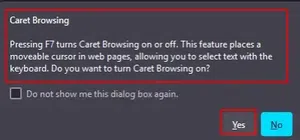
Alternate Method for Google Chrome
- You can also turn on caret browsing from settings in Google Chrome. To do so, go to Settings > Accessibility and toggle on Navigate pages with a text cursor.

Step 2: Navigating Using the Caret
Once Caret Browsing is enabled, you can move the caret across the page.
- Use the arrow keys (
↑,↓,←,→) to move the caret through text. - Press
Tabto move to the next clickable link or form field. - Press
Shift + Tabto move to the previous link or field.
Step 3: Selecting Text with the Caret
You can select text for copying or editing.
- Use the arrow keys to position the caret at the beginning of the text you want to select.
- Hold down the
Shiftkey and use the arrow keys to extend the selection. - Once the text is selected, press
Ctrl + C(orCmd + Con macOS) to copy.
How to Turn-Off Caret Browsing
To turn off caret browsing in most web browsers, follow these simple steps
1. Google Chrome
- Open Chrome.
- Press the
F7key on your keyboard (or useShift + F7). - A prompt will appear asking if you want to turn off caret browsing. Click No to disable it.
2. Mozilla Firefox
- Open Firefox.
- Press
F7on your keyboard. - A prompt will appear asking if you want to turn off caret browsing. Click No to disable it.
3. Microsoft Edge
- Open Edge.
- Press the
F7key on your keyboard. - A prompt will appear asking if you want to turn off caret browsing. Click No to disable it.
Alternatively, you can disable caret browsing through the browser’s settings if you prefer. After following these steps, caret browsing will be turned off, and you can continue browsing normally.
What to Do With Caret Browsing
Caret Browsing isn't just about navigating text, there are a variety of ways to utilize this feature to enhance your browsing experience.
- Read Articles Efficiently: Use Caret Browsing to quickly move through paragraphs and lines of text while reading.
- Form Navigation: Easily jump between input fields, buttons, and links on a form without touching your mouse.
- Editing and Copying: Select and copy text in a precise manner, perfect for anyone who needs to extract quotes or information.
- Avoid Mouse Dependency: If your mouse is malfunctioning or you prefer keyboard shortcuts, Caret Browsing can be a reliable alternative.
How is Caret Browsing Different from Normal Browsing?
The primary difference between Caret Browsing and normal browsing lies in how users interact with content.
- Normal Browsing: In typical web browsing, a mouse is used to point, click, and navigate through the page. You can interact with text, links, and other elements by physically pointing at them and clicking.
- Caret Browsing: Caret Browsing removes the need for a mouse by allowing users to interact with text and elements through keyboard navigation. The caret (blinking cursor) replaces the mouse pointer, and users can navigate between different elements on the page using keyboard shortcuts, making it more efficient for those who rely on keyboard inputs.
This difference makes Caret Browsing especially beneficial for users with mobility impairments, as well as for those who prefer to use the keyboard over the mouse for speed and accuracy.
Key Takeaways
- Caret Browsing is a keyboard-based browsing feature that makes web navigation more accessible.
- It can be enabled by pressing
F7in most browsers.- The caret allows for text navigation, selection, and interaction without a mouse.
- It’s a great tool for people with accessibility needs or for anyone who prefers keyboard navigation.
- You can use Caret Browsing for efficient reading, form navigation, editing, and reducing mouse dependency.
- Unlike normal browsing, Caret Browsing allows interaction through the keyboard instead of the mouse.
Also Read:
Conclusion
Caret Browsing is the functionality that is easily understandable by web-user, especially those who use keyboard navigation for accessibility reasons. It enables users to navigate web pages, select texts, and perform further coupling with web pages, all purely without using their hands. All modern browsers make it easy to enable Caret Browsing, which is a simple yet powerful way to enhance the browsing experience.
