
TypeScript enhances Next.js applications by adding static type checking and improves developer experience through type safety. Integrating TypeScript into your Next.js project helps catch errors early and improves code maintainability. It offers even greater productivity and robustness to your web development projects. In this article, we will discuss how to use NextJS in TypeScript.
Table of Content
What is TypeScript?
TypeScript, a language developed and maintained by Microsoft, stands out as a popular choice among developers. Acting as a superset of JavaScript, it accommodates all valid JavaScript syntax seamlessly. By embracing TypeScript, you can enhance your JavaScript projects with static type-checking capabilities, ensuring error detection at compile time. Furthermore, TypeScript facilitates the integration of modern language features not yet supported in JavaScript. Importantly, TypeScript compiles down to plain JavaScript, ensuring seamless compatibility with browsers.
Why should you use NextJS with TypeScript?
Combining Next.js with TypeScript yields a potent blend of advantages that elevate developers' experiences and enhance application quality. Using Next.js with TypeScript provides type safety, enhances developer experience, improves scalability, offers robust community support, future-proofs projects, and fosters code maintainability and collaboration.
Setting up a NextJS project with TypeScript
Step 1: Create a NextJS App using below command
npx create-next-app my-next-app --typescriptStep 2: Navigate to the project directory
cd my-next-appStep 3: Install the typescript package globally using the below command
npm install -g typescriptProject Structure:

The updated dependencies in the package.json file are:
"dependencies": {
    "next": "14.2.1",
    "react": "^18",
    "react-dom": "^18"
},
"devDependencies": {
    "@types/node": "^20",
    "@types/react": "^18",
    "typescript": "^5"
}
Step 4: Run the development server
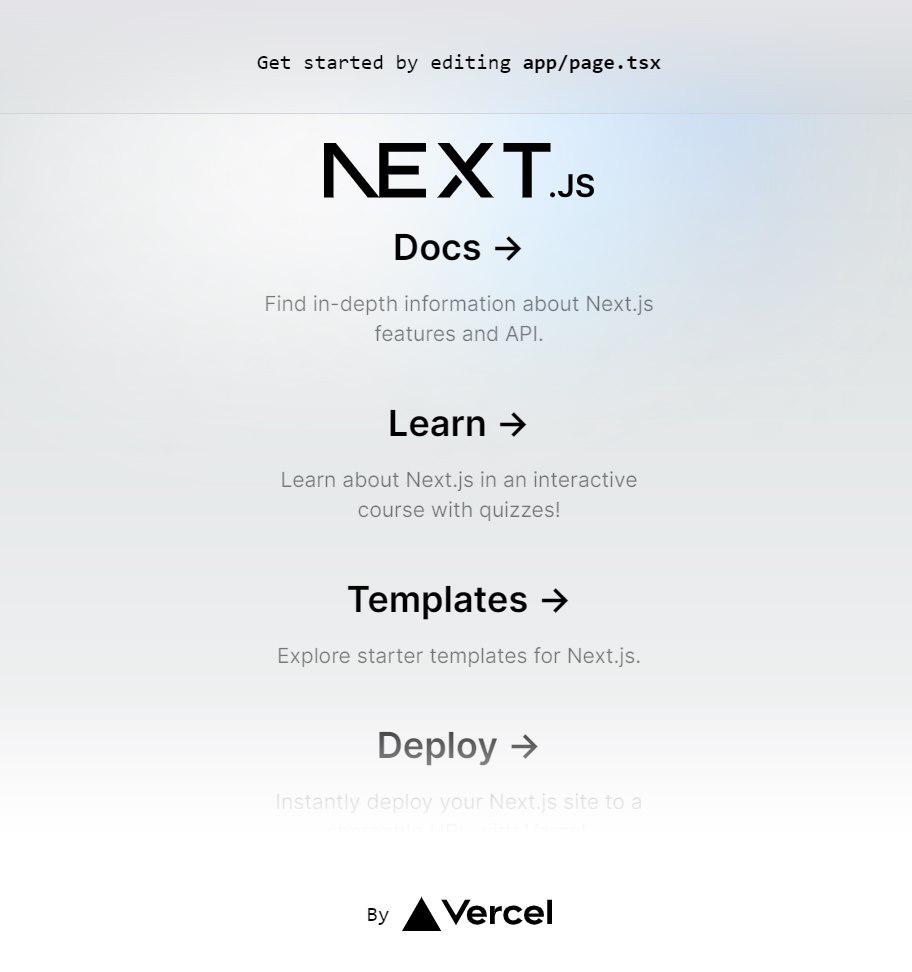
npm run devExample: The below example contains default page and layout files of next.js project wrtten in tsx.
// page.tsx
import Image from "next/image";
export default function Home() {
return (
<main
className="flex min-h-screen flex-col
items-center justify-between p-24"
>
<div
className="z-10 max-w-5xl w-full items-center
justify-between font-mono text-sm lg:flex"
>
<p
className="fixed left-0 top-0 flex w-full justify-center
border-b border-gray-300 bg-gradient-to-b from-zinc-200
pb-6 pt-8 backdrop-blur-2xl dark:border-neutral-800
dark:bg-zinc-800/30 dark:from-inherit lg:static lg:w-auto
lg:rounded-xl lg:border lg:bg-gray-200 lg:p-4 lg:dark:bg-zinc-800/30"
>
Get started by editing
<code className="font-mono font-bold">app/page.tsx</code>
</p>
<div
className="fixed bottom-0 left-0 flex h-48 w-full items-end
justify-center bg-gradient-to-t from-white via-white dark:from-black
dark:via-black lg:static lg:h-auto lg:w-auto lg:bg-none"
>
<a
className="pointer-events-none flex place-items-center
gap-2 p-8 lg:pointer-events-auto lg:p-0"
href=
"https://vercel.com/?utm_source=create-next-app&utm_medium=appdir-template&utm_campaign=create-next-app"
target="_blank"
rel="noopener noreferrer"
>
By{" "}
<Image
src="/vercel.svg"
alt="Vercel Logo"
className="dark:invert"
width={100}
height={24}
priority
/>
</a>
</div>
</div>
<div
className="relative flex place-items-center before:absolute
before:h-[300px] before:w-[480px] before:-translate-x-1/2
before:rounded-full before:bg-gradient-radial before:from-white
before:to-transparent before:blur-2xl before:content-[''] after:absolute
after:-z-20 after:h-[180px] after:w-[240px] after:translate-x-1/3
after:bg-gradient-conic after:from-sky-200 after:via-blue-200
after:blur-2xl after:content-[''] before:dark:bg-gradient-to-br
before:dark:from-transparent before:dark:to-blue-700
before:dark:opacity-10 after:dark:from-sky-900 after:dark:via-[#0141ff]
after:dark:opacity-40 before:lg:h-[360px] z-[-1]"
>
<Image
className="relative dark:drop-shadow-[0_0_0.3rem_#ffffff70] dark:invert"
src="/next.svg"
alt="Next.js Logo"
width={180}
height={37}
priority
/>
</div>
<div
className="mb-32 grid text-center lg:max-w-5xl
lg:w-full lg:mb-0 lg:grid-cols-4 lg:text-left"
>
<a
href=
"https://nextjs.org/docs?utm_source=create-next-app&utm_medium=appdir-template&utm_campaign=create-next-app"
className="group rounded-lg border border-transparent
px-5 py-4 transition-colors hover:border-gray-300
hover:bg-gray-100 hover:dark:border-neutral-700
hover:dark:bg-neutral-800/30"
target="_blank"
rel="noopener noreferrer"
>
<h2 className={`mb-3 text-2xl font-semibold`}>
Docs{" "}
<span
className="inline-block transition-transform
group-hover:translate-x-1 motion-reduce:transform-none"
>
->
</span>
</h2>
<p className={`m-0 max-w-[30ch] text-sm opacity-50`}>
Find in-depth information about Next.js features and
API.
</p>
</a>
<a
href=
"https://nextjs.org/learn?utm_source=create-next-app&utm_medium=appdir-template-tw&utm_campaign=create-next-app"
className="group rounded-lg border border-transparent
px-5 py-4 transition-colors hover:border-gray-300
hover:bg-gray-100 hover:dark:border-neutral-700
hover:dark:bg-neutral-800/30"
target="_blank"
rel="noopener noreferrer"
>
<h2 className={`mb-3 text-2xl font-semibold`}>
Learn{" "}
<span
className="inline-block transition-transform
group-hover:translate-x-1 motion-reduce:transform-none"
>
->
</span>
</h2>
<p className={`m-0 max-w-[30ch] text-sm opacity-50`}>
Learn about Next.js in an interactive course
with quizzes!
</p>
</a>
<a
href=
"https://vercel.com/templates?framework=next.js&utm_source=create-next-app&utm_medium=appdir-template&utm_campaign=create-next-app"
className="group rounded-lg border border-transparent
px-5 py-4 transition-colors hover:border-gray-300
hover:bg-gray-100 hover:dark:border-neutral-700
hover:dark:bg-neutral-800/30"
target="_blank"
rel="noopener noreferrer"
>
<h2 className={`mb-3 text-2xl font-semibold`}>
Templates{" "}
<span
className="inline-block transition-transform
group-hover:translate-x-1 motion-reduce:transform-none"
>
->
</span>
</h2>
<p className={`m-0 max-w-[30ch] text-sm opacity-50`}>
Explore starter templates for Next.js.
</p>
</a>
<a
href=
"https://vercel.com/new?utm_source=create-next-app&utm_medium=appdir-template&utm_campaign=create-next-app"
className="group rounded-lg border border-transparent
px-5 py-4 transition-colors hover:border-gray-300
hover:bg-gray-100 hover:dark:border-neutral-700
hover:dark:bg-neutral-800/30"
target="_blank"
rel="noopener noreferrer"
>
<h2 className={`mb-3 text-2xl font-semibold`}>
Deploy{" "}
<span
className="inline-block transition-transform
group-hover:translate-x-1 motion-reduce:transform-none"
>
->
</span>
</h2>
<p className={`m-0 max-w-[30ch] text-sm opacity-50`}>
Instantly deploy your Next.js site to a shareable URL
with Vercel.
</p>
</a>
</div>
</main>
);
}
// layout.tsx

import type { Metadata } from "next";
import { Inter } from "next/font/google";
import "./globals.css";

const inter = Inter({ subsets: ["latin"] });

export const metadata: Metadata = {
	title: "Create Next App",
	description: "Generated by create next app",
};

export default function RootLayout({
	children,
}: {
	children: React.ReactNode,
}) {
	return (
		<html lang="en">
			<body className={inter.className}>{children}</body>
		</html>
	);
}
Output:
Example 1: Create a TypeScript component
Inside the pages directory of your project, create a new TypeScript file named hello.tsx with the following content.
import React from "react";

const Hello: React.FC = () => {
	return <h1>Hello, Next.js with TypeScript!</h1>;
};

export default Hello;
Example 2: Update the index page
Modify the index.tsx file in the pages directory to import and render the Hello component.
import React from 'react';
import Hello from './hello';

const IndexPage: React.FC = () => {
    return (
        <div>
            <Hello />
        </div>
    );
};

export default IndexPage;
Output:

Benefits of Using TypeScript with Next.js
- Static Typing: TypeScript's static typing allows for early detection of errors during development, leading to more robust and error-free code.
- Improved Developer Experience: TypeScript enhances code editor features like autocompletion, navigation, and refactoring, making the development process smoother and more efficient.
- Enhanced Code Readability: With explicit type annotations, code becomes more readable and maintainable, making it easier for developers to understand the codebase.
- Better Tooling: TypeScript integrates well with modern IDEs, providing powerful tools for code analysis, debugging, and testing.
- Seamless Refactoring: Refactoring large codebases becomes safer and easier with TypeScript, as type errors are caught early in the process.
- Interoperability: TypeScript works seamlessly with existing JavaScript libraries and frameworks, allowing for gradual adoption in existing projects.
Conclusion
Using TypeScript with Next.js enhances your development experience by providing type safety, catching errors early, and improving code readability. By following these steps, you can easily integrate TypeScript into your Next.js project and leverage its benefits for a more robust application.
