
The progress bar is an important element on the web, the progress bar can be used for downloading, marks obtained, skill measuring units, etc. To create a progress bar we can use HTML and CSS.
The progress bar is used to represent the progress of a task. It also defines how much work is done and how much is left to download a thing. It is not used to represent the disk space or relevant query.
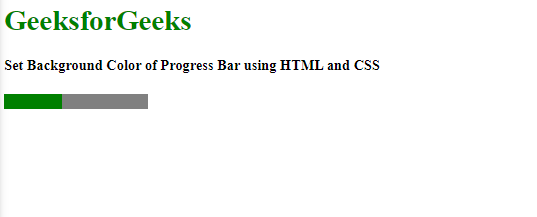
Example 1: Implementation of setting the color of the progress bar
<!DOCTYPE html>
<html>

<head>
    <title>
        Set Background Color of
        Progress Bar
    </title>
    <style>
        h1 {
            color: green;
        }

        progress {
            background: green;
        }
    </style>
</head>

<body>
    <h1>GeeksforGeeks</h1>
    <h4>
        Set Background Color of Progress
        Bar using HTML and CSS
    </h4>
    <progress value="40" max="100"></progress>
</body>

</html>
Output:
Example 2: Implementation of setting the color of the progress bar with loading percentage.
<!DOCTYPE html>
<html>

<head>
    <title>Set background color of Progress Bar</title>
    <style>
        h1 {
            color: #009688;
        }

        progress {
            width: 300px;
            height: 25px;
            border: 2px solid gray;
        }

        progress::before {
            content: "Loading: " attr(value) "%";
            position: absolute;
            width: 30%;
            text-align: center;
            font-size: 18px;
            color: blue;
        }

        progress::-webkit-progress-bar {
            background-color: #5ac45d;
        }

        progress::-webkit-progress-value {
            background-color: #ec653c;
        }
    </style>
</head>

<body>
    <h1>GeeksforGeeks</h1>
    <h3>
        Set Background Color of Progress
        Bar using HTML and CSS
    </h3>
    <progress value="30" max="100"></progress>
</body>

</html>
Output:

