
Google Workspace has many online tools for working together. You can work on documents together at the same time from anywhere with apps like Gmail and Google Drive. Thanks to its email, video chat, file storage, and collaboration capabilities, it simplifies work. Workspace can even help you organize a fun Halloween party, down to the invitations and games. With Google Workspace, you can organize awesome parties and events effortlessly. I used it myself to plan a spooky Halloween bash, from scheduling to costumes and activities. Let me tell you how these tools turned my ideas into a chillingly fun reality.

Table of Content
- How I used Google Workspace to plan my Halloween party
- Sign Up to Google Workspace
- How to Plan Halloween Party with Google Calendar
- How to Design a Poster or Invitation with Google Doc
- How to Organize And Save Documents with Google Drive
- How to Send invitations with Gmail
- How to Track Your Budget and Expenses with Google Sheets
- How to Send Venue Directions with Google Maps
- Conclusion
- FAQs - Google Workspace to Plan My Halloween Party
How I used Google Workspace to plan my Halloween party
Google Workspace made the exciting task of planning a Halloween party easy and stress-free. I had a great time with the tools because they helped me make the party more fun than I thought it would be by using scary decorations and sending out creepy invites.
Sign Up to Google Workspace
You have to make a Google account before you can use Google Workspace.
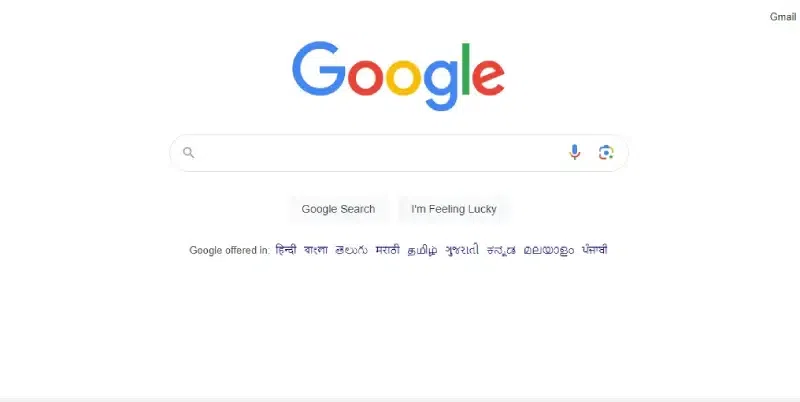
Step 1: Open the Google browser
Go to Google's sign-up page in a web browser.
Step 2: Sign in to create an account
Enter your details like email address and password to sign in to the Gmail workspace.
.webp)
Step 3: Complete the verification process
Once you’ve entered the details, Google seeks your permission to verify your account. Complete the verification. A verification code will be sent to your mobile number or your email.
.webp)
Note:
Once the verification is completed, agree to the terms and conditions to sign up to your account.
You've made your Google account. Now, let's move on to using Google Workspace.
Step 4: Browse the workspace applications
Click on the 9 dots menu bar at the top right corner of the home screen to explore the applications offered by Google. Tools like Drive, Calendar, and Gmail can be found here.
.webp)
How to Plan Halloween Party with Google Calendar
Step 1: Open Google Calendar
Open Google Calendar from the 9 dot menu
.webp)
Step 2: Create a New Calendar
Click the "+" icon next to "Add calendar" on the left sidebar.
.webp)
.webp)
Step 3: Name Your Calendar
Enter a name for your new calendar, like "Halloween Party Planning."
.webp)
Step 4: Click "Create Calendar"
Hit the "Create Calendar" button to finish making your new calendar.
Step 5: Add Events
Click on a date to add an event.
.webp)
How to Design a Poster or Invitation with Google Doc
Step 1: Open Google Docs
Go to 9 dots and select Google Docs.
.webp)
Step 2: Select a blank Document
Select the blank document from the Google menu.
.webp)
Step 3: Set Document Size
Click File > Page setup to choose the size you want.
.webp)
Step 4: Design Your Poster or Invitation
Add text, shapes, and images to your document and also you can Customize fonts, colors, and sizes.
.webp)
Step 5: Add Graphics and Images to the doc
Insert images from your computer to insert them into your doc.
.webp)
Step 6: Save the changes and Share this link
Save your creation to the computer upload it to drive or share it with others.
.webp)
How to Organize And Save Documents with Google Drive
Step 1: Open Google on your default web browser
Search for Google on the default web browser of your devices.
.webp)
Step 2: Open Google Drive from the 9 dots menu.
Click the 9 dots at the upper right corner and select Google Drive.
.webp)
Step 3: Create a new folder
On the top left corner of the Drive homepage, click on the “+” symbol. From the dropdown menu, select “Folder” to create a new folder.
.webp)
Step 4: Name your folder
Create a new folder and refer to it as "Halloween Party." Then, open it.
.webp)
Step 5: Press the "+" and Choose "File upload."
Click the "+" button and choose files from your computer, like party games, guest lists, and contacts for vendors.
.webp)
How to Send invitations with Gmail
Step 1: Open Gmail
Go to your Gmail account.
.webp)
Step 2: Start a New Email
Click "Compose" to create a new email.
.webp)
Step 3: Attach Invitations
Click "Attach files" to add files to your email.
.webp)
Step 4: Add Recipients
Enter the email addresses in the "To" field.
.webp)
Step 5: Write Your Message
Send them a message that is both personal and enticing to attend your event.
.webp)
Step 6: Click Send
Click "Send" to email your invitations.
.webp)
How to Track Your Budget and Expenses with Google Sheets
One of the most useful tools available is Google Sheets, which not only assists you in managing your finances but also in keeping track of your expenditures.
Step 1: Open the Google Sheets from the Workspace.
Open Google on your default web browser and click on the 9 dots menu bar. Select Sheets from the list of suggested tools.
.webp)
Step 2: Create a New Spreadsheet
Click on the "+" button for a new spreadsheet. This gives you a blank document to work with.
.webp)
Step 3: Set Up Your Budget in a spreadsheet.
List things like Funds Collected, Expenses, Total Amount, and Budgeted Amount.
.webp)
Step 4: Add Your Budget
Calculate your expenses to see what you have left
Step 5: Make Your Budget Presentable
Use colors and bold fonts to make your budget easy to read.
.webp)
Step 6: List all Your Expenses
Write down the date, the item you bought, and the price in one column. You can monitor your spending using this.
.webp)
Step 7: Sort Your Expenses
Group all your expenses into specific columns like groceries, party items, and entertainment.
.webp)
How to Send Venue Directions with Google Maps
Step 1: Open Google Maps
Go to 9 dots and select Google Maps.
.webp)
Step 2: Search the Venue address and Get Directions
Type in the name or address of the venue and Click on the "Directions" button.
.webp)
Step 3: Select Transportation Mode and Copy the Shareable Link
Choose how you'll travel by car, walking, etc, after this Click the "Copy link" and copy the link.
.webp)
Conclusion
Google Workspace was the essential tool for planning my Halloween party, seamlessly integrating convenience, creativity, and collaboration. Each feature, from sending invites via Google Calendar to presenting eerie slides with Google Slides, played a vital role in bringing my spooky vision to life. With tools like Google Sheets and Google Meet for communication, the party logistics sailed smoothly. Gmail's organization kept every detail in check, building excitement as the witching hour approached. Google Workspace transformed my Halloween party idea into a thrilling reality, making it a bone-chilling success.
