
Gemini AI, developed by Google, is a powerful tool that offers users the ability to interact with artificial intelligence in various languages. Whether you're a multilingual user or simply prefer to use a different language, changing the language settings in Gemini AI is a straightforward process.
This article will guide you through the steps to customize your language preferences effectively.
Step-by-Step Guide to Change Language in Gemini AI
Step 1: Access Your Google Account
To begin, you need to access your Google account:
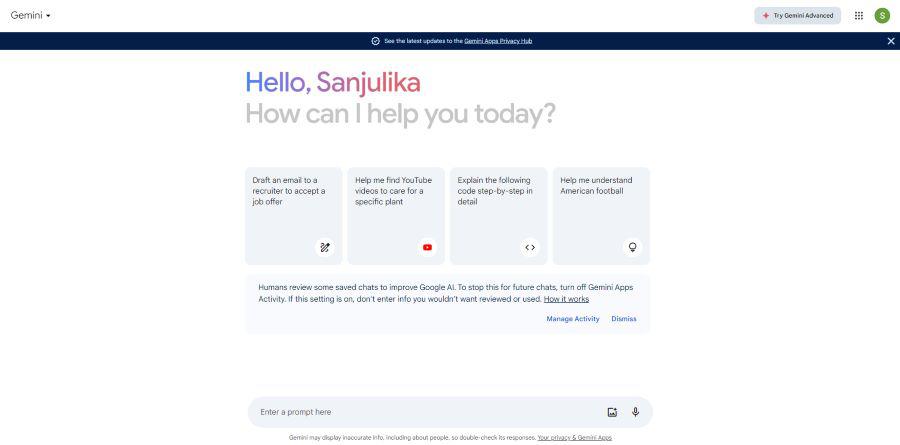
- Open Gemini AI: Launch the Gemini AI application or website.
- Click on Your Profile Icon: Locate your account icon in the upper right corner of the interface. This icon typically displays your profile picture or an initial.
Step 2: Manage Your Google Account
Once you've accessed your profile:
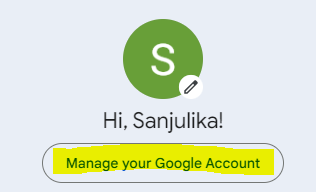
- Select "Manage Your Google Account": A dropdown menu will appear. Click on this option to enter your account settings.
Step 3: Navigate to Personal Info
In your Google Account settings:
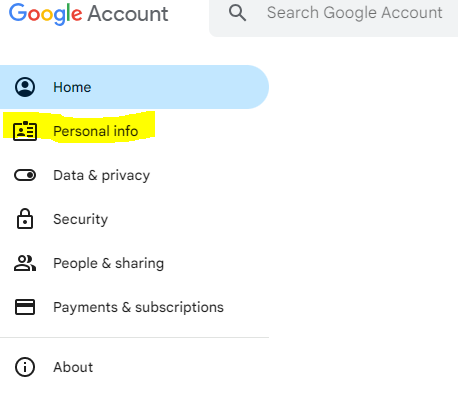
- Click on "Personal Info": This option is usually found in the left sidebar. It allows you to manage various personal settings, including language preferences.
Step 4: Change Language Settings
Now that you're in the Personal Info section:
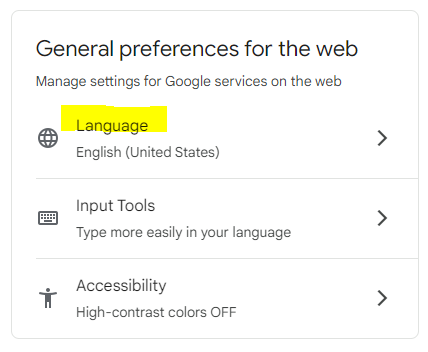
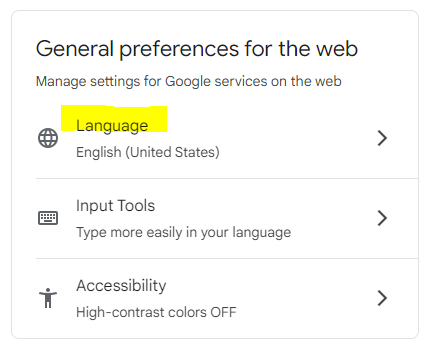
- Scroll to Find "Language": Look for the "Language" option within this section.
- Click on "Language": This action will display your current language settings.
Step 5: Select Your Preferred Language
To change your language:
- Choose Your Desired Language: Click on the current language displayed. A list of available languages will appear for you to select from.
- Add a New Language (if necessary): If your preferred language isn’t listed, you can click on "Add another language" and search for it.
Step 6: Refresh Gemini AI
After making your selection:
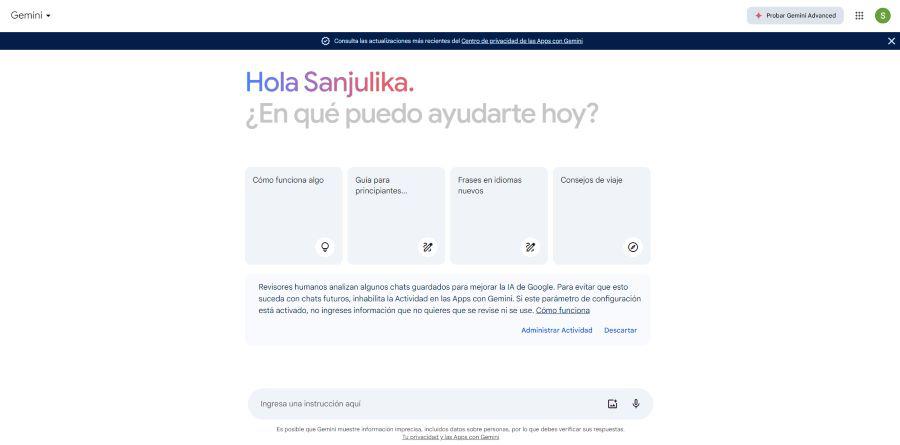
- Refresh the Interface: To apply the changes, refresh the Gemini AI interface. This step ensures that all settings are updated correctly.
Additional Considerations
- Input Language Matters: It's important to note that while changing the interface language will adjust how menus and settings are displayed, Gemini AI's responses may vary based on the language used in your queries. For instance, if you ask a question in Spanish, Gemini AI will respond in Spanish regardless of the interface language setting.
- Explore Multilingual Capabilities: Take advantage of Gemini AI’s multilingual capabilities by experimenting with different languages. This feature can enhance your interaction and provide a richer experience.
Conclusion
Changing the language in Gemini AI is an easy process that allows users to tailor their experience according to their preferences. By following these steps, you can navigate and interact with Gemini AI more comfortably in your chosen language. Enjoy exploring all that Gemini AI has to offer in a way that feels natural and intuitive for you!
