
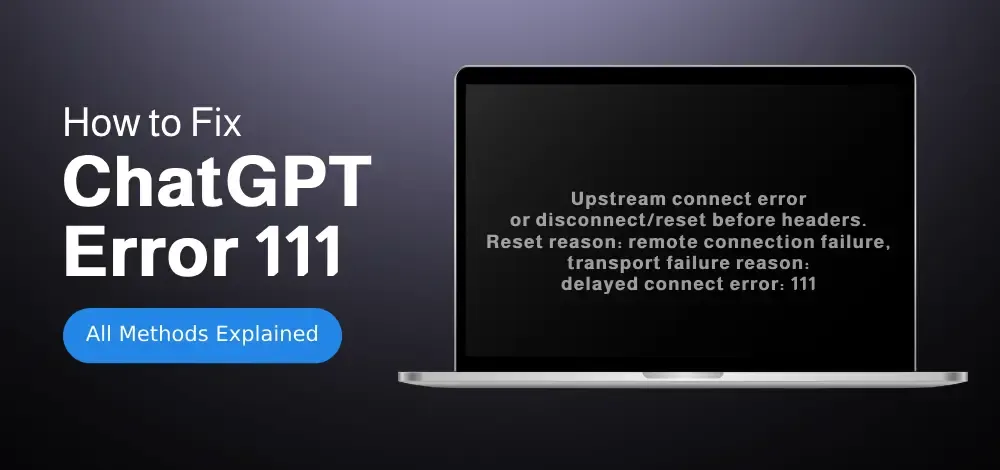
Are you thinking, "Why is ChatGPT not loading?" - Getting ChatGPT Error Code 111: Upstream Connect Error can be frustrating—especially when you're in the middle of an important task or trying to generate content. This error typically indicates a failure in the connection between your client and the server, often due to server overload, unstable network, or proxy/gateway issues.
In this quick-fix guide, we’ll understand and explore the most effective solutions to resolve Error 111 on ChatGPT. Whether it’s caused by a backend outage, local network problem, or browser settings, these steps will help you reconnect and restore access quickly on any device like Mac or Windows laptop.
Understanding Common Causes of Error Code 111
- Server-Side Issues: Temporary outages or maintenance on OpenAI’s servers.
- Network Restrictions: Firewalls, VPNs, or proxies blocking the connection.
- Docker/Container Misconfigurations: Incorrect network settings in Docker deployments (e.g., port conflicts).
- IP Blocking: Shared or flagged IP addresses triggering security restrictions.
- Client-Side Errors: Outdated browsers, cached data, or unstable internet connections.
How to Fix Upstream Connection Errors in ChatGPT? All Methods and Fixes
Explore these proven methods to fix the Upstream Connect Error and get ChatGPT working smoothly again without interruptions:
Method 1: Check OpenAI Server Status
- Visit the OpenAI Status Page to confirm if there’s an ongoing outage.
- If the status shows operational, proceed to troubleshoot your local setup.
Method 2: Check Your Internet Connection
- Step 1: Run a speed test using Speedtest.net.
- Step 2: If speeds are slow or unstable:
- Restart your router/modem.
- Switch to a wired Ethernet connection.
- Disable bandwidth-heavy tasks (e.g., streaming, downloads).
Method 3: Disable VPN or Firewall
- For VPN Users: Turn off your VPN temporarily.
- For Firewalls:
- On Windows: Go to Windows Security > Firewall & Network Protection > Allow an App Through Firewall. Ensure your browser or app has access.
- On Mac: Navigate to System Settings > Network > Firewall.
Method 4: Restart Your Network
- Restart your router/modem: Unplug for 30 seconds and reconnect.
- Disable VPNs/Proxies: These tools may route traffic through blocked or unstable servers. Test ChatGPT without them.
- Use a Wired Connection: Ethernet cables reduce latency and instability compared to Wi-Fi.
Method 5: Fix Docker/Container Issues
- Check Docker Logs: Look for errors like
connect() failed (111: Connection refused). - Verify Network Modes: Ensure containers are configured to use the correct network (e.g.,
hostmode for direct port access). - Update Port Settings: Confirm the upstream server (e.g., OpenAI’s API) is accessible on the specified port (e.g., 443 for HTTPS).
Method 6: Flush DNS Settings
- Windows:
- Open Command Prompt as Administrator.
- Type
ipconfig /flushdnsand press Enter.
- Mac:
- Open Terminal.
- Type
sudo killall -HUP mDNSResponderand enter your password.
Method 7: Switch DNS Servers
- Use Google DNS or Cloudflare DNS for faster, more reliable connections:
- Go to Network Settings on your device.
- Replace your current DNS with:
- Google DNS:
8.8.8.8and8.8.4.4 - Cloudflare DNS:
1.1.1.1and1.0.0.1
- Google DNS:
Method 8: Update Browsers or Apps
- Clear Browser Cache/Data: Corrupted files may block connections. For Chrome:
- Go to
Settings > Privacy > Clear Browsing Data16.
- Go to
- Update Software: Use the latest versions of browsers (Chrome, Firefox) or ChatGPT apps.
Method 9: Resolve IP Blocking
- Switch IP Addresses: Use a dedicated VPN or proxy with a clean IP (avoid free/public proxies).
- Use SOCKS5 Proxies: Configure tools like Proxifier to route ChatGPT traffic through a stable, private server.
- Check Regional Restrictions: Ensure your IP is not from a blocked region (e.g., China, Russia).
Method 10: Test with Minimal Configuration
- Simplify Requests: For API users, test a basic API call to isolate parameter-related issues.
- Disable Browser Extensions: Ad-blockers or privacy tools might interfere with ChatGPT’s functionality.
Advanced Troubleshooting
- Inspect Firewall Rules: Allow traffic to
api.openai.comon ports 443 (HTTPS) and 80 (HTTP). - Monitor DNS Settings: Use reliable DNS servers like Google DNS (
8.8.8.8) to avoid resolution delays. - Contact Support: If the error persists, report it to OpenAI Help Center with logs and error details.
Prevention Tips
- Use Dedicated Proxies: Avoid shared IPs to reduce blocking risks.
- Regularly Update Tools: Keep Docker, browsers, and API clients up to date.
- Monitor Network Health: Tools like Wireshark can help diagnose connection issues.
Conclusion
The Upstream Connect Error 111 is usually fixable with basic troubleshooting. Start with internet checks and cache clearing, then move to advanced steps like DNS adjustments or firewall tweaks. If all else fails, contact OpenAI support. With this guide, you’ll minimize downtime and get back to using ChatGPT smoothly!
