
Grouping rows in Google Sheets allows you to organize and manage large datasets more effectively by collapsing or expanding sections of your data. This feature is useful for summarizing information, reducing clutter, or focusing on specific sections of your spreadsheet without deleting any data.
1. How to Group Rows in Google Sheets
Here are the simple steps to group rows in Google Sheets:
Step 1: Select the Rows
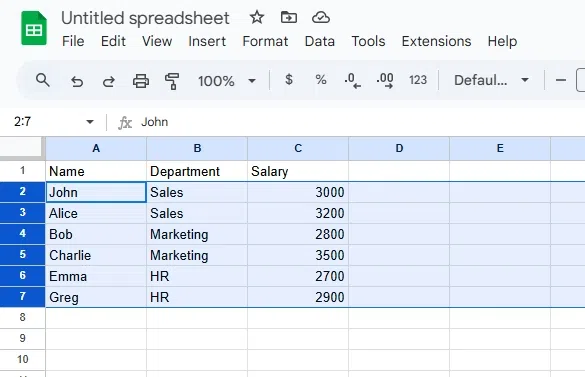
Highlight the rows you want to group by clicking and dragging over their row numbers on the left.
Step 2: Open the Menu
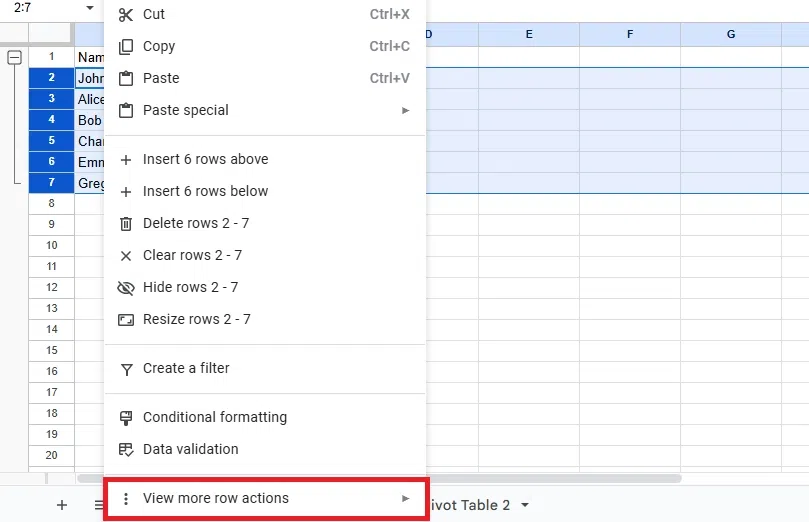
Right-click anywhere on the highlighted rows to open the context menu.
Step 3: Choose "Group Rows"
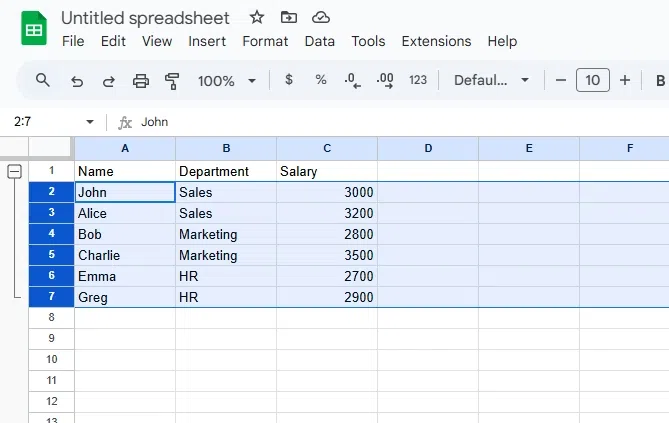
From the menu, select "Group rows." You will see an outline bracket appear to the left of the selected rows.

Step 4: Collapse or Expand the Group
Click the minus (-) sign to collapse the group or the plus (+) sign to expand it as needed.
Also Read:
