
Organizing text into two columns in Google Docs can significantly improve the structure and readability of your documents, making it perfect for articles, newsletters, or academic papers. This is great for things like newsletters or flyers. Google Docs is a tool that many people use for writing because it's easy and free.
Creating two columns in Google Docs is quick to do, and it will make your document look more professional. You can easily write in the columns by exploring the excellent features of Formatting and Tables. In this article, we will learn a simple way to set up two columns in your Google Docs.
.webp)
Table of Content
- What Are Columns in Google Docs
- How to Make Two Columns in Google Docs on Desktop
- How To Create Multiple Columns In Google Docs
- How to Make Two Columns of Text in Google Docs
- How to Customize Columns in Google Docs
- How to Type in a Second Column in Google Docs
- How to Write In Columns In Google Docs on Phone
What Are Columns in Google Docs
Columns in Google Docs allow you to divide your document into vertical sections, making it easier to present information in a visually appealing way. This format is commonly used in newspapers, magazines, and academic papers to improve readability and flow.
How to Make Two Columns in Google Docs on Desktop
Creating two columns in Google Docs can make your document look organized and neat. Follow these simple steps to set it up on your desktop.
Step 1: Open Google Docs and Select a Document
Open Google Docs on your Desktop and select a document you want to write in Columns.
.webp)
Step 2: Click on "Format" Menu
After opening your document click on the "Format" Menu located on the Toolbar to use the Format menu actions.
.webp)
Step 3: Select "Columns"
Now from the Format menu select the "Columns" button to format the columns so that you can write in the Columns.
.webp)
Step 4: Select Column Number
After clicking on the Columns option you will be asked to select the Column Number, just select the column number you want to write and the format in your document.
.webp)
How To Create Multiple Columns In Google Docs
Learn how to create multiple columns in Google Docs using tables, which offers more customization options for your content.
Step 1: Click on Insert Menu
Open your Google Document in which you want to write in Columns and click on the Insert Menu located on the top side of the interface.
.webp)
Step 2: Select "Table"
From the table that appeared after clicking on the "Insert" menu select the "Table" option to insert the table to your document.
.webp)
Step 3: Select the Number of Rows and Columns
Now specify the number of rows and columns from the table templates, you can simply select the size by dragging the mouse on the template.
.webp)
Step 4: Start Writing in Columns
When you will click on the Table option from the menu the table will be inserted and now you can start writing in the columns of the table. You can customize the Columns by yourself and can enter your data.
.webp)
Step 5: Right-click on the Table and Select "Table Properties"
After entering your data into the table you can now customize your table, to do so right-click on the table and select "Table Properties" from the menu that appeared.
.webp)
Step 6: Customize your Table
Now from the table properties, you can customize your columns, rows, table colors, cell colors, and so on.
.webp)
How to Make Two Columns of Text in Google Docs
Quickly format specific text into two columns to improve the readability of sections within your document.
Step 1: Locate the Text
Locate the text in which you want to use two columns.

Step 2: Go to Format tab, Select "Columns" and Choose Column Number
After selecting the text click on the Format tab >> Columns and choose the column number you want to apply to the text.
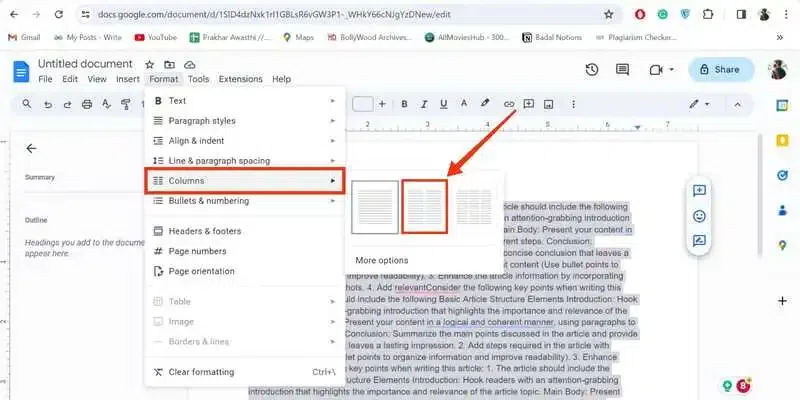
Step 3: Columns Applied
You have successfully applied two columns to the text.
.webp)
How to Customize Columns in Google Docs
Customize your columns in Google Docs to adjust spacing, lines, and overall appearance for a more tailored document.
Step 1: Click on the Format tab
Open Google Docs and click on the Format tab located on the toolbar.
Step 2: Click on "More Option"
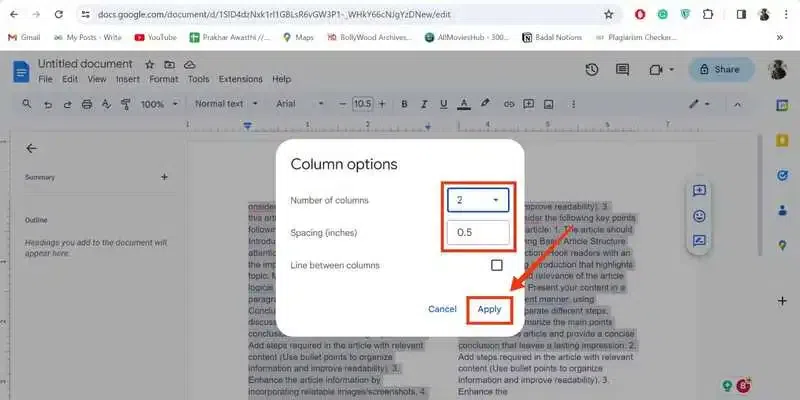
When you click on the Format tab a menu will appear select the Columns option from the menu and click on the "More options" to customize columns.
.webp)
Step 3: Customize Columns and Click "Apply"
Now you can customize the columns by editing the number of columns and spacing between them.
How to Type in a Second Column in Google Docs
Find out how to navigate between columns in Google Docs to type seamlessly in your formatted sections.
Step 1: Locate the text
Locate the text after applying the two columns to the text.
Step 2: Start Typing
To move to the second column hover your cursor to the top of the second column and start typing.

How to Write In Columns In Google Docs on Phone
After the steps of how to make two columns in Google docs on mobile, follow the steps given below to write in columns in Google Docs.
Step 1: Select a Document
Open Google Docs on your mobile and select a document in which you want to write in columns.
.webp)
Step 2: Click on "+" Insert Icon
After opening your document in Google Docs click on the (+) icon on the top side of the interface to open the insert menu.
.webp)
Step 3: Select "Table"
Select "Table" from the menu appears after clicking on the Insert Icon.
.webp)
Step 4: Specify the Number of Columns and Rows and Click "Insert Table"
After clicking on the you will be asked to specify the number of rows and columns to be entered, just enter give the number of rows and columns and click on the "Insert Table" button to insert the table.
.webp)
Step 5: Enter Data in Columns and Customize Table
Now, when your table is entered in the document, you can enter your data in the tables as table columns. After entering your data into the table, you can also customize your table by the available options at the bottom.
In the case you want to know make two columns in google docs on phone Go to Insert >> Table, specify rows and columns and edit the columns as column 1 and 2.
.webp)
Also Read:
Conclusion
To create two columns for part of a page in Google Docs, highlight the desired section and navigate to "Format" > "Columns", then choose the two-column layout. All you have to do is open your Google Docs document click on the Format menu located on the toolbar select the "Columns" option and then your columns will be formatted in the document.
On the other hand, if you want to use the tables click on the "Insert" menu and select the Tables from the menu, then specify the number of rows and columns to be entered into the document. After entering your table into the document you can start writing in the columns of the table and you can also customize your table by using the "Table Properties".
