
Managing your Gmail inbox can be a daunting task, especially when it starts to overflow with unnecessary or outdated emails. Fortunately, Gmail offers powerful tools that let you delete Gmail emails in bulk, making it easier than ever to keep your inbox organized.
Whether you're looking to delete mass emails on Gmail from a specific sender, a certain time frame, or even an entire category, the steps are simple and straightforward. In this guide, we'll walk you through several effective methods to help you mass delete emails in Gmail, whether on the web or through the Gmail app on your phone.
Table of Content
How to Delete All Emails In Gmail (Easy and Quick Way)
This method helps you delete many emails at once by using Gmail's search feature. You can filter emails by sender, date, or subject, and then delete them all in one go. It's great for anyone needing to clean up their Gmail inbox quickly and easily. Here are the following steps to delete Gmail emails in bulk:
Step 1: Open Gmail on Web Browser
Launch your browser and go to Gmail or open the Gmail app on your phone. Log into your account if you’re not already signed in.
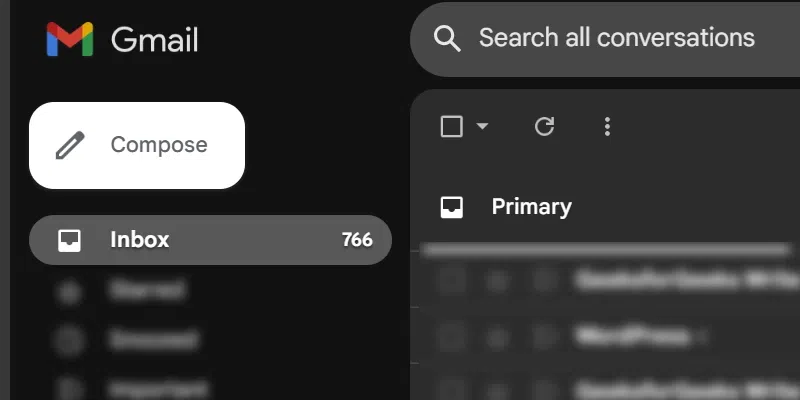
Step 2: Navigate to Your Inbox
Once logged in, go to your inbox where all your emails are displayed.
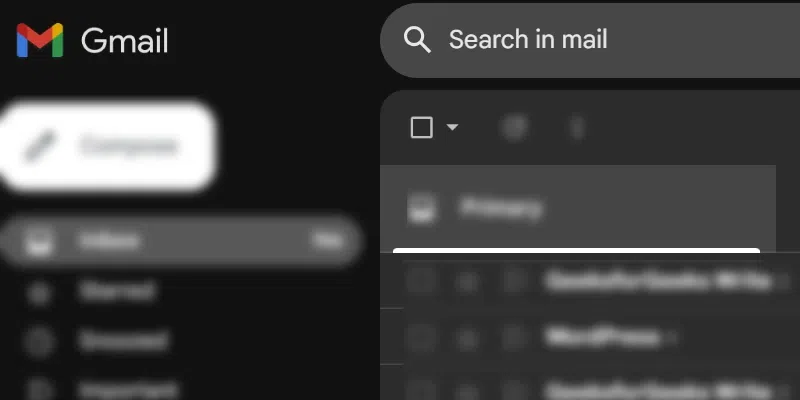
Step 3: Select Emails on the Current Page
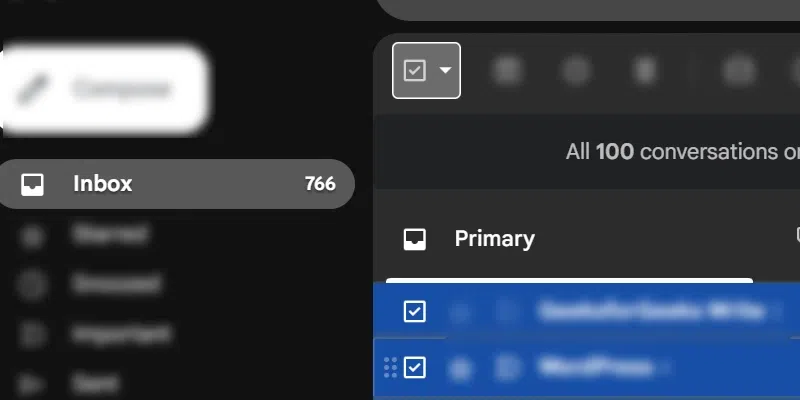
At the top-left of your inbox, click the checkbox to select all emails visible on the current page.
Step 4: Select All Conversations
If you want to select more than the emails visible on the current page, click on the link that says "Select all conversations that match this search". This will select all emails in your inbox or the filtered emails, depending on your search.
Step 5: Delete the Selected Emails
Click the trash can icon to move all selected emails to the Trash folder.
.webp)
Step 6: Empty the Trash (Optional)
If you want to permanently delete the emails right away, go to the Trash folder and click on "Empty Bin now".
By following these steps, you can easily manage and delete emails in bulk on Gmail.
Tips:
- Double-check your search: Ensure you don’t accidentally delete important emails.
- Empty the Trash: Deleted emails stay in Trash for 30 days. To remove them permanently, empty the Trash folder.
How To Mass Delete Specific Emails In Gmail
If you need to delete a specific type of email in Gmail, there are several ways you can do it quickly. Whether you want to remove emails from one sender, delete unread emails, or clean up emails within a certain date range, Gmail provides multiple methods to help you get the job done efficiently.
Here are some common methods to mass delete specific types of emails in Gmail:
Delete all Emails in a Category
Gmail automatically sorts emails into categories like Primary, Social, Promotions, Updates, and Forums. You can use these categories to quickly delete emails in one go, without having to go through them individually. It’s especially helpful for people with cluttered inboxes or small business owners managing mass marketing emails.
Unsubscribe first from unwanted emails to avoid clutter in the future.
Step 1: Open Gmail
Access your Gmail email account and open your inbox. Sign in to your Gmail account if you are not already logged in.
Step 2: Use Gmail Categories to Filter Emails
Gmail automatically organizes emails into categories like Primary, Social, Promotions, Updates, and Forums. To delete emails from a specific category, enter the category name in the search bar.
For example:
- category:promotions for promotional emails.
- category:social for social network notifications.
- category:updates for updates like travel, finance, etc.
.webp)
Step 3: Select Category you want to delete
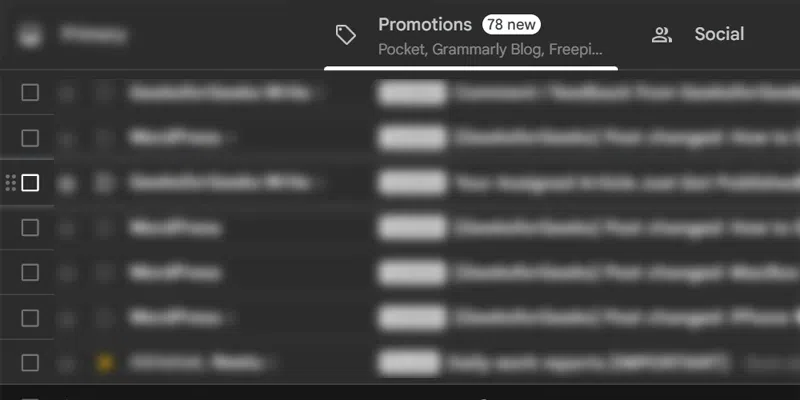
Choose the category or label (if you’ve created one) that you want to delete emails from, such as Promotions, Social, or any custom label.
Step 4: Select the Checkbox
Once you're in the selected category, click the checkbox at the top-left corner of the page to select all emails visible on the current page.
Step 5: Select Select all conversations
f you have more emails than fit on the current page, click the "Select all conversations that match this search" link to select all emails in the category.
Step 6: Delete All Conversations
Click the Trash icon (Delete button) to move all selected emails to the Trash folder.
Delete All Unread Emails in Gmail
You can quickly mass delete emails in Gmail by targeting either read or unread emails. This method is especially useful when you want to clean up your inbox and remove emails that you have already read or those that are still unread.
Step 1: Open Gmail and Select Inbox
First, launch Gmail on your web browser and click on the Inbox on the left sidebar to access all your emails.
Step 2: Use the Search Box to Filter by Read/Unread
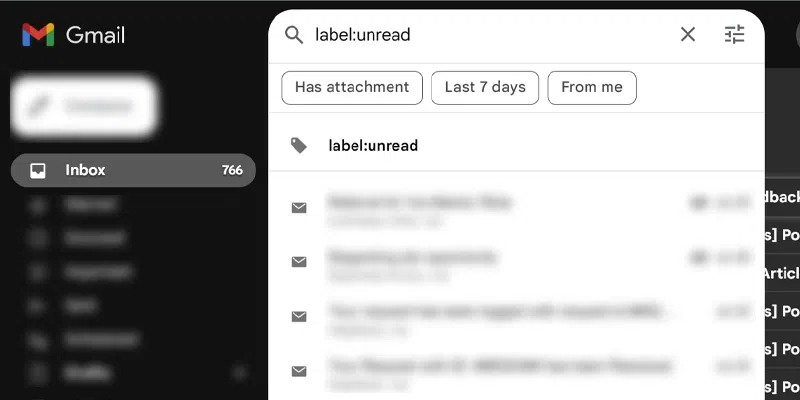
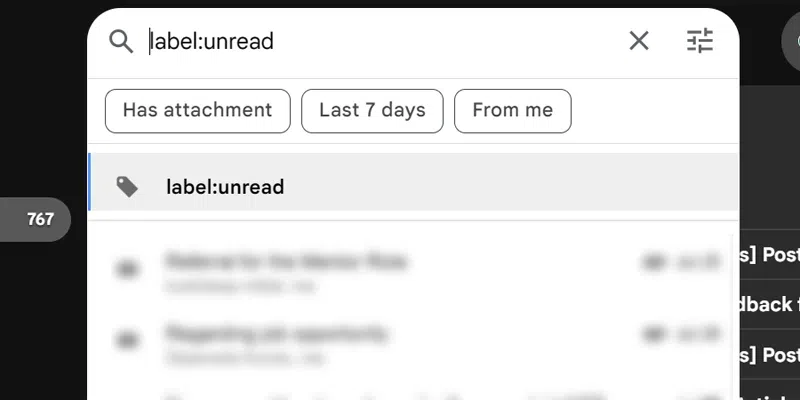
To filter emails by read or unread status, type label:unread or label:read in the Gmail search bar.
- label:unread will show only unread emails.
- label:read will show only read emails.
Step 3: Select the Filtered Emails
After typing label:unread or label:read in the search bar, Gmail will display only the emails matching your filter. You can now proceed to select the emails you want to delete.
Step 4: Select All Emails
To select all the emails displayed, click the checkbox at the top-left of the page. To select all emails in the search results, click the "Select all conversations that match this search" link.
Step 5: Click on the Delete Icon
After selecting the emails, click the Trash icon (delete button) to move the emails to the Trash folder.
Delete all Emails from One Sender in Gmail
This method allows you to delete all emails from a specific sender at once. You can search for emails from one person or company and delete them in bulk, which is useful if you're getting too many unwanted emails from a particular source. This method is great for individuals who want to clean up their inbox by removing emails from specific sources, like newsletters, subscriptions, or spam.
Step 1: Open Gmail in Your Web Browser
Open Gmail in your web browser and go to your Inbox.
Step 2: Type Sender's Name or Email Address in the Search Bar
Now, go to the search bar and type the sender's name or email ID to preview all the emails received from the respective sender.
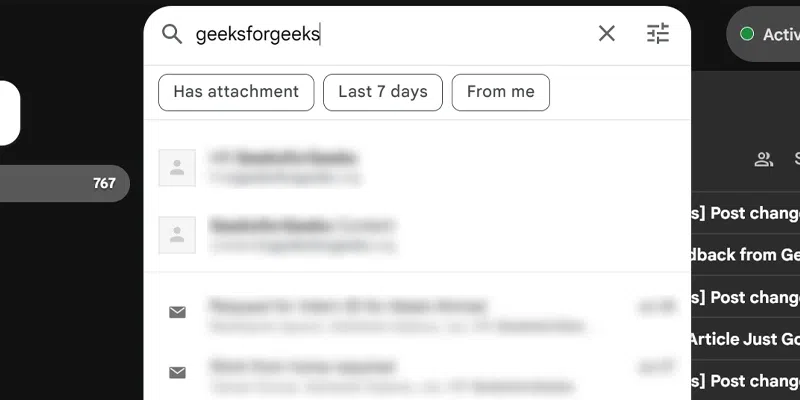
Step 3: Select the All Checkbox and Click Delete Button
Select all emails using the checkbox and click the Delete button.
Delete Emails in Gmail from a Specific Date
This method lets you delete emails from a specific time period, such as the last month or year. You can use search operators in Gmail, like "before:YYYY/MM/DD" or "after:YYYY/MM/DD," to find and remove emails sent before or after a certain date. This is helpful for people who want to delete old emails but keep recent ones. It's a great option for clearing out large amounts of emails quickly, especially if you only want to delete emails from a particular date range without affecting others.
Step 1: Open Gmail in Your Web Browser
Open Gmail in your web browser and go to your Inbox.
Step 2: Type "before:YYYY/MM/DD" in the Search Bar
In the search bar, type the query before: YYYY/MM/DD (for example, before:2023/01/01) to find emails sent before the specified date.
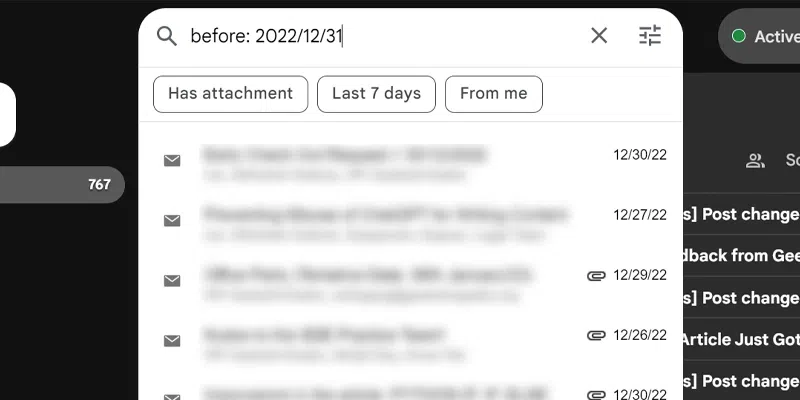
Step 3: Click "Select All Search Results"
After entering the search query, you'll see some emails before the specified date. At the top of the page, click "Select all conversations that match this search" to include all emails within that date range.
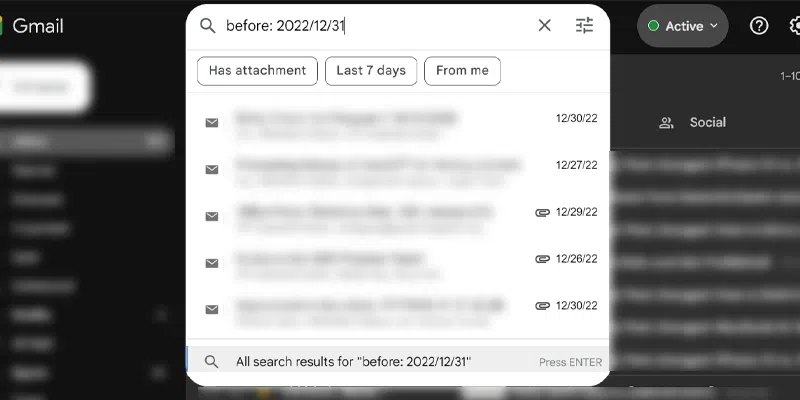
Step 4: Select the Checkbox and Click the Delete Button
Click the checkbox at the top-left to select all the emails, then click the Delete button to move the selected emails to the Trash.
Delete All Emails Under a Label in Gmail
Labels in Gmail allow you to categorize your emails, making it easy to find and delete a specific group of emails. If you've applied labels to your emails, you can use this method to mass delete them.
Step 1: Open Gmail
Launch Gmail in your web browser and sign in if you aren't already.
Step 2: Click on Labels and Select the Label
On the left-hand sidebar, scroll down to the "Labels" section at the bottom. Click on the label you want to clear (e.g., Snoozed or Templates).
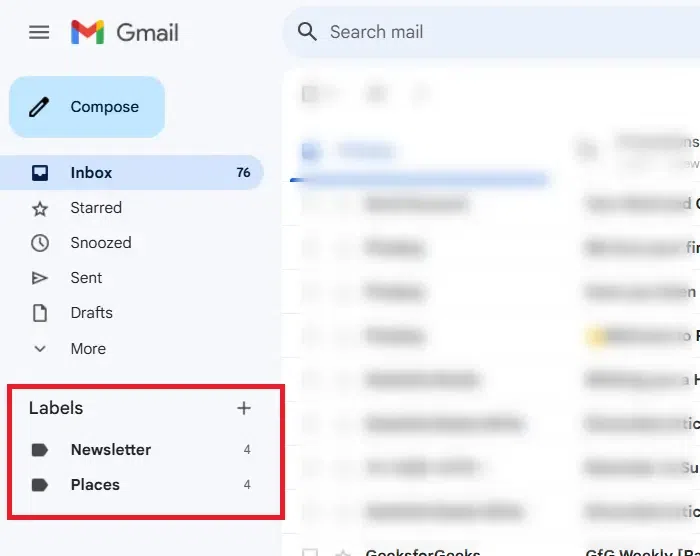
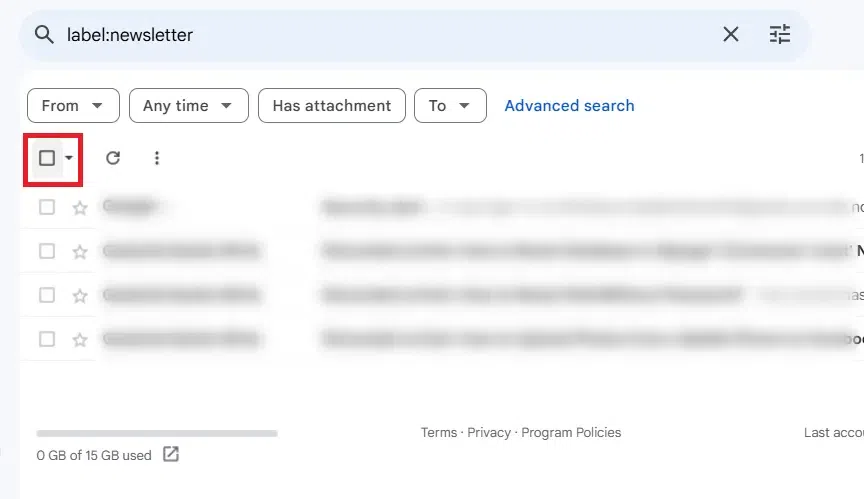
Step 3: Select All Emails in the Label
At the top of your inbox, click the checkbox to select all the emails visible on the current page.
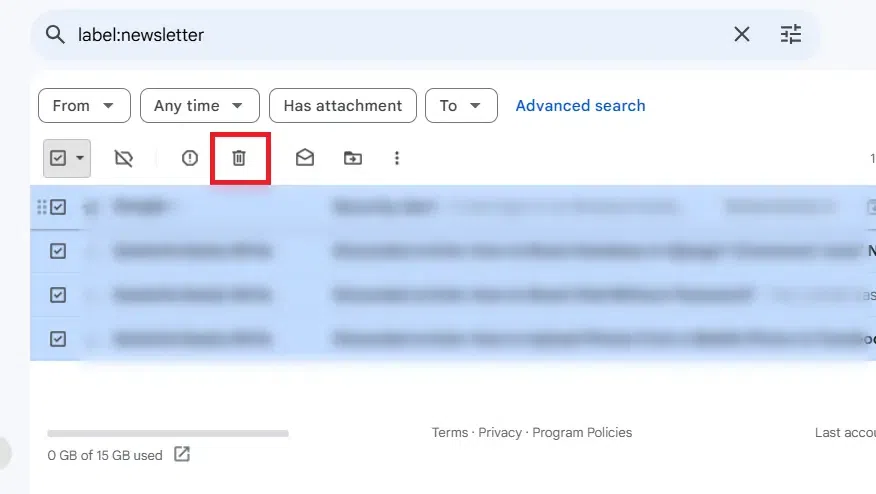
Step 4: Delete the Emails
Click on Trash icon to delete all the selected emails.
How to Delete Emails in Bulk on the Gmail app (Android & iPhone)
To delete mails in bulk in Gmail app on both Android and iPhone, follow these steps:
Step 1: Open the Gmail app
Launch the Gmail app on your device.
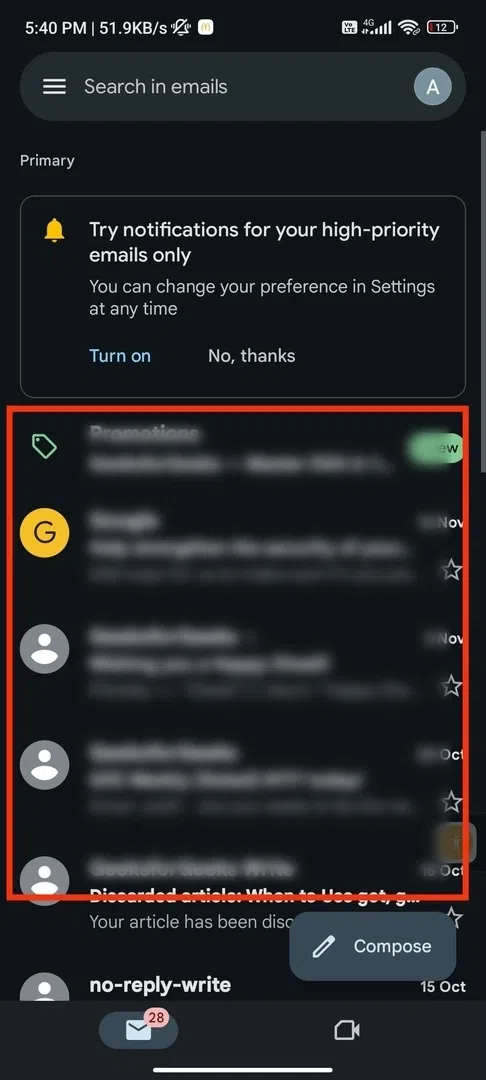
Step 2: Select the emails
Tap and hold on one email until it becomes selected. Then, tap additional emails to select them (you can also tap the checkbox at the top to select all emails on the current page).
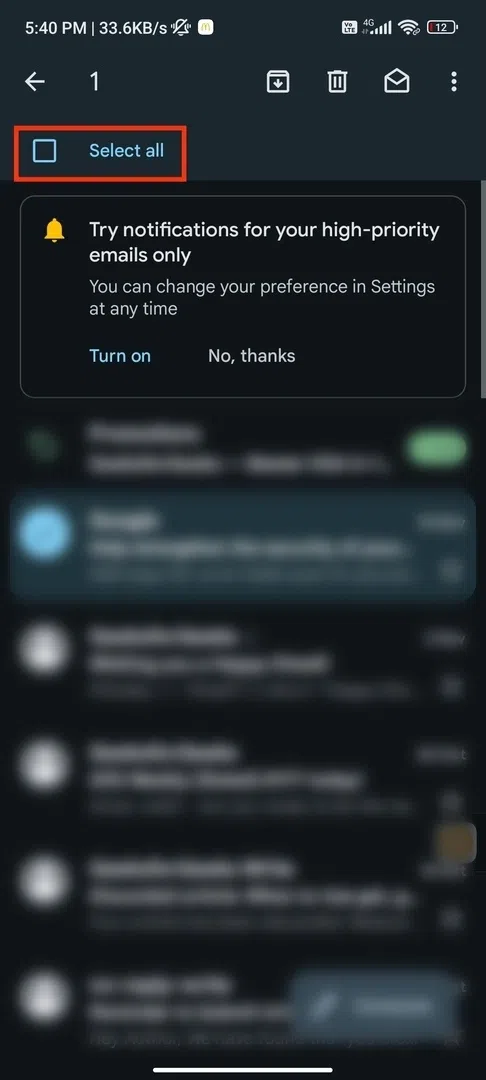
Step 3: Use the "Select all" option
If you want to delete all emails in a folder (such as the inbox), tap the "Select all" option that appears at the top (this will select all emails on that page).
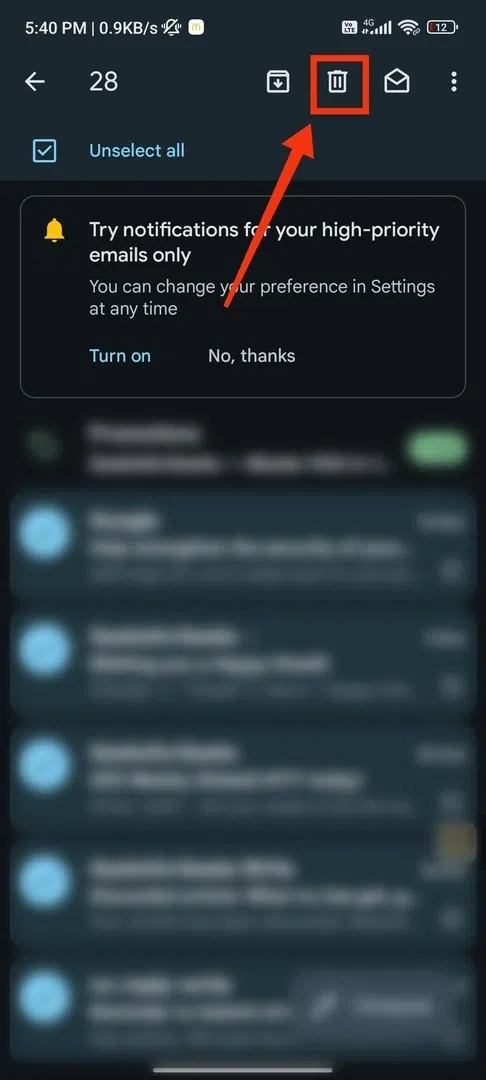
Step 4: Tap the trash icon
Once your emails are selected, tap the trash can icon at the top of the screen to delete the emails.
Step 5: Empty Trash (optional)
To permanently delete the emails, go to the "Trash" folder, tap the three dots in the top-right corner, and select "Empty Trash now."
This method works on both Android and iPhone versions of the Gmail app.
Also Read:
Conclusion
Cleaning up your Gmail inbox doesn’t have to be a time-consuming task. With the steps we've covered—whether it's deleting all emails in Gmail, targeting specific emails by sender or date, or even clearing out entire labels—you can quickly free up space and get back to managing only the emails that matter. Don't forget, you can also perform these actions directly from your Gmail app on Android or iPhone, ensuring that no matter where you are, your inbox stays under control. By mastering these simple methods, you'll have your inbox organized and clutter-free in no time!.
