
Have you ever encountered unwanted lines in Google Docs that disrupt the flow of your document? Whether it’s a table border, a horizontal line created by typing hyphens or underscores, or paragraph borders, these lines can sometimes make your document look cluttered. The good news is, removing them is easy!
In this guide, we’ll walk you through several methods to remove lines in Google Docs, including how to delete table borders, horizontal lines, and paragraph borders. You’ll also learn how to clear formatting to remove any unwanted lines and how to edit table lines effectively. By the end of this guide, you’ll know how to get a clean and neat document in just a few steps.
How to Remove Horizontal Line in Google Docs
To eliminate table borders, start by creating a table. Navigate to the Insert menu at the top of your Google document and click it. Hover over Table in the dropdown menu, choose the table size (column x row dimensions), and click to confirm. The table will now be visible in your document.
Deleting Table Borders to Remove Lines in Google Docs
Follow the steps given below to remove table lines in Google Docs:
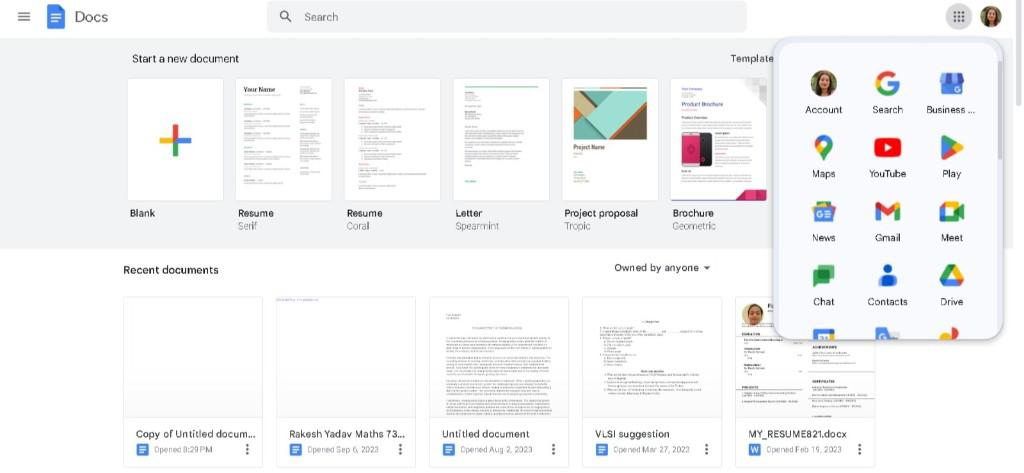
Step 1: Open Google Your Google Docs
In the first step, we need to visit the official website of Google Docs and open the document.
Step 2: Create Table
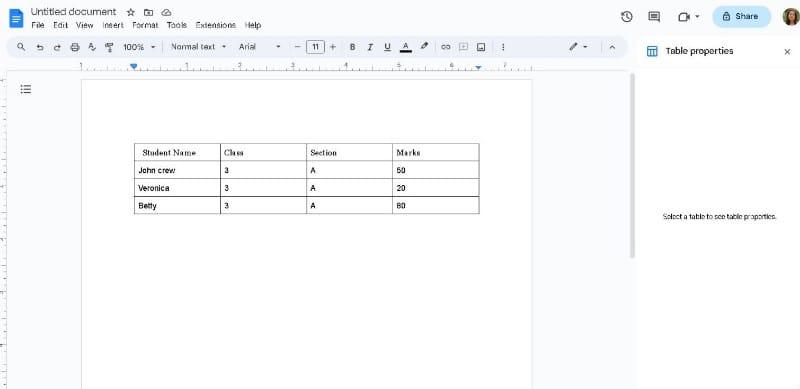
Create the table, If you don't have any pre-table.
- Click On Insert
- Click On Table
- Select row & column.
Step 3: Select All the Table
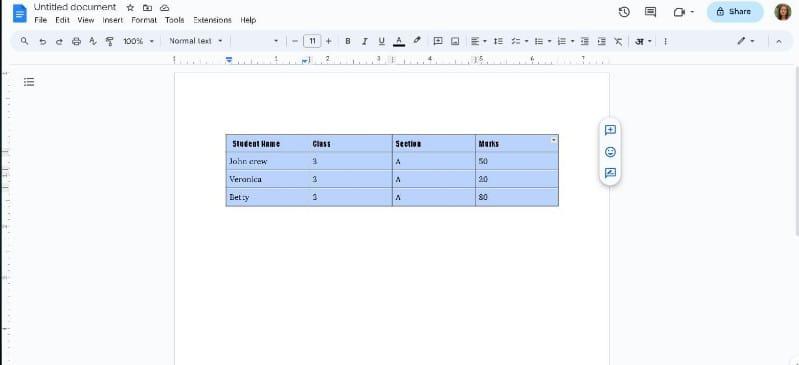
Select the entire table that you create to remove column lines.
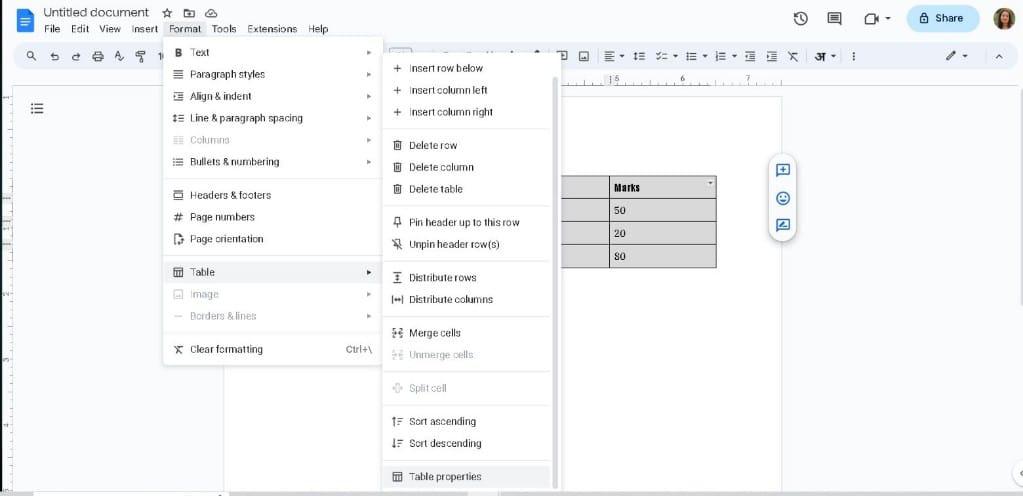
Step 4: Go to the Format Option and Select Table
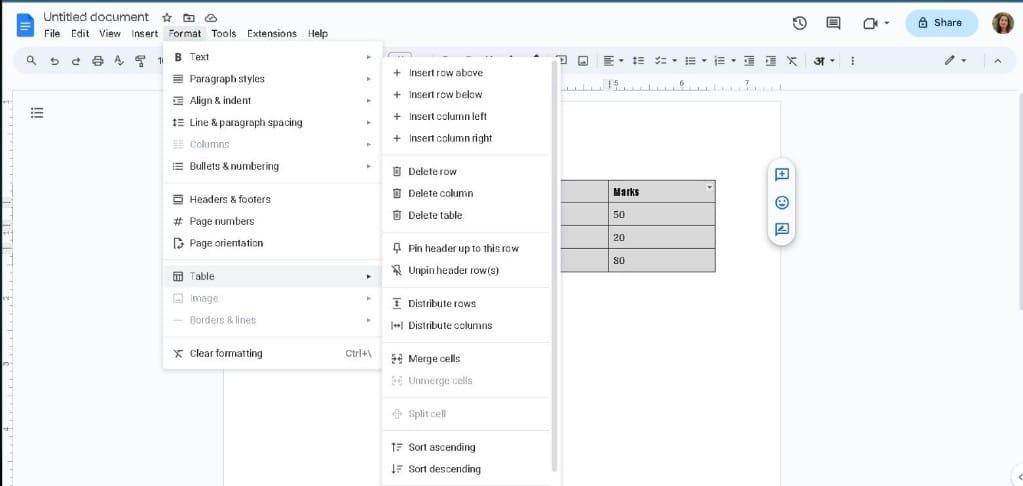
Once the table is selected, navigate to the "Format" menu at the top of the screen. Select the Table option there.
Step 5: Click Table Properties
Click on "Table Properties" to open a dialog box with various customization options.
Step 6: Click on the Color Section
In the "Table Properties" dialog box, find the Color section
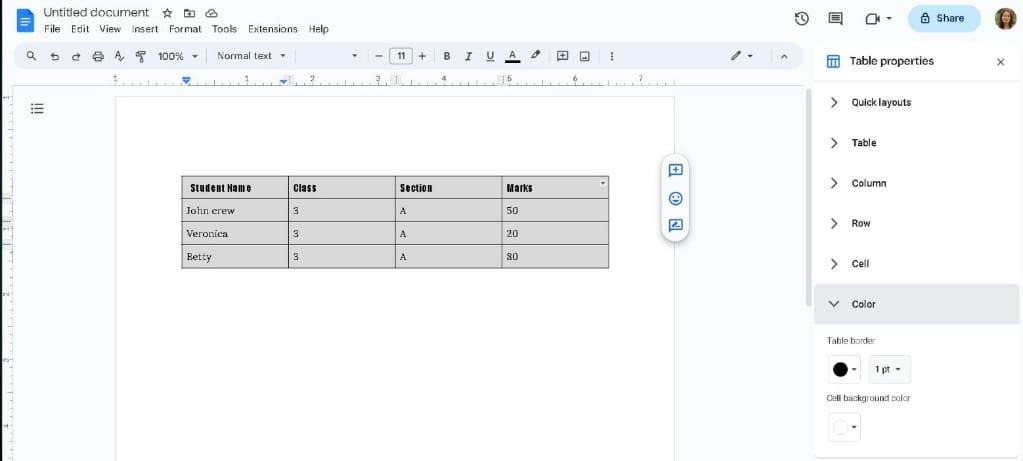
Step 7: Set the Table border to "0pt"
Confirm your settings by setting the table border to "0pt".
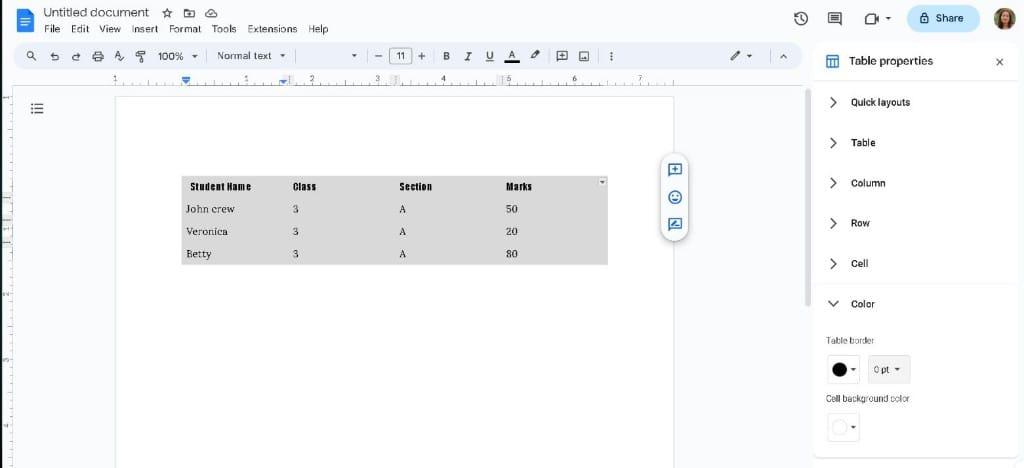
Step 8: Preview Table Changes
Column lines were removed from the Table. Once you set the border to 0pt, the column lines removed and your table will look like this.
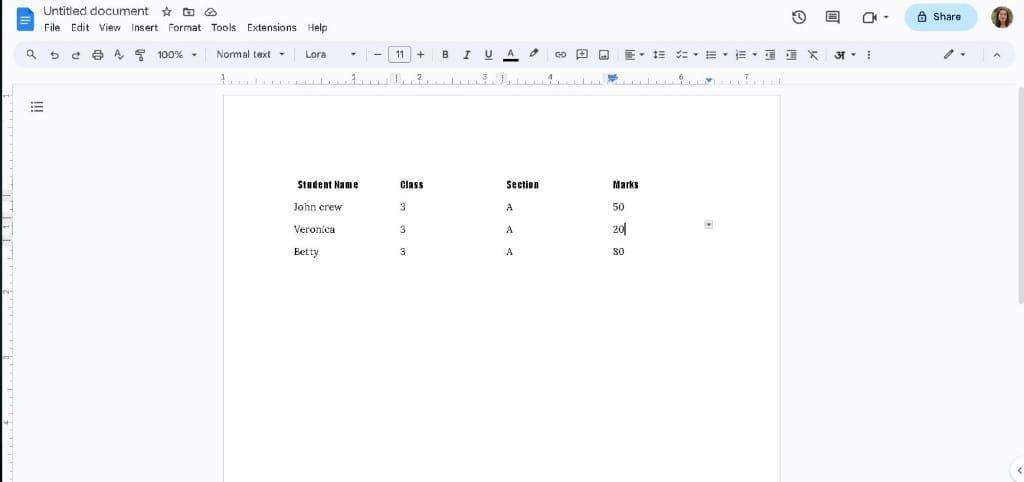
Removing Horizontal Lines Created by Typing Hyphens or Underscores
If the lines in the document are created already by typing hyphens or underscores then you can remove the lines by following the steps given below:
Step 1: Open Document and Locate the Lines
First you need to open the document and navigate to the lines that you have created by typing hyphens or underscores.
Step 2: Select the Line
Now using your cursor select the line to be deleted.
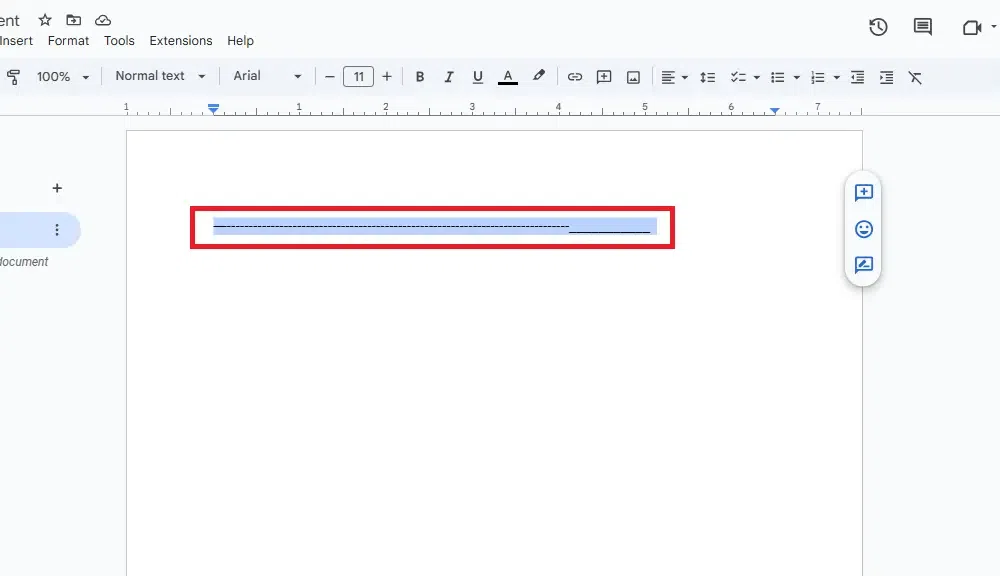
Step 3: Press Backspace
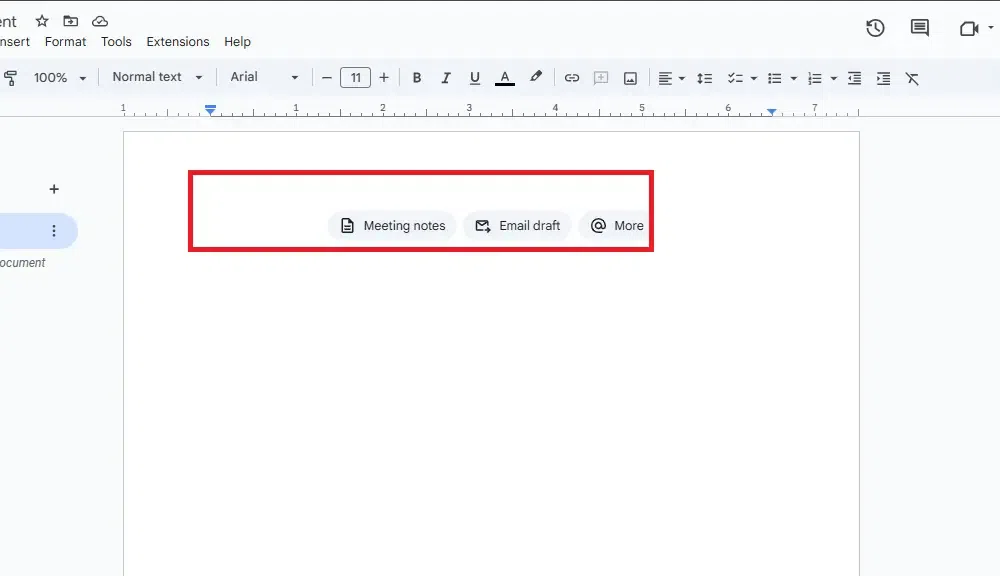
When you have selected the line press Backspace to delete the line.
Removing Paragraph Borders in Google Docs
To remove the paragraph border in a Google Document follow the step given below:
Step 1: Open Your Document and Select the Paragraph
Start by launching Google Docs and opening the document that contains the paragraph with borders you want to remove. Click and drag your cursor to highlight the paragraph from which you want to remove the border. Ensure that the entire paragraph is selected.

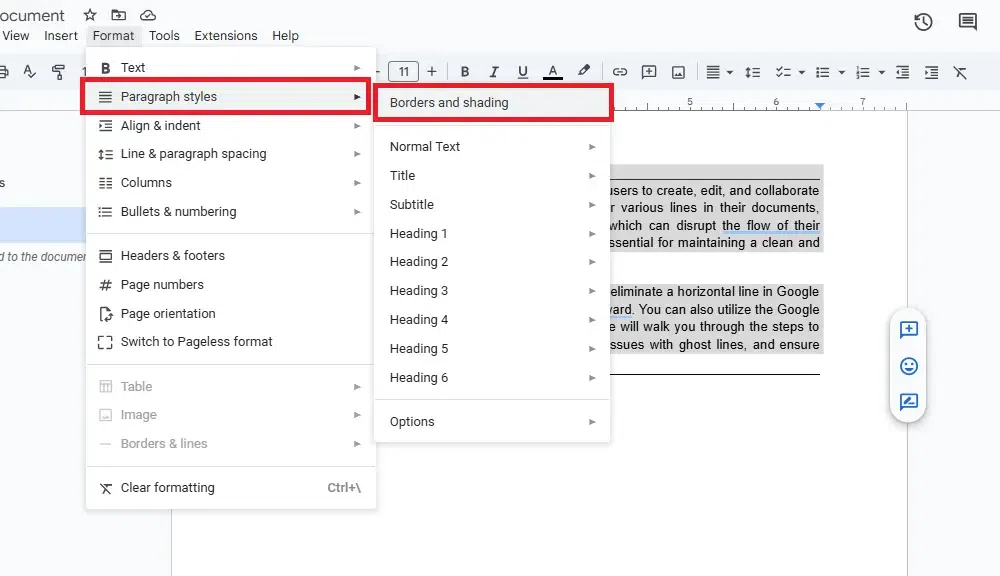
Step 2: Access the Borders and Shading Menu
- Navigate to the Format menu in the top navigation bar.
- From the dropdown, select Paragraph styles.
- Choose Borders and shading from the submenu.
Step 3: Remove the Border and Apply Changes
In the Borders and Shading dialog box, to remove the border, set the Border width to 0 pt. You can also choose None for the border color if that option is available. Once you’ve adjusted the border settings. Click OK to close the dialog box.

Step 4: Review Your Document
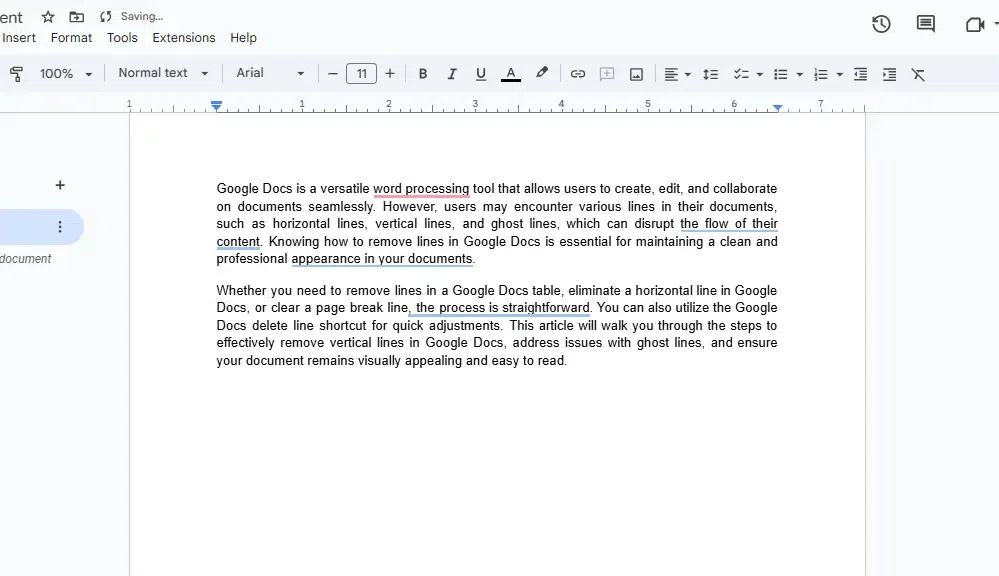
After removing the border, review your document to ensure that the changes have been applied correctly. The selected paragraph should now be free of borders.
Deleting Lines Manually in Google Docs
To delete the lines manually you can use the Backspace button or the Undo button.
Step 1: Open Doc and Select Line
Open the document and select the line.
Step 2: Press Backspace or Press Undo
To delete the lines manually you can press the Backspace button on your keyboard or you can undo the process of making line.
Clearing Formatting to Remove Lines
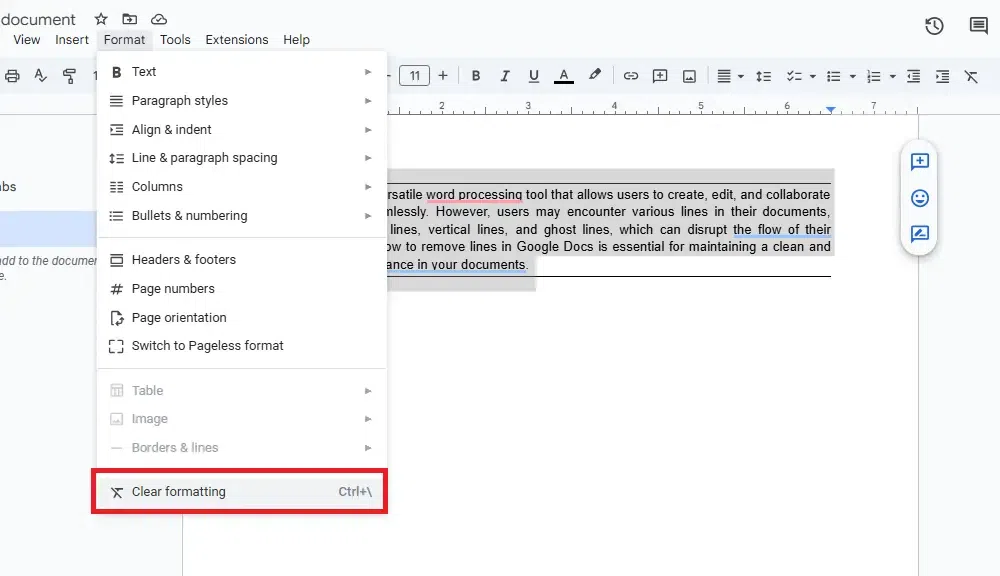
To remove all the lines in a Google Doc you can clear the formatting of the document. Here is how you can do it:
Step 1: Open Your Document
Open the Google Docs document containing the unwanted lines.
Step 2: Select the Text
Highlight the text or paragraph with the lines you want to remove.

Step 3: Clear Formatting
- Go to the Format menu.
- Select Clear formatting (or use the shortcut *Ctrl + * on Windows or *Cmd + * on Mac).
How to Edit Table Lines in Google Docs
Here is how you can edit table lines in Google Docs:
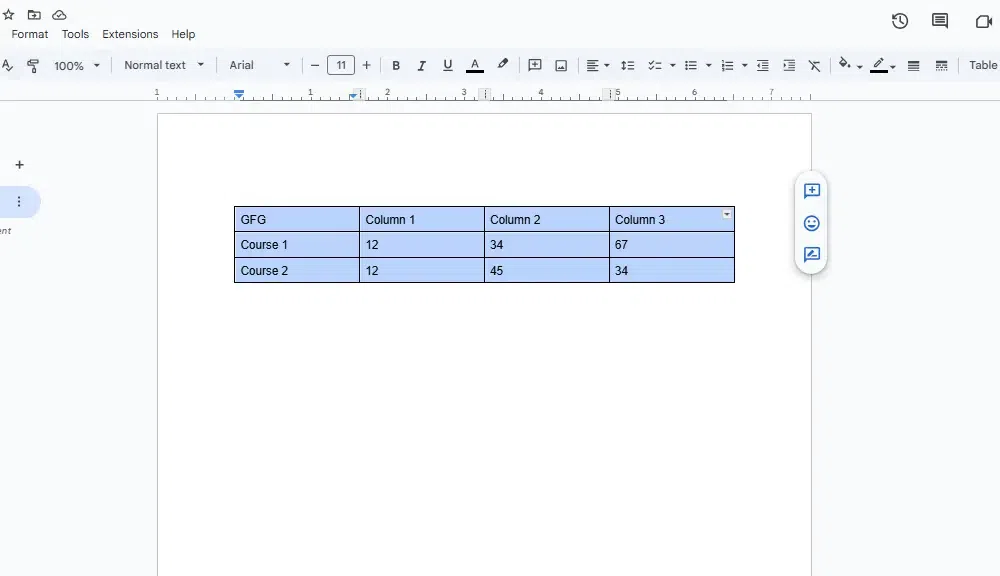
Step 1: Select the Table
Click anywhere inside the table to activate it and reveal the table editing options.
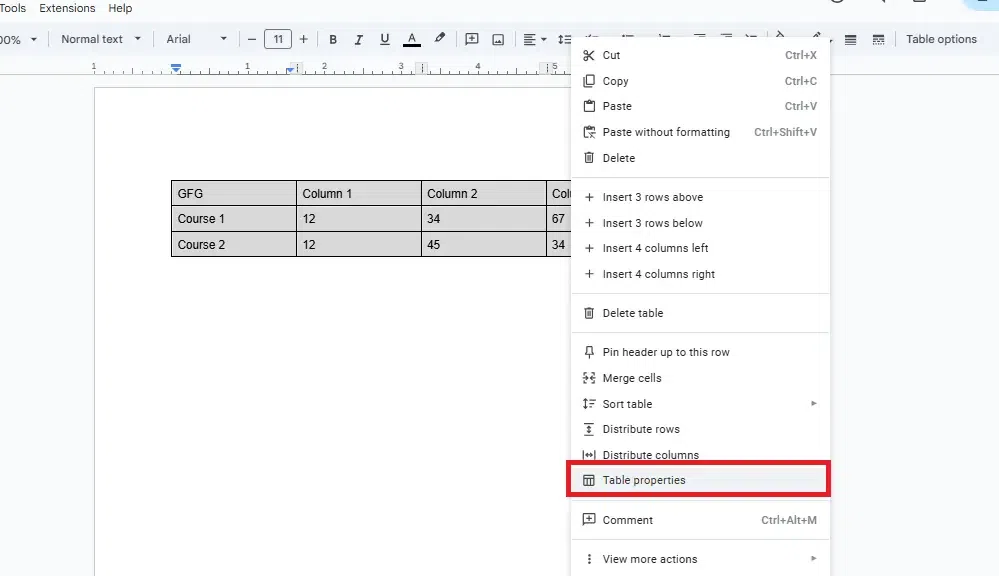
Step 2: Access Table Properties
Click on the Table menu in the top toolbar and select Table properties from the dropdown.
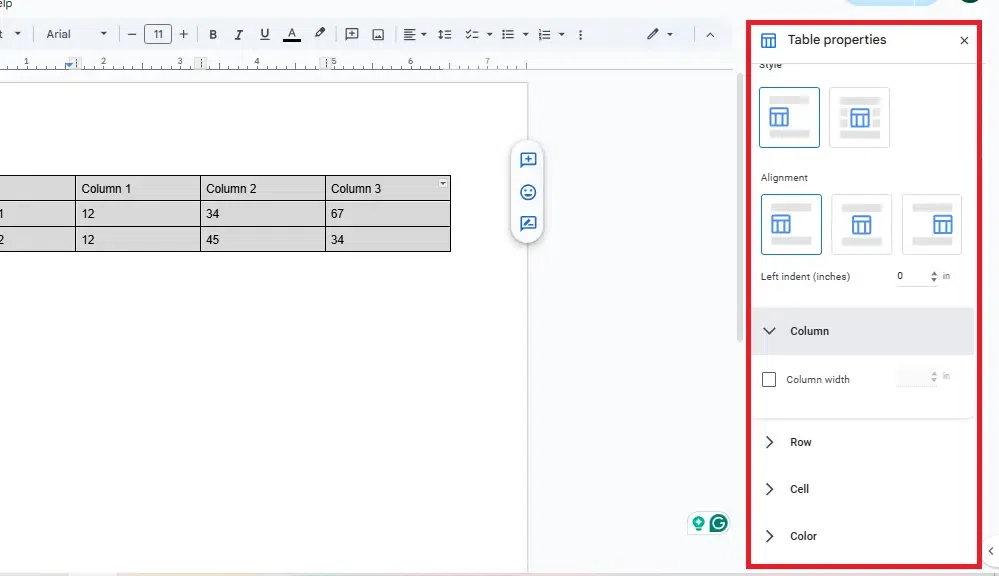
Step 3: Edit Border Settings
In the Table properties window, adjust the Table border width, color, and style as desired.
Step 4: Apply Changes
Click OK to apply your changes and update the table appearance.
How to Remove Cell Border in Google Docs
Here are the steps to remove cell borders in Google Docs:
Step 1: Select the Table
Click anywhere inside the table to activate it.
Step 2: Access Table Properties
Click on the Table menu in the top toolbar, then select Table properties from the dropdown.
Step 3: Edit Border Settings
In the Table properties window, locate the Table border section.
Step 4: Set Border Width to 0
Change the border width to 0 pt to remove all borders, or select None if available.
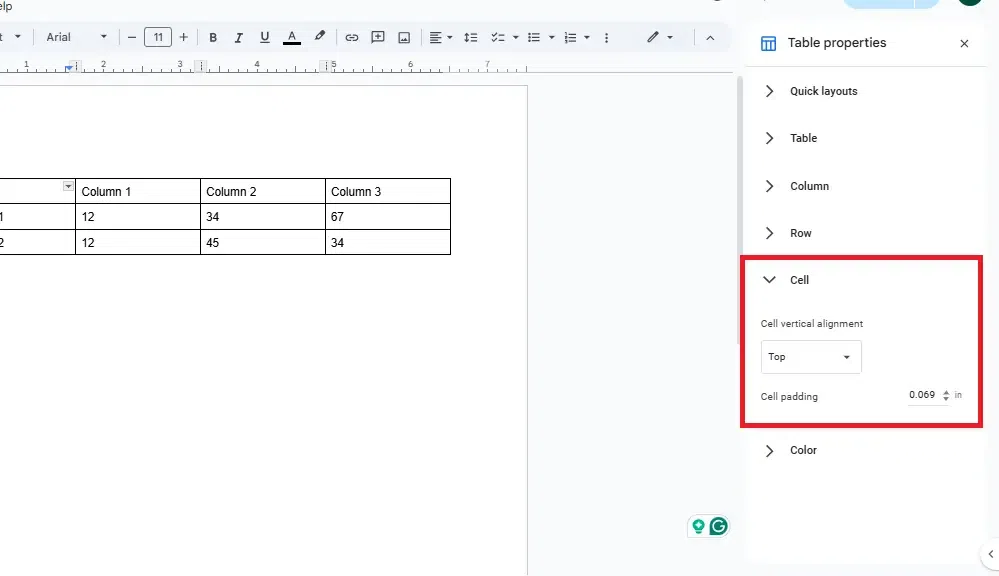
Step 5: Apply Changes
Click OK to apply your changes, and the cell borders will be removed from your table.
Conclusion
Whether it's clearing up table borders, deleting horizontal lines, or getting rid of paragraph borders, removing lines in Google Docs is quick and straightforward. By following the steps outlined in this guide, you can easily manage the appearance of your document and ensure it looks polished and professional. If you want to edit table lines or remove cell borders, these solutions have you covered too.
Take control of your document’s formatting with these easy methods and enjoy a clean, organized Google Doc, free from unwanted lines.
