
Keeping track of changes in a shared document is crucial, especially when collaborating with a team. Google Docs offers a version history feature that allows you to view and manage edits efficiently. Whether you're working on a group project, drafting a business proposal, or refining a personal document, this feature ensures you can track all changes, view edit history, and even restore previous versions if needed.
This guide will provide you with clear steps to see version history in Google Docs on desktop and mobile devices while offering tips to protect your work from accidental loss.
How to Check Version History in Google Docs (Desktop)
Using version control in Google Docs, you can easily track changes in Google Docs and view the edit history of your document. This feature lets you see version history and even restore previous versions in Google Docs. Follow these simple steps:
Step 1: Open the Google Doc
Open the document on a desktop for which you want to see the version history.

Step 2: Click on the "File" Menu and Select "Version History"
In the top-left corner, click on the File option in the menu bar then Hover over Version History and then click on See Version History from the dropdown.

Alternatively, you can use the keyboard shortcut:
- Windows: Ctrl + Alt + Shift + H
- Mac: Cmd + Option + Shift + H
Step 4: View the Version History Panel
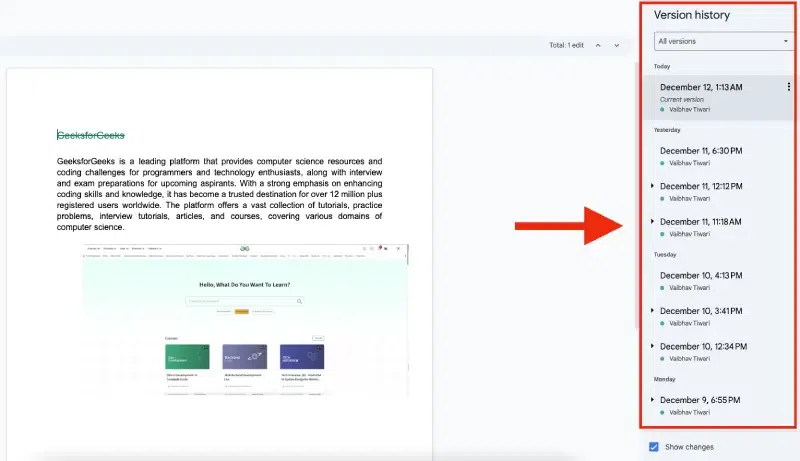
The Version History panel will appear on the right side of your screen. Here, you will see a list of all the versions of the document, along with the time and date they were saved and the names of collaborators who made changes.
Step 5: Select a Version
Click on any version listed in the panel to view it. This will open the document in its state at that particular version. You can see what the document looked like at that time, including any text or formatting changes.

Step 6: Highlight Changes
When you select a version, Google Docs will highlight the changes in the document by color-coding the modifications (additions, deletions, etc.). This makes it easy to spot what has changed between different versions.
Step 7: Compare Versions
You can compare two different versions by selecting one version, then selecting another. This helps you easily track what was modified, added, or removed.
How to Check Version History in Google Docs on Mobile (Android/iPhone)
Viewing history on Google Docs mobile is easy and helps track changes made during Google Docs collaboration. Here’s how you can check the document revision history on your Android or iPhone:
Step 1: Open the Google Drive App
On your device, launch the Google Drive app.
Step 2: Locate the File
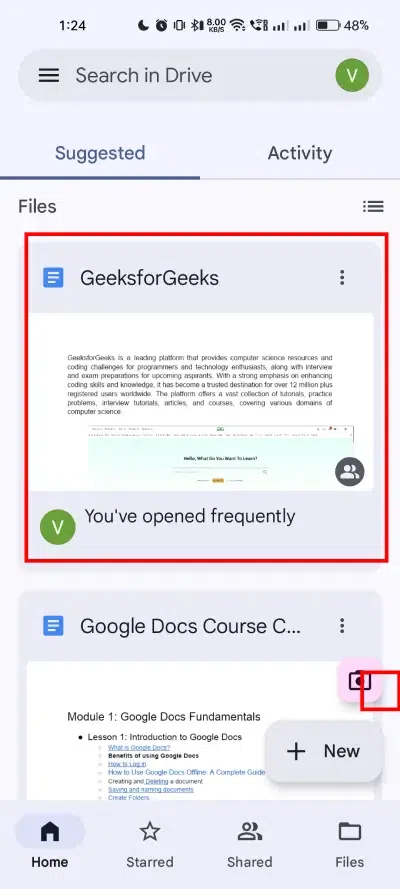
Find the Google Doc for which you want to view the version history.
Step 3: Tap More Options
Next to the file, tap the three vertical dots (More options) to open the menu. Tap More Options

Step 4: Select "Details and Activity"
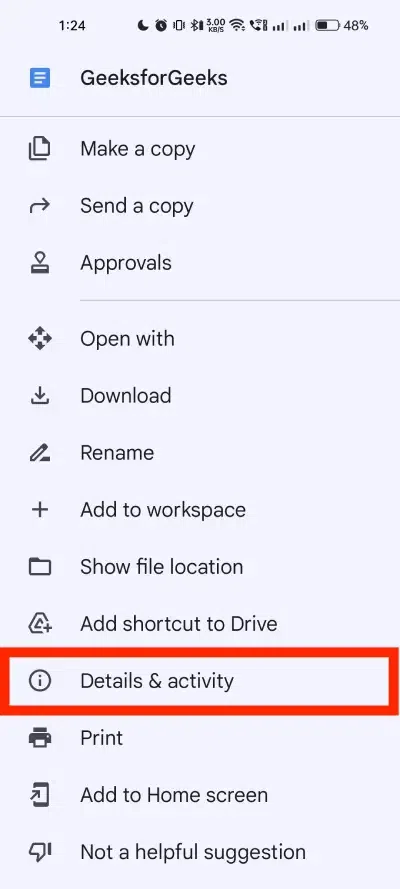
From the menu, tap on Details and Activity to see more information about the file.
Step 5: View Activity History
Scroll down to the Activity section, where you can see the past edits and changes made to the document, including the people who made those changes.

Tips for Avoiding loss of Important Changes
- Enable Version History: Always keep version history enabled in Google Docs to track and recover changes.
- Save Copies Regularly: Download a backup of your document as a Word file or PDF periodically.
- Collaborate with Caution: Limit editing access to trusted collaborators and use "View Only" or "Comment Only" permissions when necessary.
- Use Comments for Feedback: Encourage collaborators to suggest edits via comments instead of directly altering the document.
- Check Revision History: Regularly review the revision history to ensure no critical changes are accidentally overwritten or deleted.
These practices will help you safeguard important edits and maintain document integrity.
Related Articles:
Conclusion
By mastering the ability to see Version history in Google Doc, you can take full control of your collaborative and individual projects. With easy access to version control, you can track changes, review edits made by others, and even revert to earlier drafts if necessary. Whether you're working on a desktop or mobile device, these steps ensure that your content remains organized and secure, fostering smoother collaboration and confident document management.
