
Salesforce Flow is an essential automation tool enabling administrators and developers to streamline business processes without writing code. From sending emails and updating records to creating tasks, Salesforce Flow allows for both simple and complex automation. However, as businesses scale and processes grow more intricate, performance optimization becomes critical to ensure seamless user experiences.
One of the recent enhancements introduced in Salesforce Flow is Collection Filters. First introduced in the Summer ’22 release, Collection Filters allow developers to process record collections efficiently without using loops, significantly improving flow performance.
What Are Collection Filters?
Collection Filters in Salesforce Flow allow you to filter a subset of records from a larger collection without looping through each record. This approach minimizes CPU usage and processing time, making your flows faster and more efficient.
Why Use Collection Filters?
- Eliminates Loops: Loops are resource-intensive and can lead to Apex CPU time limit errors when processing large datasets. Collection Filters eliminate the need for loops.
- Performance Gains: Filtering records using Collection Filters is faster than using decision elements and loops, especially for large datasets.
- Simplified Flow Design: With fewer elements required, Collection Filters make flows easier to design and maintain.
Traditional Approach: Using Loops
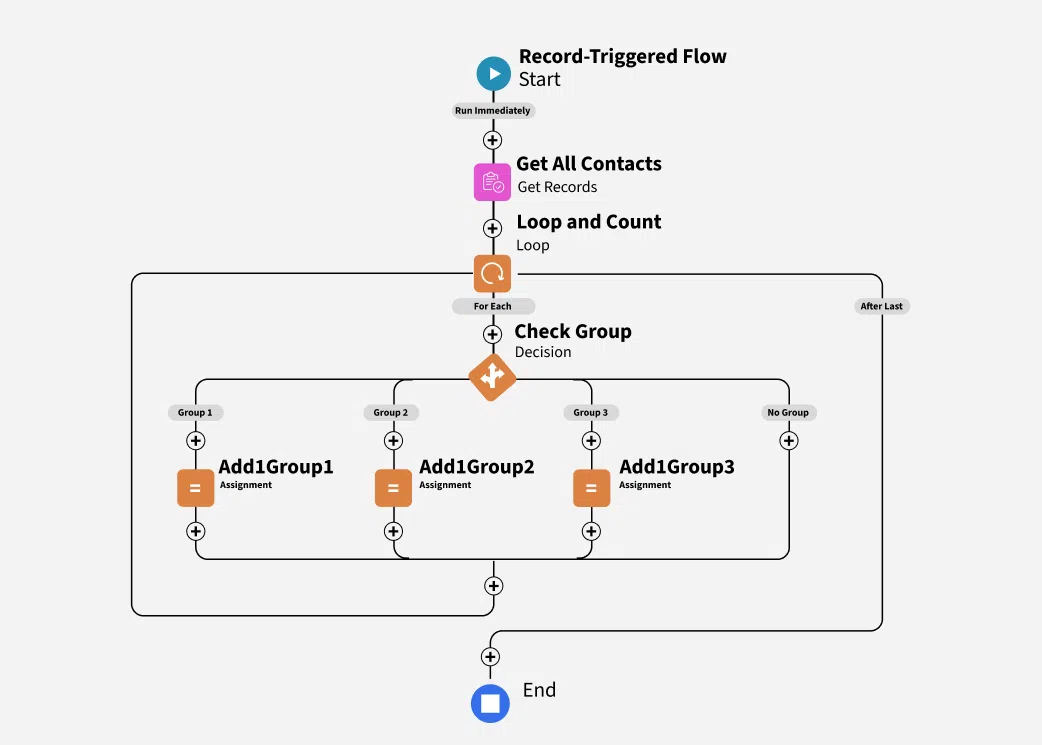
In traditional flows, filtering a collection often requires loops. For instance:
1. Scenario
Suppose you fetch all contacts related to an account and want to group them based on a picklist field called Group with values Group1, Group2, and Group3.
2. Implementation
- Fetch all related contacts using a Get Records element.
- Loop through the contacts.
- Use a Decision element to evaluate each record's
Groupfield. - Assign records to different collections for each group.
- While effective for small datasets, this approach struggles with large volumes, potentially causing flows to fail due to performance limits.
Modern Approach: Using Collection Filters
With Collection Filters, you can achieve the same goal without loops. Here's how:
Modern Approach: Using Collection Filters image
Step 1: Fetch the Data
Use a Get Records element to fetch the full collection of records (e.g., all related contacts).
Step 2: Apply Collection Filters
For each subset of records:
- Add a Collection Filter element to your flow.
- Select the source collection (e.g., all contacts fetched in Step 1).
- Define filter conditions (e.g.,
Group = 'Group1').
Repeat this step for each subset you want to create (e.g., Group1, Group2, Group3).
Step 3: Use the Filtered Collections
After applying the filters, you’ll have separate collections for each subset. You can:
- Send emails to each group.
- Assign tasks.
- Perform other operations as required.
Example: Grouping Contacts Without Loops
Use Case:
You want to group related contacts of an account based on their Group picklist field and perform different actions for each group.
Implementation:
Step 1: Use a Get Records element to fetch all contacts related to the account.
Step 2: Add a Collection Filter for each group:
- Filter 1:
Group = 'Group1' - Filter 2:
Group = 'Group2' - Filter 3:
Group = 'Group3'
Step 3: Use the filtered collections in subsequent flow elements (e.g., create tasks or send emails).
Performance Comparison: Loops vs. Collection Filters
Test Results:
- Small Datasets (< 100 Records): Collection Filters are faster, completing in less than a second compared to loops that can take 5–6 seconds.
- Large Datasets (> 1,000 Records): Loops often fail due to Apex CPU time limits, whereas Collection Filters process the data in about 1 second.
- Very Large Datasets (~10,000 Records): Collection Filters complete processing in 5–6 seconds, while loops cannot handle such volumes.
Key Takeaways:
- Use Collection Filters to improve performance and avoid Apex CPU errors.
- For smaller subsets, direct filtering in the initial query is still recommended to reduce the size of the initial collection.
Advanced Techniques with Collection Filters
1. Assigning Filtered Collections to Variables
After filtering, assign the counts or collections to variables using the Assignment element. This approach is useful for further operations like conditional actions or reporting.
2. Combining Queries and Filters
For optimal performance:
- Use specific queries to fetch smaller datasets.
- Use Collection Filters for additional fine-grained filtering.
3. Real-Time Filtering in Screen Flows
Collection Filters are particularly useful in Screen Flows, where users may change record values. By dynamically filtering based on updated values, you can ensure accurate results.
Best Practices for Using Collection Filters
- Filter Early: Where possible, apply filters in the initial query to minimize the size of collections.
- Avoid Excessive Filters: Limit the number of Collection Filters in a flow to avoid unnecessary complexity.
- Monitor Performance: Test your flows with realistic data volumes to identify and resolve performance bottlenecks.
- Use Decision Elements Strategically: For branching logic that doesn't require subsetting records, decision elements may still be a better choice.
Conclusion
Salesforce Collection Filters are a game-changer for optimizing flows. By replacing loops with Collection Filters, you can significantly enhance the performance of your automation, especially when working with large datasets. As flows become more complex, incorporating Collection Filters into your toolkit will allow you to build faster, more efficient, and maintainable automation processes. Embrace this feature to take your Salesforce automation to the next level!
