
The COUNTA formula counts the number of non-empty cells within a specified range. It doesn’t matter what type of data is inside - text, numbers, boolean values, or formulas, as long as it’s not blank, COUNTA will count it.
How It Works
- Range Selection: The function evaluates each cell in the given range.
- Non-Empty Criteria: Any cell that contains data—whether it's a number, text, or formula is counted.
- Empty Cells Ignored: Completely blank cells are excluded from the count.
For example, if a range has 10 cells and 7 of them contain data, COUNTA will return 7.
COUNTA Function Syntax
Here is the Google Sheets COUNTA function formula:
=COUNTA(value1, [value2,])Parameters
- value1: Required. This can be a single cell, a range of cells, or direct values.
- value2: Optional. Additional values or ranges to include in the count.
Example 1: Count Non-Empty Cells in a Column
To use COUNTA formula to count non-empty cells in Google Sheet follow the steps given below:
Step 1: Open Google Sheets and Select the Cell for the Result
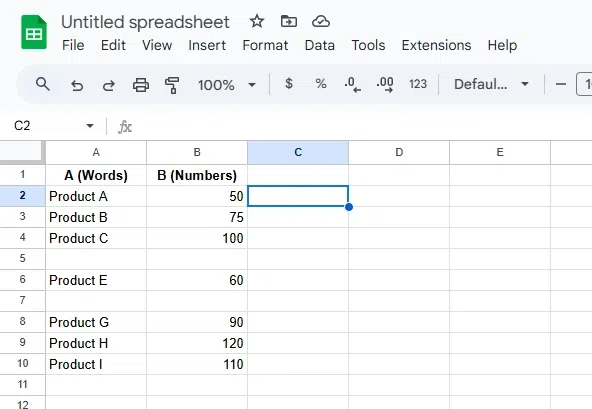
Choose the cell where you want the count to appear. For example, C2.
Step 2: Enter the Formula
Type the COUNTA formula in the selected cell:
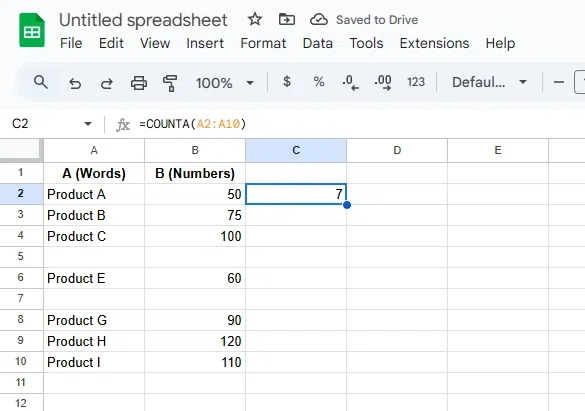
=COUNTA(A2:A10)Here, column A contains words (e.g., product names).

Step 3: Press Enter
Hit Enter to calculate the result. The formula will count all non-empty cells in the range A1:A10, including the cells with words.
Example 2: COUNTA Function with Numbers
Now we will try the COUNTA function with the numbers in Google Sheets:
Step 1: Select the Cell for the Result
Choose the cell where you want the count to appear. For example, C2.
Step 2: Enter the Formula
Type the COUNTA formula in the selected cell:
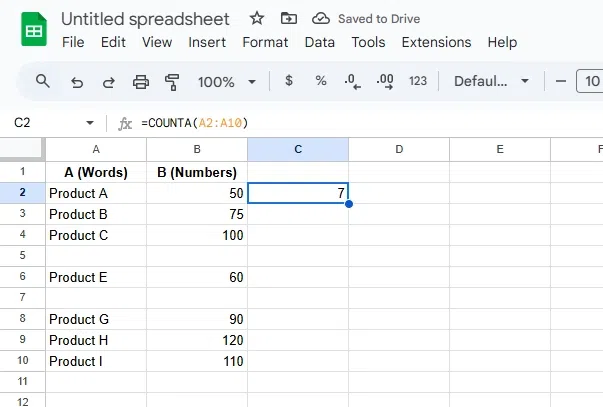
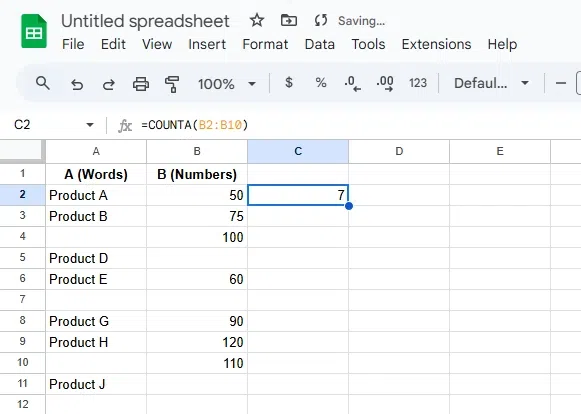
=COUNTA(B2:B10)Here, column B contains numbers (e.g., sales figures).

Step 3: Press Enter
Hit Enter to calculate the result. The formula will count all non-empty cells in the range B2:B10, including the cells with numbers.
Example 3: COUNTA Function with Mixed Data Types
The COUNTA function can count any non-empty cell - including text, numbers, booleans like TRUE/FALSE, or symbols. Here's how to use it:
Step 1: Open Google Sheets
Launch your Google Sheets document or open a new sheet where your data is stored.
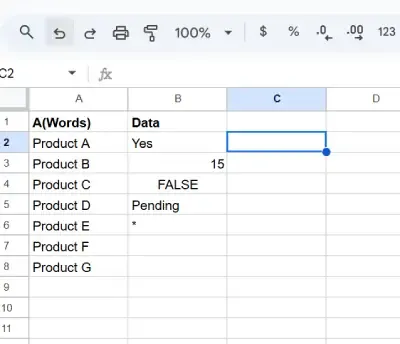
Step 2: Enter Mixed Data in a Column
In Column B (for example), enter a variety of data such as:
- B2: Yes
- B3: 15
- B4: FALSE
- B5: Pending
- B6: *
- B7 to B12: leave some cells empty or with only spaces
Step 3: Select a Cell for the Result
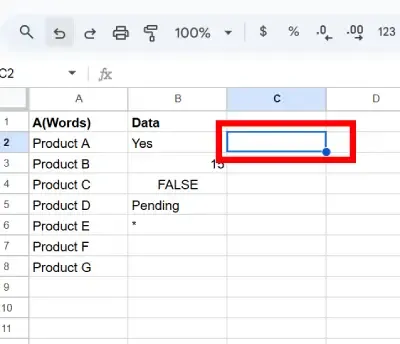
Click on the cell where you want the result of the COUNTA function to appear (e.g., C2).
Step 4: Enter the COUNTA Formula
Type the following formula into the selected cell:
=COUNTA(B2:B8)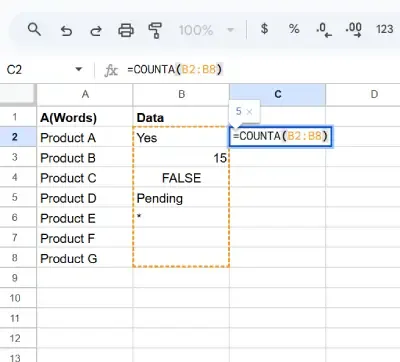
Step 5: Press Enter
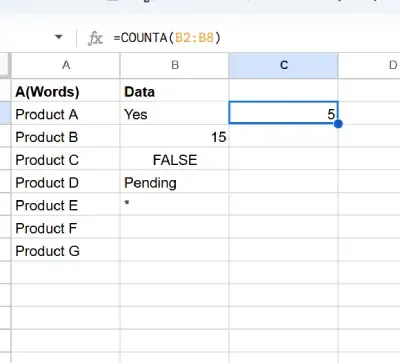
After entering the formula, press Enter. Google Sheets will count the number of non-empty cells in the range B2 to B12.
Step 6: Review the Result
The formula will return the count of non-empty cells — including:
- Text like "Yes" or "Pending"
- Numbers like 15
- Boolean values like FALSE
- Symbols like *
It will not count:
- Cells that are truly blank
- Cells that only contain invisible characters or spaces
Example 4: COUNTA Function with Non-Empty Cells Across Multiple Ranges
If your data is spread across different columns or rows, the COUNTA function can still help you count non-empty entries from multiple areas in one go.
Step 1: Open Google Sheets
Launch your Google Sheets document or start a new one.
Step 2: Enter Data in Multiple Ranges
Fill in data like this:
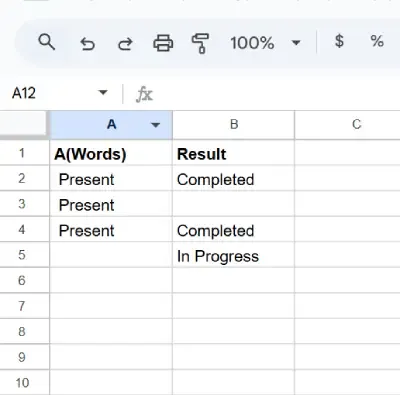
Step 3: Select a Cell for the Result
Click on the cell where you want the COUNTA result to appear, e.g., D6.
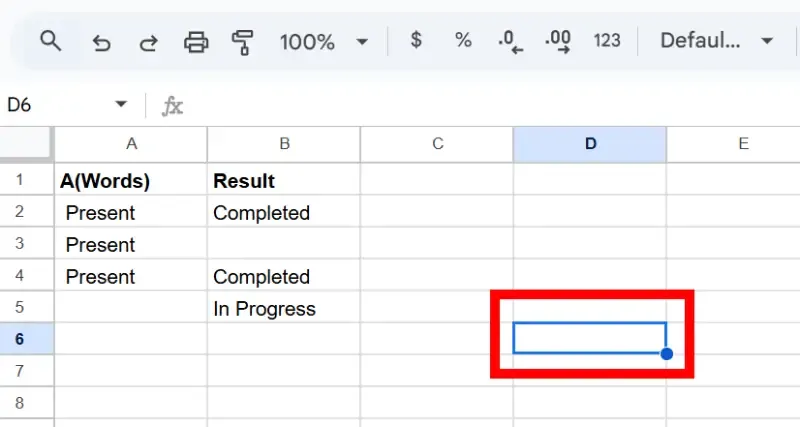
Step 4: Enter the COUNTA Formula
Type this formula:
=COUNTA(A2:A5, C2:C5)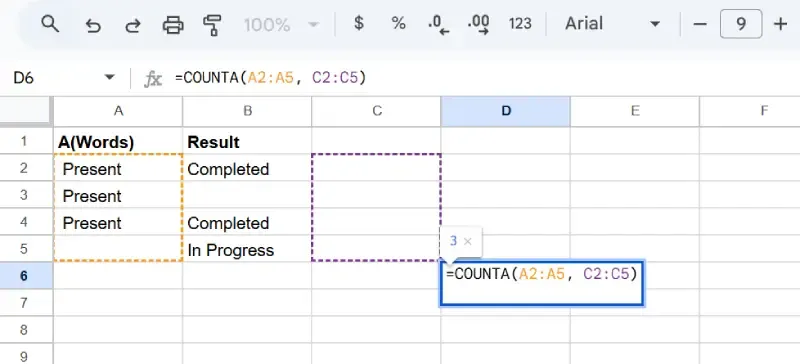
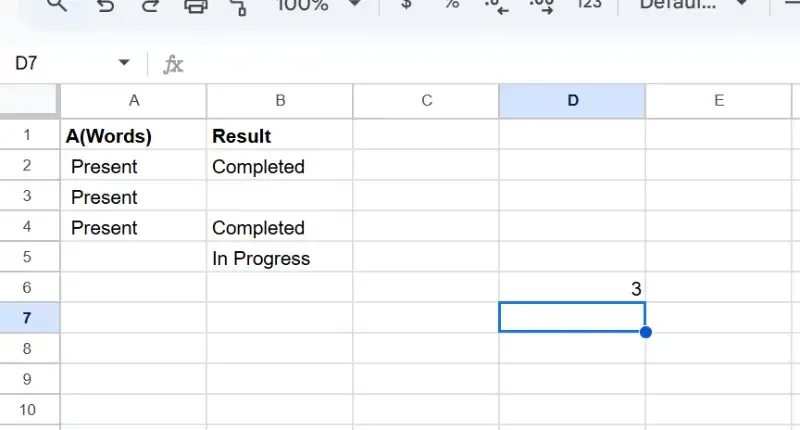
Step 5: Press Enter
Hit Enter, and the function will return the total count of non-empty cells across both ranges — Column A (A2:A5) and Column C (C2:C5).
Use Cases of Count Non-Empty Cells Across Multiple Ranges Using COUNTA:
- Tracking attendance across different teams
- Combining form submissions across sections
- Counting completed vs. in-progress tasks across multiple columns
Difference Between COUNT and COUNTA Function
| Function | What It Counts | Excludes |
|---|---|---|
| COUNTA | Non-empty cells including text, numbers, dates, and formulas. | Blank cells, but counts formulas (even if errors). |
| COUNT | Only numeric values and dates. | Text, blank cells, and errors. |
Common Issues and Troubleshooting with the COUNTA Function
| Issue | Cause | Solution |
|---|---|---|
| COUNTA not counting empty cells with formulas | COUNTA counts cells with formulas, even if they return an empty result or an error. | Ensure cells do not have formulas that return empty values or errors. Use IFERROR() to handle errors. |
| COUNTA counts error values (e.g., #DIV/0!) | COUNTA counts cells with error values. | Use IFERROR() or other error-handling formulas to prevent errors from being counted. |
| COUNTA counting hidden cells | COUNTA counts hidden rows or columns. | Apply filters to exclude hidden cells or use SUBTOTAL or other functions that don't count hidden cells. |
| COUNTA counting numbers formatted as text | COUNTA treats numbers stored as text as non-empty. | Convert numbers stored as text into numbers by using VALUE() or manually correcting the format. |
| Inconsistent range selection | Incorrect range selection might lead to counting unintended cells. | Double-check the selected range and ensure it includes the correct cells. |
