
WhatsApp Web is an extension of WhatsApp that lets users access their account anytime, anywhere. It works like the mobile app, allowing users to view status, send and receive messages, share media, and manage conversations. It provides a convenient way to stay connected, especially when the phone isn’t easily accessible.
- It is also great for businesses to stay connected to their clients on a big client on a desktop or a laptop.
- WhatsApp Web ensures that the conversation stays on. No matter what that device is, be it a Laptop or a desktop, WhatsApp works fine on all of them.
- It has a great user interface that is almost the same as the application on the smartphone and it connects quickly with the device to ensure the smooth transfer of information from one device to another.
- It is also very safe and secure.
- The WhatsApp Web can be used by going to web.whatsapp.com.
Set Up WhatsApp Web on a PC, Laptop, or Tablet Using Your Phone
WhatsApp Web is a convenient way to use WhatsApp on your computer, offering a seamless experience similar to your smartphone. It lets you stay connected while managing other tasks on your PC, laptop, or tablet. Here’s a quick step-by-step guide to set it up on any device.
Setting Up WhatsApp Web on a PC
Step 1: Open Your Web Browser
Start by opening your preferred web browser (like Chrome, Firefox, Edge, etc.) and navigate to web.whatsapp.com
Step 2: View the QR Code
Once the page loads, a QR code will appear on the right side of the screen. This is needed to link your phone with WhatsApp Web.
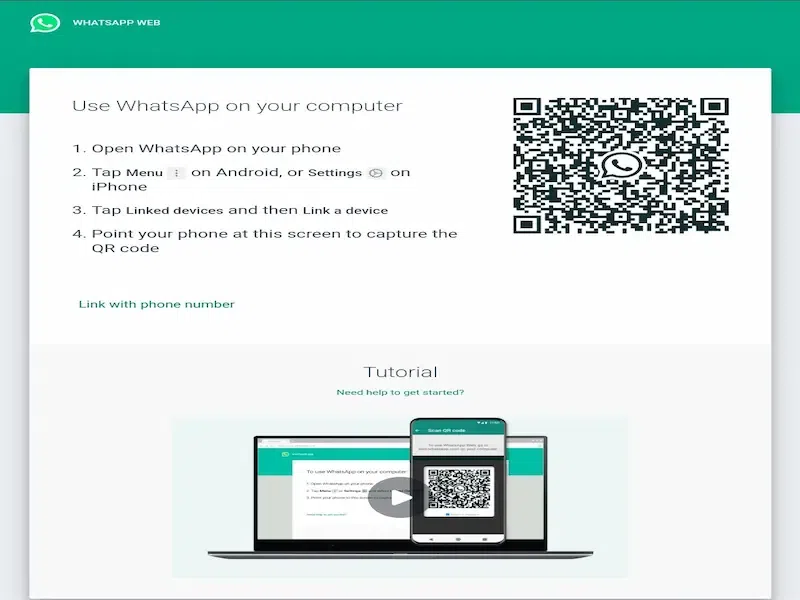
Step 3: Scan the QR Code
To proceed, you’ll need to scan this QR code using your smartphone’s WhatsApp app.
Step 4: Launch WhatsApp on Your Smartphone
Open the WhatsApp application on your mobile device.
Step 5: Tap on the Three Dots Menu
On Android devices, tap the three vertical dots located in the top-right corner of the screen.
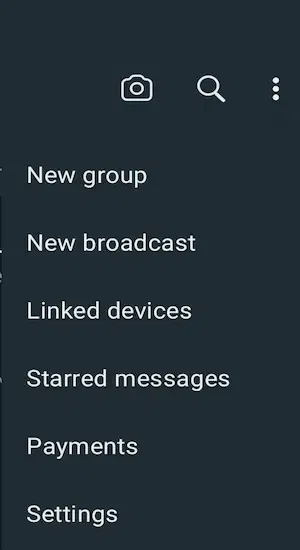
Step 6: Select ‘Linked Devices’ and Tap ‘Link a Device’
From the dropdown menu, choose Linked Devices, then tap on Link a Device.
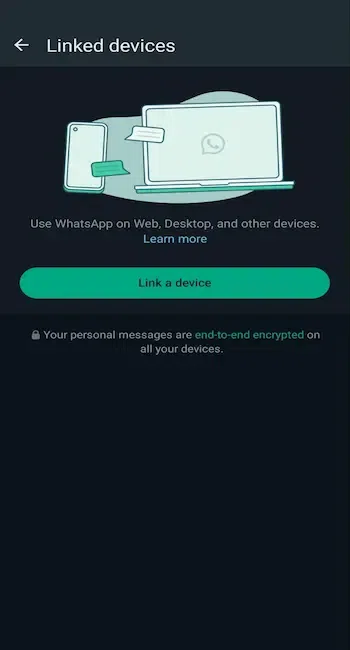
Step 7: Scan the QR Code Displayed on Your PC Screen
Use your phone’s camera to scan the QR code shown on the web.whatsapp.com page.
Step 8: Access WhatsApp Web on Your PC
Once the QR code is scanned successfully, your WhatsApp account will instantly be logged into the web version on your PC.
Setting Up WhatsApp Web on a Laptop
The whole process is the same as using WhatsApp Web on a desktop. You just need to be aware that the internet connection should be fast on both of your devices.
Step 1: Go to web.whatsapp.com
Open your web browser and go to web.whatsapp.com
Step 2: Check the QR Code
Once the website is opened, you'll have a QR code on the side of the website.
Step 3: Get Ready to Scan
You’ll need to scan the QR code using your phone.
Step 4: Open WhatsApp App
Launch WhatsApp on your smartphone.
Step 5: Tap the Menu
Tap the three dots at the top-right corner of the screen.
Step 6: Link a Device
Select Linked Devices and tap on Link a Device.
Step 7: Scan and Log In
Scan the QR code on your laptop screen. Once scanned, WhatsApp Web will open on your laptop.
Setting Up WhatsApp Web on a Tablet
Another platform where WhatsApp Web works smoothly is a tablet, on a tablet, you can log in to your WhatsApp Web in a similar way as you would do on a laptop or a desktop.
Step 1: Enable Desktop View
Open a web browser on your tablet and set it to Desktop Site mode.
Step 2: Visit WhatsApp Web
Go to web.whatsapp.com in the browser.
Step 3: View the QR Code
Again you'll find the QR code on the side of the website the same way as you'll find it on a desktop or a laptop.
Step 4: Open WhatsApp on Phone
Open WhatsApp on your smartphone, go to Settings > Linked Devices, and tap "Link a Device".
Step 5: Scan the QR Code
The camera will be opened, and scan the QR code visible on your tablet screen.
Step 6: Access WhatsApp Web
You'll quickly be logged in to the WhatsApp Web and it will be set up on your tablet for easy messaging.
