






✕
Skip to content
Join SF Ben Dreamforce Events
Salesforce Ben
  • Events
  • Career
  • AppAssessor
  • Salesforce News
  • Articles by Role
    • Admins
    • DevOps
    • Developers
    • Marketers
    • Consultants
    • Architects
    • Business Analysts
  • Resources
  • Where to Start
  • Salesforce Certification List
  • How to Get Certified
  • Free Salesforce Practice Exams
    • Admin Practice Exam
    • Platform App Builder Practice Exam
  • How to Get a Job in Salesforce

Find us on:

Salesforce Ben
  • Events
  • Career
  • AppAssessor
  • Salesforce News
  • Articles by Role

      Articles by role:

    • Admins
    • DevOps
    • Developers
    • Marketers
    • Consultants
    • Architects
    • Business Analysts
    • Featured

      The Great Salesforce Job Market Reset

      By Sasha Semjonova

      December 09, 2024
      How to Avoid Bad Salesforce Partners: The Three-Question Test

      By Jon Cline

      January 08, 2025
  • Resources
Email
LinkedIn
Facebook
Twitter
  • Newsletter
Join SF Ben Dreamforce Events
  • Newsletter
  • Events
  • Career
  • AppAssessor
  • Salesforce News
  • Articles by Role

      Articles by role:

    • Admins
    • DevOps
    • Developers
    • Marketers
    • Consultants
    • Architects
    • Business Analysts
    • Featured

      The Great Salesforce Job Market Reset

      By Sasha Semjonova

      December 09, 2024
      How to Avoid Bad Salesforce Partners: The Three-Question Test

      By Jon Cline

      January 08, 2025
  • Resources

What's trending

Ultimate Guide to Anthropic’s Claude for Salesforce Professionals
Salesforce Could Rebrand to ‘SalesforceSlack’, Marc Benioff Says
Data Theft Campaign Targets Salesforce and ServiceNow With 560K+ Attacks
17 New Salesforce Flow Features in Winter ‘27
Official 2026 Dreamforce Parties and Events Guide

UPCOMING EVENTS

SoCal Dreamin’ 2026

20
Aug

Newport Beach, CA

Community

Preparing FinServ Salesforce Users for Agentforce

25
Aug

Virtual

SF Ben Webinar

Mile High Dreamin’ 2026

26
Aug

Denver, CO

Community

Build Your Salesforce AI Foundation for Free: The SMB Playbook

03
Sep

Virtual

SF Ben Webinar

Your Guide to Vibe Coding, AI, and Safer Salesforce Development

08
Sep

Virtual

SF Ben Webinar
See more
Share
Email
LinkedIn
Facebook
Twitter
Marketers / Account Engagement (Pardot)

How to Change the ”Not You?” Link Text on Pardot Forms

Lucy Mazalon

By Lucy Mazalon

Published September 11, 2017
Updated November 15, 2024

Have you ever been forwarded a link to a form and it displays another person’s information? This can happen when an email with a link to a form is forwarded, or you share devices.

That’s where the ‘Not You’ link comes in. When the “Include “Not you?” link” Pardot form setting is enabled, a small link will appear under the email field. When a prospect clicks this, Pardot clears the data on the form so that the prospect can enter their own information.

Enabling this setting is best practice, otherwise, we will see the wrong data stored on the wrong records in Pardot.
This guide will cover how to add the ‘Not You?’ link to Pardot forms and show you how to translate it, too.

READ MORE: Pardot Forms: 12 Things You Should Know

Add the ‘Not You?’ Link to Pardot Forms

  1. Go to the “Look and feel” step, and go to the Advanced tab.
  2. Check the “Include “Not you?” link to allow visitors to reset the form” setting.
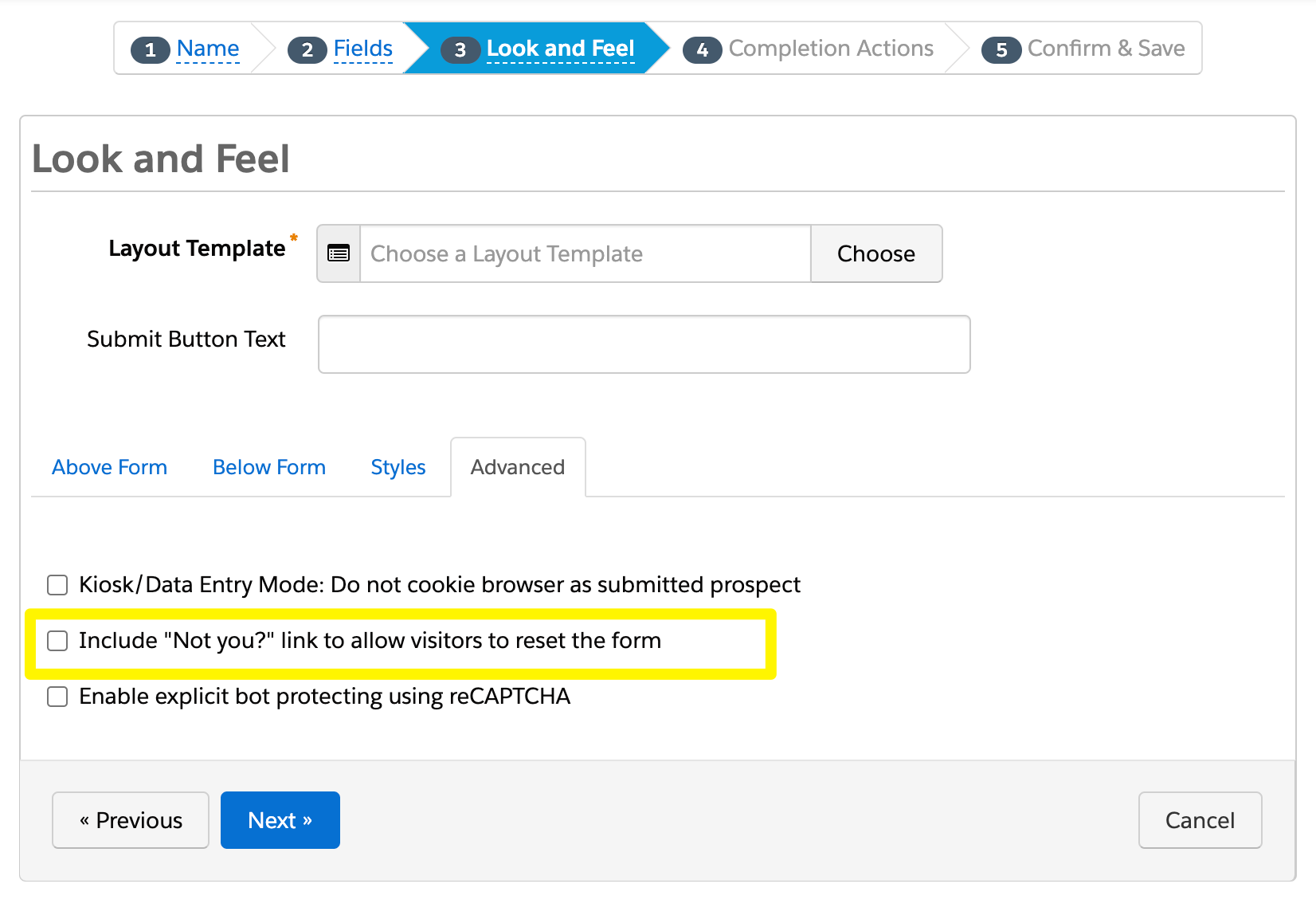
Now, prospects will have the opportunity to change who is being tracked on their IP address. When a prospect submits a form their visitor records (i.e. browsing activity) are associated with their prospect record. This means you can relate their past and future browsing data on one record as they transfer from being unknown, to known. It’s important that the tracked activity for that IP is related to the correct prospect record.

Edit the ‘Not You?’ Link on Pardot Forms

Editing this small piece of text isn’t as straightforward as the rest of the form.

I first came across this requirement when an organization wanted forms in different languages. It’s a jarring user experience if the form is translated into one language, while this text remains in English.

READ MORE: 4 Tips for Managing Multiple Languages in Pardot

All text can be modified on Pardot forms, at the form level, via the Form Wizard. You’ll be familiar with the ability to edit:

  • Form field labels.
  • Field description.
  • Error message.
  • Submit button text
  • Above and below form content.

Except “[prospect email] “Not you?” Click Here”

You need to take a different route and make the change at the form template level.

  1. Open the form layout template your form is using. This is linked on the form summary page. Make a copy of the layout text so you don’t mess with any live forms.
  2. Take the Javascript code (found at the bottom of this guide) and paste it into a word doc.
  3. Replace two parts of the code with your translations, as shown below in yellow highlight.

4. On the form layout template edit screen, paste the Javascript in between‘’ and ‘’ and save.
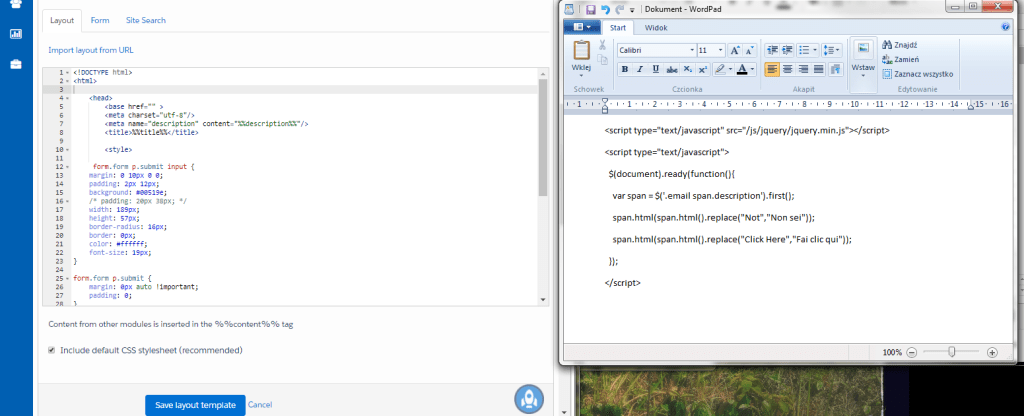
While this is a tedious exercise, create a layout template for each language. If you have some knowledge of CSS/HTML, you can seize the opportunity to resize your submit buttons (because they vary from language to language).

Finally, here’s the code:

<script type="text/javascript" src="/js/jquery/jquery.min.js"></script>

<script type="text/javascript">

  $(document).ready(function(){

    var span = $('.email span.description').first();

    span.html(span.html().replace("Not","Vous n’êtes pas"));

    span.html(span.html().replace("Click Here","Cliquez-ici"));

  });

</script>

The Author

Lucy Mazalon

Lucy Mazalon

Lucy is the Finance Director at Salesforce Ben. She is a 10x certified Marketing Champion and founder of The DRIP.

More like this:

Marketers

Why Marketing Cloud Next Forces Us All to Rethink Our MarTech Identity

By Kenny Van Beeck

July 10, 2026
Marketers

How Many AI Agents Is Too Many? Salesforce Adds Four More at Connections

By Sasha Semjonova

June 03, 2026
Marketers

5 Best Practices for Effective Personalization in Salesforce Marketing Cloud Engagement

By Tim Ziter

May 22, 2026

Leave a Reply Cancel reply

Comments:

    Maxime
    July 22, 2019 11:32 am
    Thank you for the tip Lucy! Unfortunately something seems to go wrong on my side when using the code you provided: when adding the code, the characters in the form don't use UTF-8 encoding anymore so the form gets messy. I tried to trouble shoot it but so far I can't find the fix. Here is an example : https://info.2020spaces.com/ebook-developper-son-entreprise-de-design-d-interieur Also here is a recommendation for your translation to french :) span.html(span.html().replace("Not","Vous n'êtes pas")); span.html(span.html().replace("Click Here","Cliquez-ici")); Thank You Max
    Reply
    Lucy Mazalon
    July 28, 2019 5:30 pm
    Hi Max, Thanks for your comment - sorry that this was throwing an error for you, it worked ok for me. I will get a developer to take a look and see how this could be resolved. Ah French, a romance language that isn't as raw as English :). Best wishes, Lucy
    Reply
    Irene De diaz
    May 14, 2021 1:10 am
    Hi! I really find your tips very helpful. I was using this code and so far it was great but since a week ago or something, it is not making the translation. i have it even saved as spanish templates but even on those ones is not translating...do you know what may be the problem?
    Reply
    Theo Pavlich
    June 23, 2021 8:58 pm
    Did something change within Pardot that broke this patch? It's no longer working for me.
    Reply
    Kim Phillips
    September 21, 2021 8:30 pm
    Same here, just tried it and no luck. In our case I just want to change the words "Click Here" to "Reset Form" but instructions here did not work.
    Reply
    Jackson
    July 22, 2022 1:30 am
    Hi, do you know how to change this text to appear under the message button or in any other location?
    Reply
    Lucy Mazalon
    August 03, 2022 2:06 pm
    Hi Jackson, I don't believe that's possible.
    Reply
    Richard Samme
    September 20, 2022 5:02 pm
    Does anyone know how to change the text colour? our template background is white and you cant read or see the text as they are the same colour
    Reply

Newsletter:

By signing up you agree to our Terms of Use and Privacy Policy.

Find us on:

Salesforce Ben

Salesforce Ben
Unit G.01
189-190 Shoreditch High Street
London
United Kingdom
E1 6HU

  • Where to Start
  • Salesforce Certification List
  • How to Get Certified
  • Free Salesforce Practice Exams
    • Admin Practice Exam
    • Platform App Builder Practice Exam
  • How to Get a Job in Salesforce
  • Events
  • Career
  • AppAssessor
  • Salesforce News
  • Articles by Role
  • Resources
  • Admins
  • DevOps
  • Developers
  • Marketers
  • Consultants
  • Architects
  • Business Analysts
  • About Us
  • Contact Us
  • Write For Us
  • Influencer Program
  • Advertise With Us
  • Pledge 1%
  • Privacy Policy
  • Change Cookie Preferences

© 2014-2026 SalesforceBen.com