








The Salesforce Admin holds the keys, giving them admin superhero powers. However, as Uncle Ben told his nephew Peter Parker, aka Spiderman, “With great power comes great responsibility.” That’s why the Salesforce Admin is so critical to an organization.
This guide provides best practices for Salesforce Admins to follow. As admins have wide-ranging responsibilities, I’ve broken the tips into the following categories:
- System Performance
- General System Administration
- Change Management
- Troubleshooting
- Security & Access
- App Building
- Working with your team
- Staying Current with Salesforce
System Performance
Having a healthy and efficient Salesforce org is critically important for both the speed of your org and its long-term health.
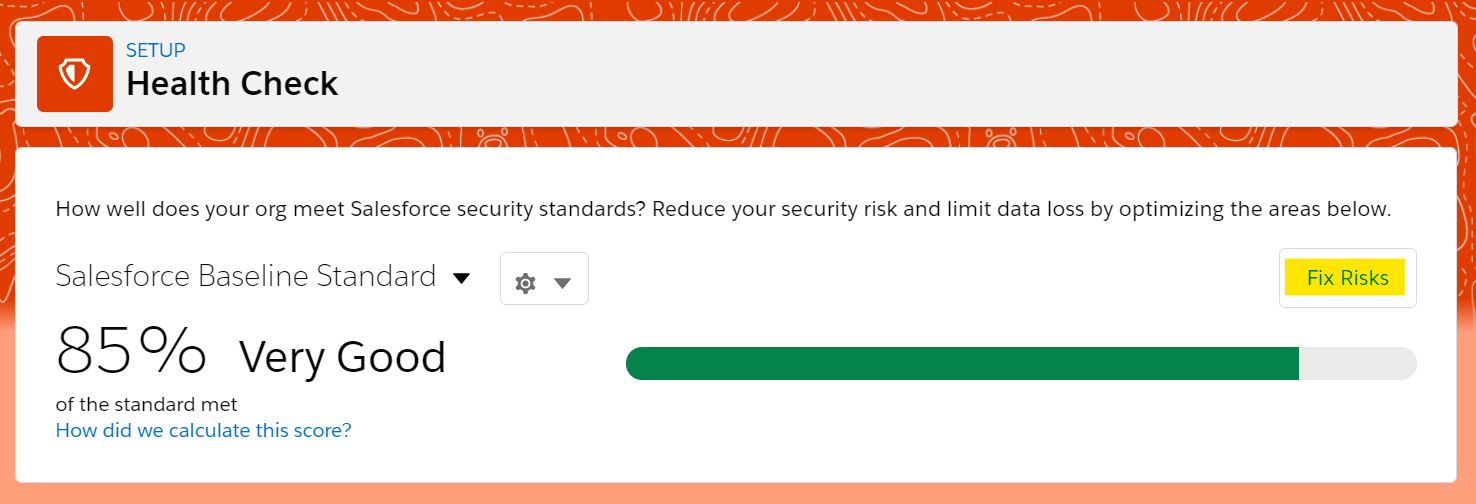
- Do perform the Salesforce Health Check on your org and take the necessary recommended actions under the ‘Fix Risks’ button.
- Do test record pages with the ‘Analyze’ button and follow the Performance Tuning Tips. If your record pages have performance issues use this help article from Salesforce.

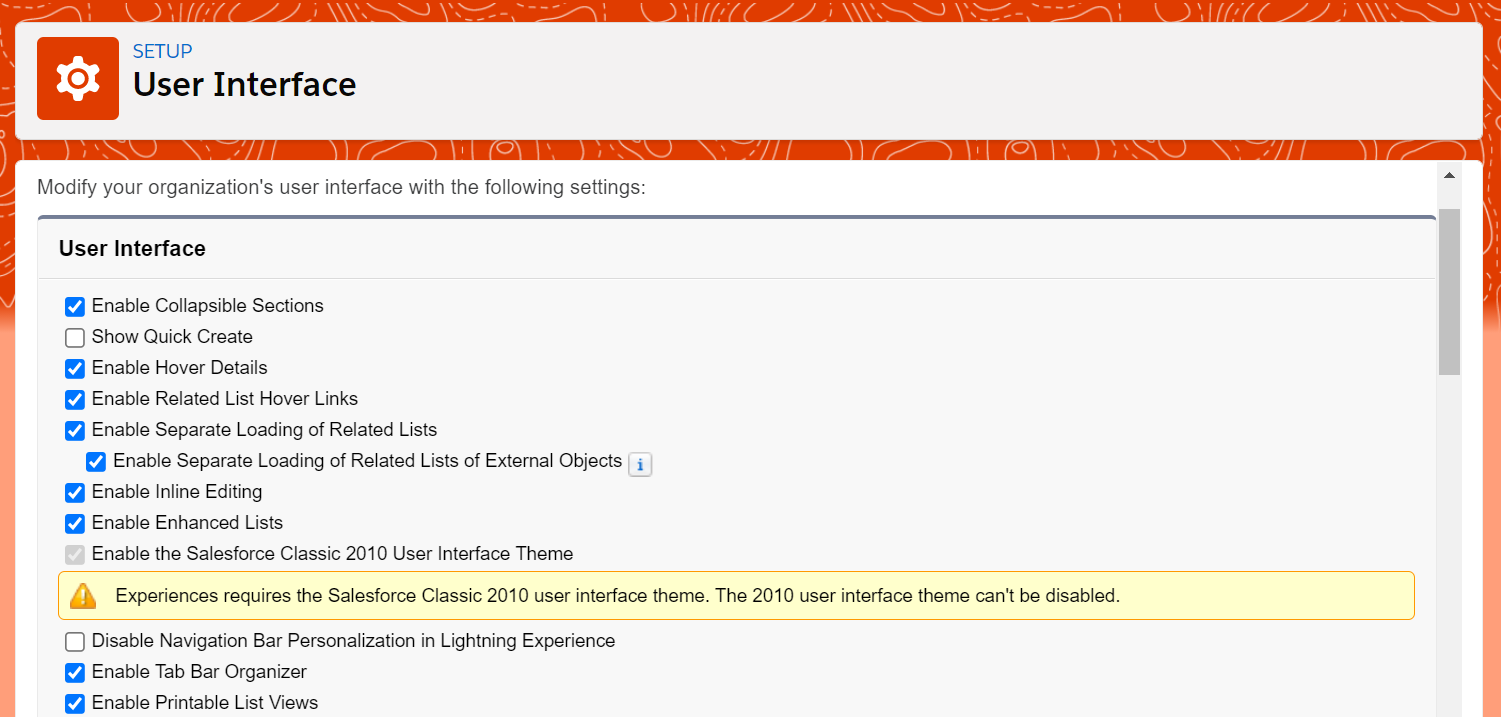
- Do check the boxes for “Enabling Separate Loading of Related Lists” for faster page rendering. Navigate to: Setup → User Interface.

- Don’t leave ‘Release Updates’ tasks to the last minute (formerly Critical Updates).
- Don’t ignore those pesky update and maintenance emails from Salesforce.
- Don’t create Technical Debt:
- Remove metadata components you create for retired solutions, or testing purposes.
- Proactively tackle your org’s existing technical debt.
General System Administration
This category includes foundational Salesforce Do’s and Don’ts for the day-to-day Admin’s tasks.
- Do know which edition and instance of Salesforce your org is on as different editions have varying functionality and governor limits. You can find out more here.
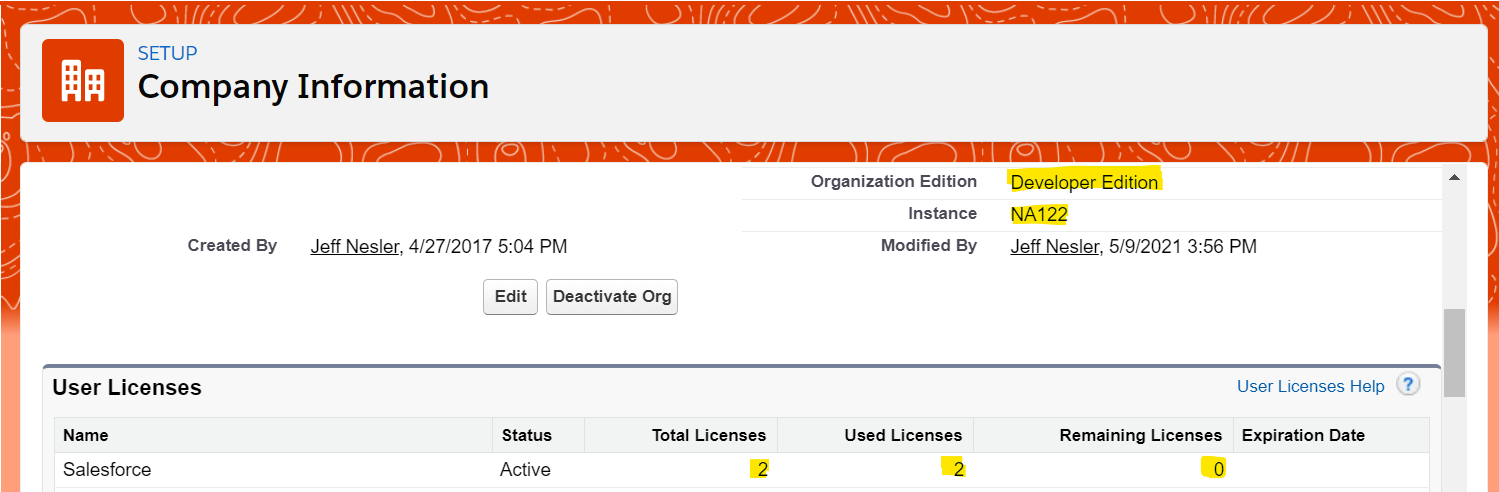
- Do know the differences between the types of licenses – plus how many licenses are available in your org. Find out more about licenses here.
- Do know your org’s System Status. Check here: https://status.salesforce.com/instances/ (i.e., https://status.salesforce.com/instances/NA122).
- Do review and update your org’s User Interface settings:
- Do backup your Salesforce Data and Metadata regularly:
- There are several options available for data backup, including the Salesforce weekly export.
- Consider a third-party app like OwnBackup for frequent exports of both data and metadata.
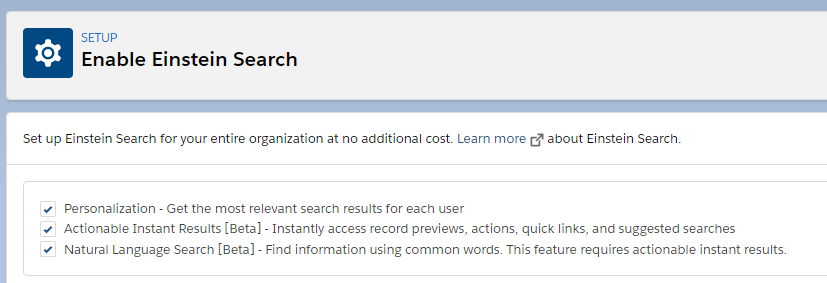
- Do enable Einstein Search as this is now generally available at no extra cost. Setup is simple, just enable it and let your users feed Einstein’s models!
- Do monitor System Usage using free Salesforce Adoption and Usage Dashboards by Salesforce Labs.
- Do use Confetti. To use Confetti, you need a Path for an object. Use confetti when a Path hits a stage like “Closed Won” or “Project Completed.”
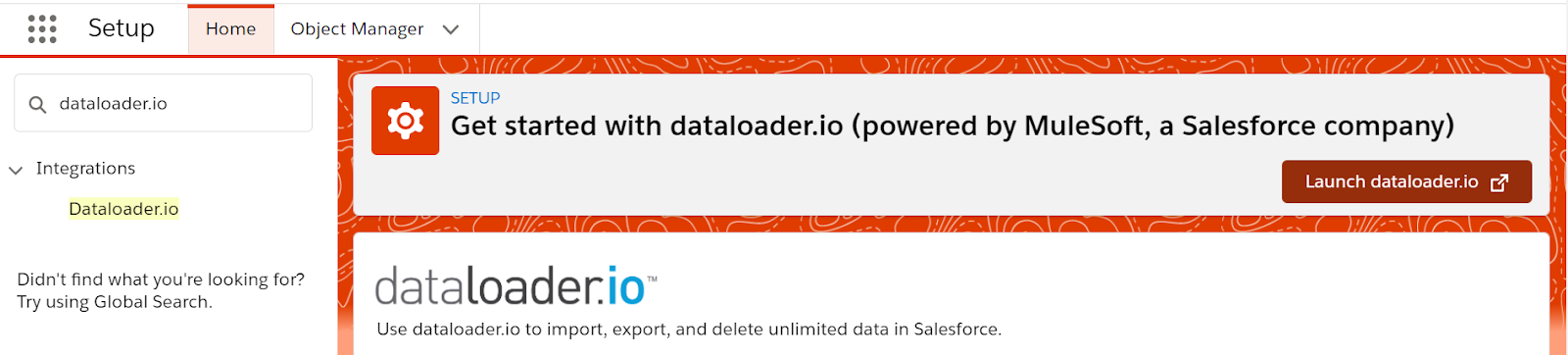
- Do become a master of Dataloader and Dataloder.io.
- Don’t forget to test all your work thoroughly. Test in a sandbox or developer environment, then test again in production.
- Don’t assign the ‘System Admin’ profile to Users:
- Only 1 to 2 users in your org (typically the System Admins) should have this profile, plus automated Integration Users could also have the profile of System Admin.
- No one else should have this profile. You should use a cloned profile to create a similar profile (without Modify All, and other unnecessary permissions).
- Don’t use Classic unless you need to:
- Lightning has the vast majority of functionality that Classic does and future release enhancements are Lightning only.
- If your organization still uses Classic, do transition to Lightning.
- Don’t guess and don’t assume:
- As a Salesforce Admin, it’s better to ask before doing if you are unsure.
- Don’t put yourself in a situation where you need to beg for forgiveness later!
- Don’t do anything stupid 😊
Change Management
In this section, we’ll explore some key Do’s and Don’ts for deploying components and related tasks. In most orgs, it’s recommended to use lower-environment sandboxes for configuration and development, and then deploy to production.
- Do communicate all deployment changes from one environment to another:
- Tools like Slack and Teams are helpful for this. Create a deployment channel.
- Do create a rollback sandbox before doing a major deployment to production:
- Do this by creating a developer sandbox and make a copy of production metadata.
- Do use Agile over Waterfall.
- Do use themes and colors for different sandboxes:
- This helps visually differentiate from production and other orgs, and helps avoid configuring something in production by accident. Whoops, sorry.
- Do organize your sandboxes for testing/QA:
- Many orgs follow a promotion through development sandboxes → QA/testing sandbox → production. A staging sandbox is helpful too!
- Consider third-party solutions for release management and other DevOps tasks.
- Do add, edit, and configure only certain items in production:
- Editing and updating ‘record-level’ data in production is correct.
- Creating and editing reports and dashboards can be done in production.
- Adding ‘Available fields by lookup’ to report types can be done in production.
- Adding Public Group members in production is a must. The members are considered data, and they don’t deploy.
- Enabling features, like Digital Experiences, will need to be done manually in each environment, including production. Same with uploading packages.
- Plus, other items that don’t deploy in changesets (such as adding an org-wide address, API name changes, etc.)
- Don’t develop in production:
- It’s a best practice to configure and develop in lower environments; then deploy to production (except for the items listed above).
- Apex code needs to be deployed from a lower environment and run through unit tests.
- Don’t refresh a sandbox without telling everyone using that sandbox:
- Allow users to move their work out of the sandbox first.
- If you don’t tell everyone – beware! Consider this your warning.
- Don’t forget to add picklist changes for record types to the change set.
Troubleshooting
As a Salesforce Admin you’ll have plenty of opportunity to troubleshoot issues. Here’s a list of Do’s and Don’ts to help in this often-challenging endeavor.
- Do ask users for the URL/Link to the record, for troubleshooting issues with records.
- Do have users provide a screenshot of the error/issue, and steps to reproduce the error.
- Do become familiar with the first three digits of Salesforce Record IDs for the most common objects:
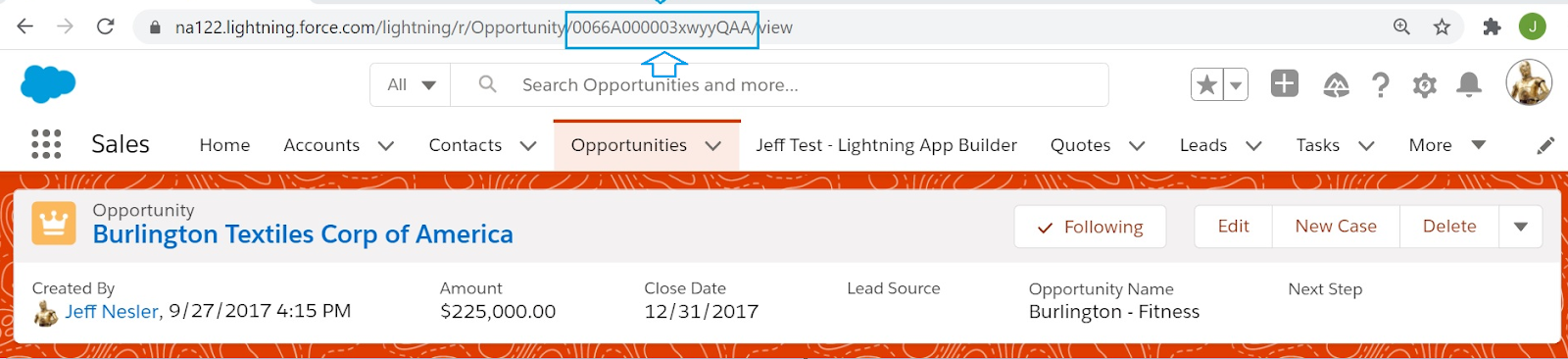
- The 15/18-digit Record IDs always start with the following three digits: 001 Account, 003 Contact, 005 User, 006 Opportunity, 500 Case, OOQ Lead.
- Do know where to find the 15-or-18 digit Salesforce Record Id within a URL:
- Do ‘Login As-User’ to assist with troubleshooting, and recreate the issue. Oftentimes, an issue is user training (to be polite), not a system bug.
- Do check the object-level validations, if there is a custom error message:
- Admins can view the ‘Error Message Text’ for all your validation rules under each object (and match to the user’s screenshot error).
- If the error message is a standard error message, try to Google the exact error message to get more information, or check Trailhead communities (see below).
- Do become friends with the ‘Debug Log’ to figure out why automation is not working as expected. The debug log will let you know where and why an Approval Processes or other automation is not working as expected.
- Do use the new ‘Sharing Hierarchy’ button in Lightning Experience (from Summer ’21) to help with record sharing issues. This is especially helpful to see which users/groups a record is shared with, and how/why it is shared with them.
- Do use the Trailblazer Answers Community to find answers to your questions. These communities can be used to look up previously asked questions, or post a new question.
- Do know how to raise a case to Salesforce Help Desk, plus chat with Salesforce:
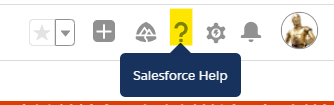
- Do use the resources Salesforce makes available for Admins:
- Checkout the Salesforce Admin Home
- More Resource from Salesforce
- Salesforce Help
- Do consider using the case object for internal tracking of Bugs, Enhancement Requests, and more – or this custom object solution.
- Don’t ignore the ‘email deliverability’ setting in production and sandboxes: This setting is a common cause of errors in sandboxes.
- Don’t forget to prioritize requests.
- Don’t try to troubleshoot issues until enough information has been provided. If you don’t understand the issue, ask for clarification.
- Don’t troubleshoot only using one browser. For some issues, you’ll want to rule out an issue being browser-related.
- Don’t forget to check the page layout assignment for issues where page layouts are missing fields or displaying a different layout for users:
- Remember, the page layout assignment is the combination of a user’s profile and record type being used.
Security & Access
In this section we’ll review some Do’s and Don’ts for OWD, profiles, permission sets, FLS, and more.
- Do become familiar with your organization’s OWD (Org-Wide Defaults):
- Do know your org’s sharing settings for your most commonly used objects. This information is listed under Setup → Sharing Settings.
- Understand the differences between: Public, Private, Controlled by Parent.
- Do know which profiles and permissions sets your organization regularly uses:
- Do use permission sets to give special access for objects/fields and System Permissions (it is best practice to use permissions sets over creating a brand new profile).
- Do use field-level security (FLS) to control fields being displayed on page layouts.
- Do use validation rules.
- Don’t provide ‘Public Read/Write’ for standard or custom objects as your org-wide defaults (unless restricting access is unnecessary). Instead, provide less access (read only or private) through the OWD, and provide additional record access through sharing rules or other access methods.
- Don’t forget about governor limits that you may run into. For example, an org only gets 50 criteria-based sharing rules per object. Another limit is only 10 dynamic dashboards per org (for most).
App Building
For this section, we’ll explore app building Do’s and Don’ts, plus related activities.
- Do use good naming conventions for new objects, fields, and other metadata.
- Keep it simple and match the object/field label to the API name.
- Do use the ‘description’ field.
- Do provide read/write access to the System Admin profile for all new fields.
- Do use the Schema Builder to see the relationships between objects.
- Do create a developer sandbox in your org for your own development, testing, and configuration.
- Do create a personal developer sandbox, outside your org, to do certain testing in a clean environment.
- Do consider using Dynamic Forms.
- Do use field tracking on your objects to track data changes:
- Salesforce allows 20 fields to be tracked per object – so organizations should use this feature on their important fields. Note: more fields are available to be tracked, with a premium subscription to Salesforce Shield.
- Put the tracking history related list on record pages. You can also report on these field changes.
- Do use the ‘View Setup Audit Trail’ to see what metadata changes have taken place and by whom.
- Don’t add a new record type to an object unless required:
- Adding a new record type should be your last option to meet a use case.
- With Salesforce features like Dynamic Forms and Related List Filters on Page Layouts, extra Record Types become even less necessary.
- Don’t use the same field label on a single object (with having different API):
- This becomes an issue building your page layouts because admins see field labels, not APIs, and won’t be able to differentiate between the fields.
- This is also an issue with the report builder – you don’t want your user’s trying to work out which is the correct field because they have the same name!
- Don’t use the same object label for a new custom object that is already a label for a standard object (i.e. don’t create a new custom object with an existing label like Product, Task, Survey, etc.)
Working with your team
Let’s not forget about the all-important soft skills. It all starts with clear communication.
- Do communicate well. Be clear and concise with email, face-to-face, Zoom, Slack, Teams – whatever your organization uses. Soft skills are critical. Listen and ask questions.
- Do find internal Salesforce champions. These users exist in every org. Do work closely with your power users.
- Do help your users by creating meaningful List Views and teaching users how to ‘clone’, add new fields, change the field order, filter, and share their personal view to co-workers.
- Do configure home pages for users. You can assign home pages by app/profile, as needed.
- Do suggest improving Lightning record pages by reviewing them with users:
- This is ‘low-hanging fruit,’ and are easy changes for an admin to make – often providing tremendous benefits.
- Do provide effective training materials such as written/electronic instructions, with simple to follow screenshots. For mid to large changes, do provide live/Zoom training sessions, and make recordings available to Users. Store in public drive or on Salesforce (i.e. Salesforce Files).
- Do suggest automation for business users, as appropriate:
- Example #1: Help your Users by auto-populating certain fields, instead of having users type in manually (i.e. auto-populating a ‘Sales Region’ field on the Opportunity record, based on the Opportunity Owner).
- Example #2: Automate email alert ‘notifications’ when key events happen (i.e. a change in status to ‘Closed won’ or ‘In Jeopardy’)
- Do create meaningful reports and dashboards for your end users and business stakeholders.
- Don’t forget to document new processes and procedures and store them in a public drive or on Salesforce.
- Don’t forget to prioritize your work.
- Don’t just use audio for remote communications. Experts say communications are 80% non-verbal. A simple nod is priceless. So, if you’re using Zoom or a similar tool, video is helpful.
- Don’t forget to ‘un-mute’ yourself. 😊 I’m guilty of this!
Staying Current with Salesforce
One thing is certain about Salesforce: the platform and related applications will continue to evolve at Lightning speed. With three major releases per year, keeping up is critical. It’s also fun!
- Do use Trailhead. Salesforce Admins should use Trailhead to keep up with new functionality and broaden his or her skillset.
- Do subscribe to SalesforceBen.com – Salesforce Ben has so much information to stay up-to-date on Salesforce features, news, and more.
- Do register for TrailblazerDX and Dreamforce.
- Don’t forget to maintain your certifications before they expire. Ouch. This happens. Don’t let this be you.
- Don’t ignore reviewing the new functionality in each Salesforce release.
Summary
The Salesforce Admin holds the keys to the Salesforce org – and because of this, it is crucial the admin follows certain do’s and don’ts. Even Winston Churchill said in 1906, “Where there is great power, there is great responsibility.” Salesforce is the engine that can take your organization to the next level of customer/client experience – so steer the ship forward!






Comments: