


Whether you’re a hardcore bibliophile who devours every e-book they come across, or a casual reader who prefers Kindle and e-book readers over physical media, there are plenty of apps you can use to build your virtual library. But if you’re a part of the self-hosted community, you’ll be glad to know that it’s possible to deploy your own e-book server – and this article will help you do just that.
Setting up Calibre Web
Although Kavita, Komga, and Ubooquity are amazing apps, we’ll use the reigning champion Calibre Web to deploy the e-book server. As with every other self-hosted tool, there are multiple ways to deploy an instance of Calibre Web. On Proxmox, you can run ace developer tteck’s VE Helper-Script for Calibre Web and have the container ready in the time it takes to finish reading this sentence.
-
Head to the Shell tab of your Proxmox node.

-
Paste the following code into the Shell interface and hit Enter:
bash -c "$(wget -qLO - https://github.com/community-scripts/ProxmoxVE/raw/main/ct/calibre-web.sh)"

-
Tap Yes twice and wait for the script to finish setting up an LXC container for Calibre Web.

-
Access the Calibre Web interface by entering the IP address into the URL field of your favorite browser.


If you’re on a Linux distro, you’ll need to go through a rather cumbersome process to set up a Python environment and use Python3/Pip to set up the Calibre Web package… or you could take the easy path and use a Docker container to set everything up, which is precisely what we’ll do in this tutorial. The only pre-requisite is to have Docker installed on your system.
- Launch the terminal interface.
-
Execute this command to pull the Calibre Web Docker image:
sudo docker pull linuxserver/calibre-web

-
Create the Data and Library folders for your Calibre Web instance.

- Head to the official Calibre Web GitHub repository, download the Raw file of metadata.db, and paste it inside the Data folder.
-
With the help of the docker run command deploy an instance of the Calibre Web image inside a Docker container.
sudo docker run -d -e PUID=1000 -e PGID=1000 /path/to/data:/config /path/to/library:/books -p 8083:8083 linuxserver/calibre-web
Be sure to replace the /path/to/data and /path/to/library attributes with the actual paths of the Data and Library folders you created earlier.
- Enter the IP address of your system followed by a colon (:) and the port number 8083 to access the web UI of the ebook server.


Technically, you can follow the same procedure inside WSL2 to set up Calibre Web on your Windows 11 machine, though installing WSL2 can be quite draining when you're just starting out. To simplify things, you can use a Type-2 hypervisor like VirtualBox and deploy Calibre Web on top of a Debian-based virtual machine. Just remember to modify the Attached to setting under the Network tab from NAT to Bridged adapter if you want to access the Calibre Web instance from other devices on your home network.
Configuring Calibre Web
Regardless of the method you used to create the Calibre Web container, the configuration process is largely the same, as all you have to do is:
-
Type admin as the Username and admin123 as the Password.

-
Click on the Folder icon under the Database Configuration header.

-
Choose the metadata.db file and hit the Select button.

-
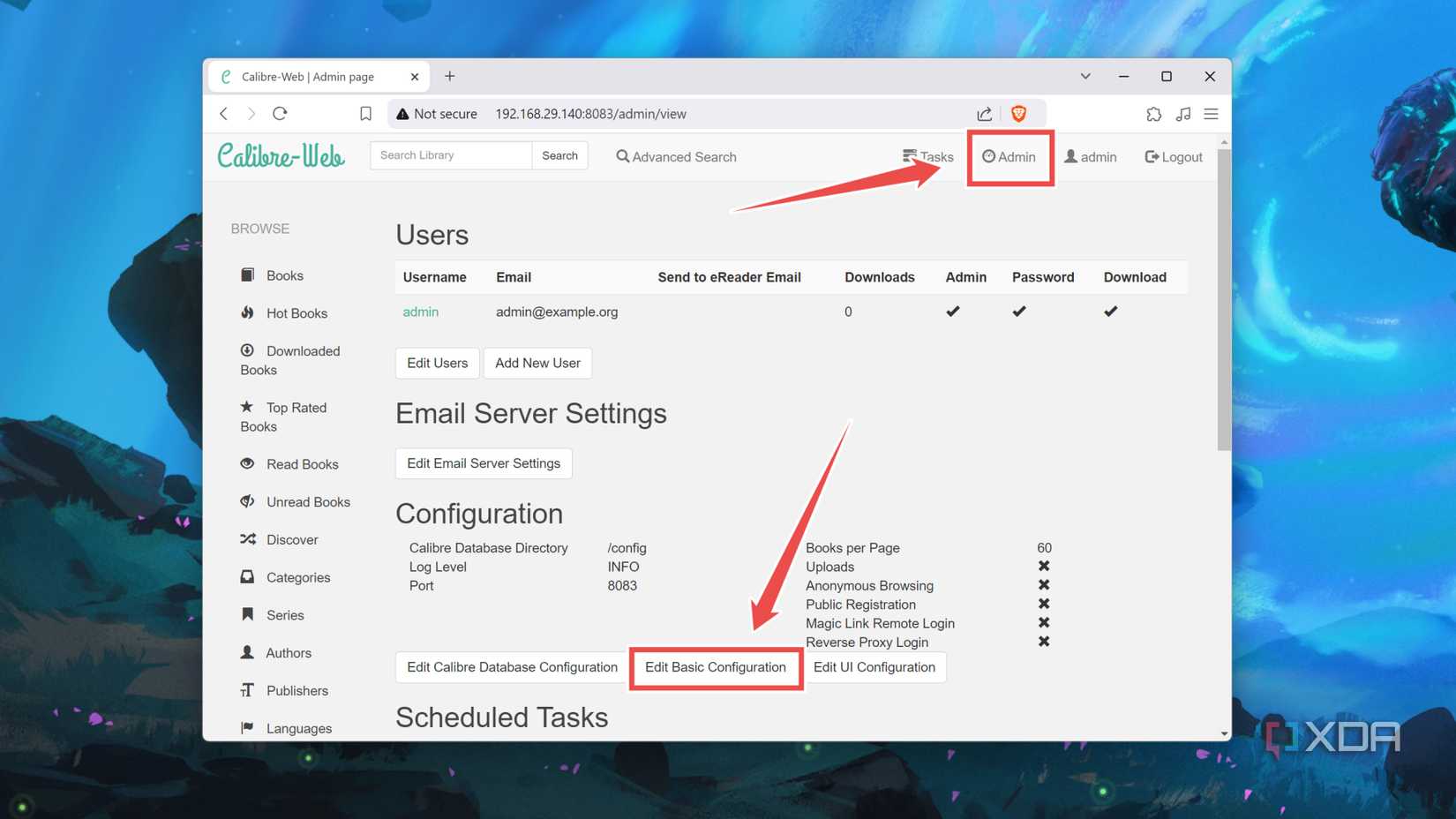
Navigate to the Admin tab and tap the Edit Basic Configuration button.
-
Expand the Feature Configuration menu, check the box adjacent to Enable Uploads, and press Save.

-
Click on the Upload button in the top right corner of the UI and press the Open button after selecting the e-book you wish to add to Calibre Web.

-
Modify the options per your needs and tap the Save button to finish uploading the e-book.


Building an imposing e-book library with Calibre Web

Assuming you followed the steps correctly, your newly-added book will appear inside the Calibre Web dashboard, and you can start adding your collection to the server. If you’re having a hard time organizing your e-books, feel free to use tags, ratings, and other metadata fields to make your humongous library more manageable.
