


Google Chrome ranks high in our list of best browsers for the right reasons. There's a good chance it's your favorite browser, and you're reading this on a Chrome tab. It's far from the best option out there, though, and plenty of convincing alternatives like Vivaldi in 2024 exist. So what if you want to switch to a different web browser and take all the bookmarks of your favorite web pages to help you make your browsing experience much easier on your new laptop or smartphone?
Google Chrome makes it incredibly easy to export all your bookmarks, so you can take them with you to any new browser of your choice. It's a fairly simple process that only takes a few minutes.
Exporting bookmarks in Google Chrome
A simple way to save them as HTML files
To export your bookmarks in Google Chrome:
- Open Google Chrome on your Windows, Mac, Chromebook, or Linux PC.
-
Click the three-dot menu icon in the top right corner.

-
Hover over the Bookmarks and lists option, and then select Bookmark manager.

-
Click on the three-dot menu icon in the top right corner again, and select the Export bookmarks option.

-
Click the Save button after renaming the file (optional) and selecting a download location.


And that's it. You have successfully exported all your bookmarks from Google Chrome as an HTML file, which you can import into any web browser. It could even be a Chrome browser with a different account on another system, but the overall process of exporting Google Chrome bookmarks remains the same.
This is the only way you can export the bookmarks from one Chrome account to another, so knowing how to export the bookmarks in Google Chrome is crucial, even if you are changing your Google account or planning to use Chrome on a different system with a new account.
Exporting bookmarks is fairly simple


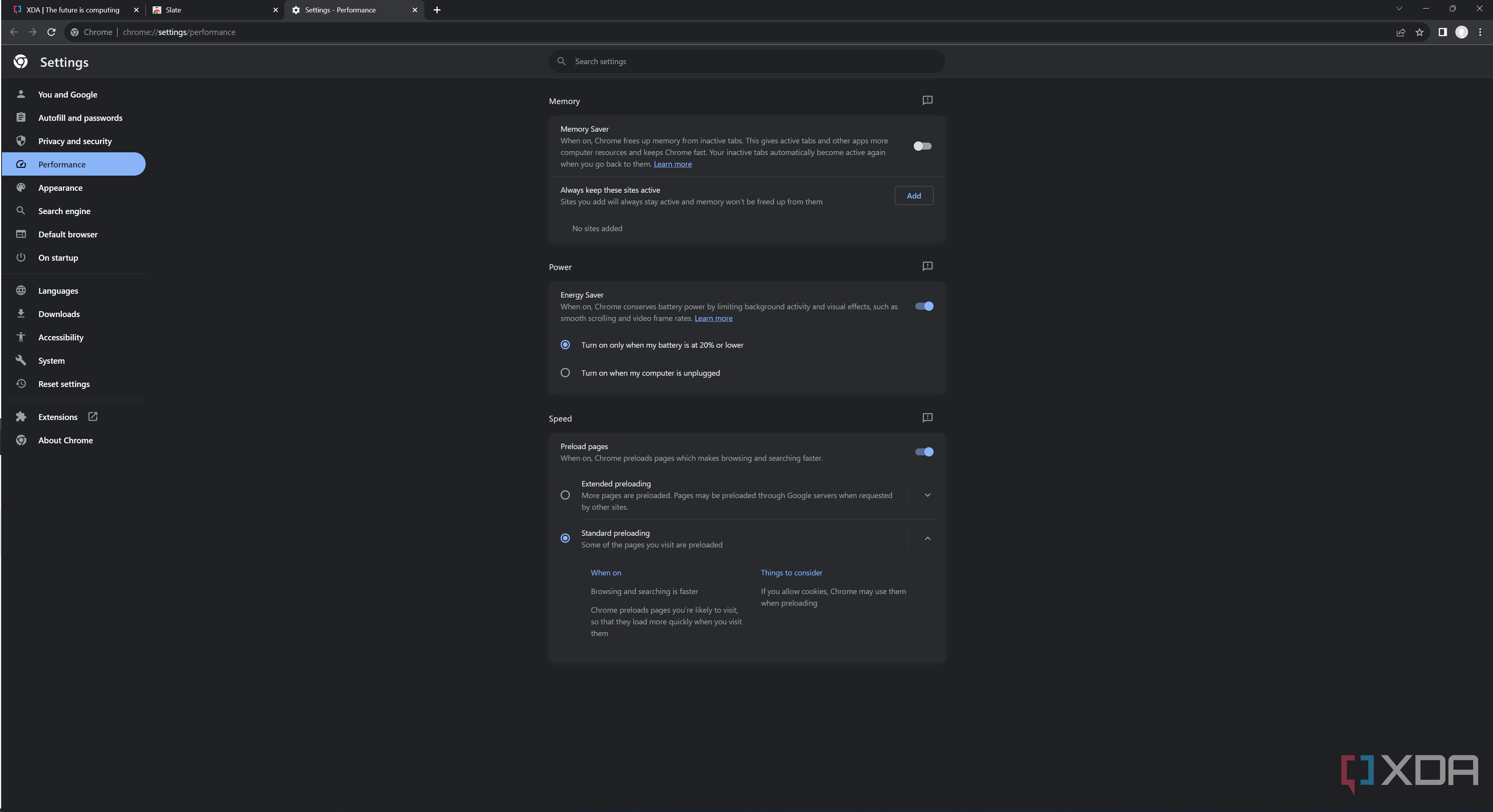

The process of exporting your browser bookmark is fairly simple, and it's pretty much the same on all web browsers. The actual location of the Export bookmark option may vary, but they are exported as an HTML file, which you can then import into other web browsers to feel right at home.
