


One of the things that makes Ubuntu a great operating system and Linux distribution is its simplicity, thanks in part to its Gnome windowing system. The setup process is also simple once you boot up your Ubuntu system for the first time. There's not a lot of extra work needed, and the operating system will take you through a guided setup process, just like the Windows 11 out-of-box experience or the macOS setup wizard might. You don't need any technical knowledge and just have to run through a few steps.
How to set up Ubuntu
First, you'll need a bootable copy of Ubuntu at the ready. I would recommend downloading the latest ISO release and using Rufus to create a bootable USB drive. More details on this can be found in our installing Ubuntu using a USB installer guide. On booting the PC with the USB connected (and no OS already installed), you'll be taken to a black screen with some white text. This is where the setup process begins. You'll be taken through a few different experiences and ways to customize your installation.
-
On the GNU GRUB screen that appears when you boot your system, choose Try or Install Ubuntu.
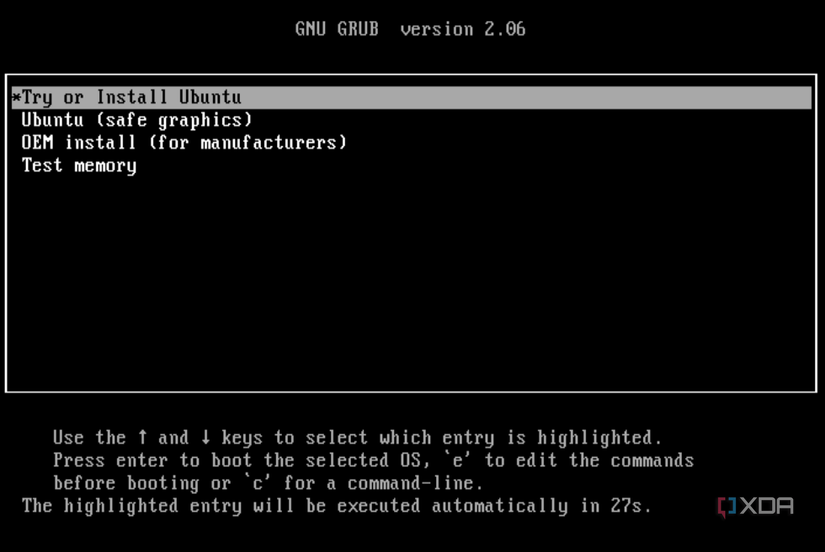
- Choose Install Ubuntu.
-
Connect to your network using Wi-Fi or a cable.

-
Pick your preferred language and keyboard layout.

- Click Continue.
-
Select either normal installation or minimal installation. The former will install a web browser and other utilities and apps like VLC and LibreOffice.

- Under Other options, check Download updates while installing Ubuntu.
- Check Install third-party software for graphics and Wi-Fi hardware, which will install graphics card drivers and other required packages.
- Click Continue.
-
Choose an installation type: Erase disk and install Ubuntu — This erases everything on the drive and installs Ubuntu. Install alongside Windows — Installs Ubuntu alongside an existing copy of Windows. Something else — Great for manually configuring partitions.
All your data will be deleted so make sure everything is backed up.
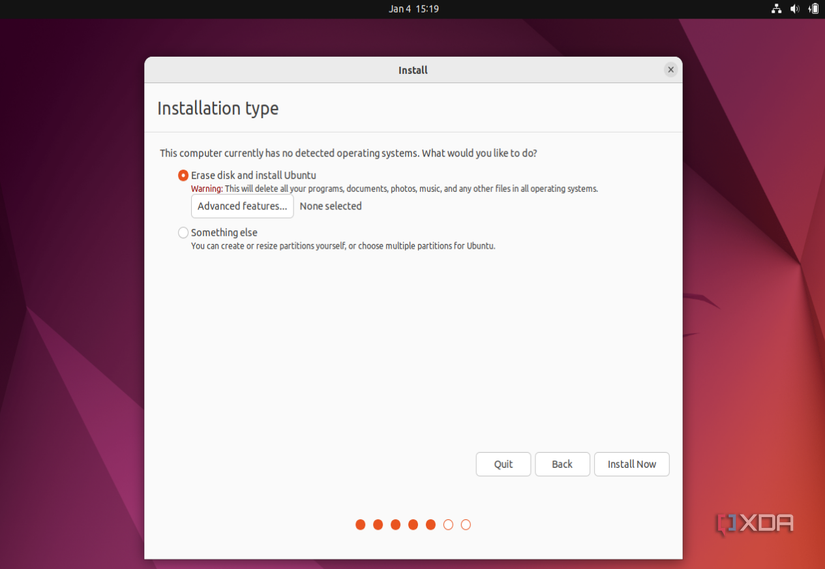
- Click Install Now.
-
Click Continue.
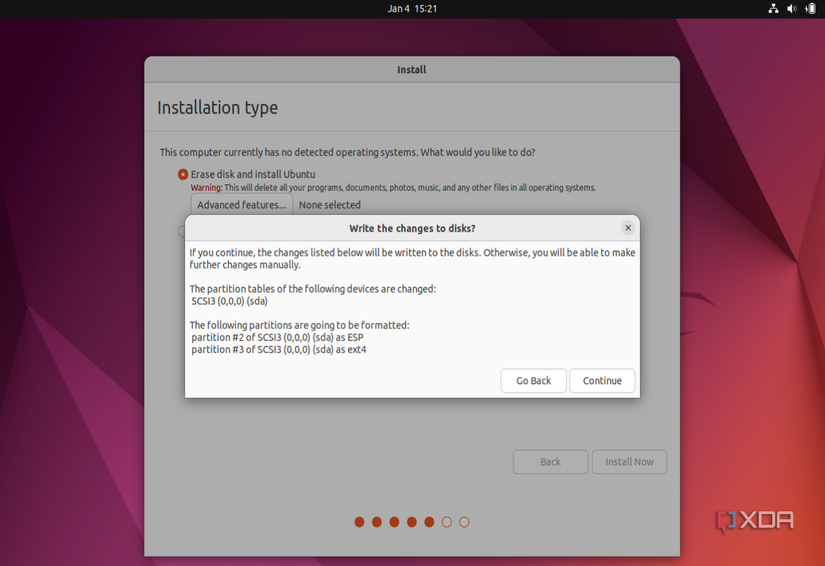
-
Pick your location on the map.

- Click Continue.
-
Complete the fields to fill out user information. This includes your name, the name you want to assign to your computer, and a password.
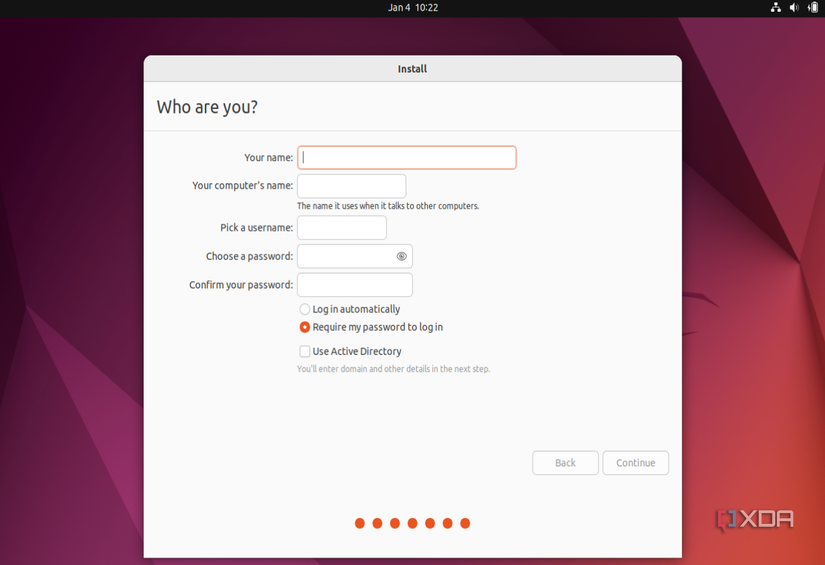
- Click Continue.
-
Wait while the installation is completed. You can click the arrows to read through the literature and see what Ubuntu will offer you.

-
Click Restart Now.
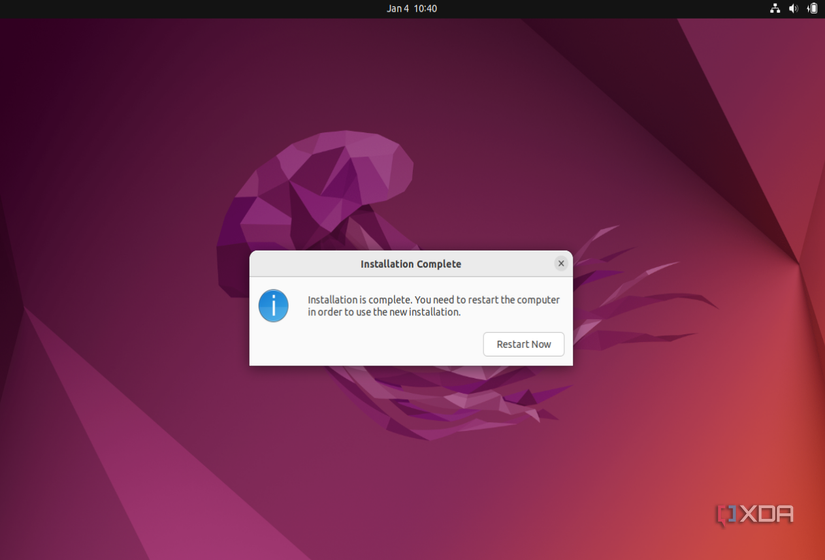
- Remove the USB drive from your computer, and press Enter.


Final tips
You've now completed the basic setup of Ubuntu. Once you reboot your computer, you'll be taken to the login screen. Upon login, you might see the Welcome to Ubuntu Wizard. You can follow its steps to set up your operating system with Google, Microsoft, and other types of accounts for easy access to your email accounts.
We also suggest going to the Ubuntu Software Center and downloading some of the top apps. VLC Player is a great example, so you can listen to MP3 files or watch MP4 videos. You might also want to install an alternate web browser like Google Chrome or Microsoft Edge. There are many great Windows app alternatives available on Ubuntu should you switch from a traditional Windows-powered PC. Don't forget, you also might want to add a user so someone else can use your Ubuntu system. And, once you've installed some apps and have your data saved, you'll want to back up Ubuntu to keep your files safe.
