


Summary
- Samsung's Galaxy Enhance-X app offers AI-powered tools to enhance images with just one tap.
- The app is available for select Galaxy devices and offers a range of editing options.
- While it may not have advanced controls, it is a solid option for quick edits and fixing minor imperfections.
As someone who primarily uses a smartphone for photography, I am constantly on the lookout for the best photo editing apps. My Photoshop aversion led me to embrace relatively simple apps like Lightroom and Pixelmator over the years. I've finally settled on Snapseed now, which has become indispensable for me thanks to its exhaustive list of tools. But even Snapseed often feels like overkill when all I am really ever doing is touching up or spot-fixing some minor imperfections. That's where Samsung's new Galaxy Enhance-X app comes in.
The Galaxy Enhance-X app was recently brought back to life after being inactive for almost a year since its official reveal in 2022. It's a powerful image upscaler and editor that can help fix different aspects of an image and "enhance" it with the help of AI tools. The highlight of this particular editor is that it lets you fix or improve any given image by applying all the necessary tweaks with just a tap of a button. You can use the Galaxy Enhance-X app to edit photos that you've captured yourself and also the ones that you may have downloaded online.
Jan. 08, 2024: We updated this tutorial to highlight the wider rollout of the Galaxy Enhance-X app. We've also shed some light on the additional features it gained since the last time we tested its beta on a Galaxy S23.
Availability
Only available on select Galaxy devices
The Galaxy Enhance-X app is only available to download from the Galaxy Store app at the time of writing this post. It initially rolled out for Galaxy S23 devices, but Samsung has since made it available for more devices, including the Galaxy S22 lineup. You can also download and install the APK on non-Samsung devices, but it's probably not worth the effort. I couldn't get it running on a Pixel 7, which makes me believe that it's only meant to work on compatible Samsung phones, just like the Expert RAW app.

Galaxy Enhance-X
Samsung's Galaxy Enhance-X app offers a good set of tools to enhance your images using AI on Samsung Galaxy phones. It lets you fix or improve any given image by applying all the necessary tweaks with just a tap of a button.
Using the Galaxy Enhance-X app
Improve your photos with just a tap of a button
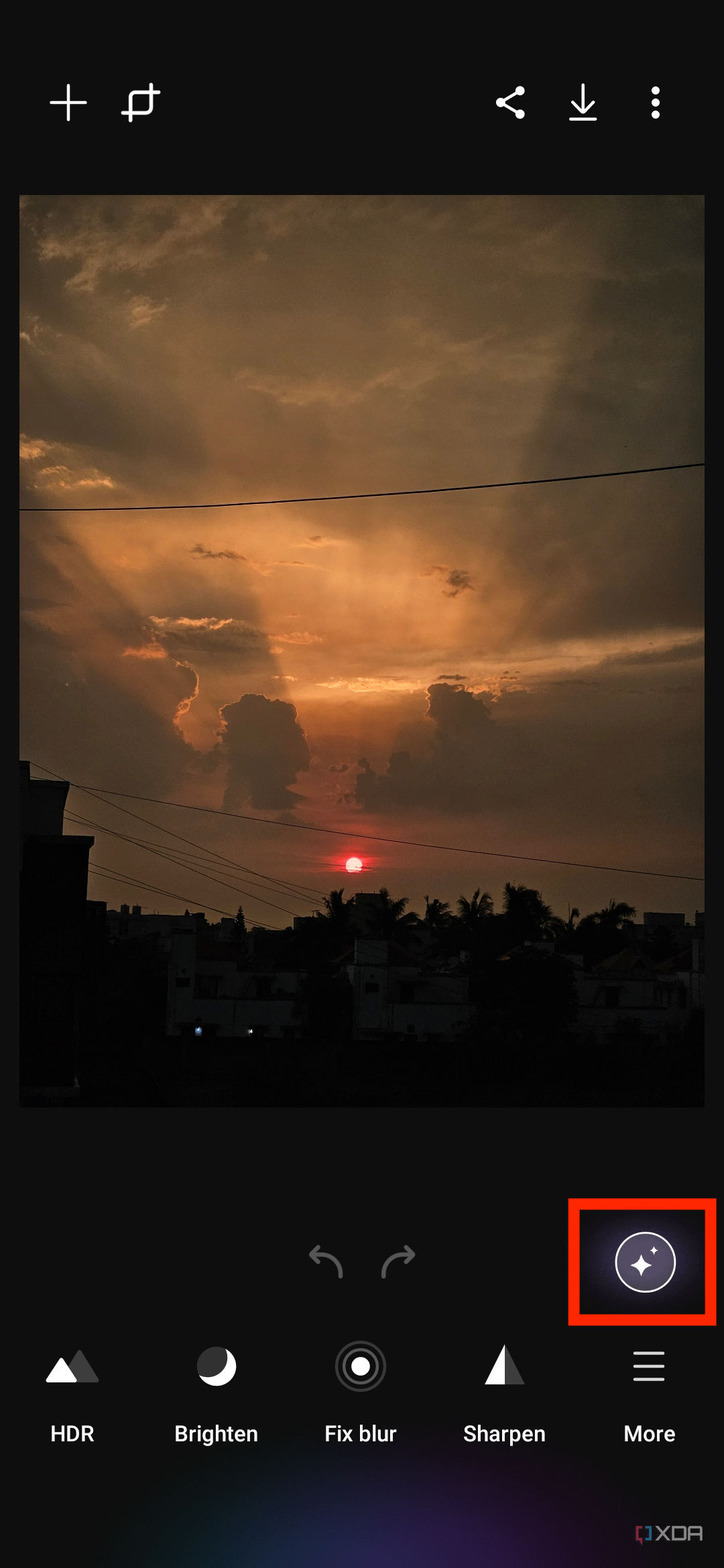
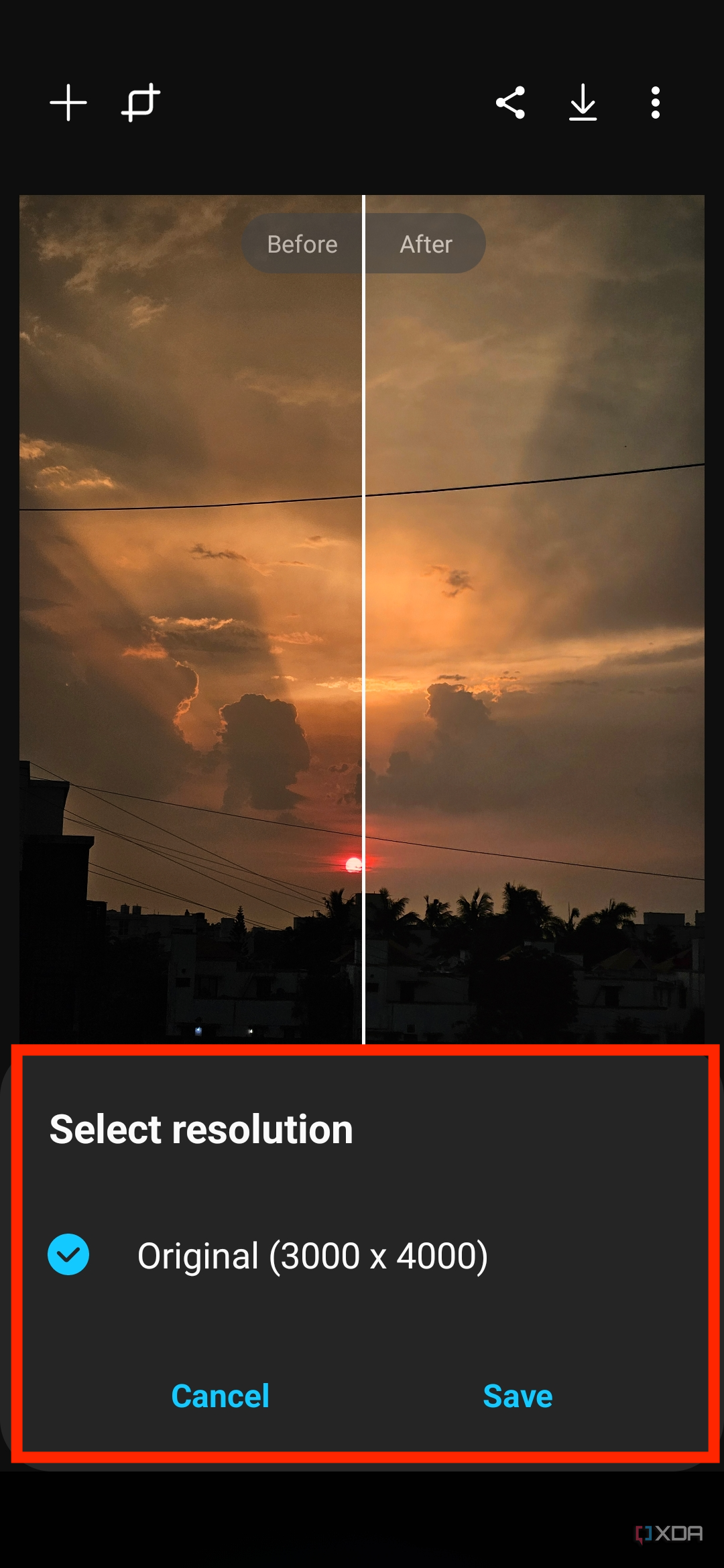
The Galaxy Enhance-X app offers plenty of tools to help you breathe new life into your images. A lot of those tools, like HDR, Brighten, Fix Blur, etc., are pretty self-explanatory, meaning you'll know when/how to use them to get the desired result. I am starting off with one of my favorite photos that I captured recently. It's a warm and pleasant scene of a sunset as seen from my room's window on a lazy Sunday evening. To edit the photo:
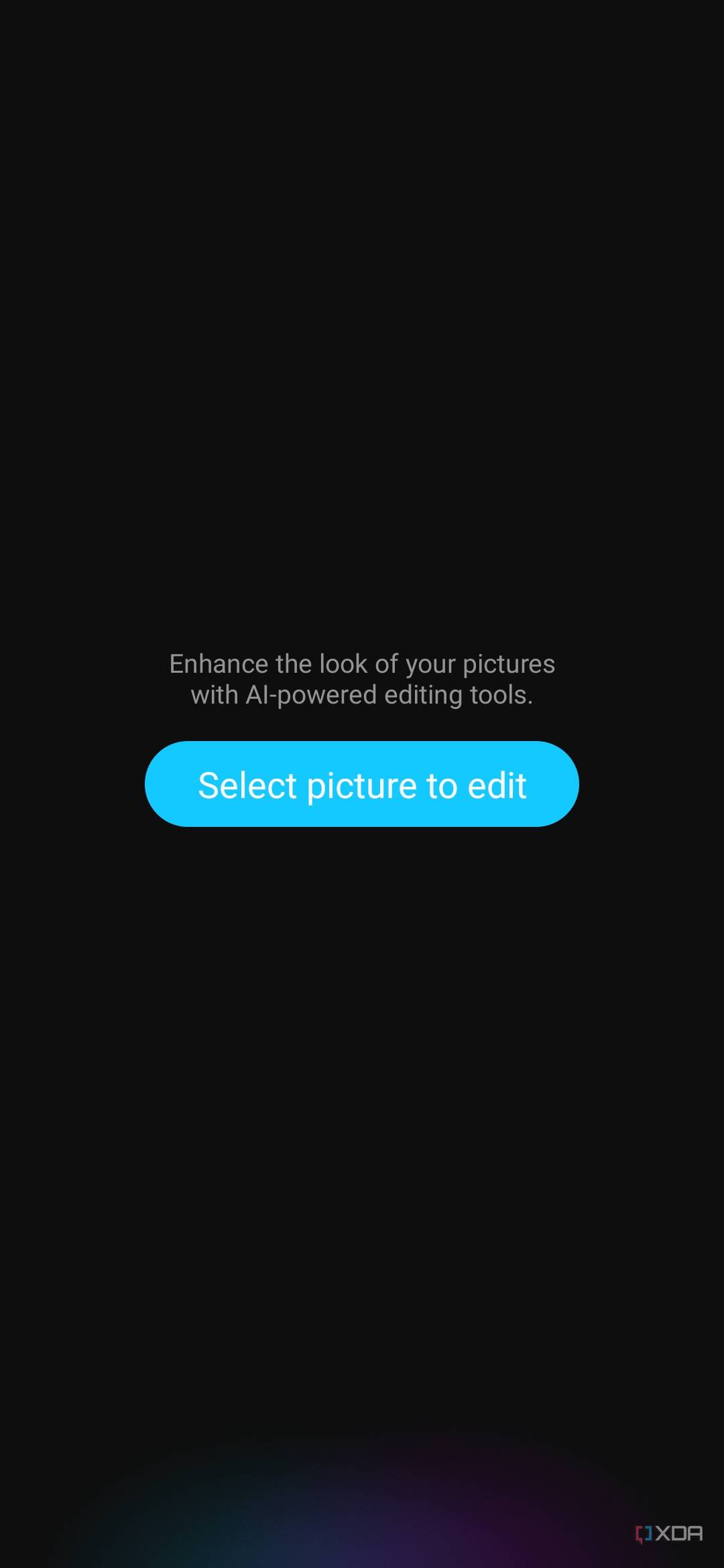
- Open the Galaxy Enhance-X app on your phone and choose the Select picture to edit button.
- Select the Magic button (one with the star icon).
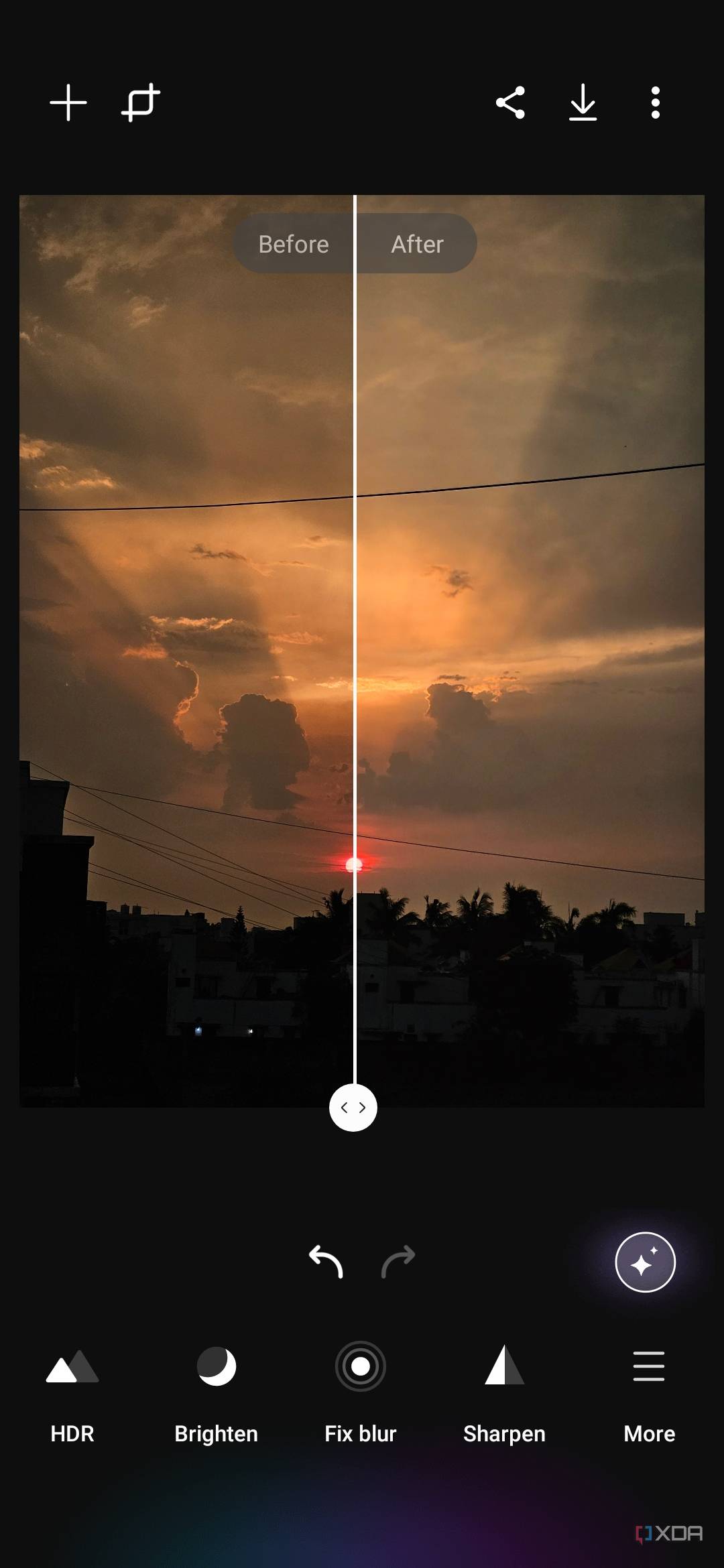
-
Use the slider to preview the edits.
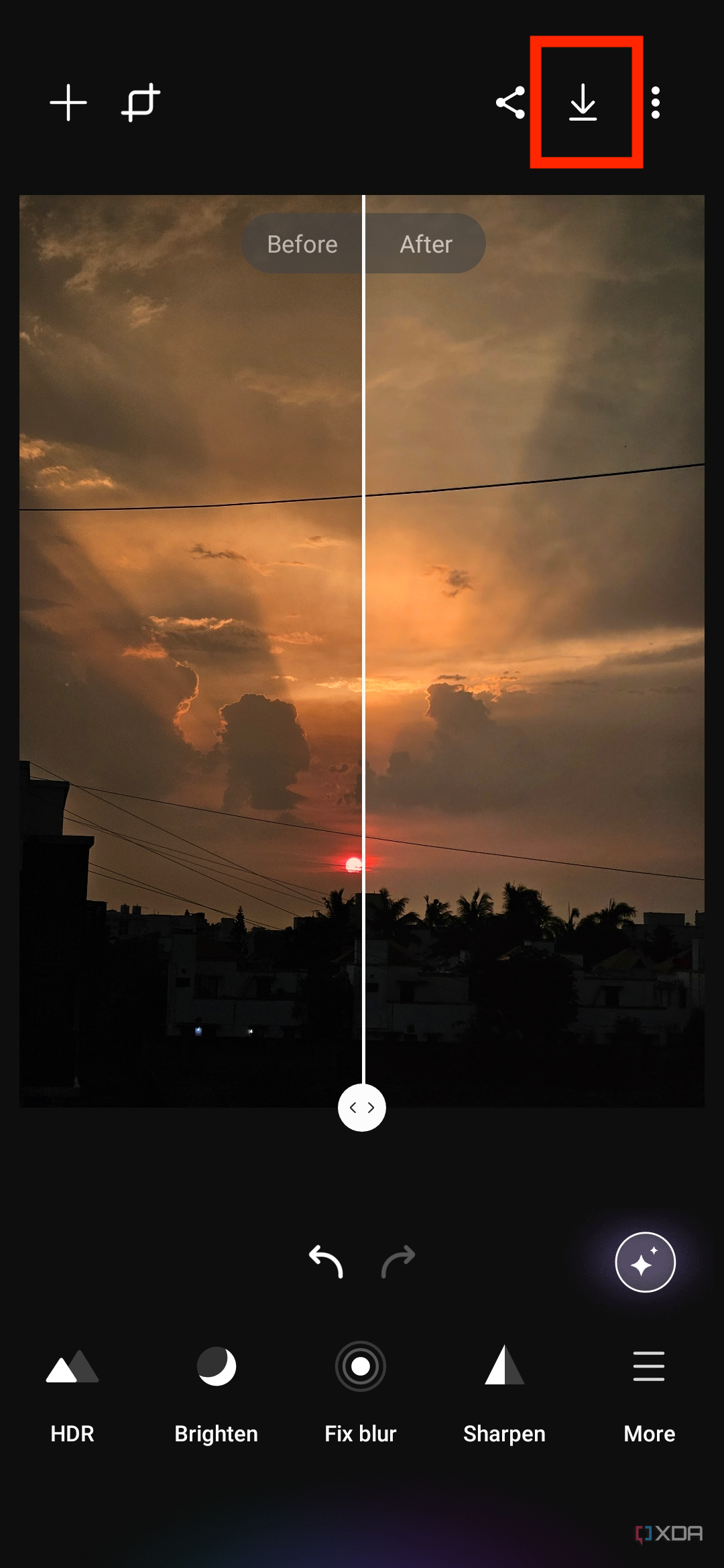
-
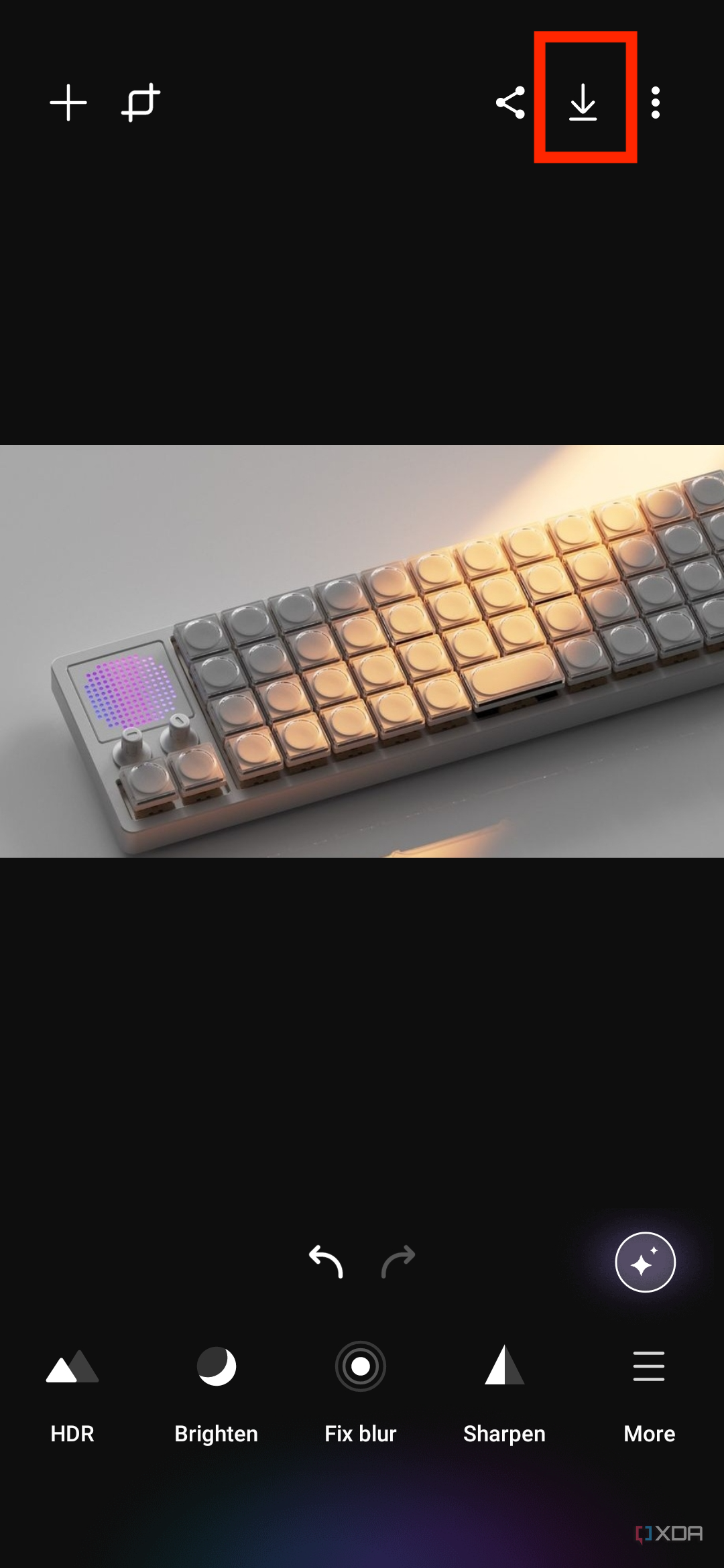
Select the download button in the top-right corner of the screen to save or continue editing by trying more tools.









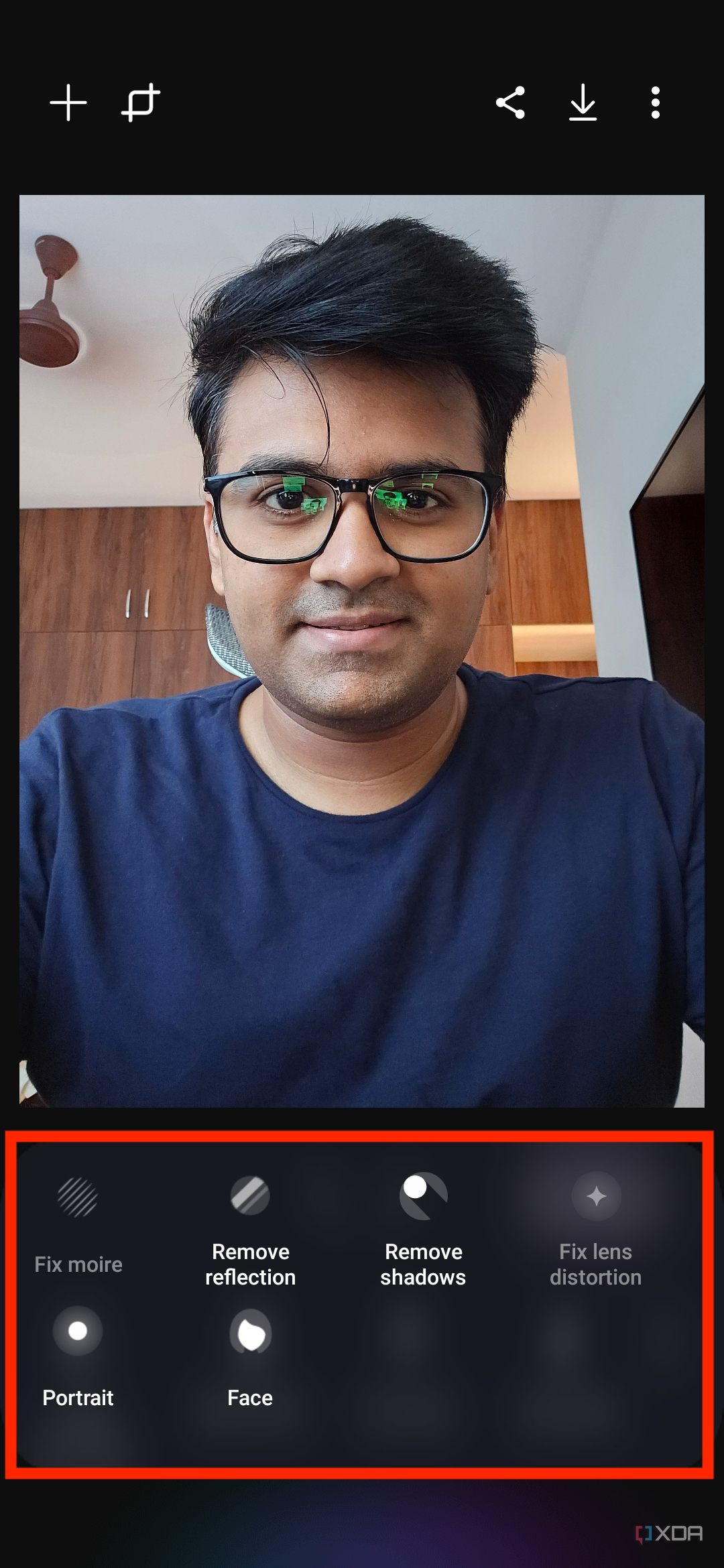
Now, let's try editing an image ourselves using various options instead of hitting the auto-enhancement button. I am selecting a selfie here to conveniently showcase how the Galaxy Enhance-X knows which tools can be used on a particular image, and it automatically highlights them for you. The app detected a face in the image and highlighted the "Face" and "Portrait" tools. It grayed out moiré and lens distortion tools as they couldn't be used on that particular shot.
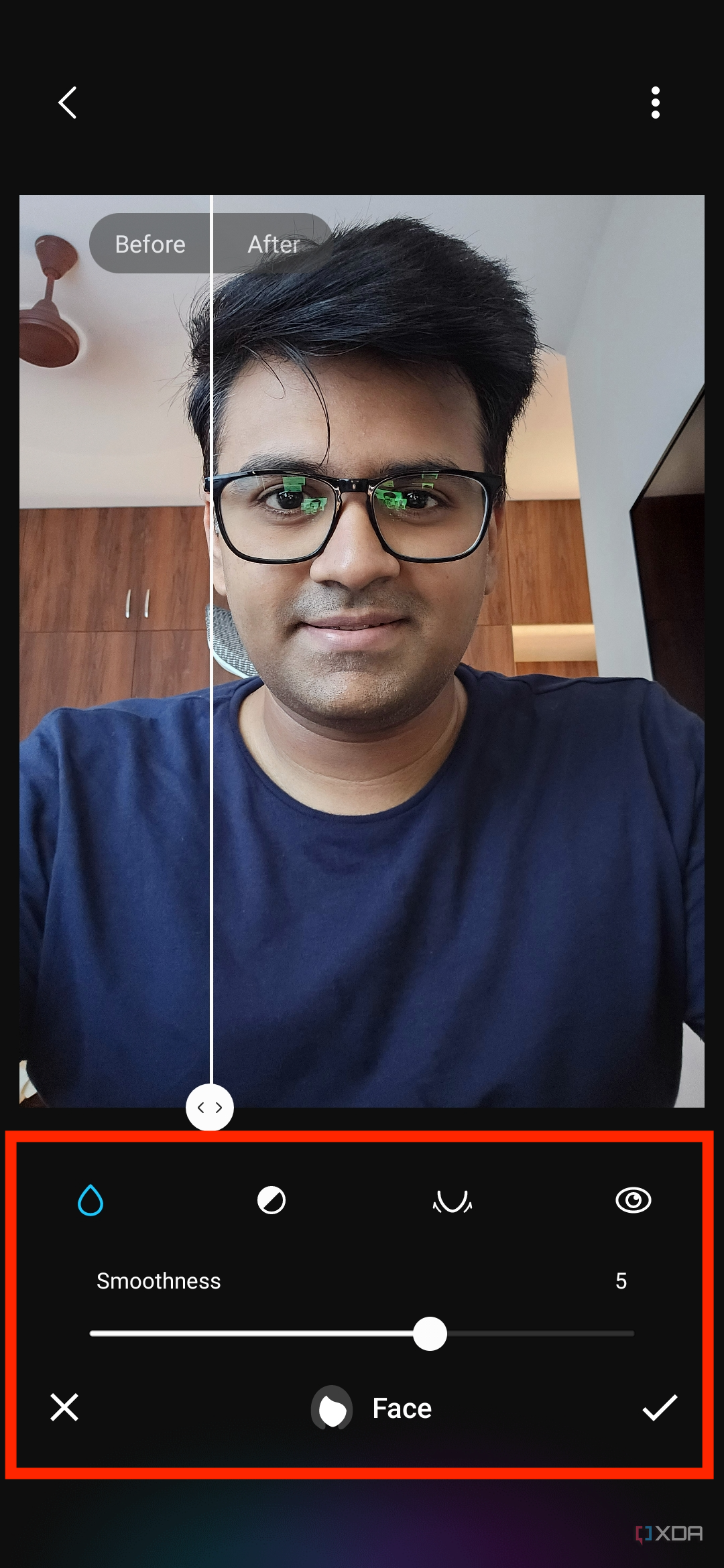
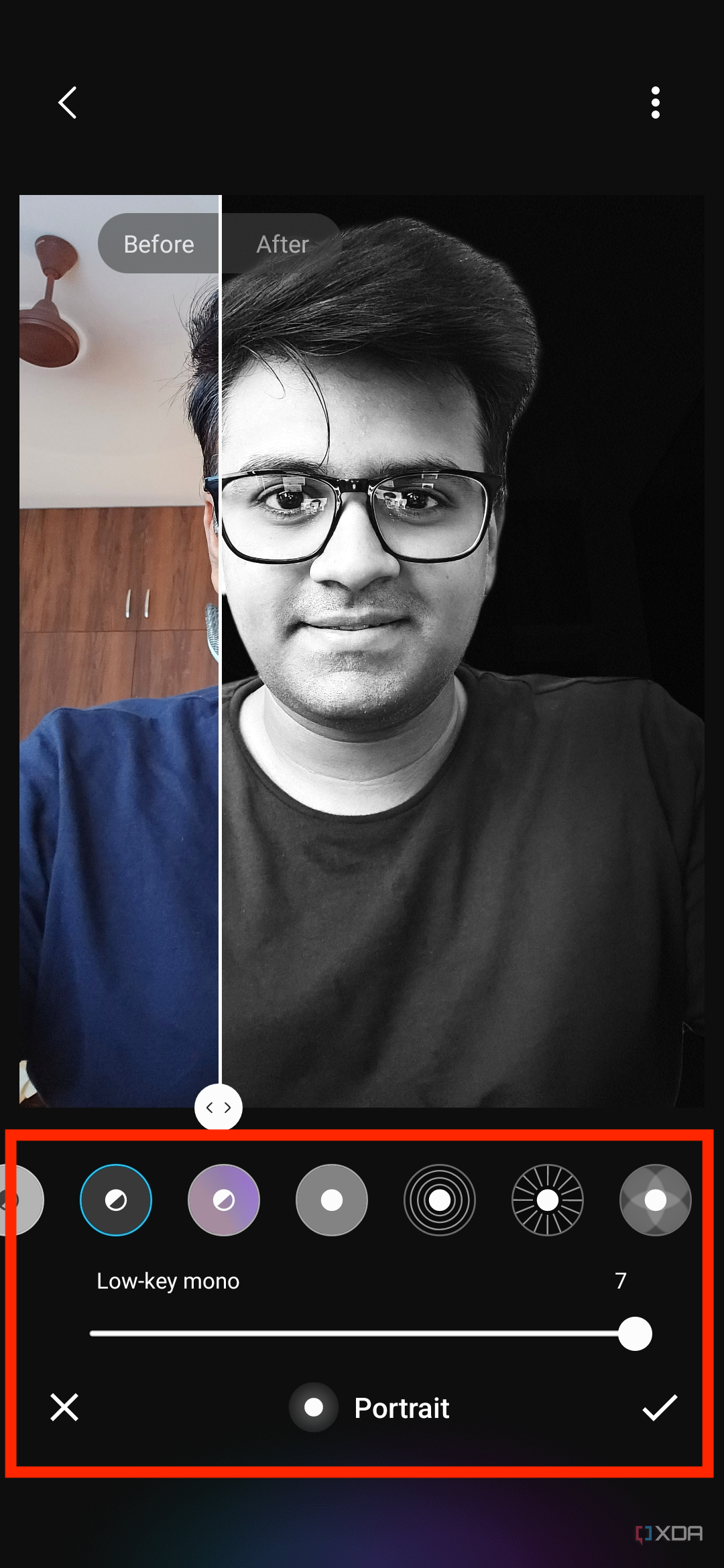
Tapping each of these tools will further expand additional tweaks that you can apply to your image. The portrait tool, for instance, has a wide selection of blurring effects, including studio, low-key mono, color point, and more. Similarly, you can tweak your face in the image to smoothen your skin, and make your jawline appear thinner.




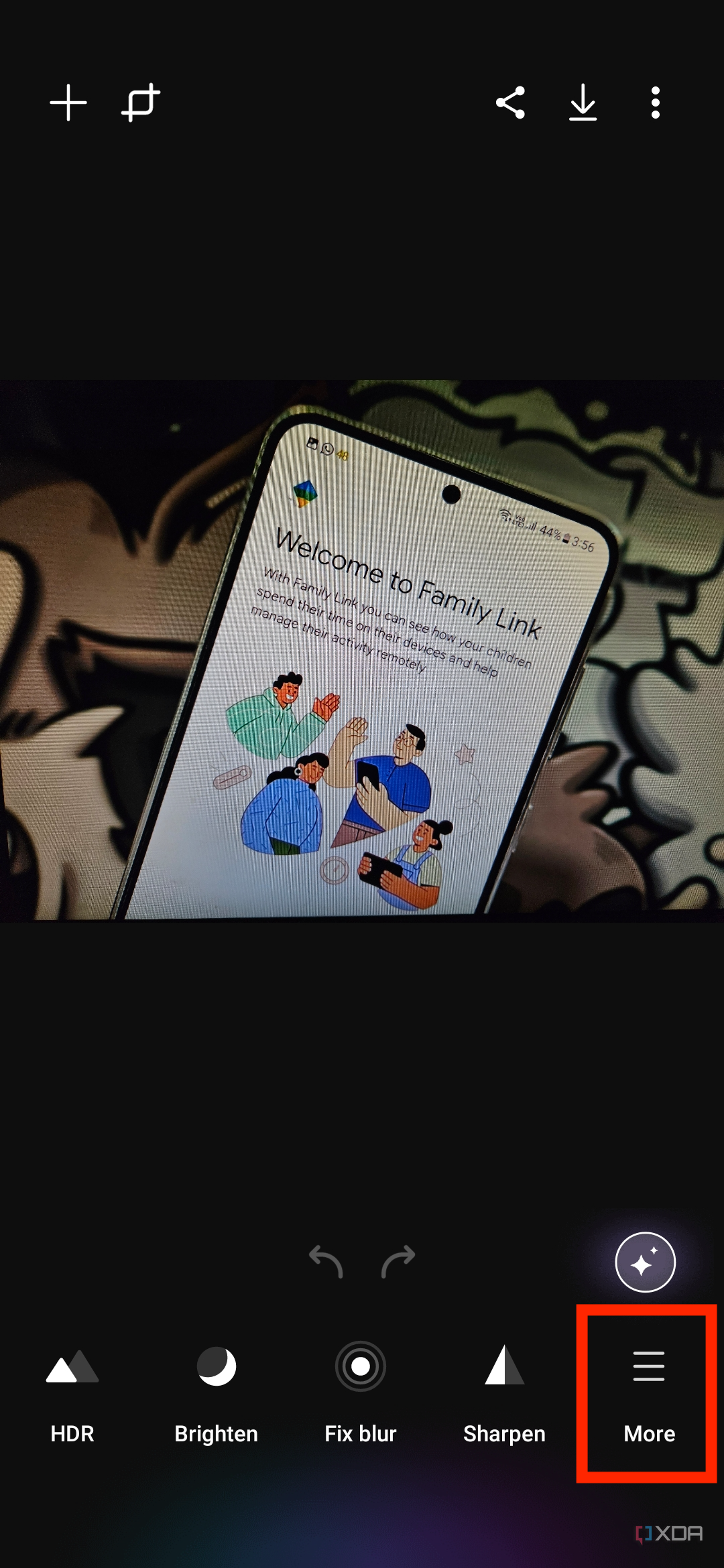
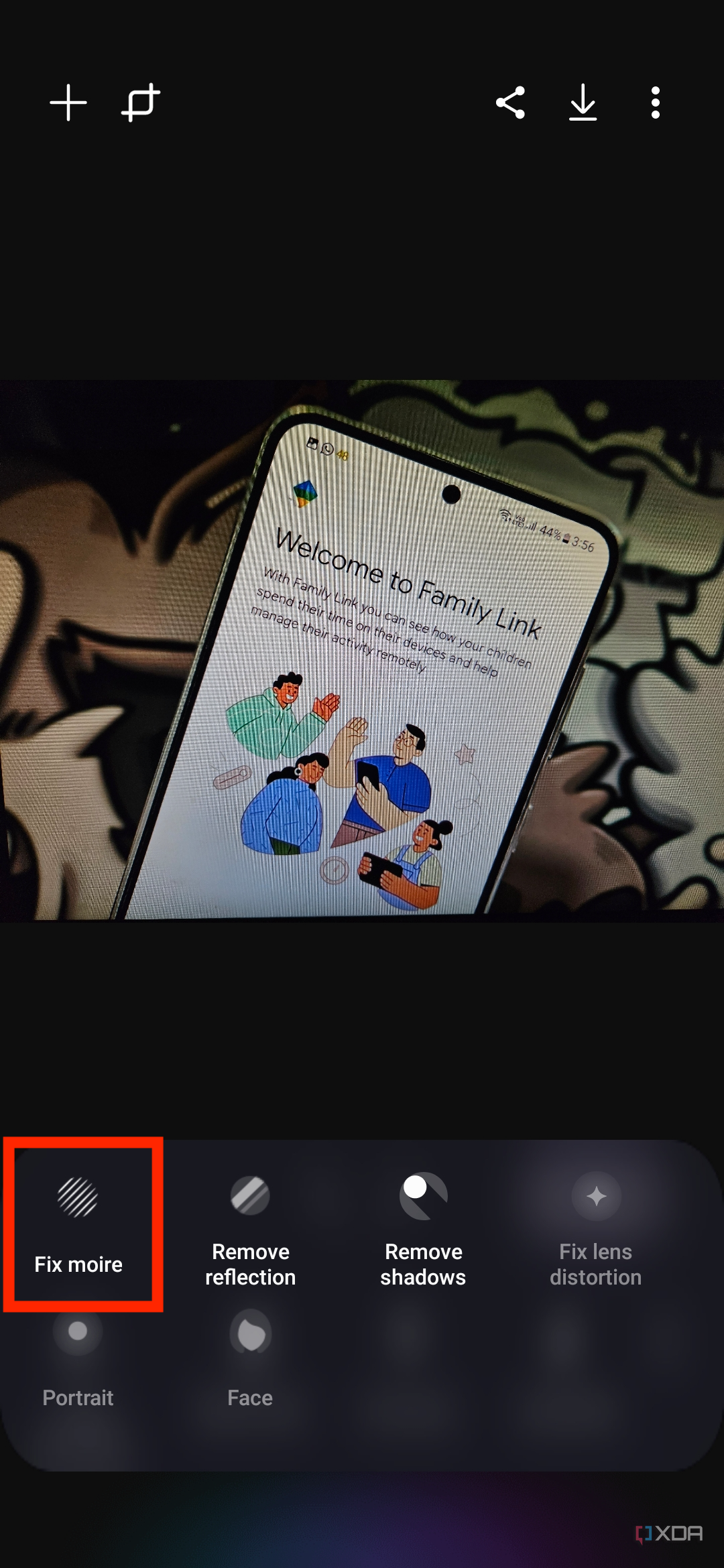
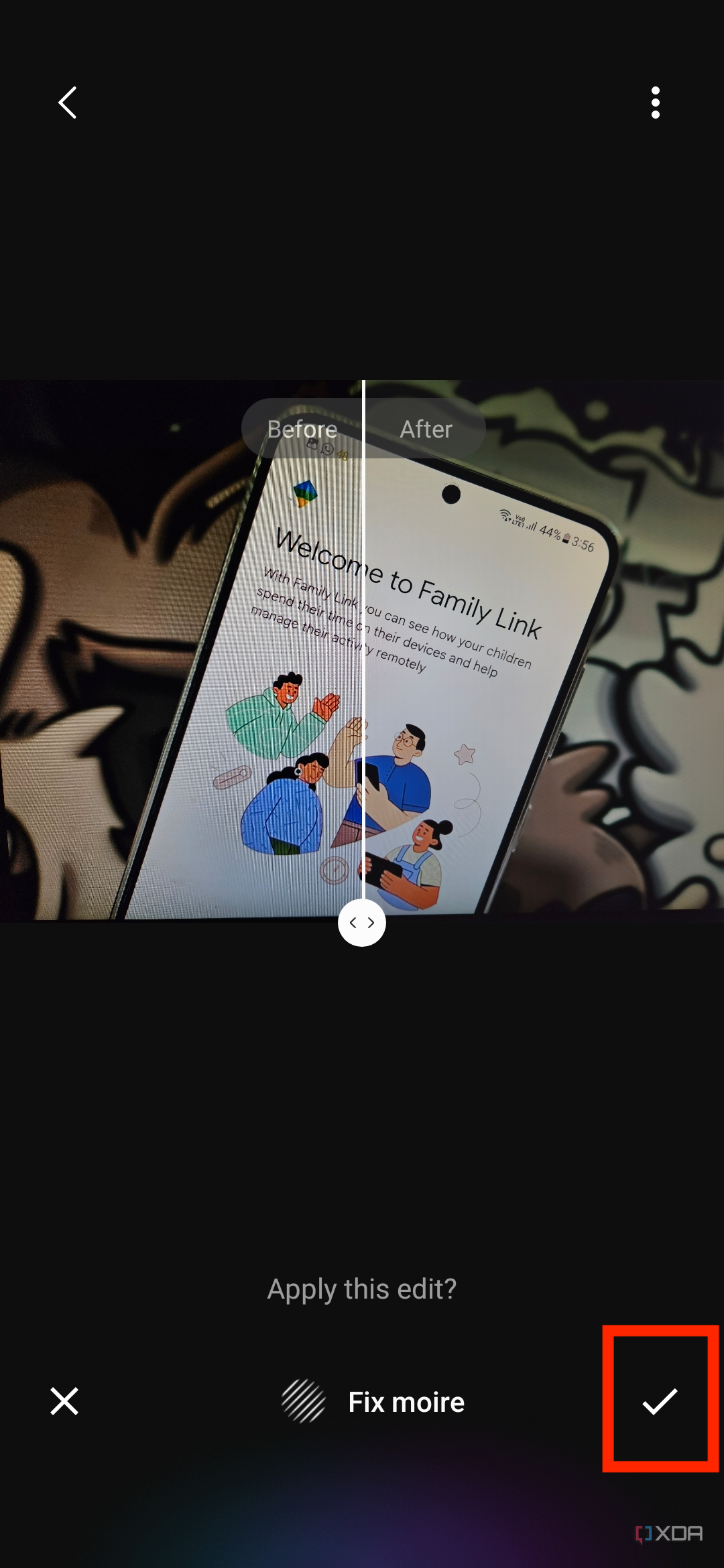
Next, I am going to tackle an image that I took the other day to capture a picture of my monitor. You may have seen images like this with a lot of fuzzy lines that appear when you capture a photo of something being shown on another digital display. The Galaxy Enhance-X app offers a nifty tool called Fix Moiré that does an excellent job of removing all the interference patterns. To use it:
- Select the image of your choice, and hit the More button located in the bottom right corner.
-
Select Fix Moiré, and then tap the check mark on the right side if you are happy with the result.





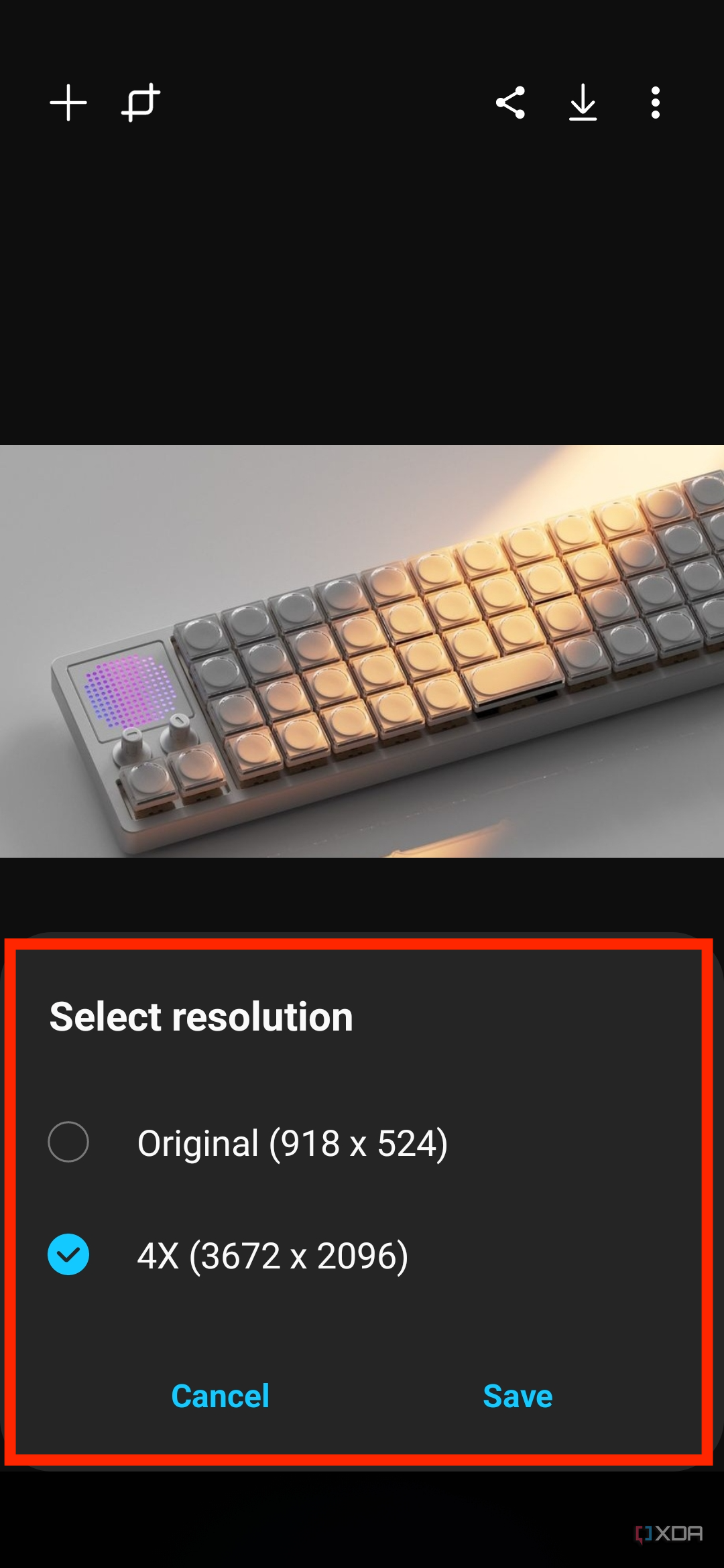
Lastly, there's the upscale feature in the Galaxy Enhance-X app, which automatically pops up when it detects a particularly low image. It lets you upscale the resolution of an image up to four times.




"Enhanced" image samples
Pretty good results overall
Below is a quick look at a few images that I managed to edit for this particular tutorial using the Samsung Galaxy Enhance-X app on my Galaxy S23. I've added a series of both the original and their "enhanced" version in the gallery below, so be sure to check them out.

Original 
Enhanced 
Original 
Enhanced 
Original 
Enhanced 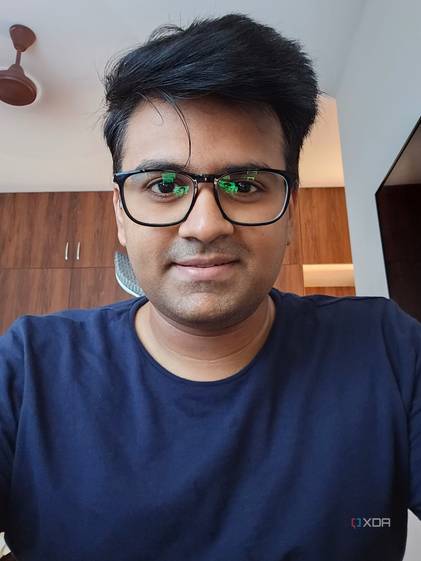
Original 
Enhanced



Original 
Enhanced 
Original 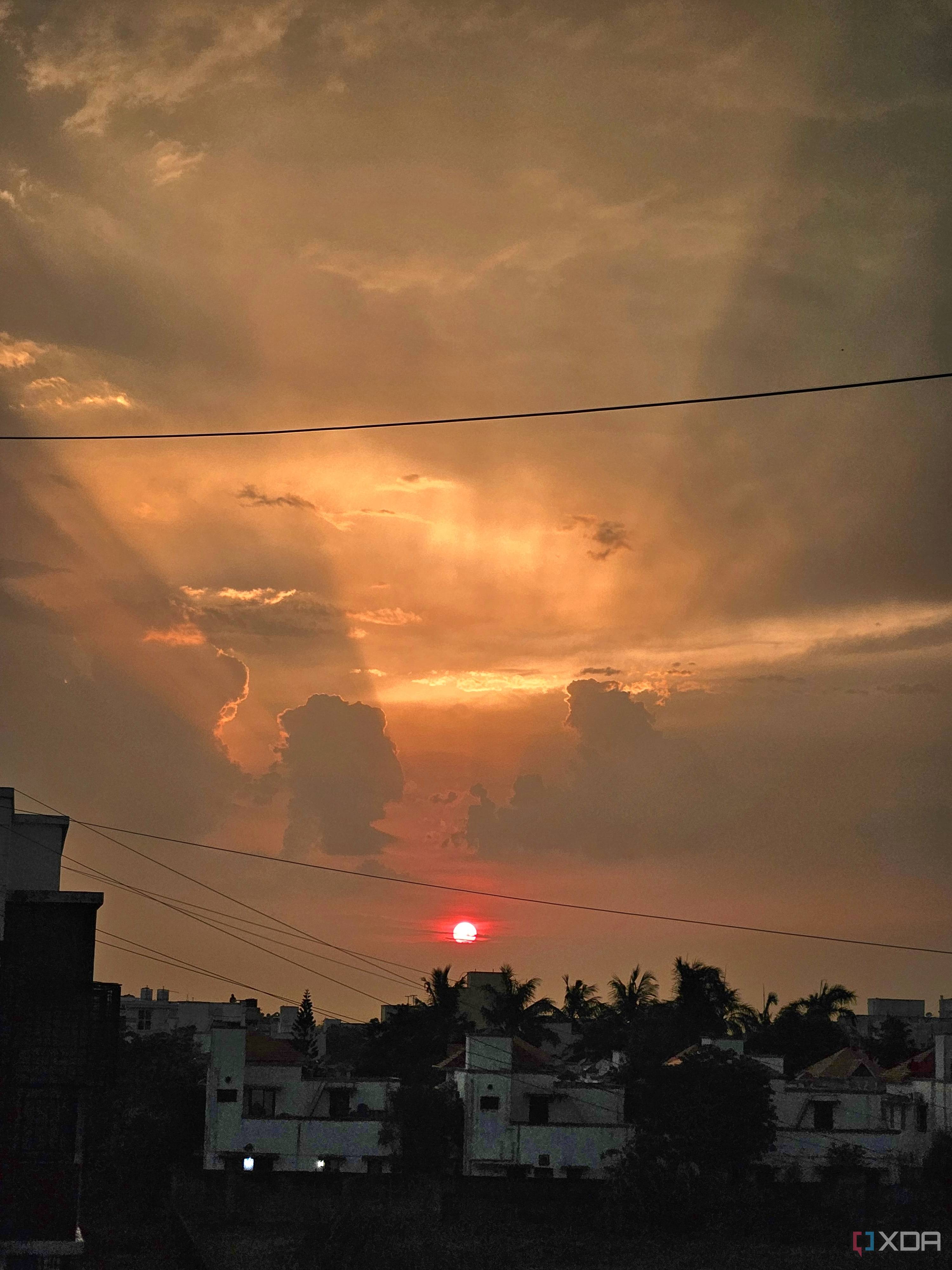
Enhanced 
Original 
Enhanced 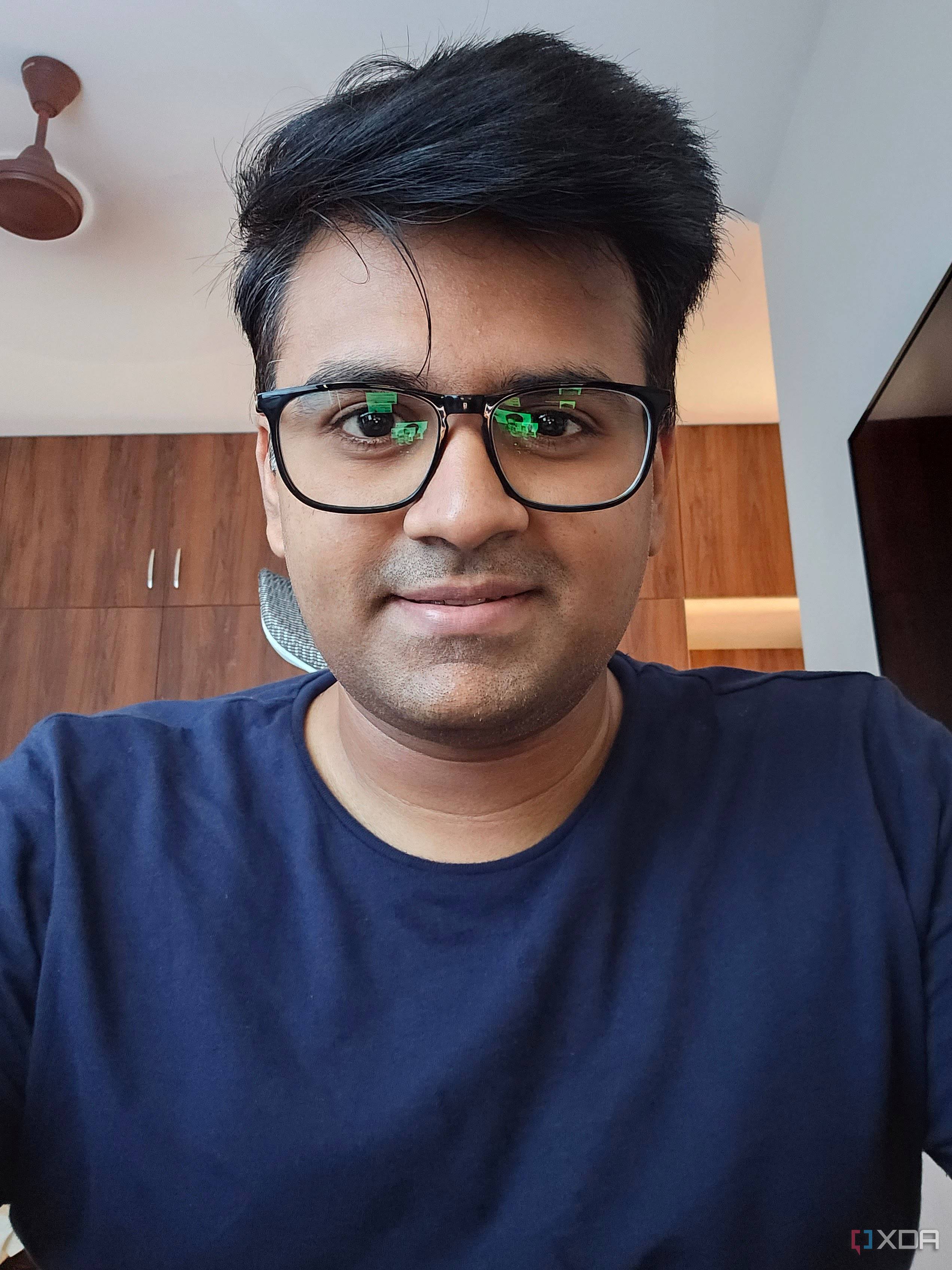
Original 
Enhanced








Final thoughts
Worth using for quick edits
Samsung's Galaxy Enhance-X app offers some good AI-powered tools to simplify the editing process. I wouldn't pick this as my primary image editing app as it lacks a lot of granular controls I often use, but it's going to stay on my phone as a solid alternative for when I want to simply retouch and fix minor imperfections in my images. The fact that I can tap a single button to get a much-better Instagram-worthy version of a simple stock image is impressive, to say the least. Using the other tools that are built into the app is also fairly simple, and you can achieve the desired results in just a couple of minutes.
The app also runs a lot smoother now compared to when it was released for the Galaxy S23 series in beta. In addition to wider availability, the Galaxy Exhance-X has also gained more features now that let you do things like applying a long exposure to images, cleaning up photos blurred because of fingerprint smudges on the camera lens, and removing noise from pictures to increase their quality.
