


Once you've finished building your first custom PC, you might have jumped straight into installing a few games and enjoying the device you put together. We've all done it, the excitement of the moment is hard to ignore, but there's one thing you really should enable before firing up the latest games. That's XMP, a sort of overclock for your RAM modules that lets you achieve the speed and latency numbers advertised by your RAM kit. On AMD systems, this might be called DOCP or EXPO, but it's the same general idea, a one-click improvement to the performance of your PC.
This one BIOS setting will give you more performance
Whether it's called XMP, DOCP, or EXPO, make sure it's enabled


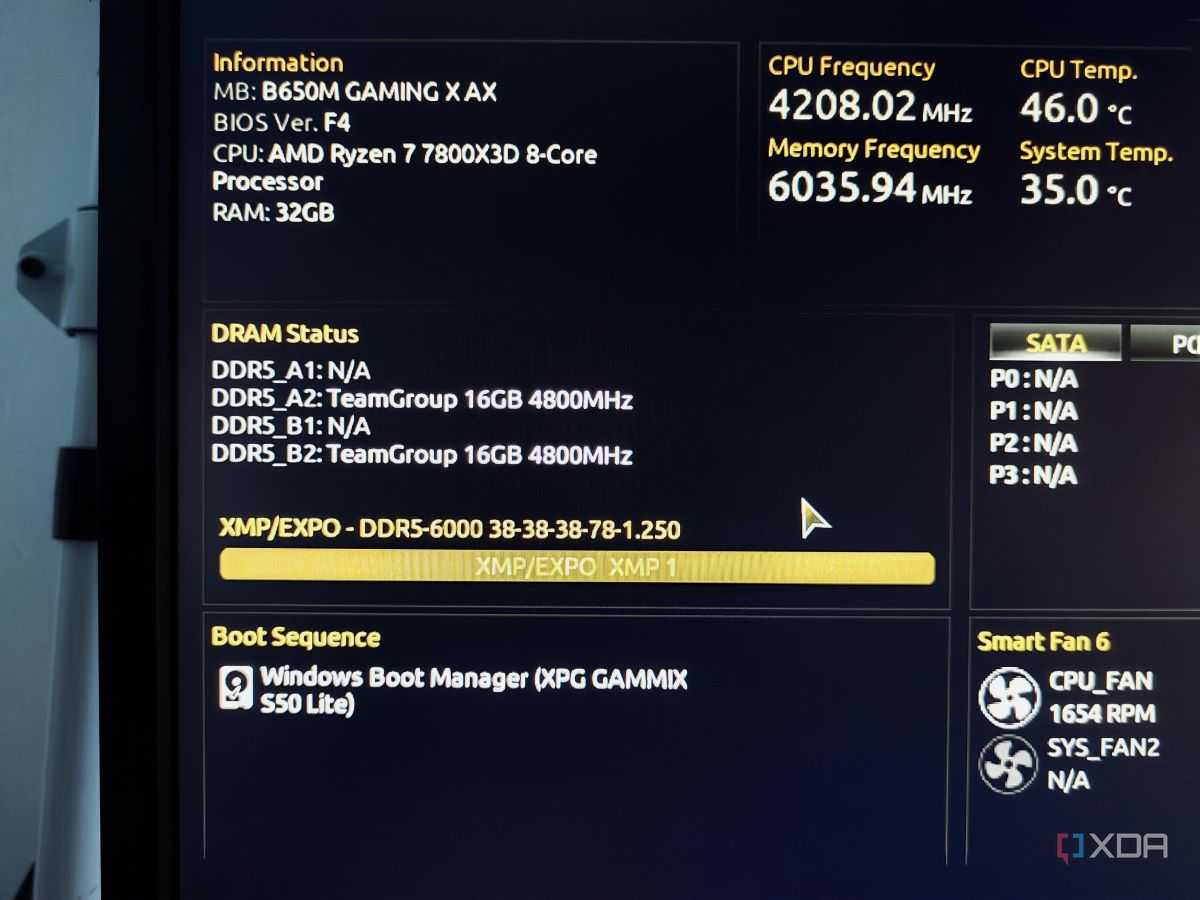
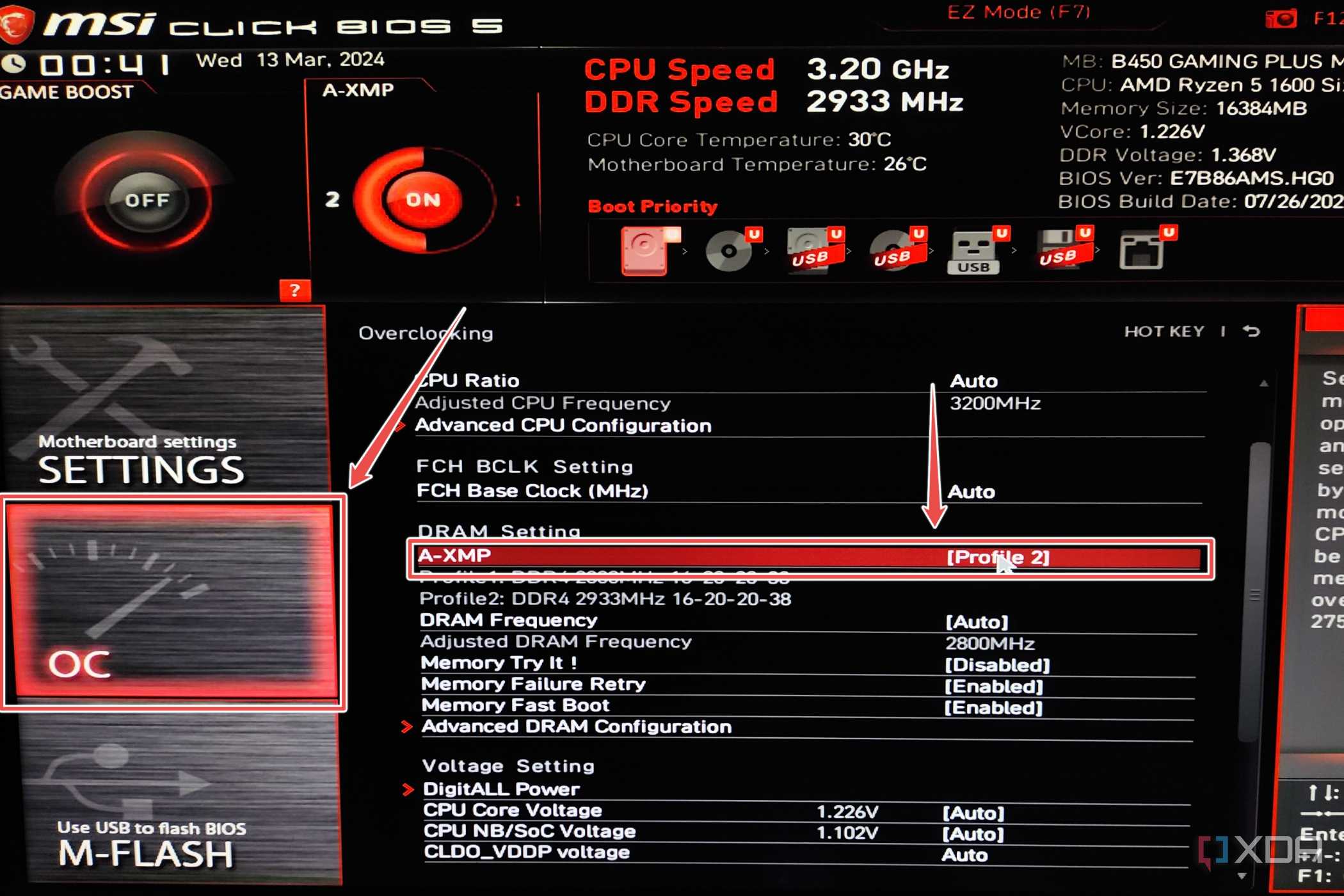
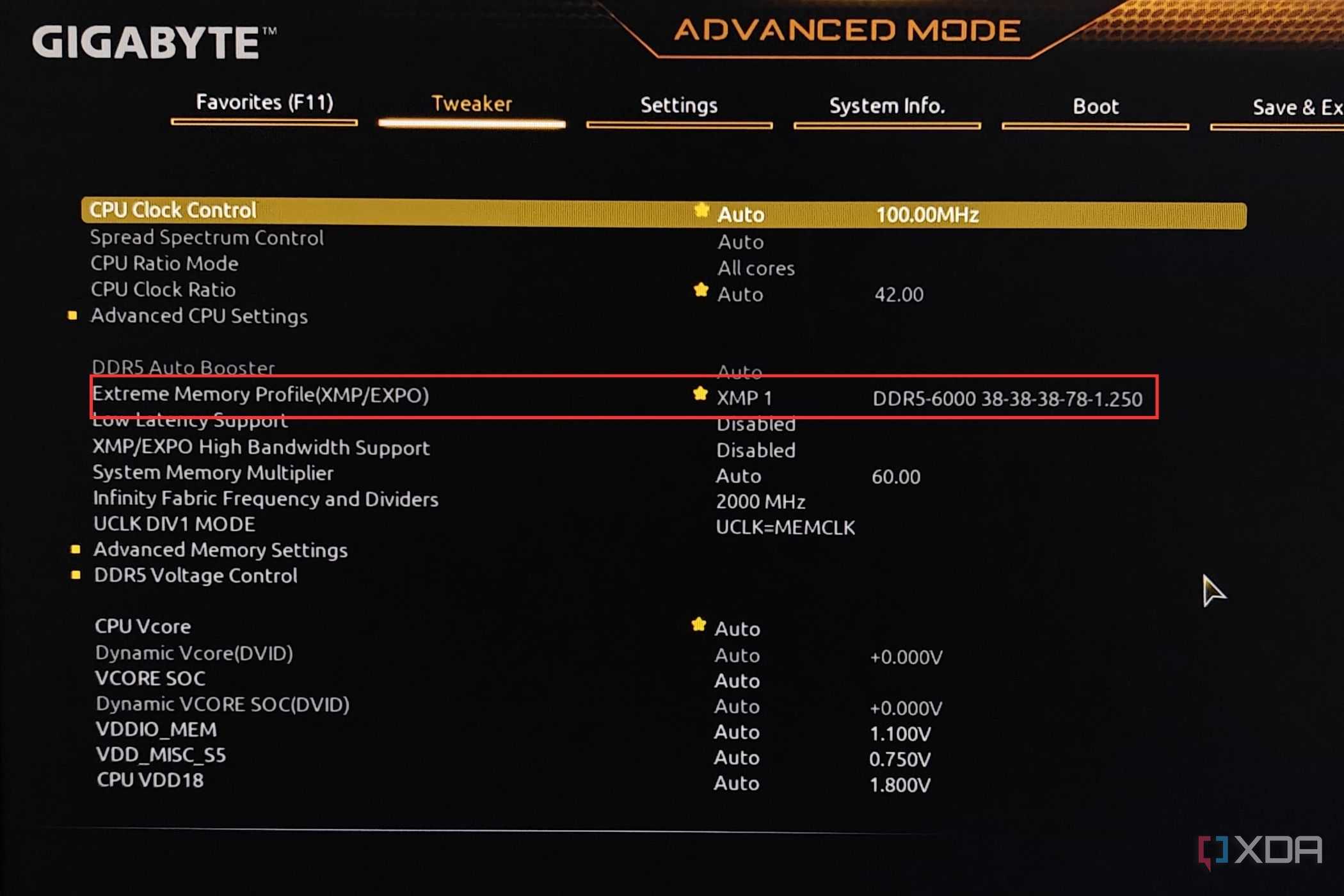
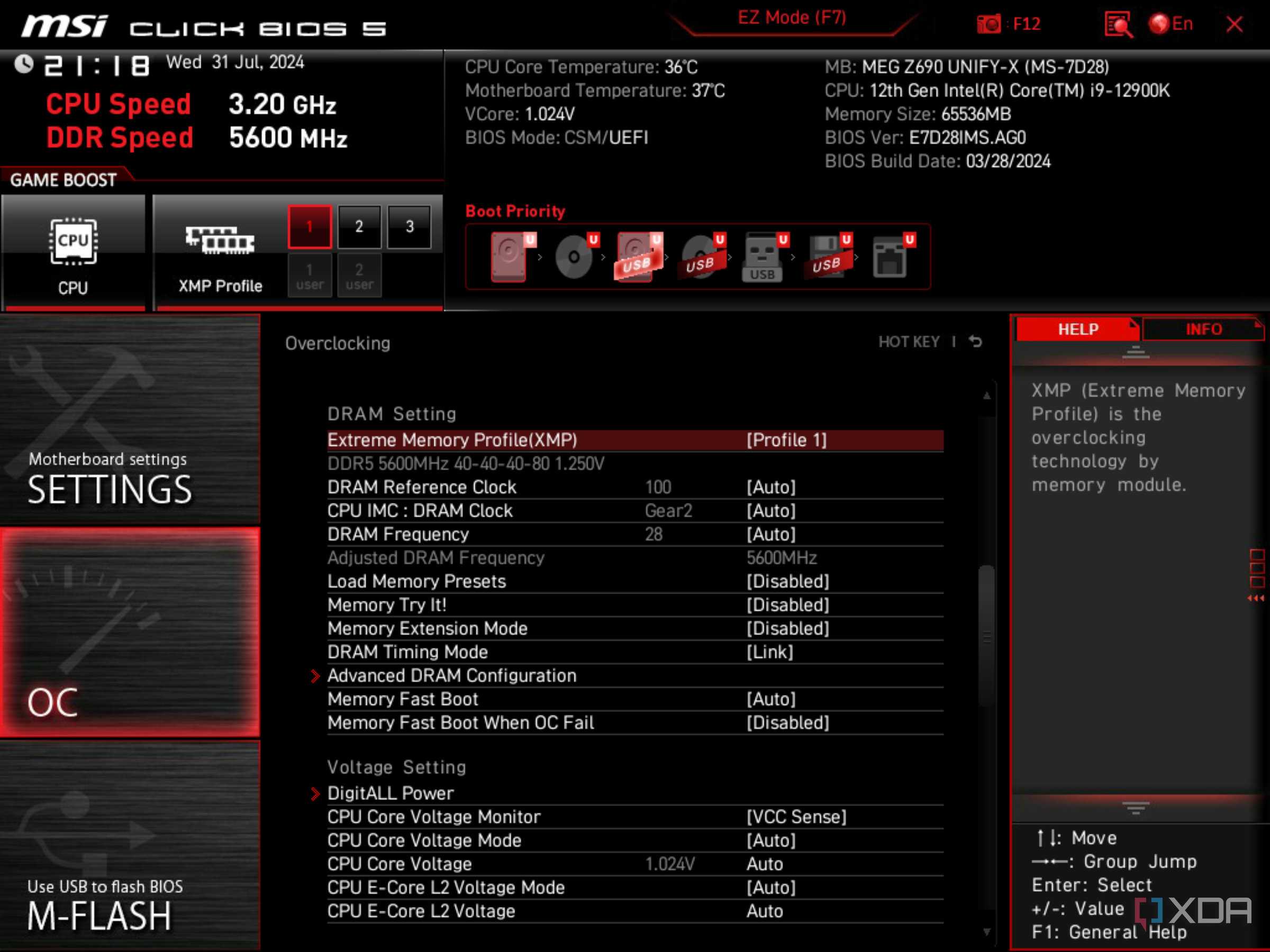
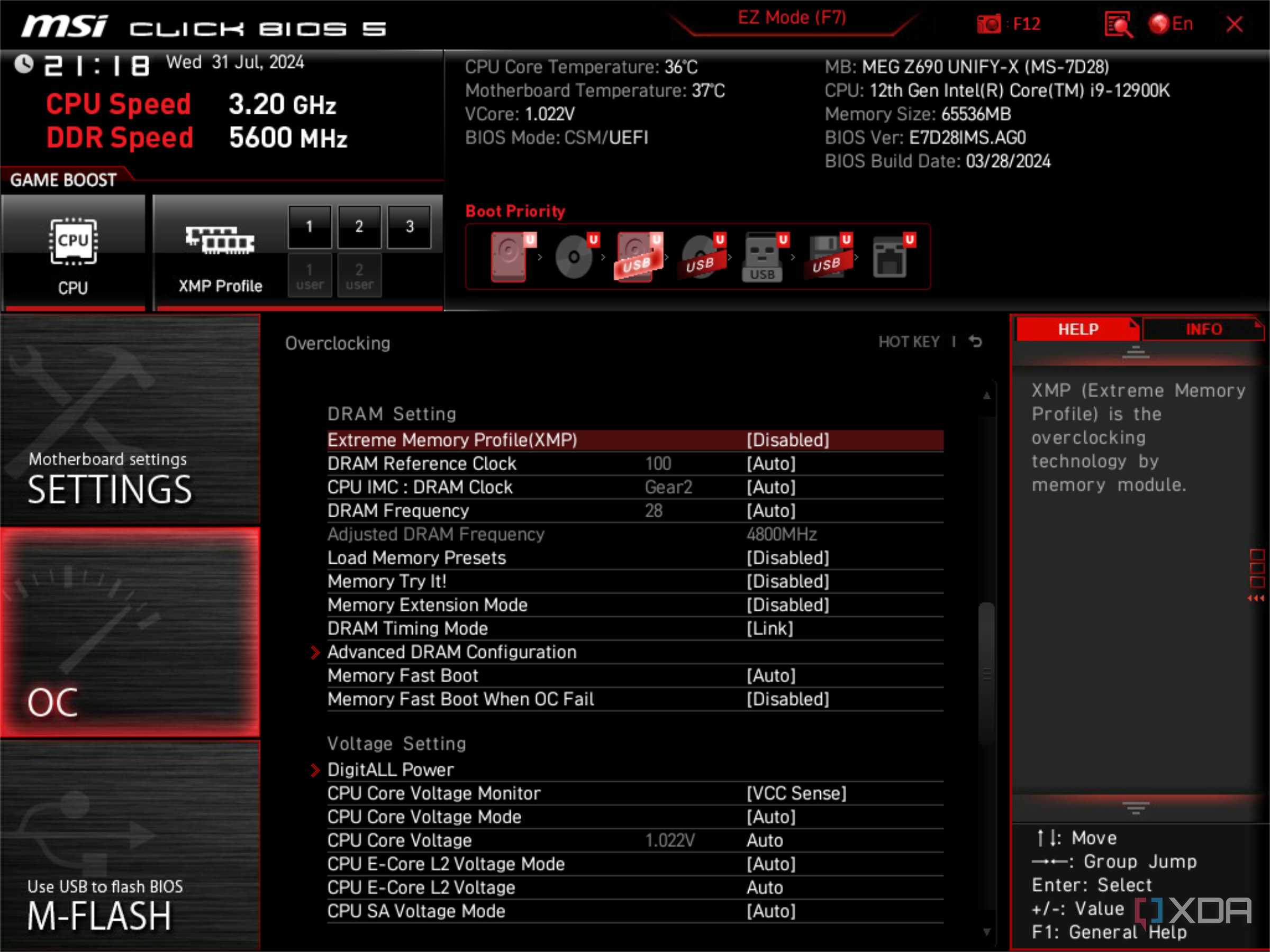
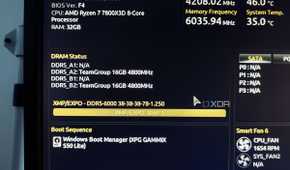
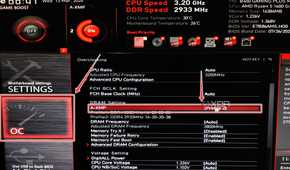
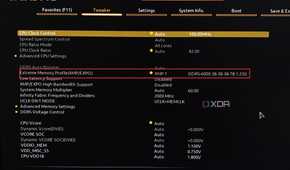
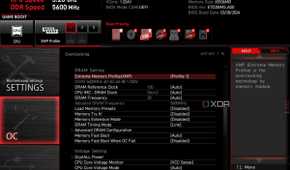
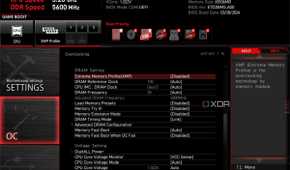
Whether your PC uses DDR3, DDR4, or DDR5, they all support the same set of optimized overclocked speeds known as XMP (or DOCP or EXPO on AMD platforms). This one-click setting can substantially improve the performance of your computer, and it's highly advised to set it before doing anything else with your new PC.
Here's where you can find the XMP or EXPO settings on each motherboard manufacturer's BIOS.
- MSI: You'll find XMP on the OC menu under DRAM Setting, or it may be called A-XMP
- ASUS: Extreme Tweaker is what you want to look for, and a setting for AI Overclocking
- ASRock: Look for the OC Tweaker menu, which will have an entry for XMP or EXPO
- Gigabyte: Look for the Tweaker menu, which will have an entry for Extreme Memory Profile
When you first access these settings, they will all say Auto as the default. To enable XMP or EXPO, change them to Profile 1, setting the speeds and timings to the ones your RAM was sold at. If, after rebooting, you find your PC won't boot or seems not to be running properly, go back into the BIOS and try Profile 2, or dial the DRAM frequency down a band or two.
Why you should enable XMP
BIOS defaults give you slower speeds


 Credit: Source: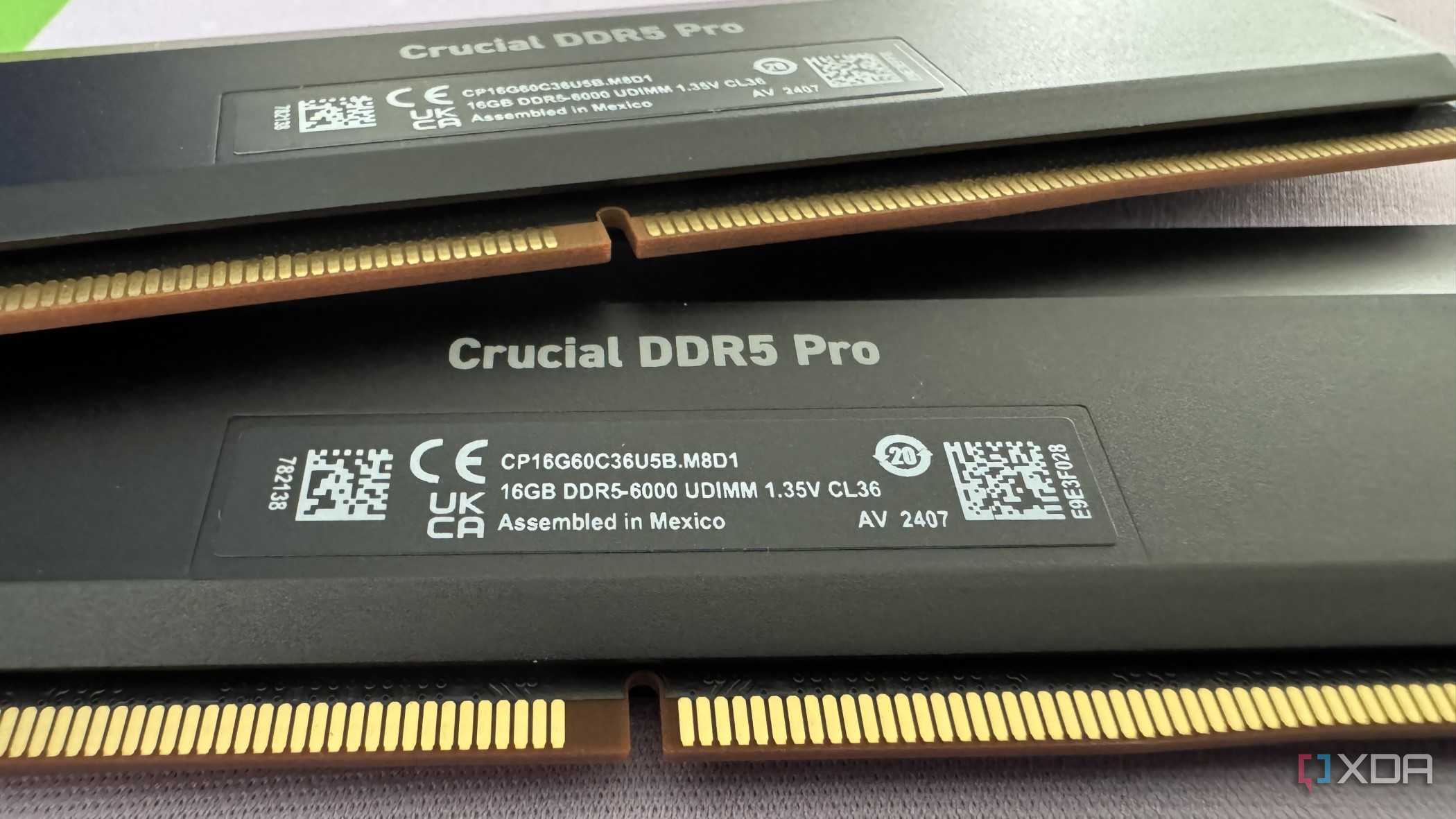
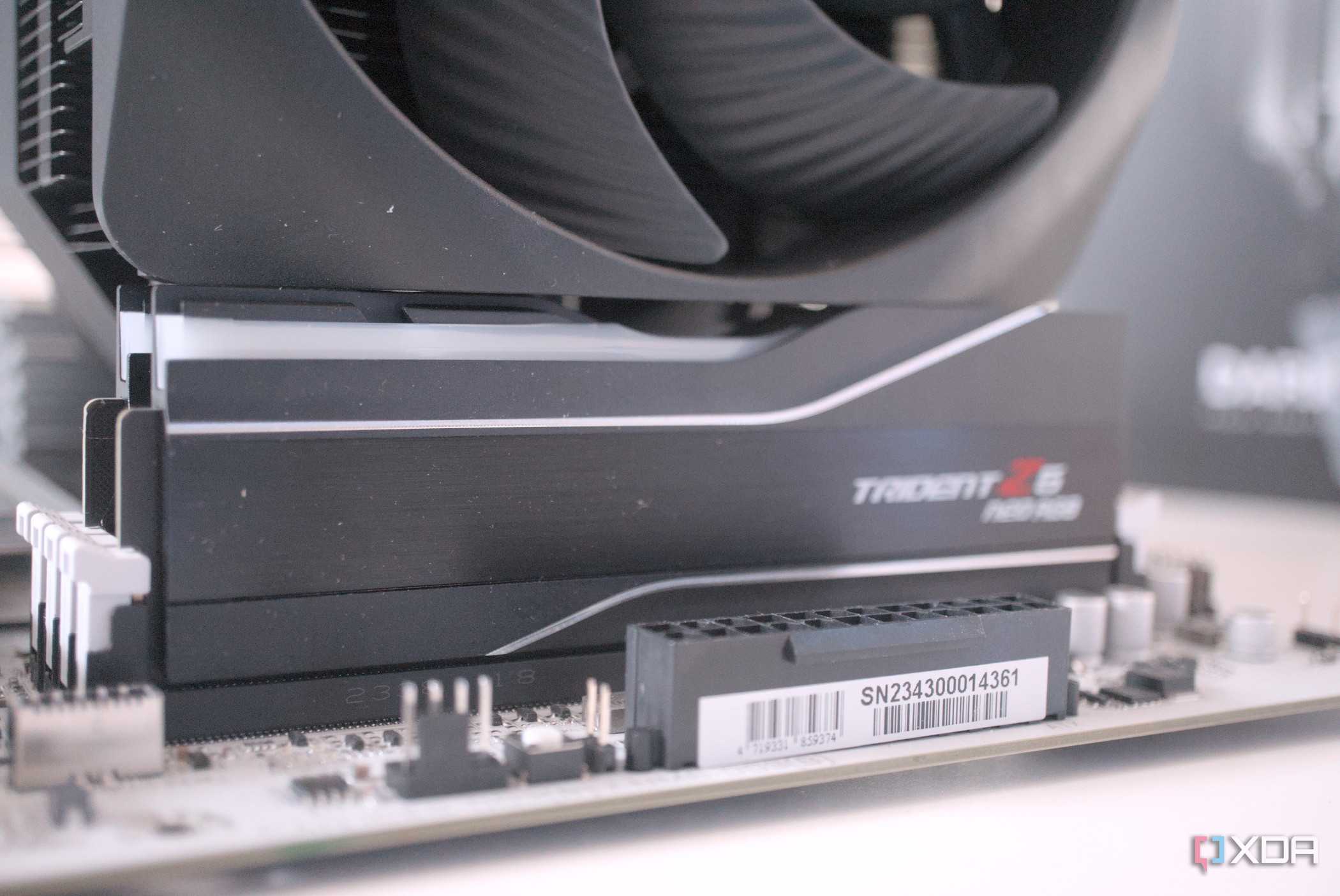

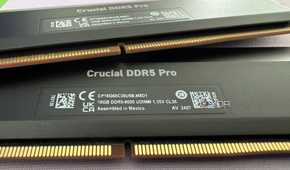
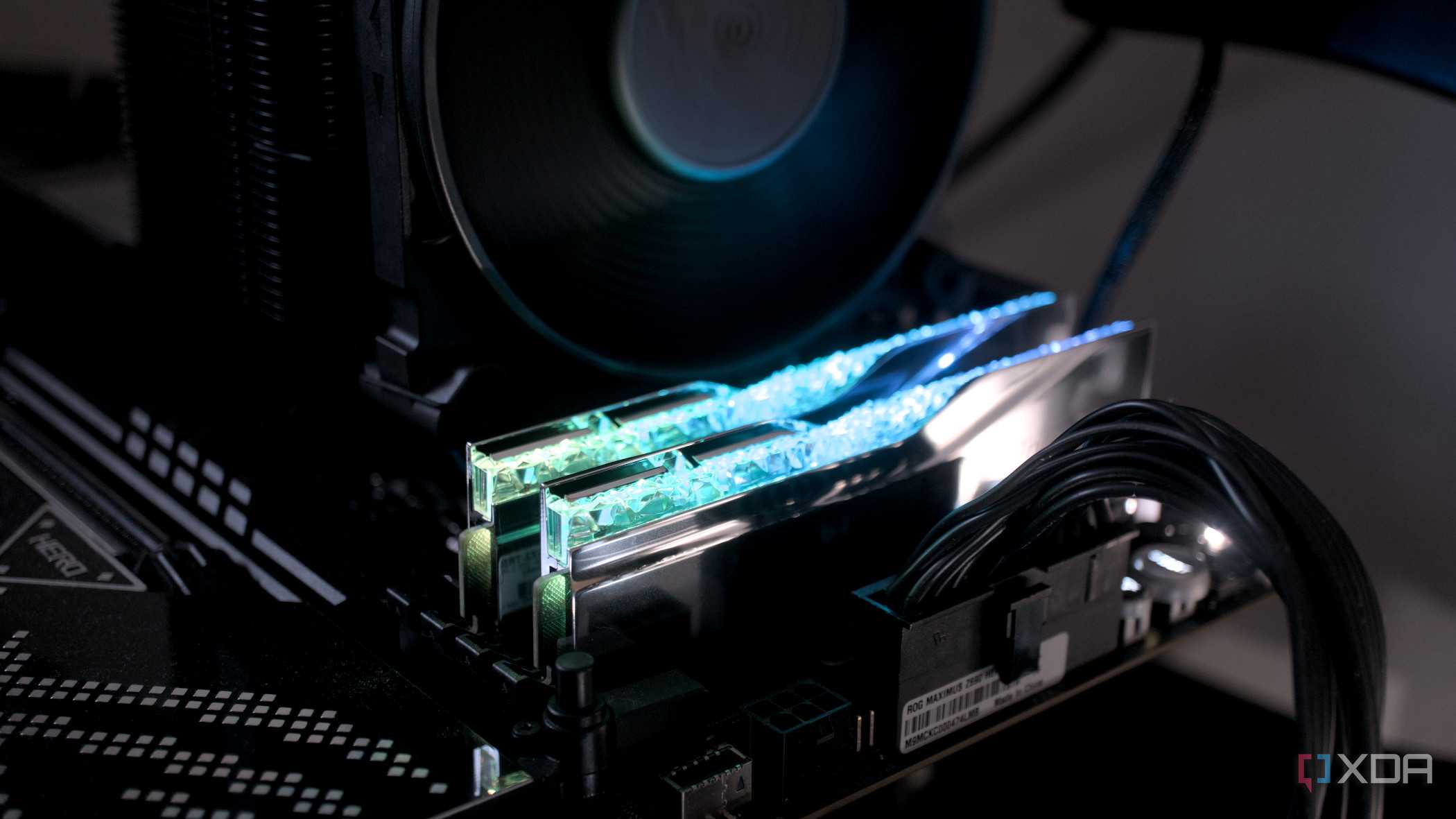
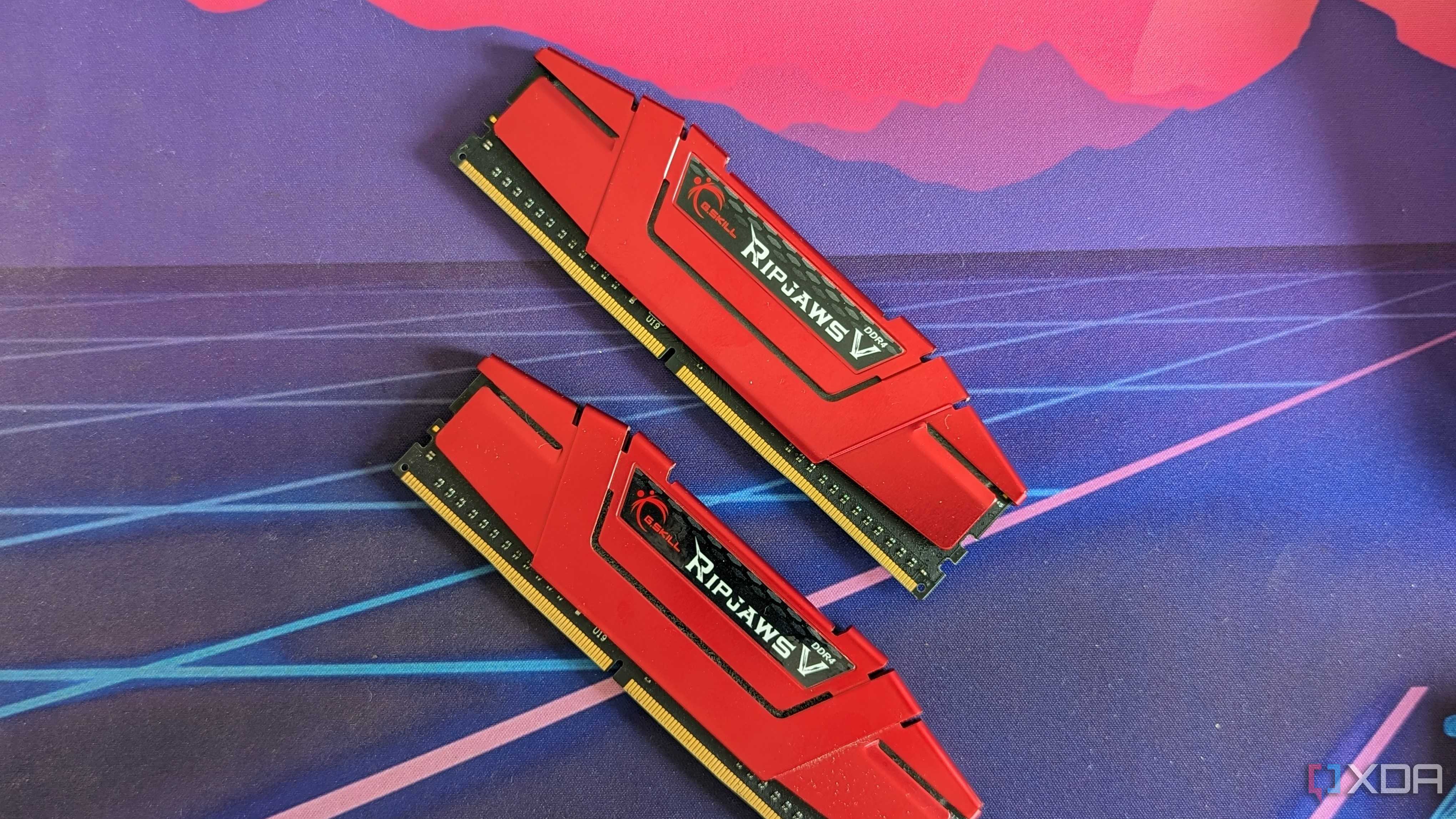
The default settings on any motherboard BIOS are set up so that the first boot goes as smoothly as possible. That's important, as it lets you know if you put your components together correctly or if any of them might be faulty. But, while they're optimized for that task, these default settings are not ones that should be used for daily use or peak performance. The default JEDEC profiles for RAM are pretty conservative and easily surpassed by the speeds supported by most motherboard and CPU combinations. Without enabling XMP or the AMD alternatives of DOCP or EXPO, you're not using the hardware you bought to its full potential, and that's a shame.
Now, there might be some situations where you don't want to enable XMP. Some tasks are sensitive to RAM overclocks, and setting slower speeds will allow these tasks to run with more stability. Since the XMP settings on some RAM kits might be higher than the CPU officially supports, it's technically overclocking and could make your system less stable. Gaming is one area that can show RAM instabilities, especially in games like Battlefield 2042, the Call of Duty series, Fortnite, or any titles using Unreal Engine. Or if you're trying to run four modules of DDR5 on either an AM5 motherboard or a Z790 one, you might have to dial down the speeds from the XMP settings to get them to run reliably. Modern CPUs are better at supporting faster RAM when only two modules are installed, as four puts a bigger strain on the integrated memory controller.
Now you know why XMP or EXPO are essential to your PC's performance
While XMP and EXPO are technically overclocking, they are safely using the settings that the manufacturer has designed those RAM modules to run on. Enabling them gives you a performance boost with very little effort. If you find stability is an issue, especially if running four modules, dial the frequency down a band or two and see if that improves things. And if you want the highest possible speeds, look for the best gaming RAM and pair it with a high-end motherboard to have the best chance of success.
