


Microsoft Excel comes with a bunch of collaboration tools so that you can share your workbook data and streamline communication. That said, before you hit the Share button and send your Excel workbook to team members, take a few moments to review your workbook thoroughly. Taking a moment for a second review is useful for identifying mistakes, safeguarding sensitive data, and preventing any potential misunderstandings or frustrating situations.
This guide will cover a crucial checklist to help you make certain that your Excel workbook is not only ready to share but also designed to impress.
10 Clean up the workbook for better readability

Presentation and formatting play a major role in simplifying your workbook. First, make sure your fonts, colors, and number formats are consistent throughout the workbook. You should also use descriptive headers and labels for columns and rows.
Overall, you need to maintain a professional and easy-to-understand presentation. Remember to proofread your workbook for typos and mistakes that can quickly damage your credibility. You may even want to run a Spell Check (F7).
9 Double-check formulas and embedded links

Once your Excel workbook is sorted with a cleaner look, ensure that your formulas are set up correctly. You can spot incorrect cell references or rely on built-in tools to find calculation issues.
It's important to check the embedded links to confirm they lead to the correct destinations. Additionally, if you have applied conditional formatting, make sure that the rules function as intended. Ultimately, you don't want your recipients to be puzzled or find inconsistencies when they look over your Excel file.
8 Test all macros & VBA code

Does your Excel workbook contain macros or VBA (Visual Basic for Applications)? Macros let you automate tasks, while VBA adds custom functionality to your Excel sheet. You need to double-check both to ensure they function correctly and avoid errors, unexpected results, or crashes.
This step is also critical when you use macros from other sources. They can often contain malicious code and even harm the recipient’s computer or data. You can also use Excel's built-in VBA editor and debugging tools to go through the code, identify errors, and fix them.
7 Add clear instructions and comments

This is another essential step you need to follow before sharing your Excel workbook with others. After all, not everyone is a power Excel user, and some beginners may find it difficult to navigate the workbook with filters, pivot charts, interactive dashboards, and tables. You can add relevant instructions and comments throughout the workbook for seamless communication.
6 Check collaboration settings
Microsoft Excel comes with a couple of permissions for collaboration. You can either give view-only permission or let the recipients edit the workbook simultaneously. Here’s how.
- Open an Excel sheet you want to share.
-
Click Share in the top right corner and select the same.

-
Enter the recipient’s email address, click the pen icon, and select Can view or Can edit.


The default permission is set for editing. So, if you don’t want others to edit (disrupt) the file accidentally, share the workbook with view-only permission.
5 Protect your Excel workbook with a password
Do you plan to share a confidential Excel workbook with others? Whether it’s sales projections, marketing expenses, quarterly results, or other sensitive data, you need a way to keep prying eyes away from your workbook. Thankfully, Microsoft offers a couple of ways to protect your Excel sheet with a password.
- Open a file in Microsoft Excel. Click File in the top-right corner and open the Info menu.
- Select Protect Workbook.
-
Select Encrypt with Password.

-
Enter password. Repeat the same.
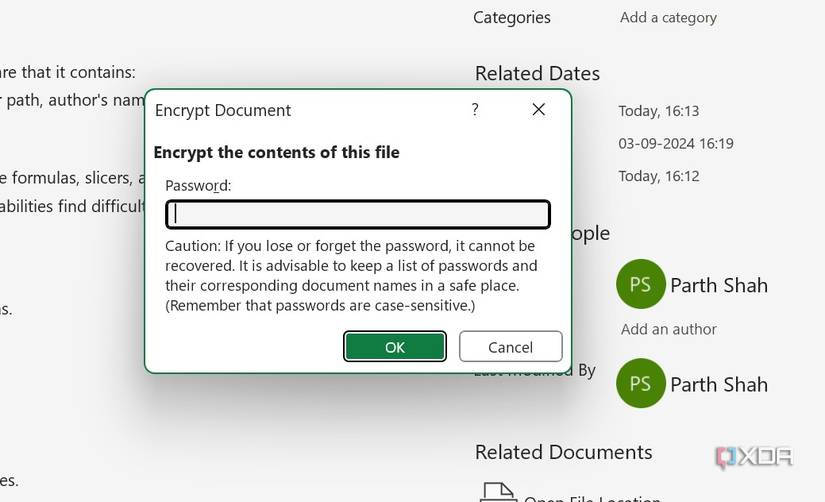


You can now share your Excel sheet with peace of mind. The recipient needs to enter the password to authenticate their identity. You also definitely need to note down the encryption password somewhere safe. There is no way to ever retrieve your workbook if you lose or forget the password.
If you plan to share your Excel workbook via a OneDrive link, here’s how you can password-protect the generated link.
-
Open an Excel workbook, click Share at the top, and select Link to this Sheet.

-
Select Anyone with the link can edit.

-
Set the password and click Apply.


Now copy and share your Excel file over email, Slack, or Teams.
4 Add an expiry link via OneDrive
You can also add an expiry link to your shared Excel file. As the name suggests, OneDrive deactivates the shared link and makes it invalid after a set time.
- Generate a shared link for your Excel sheet (check the steps above).
-
Select Anyone with the link can edit.
-
Set an expiration date. Copy and share your link with others.
3 Provide a table of contents or summary sheet

Navigating large, complex workbooks can be challenging and overwhelming. You can insert a table of contents or a summary sheet as a roadmap to guide your recipients throught the relevant information quickly and efficiently.
Adding a summary sheet is quite essential when you plan to share an Excel file as a template. You can write down instructions on how to copy, edit, and use the template. You can also transform the summary sheet with key findings, charts, or tables from several worksheets to offer a quick overview of the most important information.
2 Optimize your Excel file for printing

Incorrect print settings can lead to cut-off tables or charts that look awkward. It can also display misaligned columns and rows, or eliminate headers and footers, or other omissions from the printed document. You can simply press the Ctrl + P keys to take a look and ensure the content fits perfectly.
1 Create a local backup of your Excel workbook

Whenever I’m dealing with confidential worksheets, I make sure to save a copy on my computer. This ensures that I can always access the original workbook, even if the shared file becomes corrupted, deleted, or unintentionally modified. For private Excel sheets, I save a second copy under my Private Vault in OneDrive.
Prepare your Excel workbook for sharing
Sharing your Excel workbook isn’t rocket science. However, by following the pre-share checklist, you can ensure your data is accurate, user-friendly, protected from prying eyes, and that your recipients will be impressed. The next time you want to share your workbook, keep these pointers in mind to make collaboration a breeze.
With hundreds of built-in Excel templates, there's no need to waste hours creating a workbook from scratch. Here are the top time-saving Excel templates that every business needs.
